How to Fix Control Resonant Crash on Launch on Steam (2026 Guide)
There is nothing quite as annoying as buying a highly anticipated game, hitting Play in Steam, and watching it disappear before you even get to the main menu. That is exactly what some PC players are running into with Control Resonant.
Remedy’s latest trip into its strange, supernatural version of Manhattan is packed with the kind of atmosphere and reality-bending action that makes you want to play for hours. Dylan Faden is back, the world is once again doing things that worlds absolutely should not do, and the presentation can look spectacular when everything is behaving itself.
The problem? For some PC configurations, the game apparently does not even want to get that far.
Players have reported crashes immediately after pressing Play, black screens following the developer logos, freezes during startup, sudden desktop crashes, and DirectX-related fatal errors. If your experience currently consists of clicking the Steam button, waiting a few seconds, and then staring at your desktop, there is a good chance one of the fixes below will get you moving.
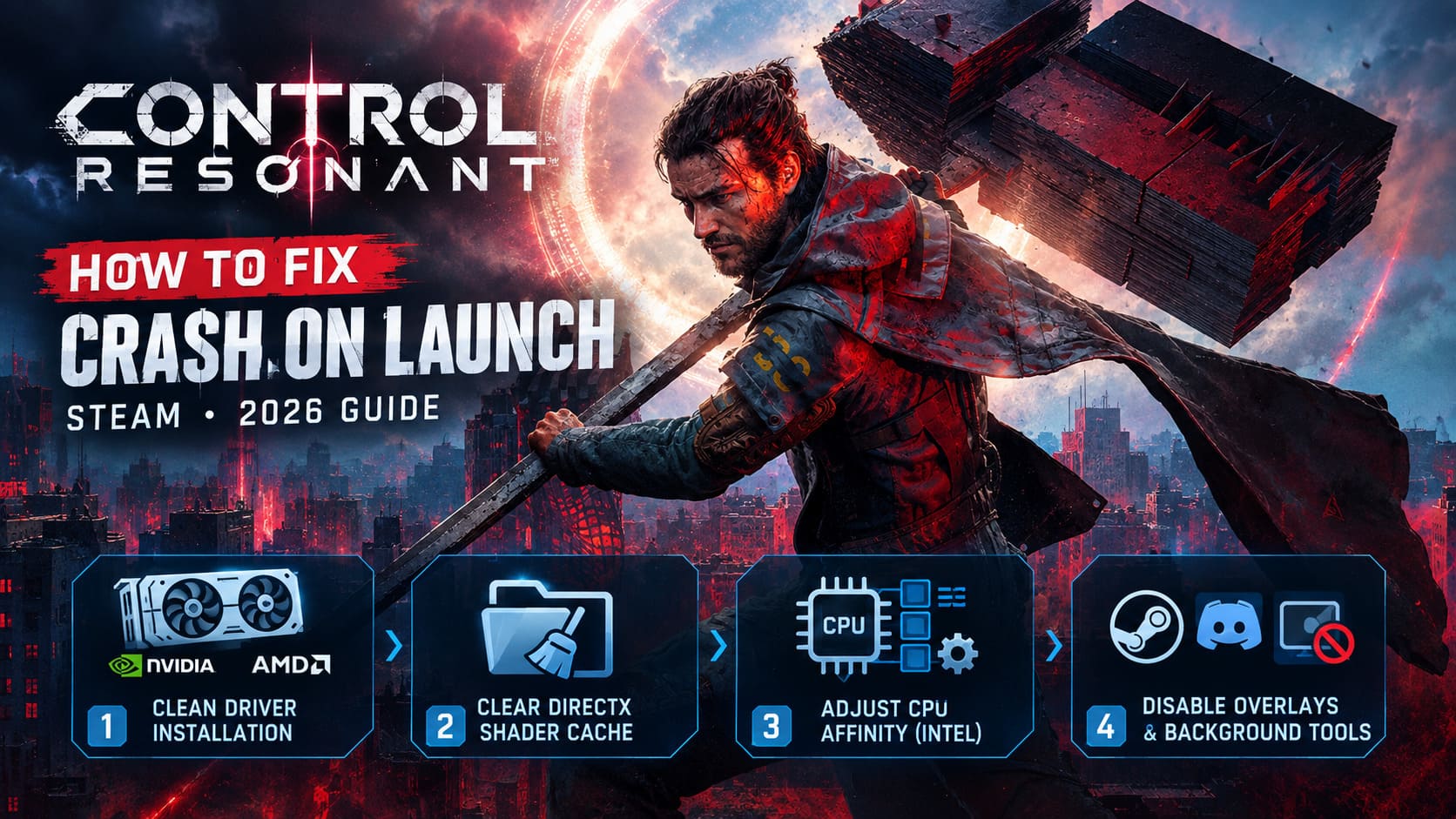
Control Resonant PC Crash Fixes at a Glance
| Fix | What It Targets | Difficulty |
|---|---|---|
| Verify Steam Files | Corrupted or missing game data | Easy |
Delete render.ini | Broken graphics configuration | Easy |
| Force DX11 | DX12 startup instability | Easy |
| Clean Install GPU Drivers | Driver conflicts | Medium |
| Clear Shader Cache | Corrupted compiled shaders | Easy |
| Adjust CPU Affinity | Intel hybrid CPU conflicts | Advanced |
| Disable Overlays | Software injection and hooking | Easy |
The fixes are arranged roughly from least invasive to more advanced, so you can work through them without turning your Windows installation into a science experiment.
1. Verify Control Resonant’s Steam Files
This is the boring fix. It is also one of the first things I would try.
Large modern games are enormous collections of assets, shaders, configuration files, executable components, and compressed data. If something goes wrong during installation or an individual file becomes corrupted, the game can fail before it has a chance to explain what went wrong.
Steam’s verification tool is therefore your first line of defense.
How to verify the installation
- Open Steam and go to your Library.
- Right-click CONTROL Resonant.
- Select Properties.
- Open Installed Files.
- Select Verify integrity of game files.
- Wait for Steam to finish scanning the installation.
- If damaged or missing files are discovered, allow Steam to download replacements.
Once the process is finished, restart Windows and launch the game again.
Don’t skip the restart just because Steam says the verification is complete. A reboot takes a minute, and it eliminates a surprising number of weird temporary problems.
2. Delete the render.ini File
This is one of the fixes I would pay particular attention to if Control Resonant reaches a black screen and then crashes.
The game’s rendering configuration can contain settings related to your display resolution, refresh rate, graphics hardware, and other visual parameters. If something in that configuration becomes invalid or conflicts with your current setup, the game can get stuck before the actual gameplay begins.
The nice part is that you don’t have to permanently lose the configuration. Deleting the file simply gives the game a chance to create a fresh one.
Reset the graphics configuration
Navigate to your Control Resonant installation folder. A typical Steam installation looks like this:
C:\Program Files (x86)\Steam\steamapps\common\Control Resonant\
Find:
render.ini
You can either delete it or move it somewhere safe, such as your desktop, if you want a backup.
Now launch Control Resonant again through Steam.
The game should generate a new configuration file using its default graphics settings. If the old configuration was responsible for the startup crash, this can break the loop immediately.
Pro tip: If you recently changed monitors, switched from a standard display to an ultrawide, changed refresh rates, or moved from one GPU to another, this fix becomes particularly worth trying.
3. Force DirectX 11 Instead of DirectX 12
Here’s where things get more interesting.
Control Resonant is designed around modern rendering technology, and DirectX 12 is obviously a major part of that experience. Unfortunately, newer does not automatically mean more stable on every combination of hardware and drivers.
If the game crashes specifically while initializing its renderer, forcing DirectX 11 is a useful troubleshooting step.
Enable DX11 through Steam
- Open your Steam Library.
- Right-click CONTROL Resonant.
- Select Properties.
- Stay on the General tab.
- Find the Launch Options field.
- Enter:
-dx11 - Close the Properties window.
- Start the game.
If the game suddenly launches normally, you’ve learned something important: the crash is likely connected to the DX12 rendering path or its interaction with your system.
There is a trade-off here. Depending on the game’s implementation, running in DX11 can mean losing access to some modern graphics features, including certain ray-tracing-related functionality and advanced reconstruction options.
Still, I’d take a stable game over a fancy renderer that crashes before the title screen any day.
4. Perform a Clean GPU Driver Installation
If you have a newer graphics card, particularly a high-end NVIDIA RTX 50-series GPU or a comparable modern AMD card, don’t automatically assume that having “the latest driver” means everything is clean.
Graphics drivers are complicated beasts. Updating one does not necessarily mean every old component, configuration entry, or profile has disappeared.
A corrupted or conflicting driver installation can cause everything from graphical glitches to black screens and instant crashes.
What to do
First, download the newest driver directly from the official NVIDIA or AMD website for your graphics card.
For NVIDIA users, choose the custom installation option if available and select the option for a clean installation.
If a normal clean installation doesn’t help, advanced users can go one step further with Display Driver Uninstaller (DDU). DDU can remove existing display-driver components much more aggressively and is commonly used when a standard driver update fails to solve persistent graphics problems.
The general process is:
- Download the current GPU driver.
- Boot Windows into Safe Mode.
- Run DDU and remove the existing display driver.
- Restart Windows.
- Install the freshly downloaded driver.
- Reboot once more.
- Test Control Resonant.
I would not jump straight to DDU for every crash. It is a powerful troubleshooting tool, but the simpler driver reinstall should come first.
5. Clear the DirectX Shader Cache
Shader compilation is one of those behind-the-scenes processes that PC gamers rarely think about until something goes horribly wrong.
Modern games can create and store large amounts of shader data. If that cache becomes corrupted, the game may fail while trying to compile or load the data required for its renderer.
Fortunately, Windows gives you a straightforward way to clean it.
Clear the cache with Disk Cleanup
- Press the Windows key.
- Search for Disk Cleanup.
- Open the utility.
- Select your Windows system drive, usually C:.
- Let Windows calculate the files that can be removed.
- Find DirectX Shader Cache in the list.
- Check that option.
- Leave other categories unchecked if you don’t want to remove them.
- Click OK.
- Confirm the deletion.
Afterward, launch Control Resonant again.
The first startup may behave differently because the game and Windows need to rebuild shader data. Don’t immediately assume something has gone wrong just because the initial loading process takes longer than usual.
6. Try a CPU Affinity Adjustment on Intel Hybrid CPUs
This is the fix I’d save for players who are still fighting the crash after going through the basics.
Modern Intel desktop CPUs use hybrid architectures containing Performance cores (P-cores) and Efficiency cores (E-cores). Most games handle this architecture perfectly well, but certain engines and specific hardware/software combinations can still produce strange scheduling behavior.
If Control Resonant is crashing during heavy initialization on an Intel hybrid CPU, testing the game with fewer cores assigned can help determine whether CPU scheduling is involved.
Temporarily change the game’s CPU affinity
- Launch Control Resonant.
- Press Alt + Tab or Ctrl + Shift + Esc to open Task Manager.
- Select the Details section.
- Find the game’s executable, such as
Control_DX12.exeorControl.exe. - Right-click it.
- Select Set Affinity.
- Temporarily disable the suspected E-cores.
- Leave your Performance Cores enabled.
- Click OK and return to the game.
The exact core numbering will depend on your processor, so don’t blindly assume that every Intel CPU maps its cores identically. The important point is to test whether restricting the game’s CPU access changes the behavior.
If the game becomes stable after this adjustment, you’ve found a valuable clue rather than simply applying a random tweak.
7. Disable Steam, Discord and GPU Overlays
Overlays are convenient, but they are also another layer of software sitting between your game and the operating system.
Steam’s overlay, Discord’s overlay, NVIDIA or AMD recording features, hardware-monitoring tools, and performance overlays can all interact with a game’s rendering pipeline.
When troubleshooting a launch crash, I want as few variables as possible.
Temporarily disable or close:
- Steam Overlay for Control Resonant.
- Discord Game Overlay.
- NVIDIA or AMD in-game recording overlays.
- MSI Afterburner.
- RivaTuner Statistics Server (RTSS).
- EVGA Precision X1 or similar monitoring/overclocking utilities.
If you’re running a GPU overclock, undervolt, aggressive fan profile, or custom monitoring setup, return the hardware to stock settings while troubleshooting.
You can always re-enable your favorite overlay later.
Control Resonant Ending Explained: Meaning, Dylan’s Fate, and Remedy Connected Universe Future
What Should You Try First?
If I were sitting at my own PC with Control Resonant crashing before the menu, I wouldn’t randomly apply all seven fixes at once. That makes troubleshooting messy because you won’t know which change actually solved the problem.
I’d use this order:
- Verify Steam game files.
- Delete
render.ini. - Disable overlays and monitoring software.
- Clear the DirectX Shader Cache.
- Try
-dx11. - Clean-install the GPU driver.
- Investigate CPU affinity if you’re using an Intel hybrid CPU.
That sequence starts with low-risk fixes and gradually moves toward more involved troubleshooting.
Is Control Resonant Coming to Xbox and PS5? Release Date, Platforms, and Performance Analysis
Final Thoughts
A crash-on-launch problem is particularly frustrating because you aren’t even getting the opportunity to see whether the game itself is good. You’re stuck fighting Windows, Steam, drivers, shaders, and configuration files before Dylan Faden gets to do anything interesting.
The good news is that most startup crashes are not necessarily signs that your hardware is incapable of running the game. A corrupted file, broken configuration, shader cache issue, overlay conflict, or graphics-driver problem can be enough to kill the launch process.
Start with the boring stuff. Verify the files. Reset render.ini. Kill the overlays. Clear the shader cache. Then move toward DX11 testing, a clean GPU driver installation, and CPU affinity troubleshooting if the problem refuses to disappear.
And if -dx11 suddenly gets you from an instant crash to a playable game, don’t overthink it. Get into Manhattan, start playing, and worry about squeezing every last graphical feature out of the engine later.
A stable game running at slightly reduced visual settings beats a beautiful crash to desktop every single time.