Diablo 4 Micro Stuttering Fix 2026: PC Optimization Guide
Diablo 4 can run beautifully on a modern gaming PC, but that does not always mean it feels smooth. I have seen this game deliver excellent average FPS while still producing those annoying little hitches that you notice immediately when riding through a busy zone, entering a dungeon, or throwing a screen full of abilities into an Infernal Hordes wave.
That is the frustrating part about Diablo 4 micro stuttering. You can have a powerful CPU, a high-end NVIDIA or AMD GPU, fast NVMe storage, and plenty of RAM, yet the game can still feel inconsistent.
The good news is that average FPS is not the only thing worth fixing. Frame pacing, 1% lows, VRAM usage, shader behavior, background applications, and Windows memory management can all affect how Diablo 4 actually feels.
I would not recommend changing every Windows setting you find on Reddit at once. That makes troubleshooting almost impossible because you never know which change actually helped. Instead, work through the following fixes one by one and test Diablo 4 after each major adjustment.
Why Does Diablo 4 Stutter Even on a Powerful PC?
The first thing to understand is that stuttering does not automatically mean your hardware is too weak.
Diablo 4 constantly streams environments, characters, effects, textures, and other assets while you move around Sanctuary. This workload can create short frame-time spikes even when your GPU is nowhere near 100% usage.
There are several common reasons behind the problem:
| Possible Cause | What You May Notice |
|---|---|
| Asset Streaming | Short hitches while entering new areas |
| VRAM Pressure | Texture-related FPS drops and inconsistent 1% lows |
| Shader Compilation | Stutters when encountering new effects |
| RAM Usage | Performance gets worse during long sessions |
| Background Apps | Random CPU spikes and frame-time jumps |
| Unstable Frame Pacing | High average FPS but inconsistent movement |
Personally, frame pacing is the first thing I would investigate. Seeing 120 FPS on an overlay means very little if individual frames are arriving unevenly.
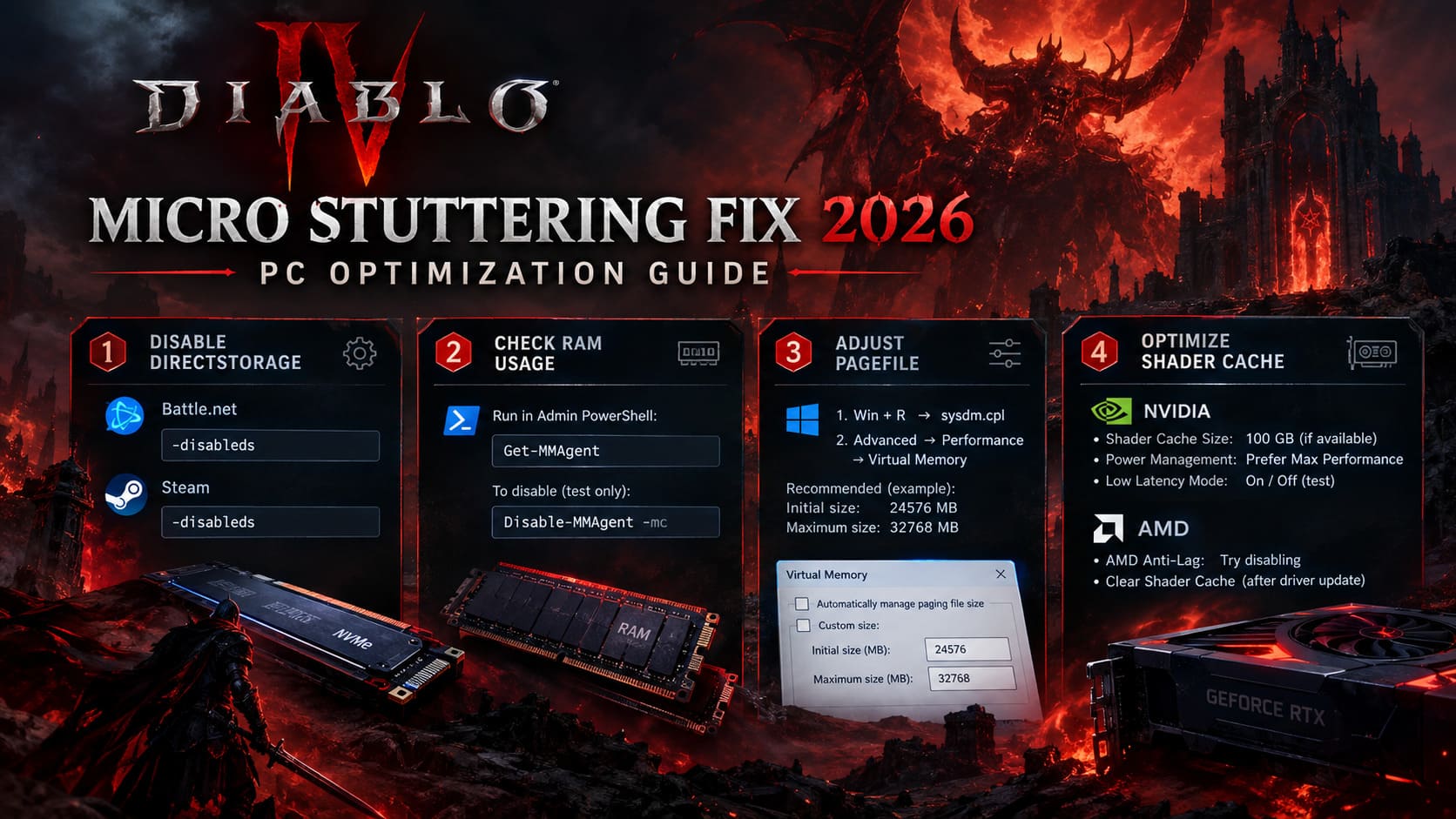
1. Test the DirectStorage Workaround
One of the more interesting fixes for Diablo 4 stuttering is disabling DirectStorage.
Diablo 4 uses modern storage technology to move game assets quickly from your drive into memory and GPU resources. In theory, this is exactly what you want. In practice, certain combinations of newer CPUs, GPUs, NVMe drives, and PCIe configurations can behave differently.
If your stuttering feels more like a sudden hitch than a traditional FPS drop, this is worth testing.
Battle.net
Open the Battle.net launcher, select Diablo 4, and open the settings menu next to the Play button.
Find Additional command line arguments and enter:
-disableds
Save the setting and launch the game.
Steam
On Steam, right-click Diablo 4 in your Library and select Properties.
Under the General tab, find Launch Options and enter:
-disableds
Then launch the game normally.
I would treat this as a test rather than a universal recommendation. If your frame pacing becomes noticeably better, keep it. If nothing changes, simply remove the argument and move on.
2. Watch Diablo 4’s RAM Usage
Diablo 4 can become surprisingly hungry for system memory during long sessions. If you keep the game open for hours while browsing builds, watching videos, or using companion applications, memory pressure can gradually become more noticeable.
Windows also uses Memory Compression to keep more data available in physical RAM. Usually, this is helpful. However, if you are troubleshooting unusual stuttering, testing the game with Memory Compression disabled can tell you whether Windows memory handling is contributing to the problem.
Open PowerShell or Windows Terminal as Administrator and run:
Get-MMAgentLook for MemoryCompression.
If it shows True, you can test disabling it with:
Disable-MMAgent -mcRestart Windows afterward.
If you want to restore the default behavior later, use:
Enable-MMAgent -mcI would not blindly disable Windows memory features permanently just because a gaming guide says so. Test it first. If there is no measurable improvement in Diablo 4, restore the default configuration.
3. Make Sure Your Pagefile Is Not Bottlenecking the Game
A properly configured Windows pagefile can be useful when a game consumes large amounts of memory.
This becomes particularly relevant if Diablo 4 starts normally but gradually becomes less responsive during a long session.
To check your virtual memory settings, press Windows + R, enter:
sysdm.cpl
Open Advanced → Performance Settings → Advanced → Virtual Memory.
If you want to experiment with a manual configuration, select your fast SSD and use a custom range such as:
- Initial size: 24576 MB
- Maximum size: 32768 MB
Click Set, confirm the changes, and restart Windows.
There is no magic number here that will suddenly double your FPS. The point is to prevent an overly restrictive pagefile from becoming another variable during troubleshooting.
4. Give Your GPU Shader Cache More Room
This is one of the settings I would check early, especially after installing a new GPU driver.
Shader compilation can cause temporary frame-time spikes when Diablo 4 encounters effects or areas that have not been processed in the same way before. A healthy shader cache can reduce unnecessary recompilation.
NVIDIA users
Open NVIDIA Control Panel → Manage 3D Settings.
For Shader Cache Size, try a larger value such as 100 GB if the option is available.
You can also test:
Power Management Mode → Prefer Maximum Performance
For Low Latency Mode, the correct setting depends on how you are using frame generation. If you use NVIDIA Frame Generation in Diablo 4, test On. Without Frame Generation, Off may be preferable for your particular system.
The important word here is test. Driver settings can behave differently between hardware configurations.
AMD users
Open AMD Software and go to the gaming graphics settings.
If AMD Anti-Lag is enabled, try disabling it temporarily. Diablo 4 already has its own frame-pacing and latency behavior, and stacking multiple latency-related systems can sometimes produce unexpected results.
If the stuttering began immediately after a driver update, clearing the shader cache can also be worth trying.
5. Remove the High-Resolution Texture Pack if You Do Not Need It
This is one of my favorite easy optimizations for players who are not gaming at native 4K.
Diablo 4’s High-Resolution Assets can consume a substantial amount of storage and VRAM. If you are playing at 1080p or 1440p, there is not always a compelling reason to carry that additional texture load.
Through Battle.net, open Diablo 4’s installation settings and choose Modify Installation.
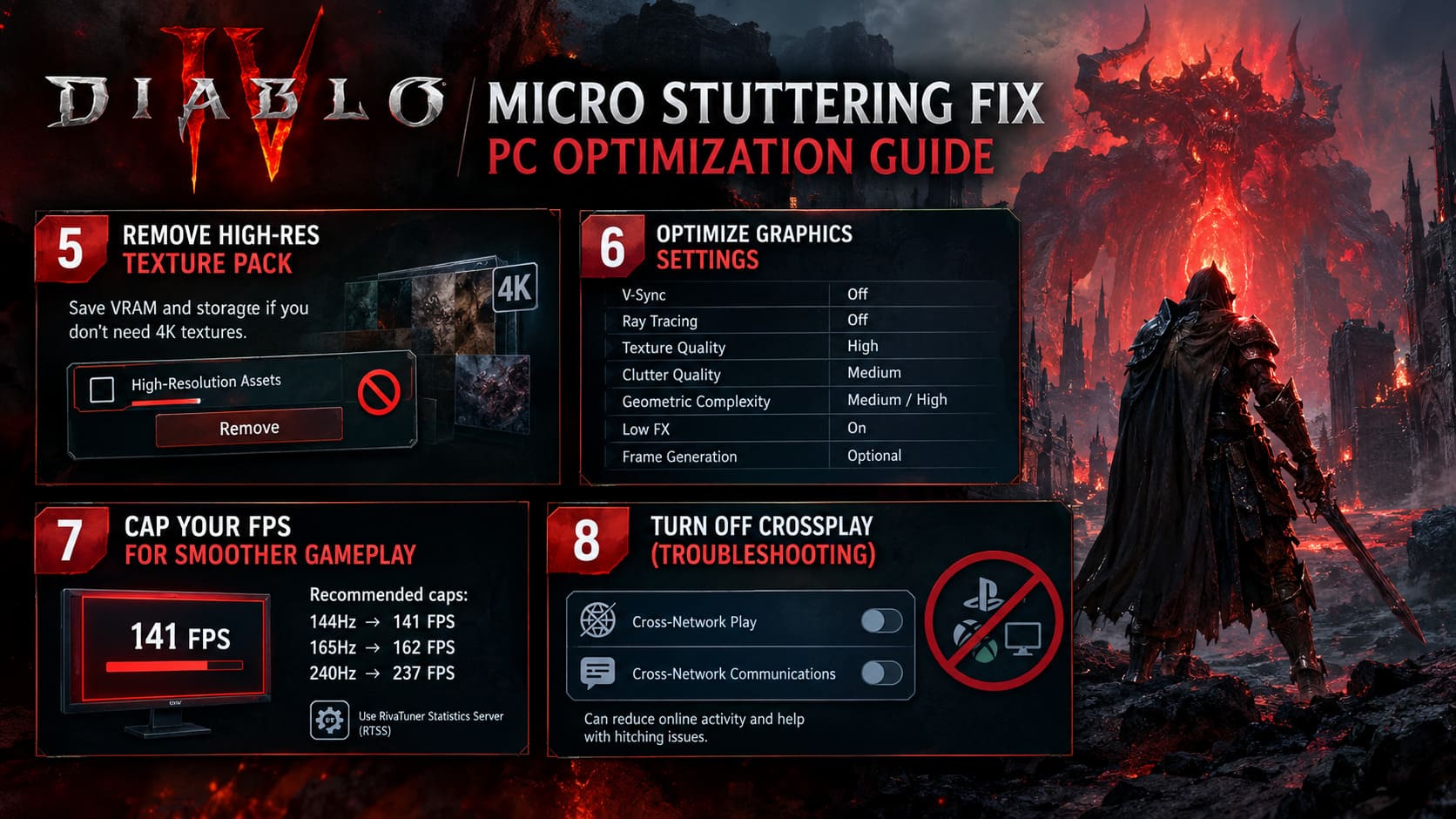
Look for High-Resolution Assets and remove the optional package.
The exact benefit depends on your GPU and resolution, but reducing unnecessary VRAM pressure can help systems that are already close to their memory limit.
6. Use Sensible Diablo 4 Graphics Settings
You do not need to make Diablo 4 look terrible to improve consistency.
For a performance-focused setup, I would start with these settings:
- V-Sync: Off
- Ray Tracing: Off
- Texture Quality: High
- Clutter Quality: Medium
- Geometric Complexity: Medium or High
- Low FX: Enabled
- Frame Generation: Optional, depending on your GPU and latency preference
If your GPU has limited VRAM, avoid immediately pushing textures to Ultra.
Ray tracing is another setting I would leave off while troubleshooting. You can always turn it back on once the basic frame pacing is stable.
The goal is not necessarily the highest possible FPS. A stable 100 FPS can feel much better than an unstable 130 FPS.
7. Cap Your FPS for Better Frame Pacing
This is probably the simplest adjustment on the entire list.
If you have a 144Hz monitor, try limiting Diablo 4 to around 141 FPS. For 165Hz, try 162 FPS, and for 240Hz, around 237 FPS.
You can use RivaTuner Statistics Server (RTSS) to create the cap.
The idea is simple: instead of allowing the GPU and CPU to constantly chase the highest possible frame rate, you leave a little headroom below your display’s refresh rate.
This can produce a more consistent frame delivery, particularly when combined with G-Sync or FreeSync.
And honestly, this is one of those tweaks that I notice more through how the game feels than through an FPS counter. Movement can become noticeably steadier even when the average FPS number barely changes.
8. Turn Off Crossplay as a Troubleshooting Test
Diablo 4 is built around online shared-world systems, so network activity is another variable worth eliminating when troubleshooting strange hitching.
Go to the Gameplay options and find:
- Cross-Network Play
- Cross-Network Communications
Disable both temporarily and test the game.
This is primarily useful as a troubleshooting step. It can reduce the pool of players you interact with, and it is obviously inconvenient if you regularly play with friends on other platforms.
If disabling crossplay makes no difference, turn it back on.
Diablo 4 Socket Guide: How to Add Sockets to Jewelry and Weapons (2026)
My Quick Diablo 4 Stutter Checklist
If I were troubleshooting a fresh Diablo 4 installation today, I would avoid changing twenty settings simultaneously. I would go through this short checklist:
- Cap FPS slightly below monitor refresh rate.
- Disable ray tracing while testing.
- Check VRAM and remove unnecessary high-resolution assets.
- Clear or rebuild the GPU shader cache if stuttering started after a driver update.
- Test the
-disabledslaunch argument. - Check RAM and pagefile behavior during long sessions.
- Close browser tabs, overlays, build planners, recording software, and unnecessary launchers.
- Test crossplay disabled if the problem feels network-related.
Also, don’t underestimate background applications. A browser with multiple tabs, Discord overlays, hardware monitoring tools, recording software, and build planners can collectively create small CPU interruptions that are surprisingly easy to notice in an action RPG.
Diablo 4 Best Gems Guide (2026 Update): Optimal Sockets for Weapons, Armor, and Jewelry
Final Thoughts
Diablo 4 micro stuttering is not always an indication that your PC needs an upgrade. In many cases, the bigger problem is inconsistent frame delivery rather than insufficient raw rendering power.
That is why I would focus less on chasing a massive FPS number and more on improving 1% lows, frame pacing, VRAM behavior, shader caching, and background CPU activity.
Start with the simple changes first: cap your FPS, disable unnecessary graphical features, check your VRAM usage, and clean up background applications. Then move toward more technical tests such as DirectStorage, Memory Compression, pagefile configuration, and driver-level settings.
And one final piece of advice from someone who has spent way too much time staring at performance graphs: change one thing at a time. If Diablo 4 suddenly becomes smooth after changing six settings, you have no idea what actually fixed it. If you test each adjustment separately, you can build a configuration that works for your particular hardware instead of blindly copying somebody else’s setup.
For a game like Diablo 4, where you’re constantly moving, dodging, teleporting, mounting, and fighting huge groups of enemies, smooth frame delivery matters enormously. A stable experience is often much more satisfying than simply watching the FPS counter climb.