How to Fix Aniimo Controller Support Not Working Bug on PC and Consoles
Aniimo has finally opened the gates to Idyll, and after following this game for a while, I was genuinely excited to get my hands on it. A creature-catching open-world Action RPG with mechanics like Twining, where you can actually become the creatures you collect, is the kind of idea that can either feel brilliant or completely fall apart once you start playing.
Unfortunately, for some players, the first battle isn’t against an Aniimo at all. It’s against their controller.
The Aniimo controller support not working issue has become one of the more annoying launch problems on PC, with reports ranging from controllers being completely ignored to characters endlessly spinning as if the analog stick has developed a mind of its own. Some players can use their gamepad in the world but suddenly lose control inside menus, while others can’t get past the title screen without grabbing a mouse.
That’s particularly frustrating in a game designed around controller-friendly exploration and action. If you’re trying to play Aniimo with an Xbox controller, DualSense, DualSense Edge, or another compatible gamepad, here are the fixes I’d try before giving up and switching back to keyboard and mouse.
Why Is Aniimo Not Detecting My Controller?
The annoying part is that there doesn’t appear to be one universal cause.
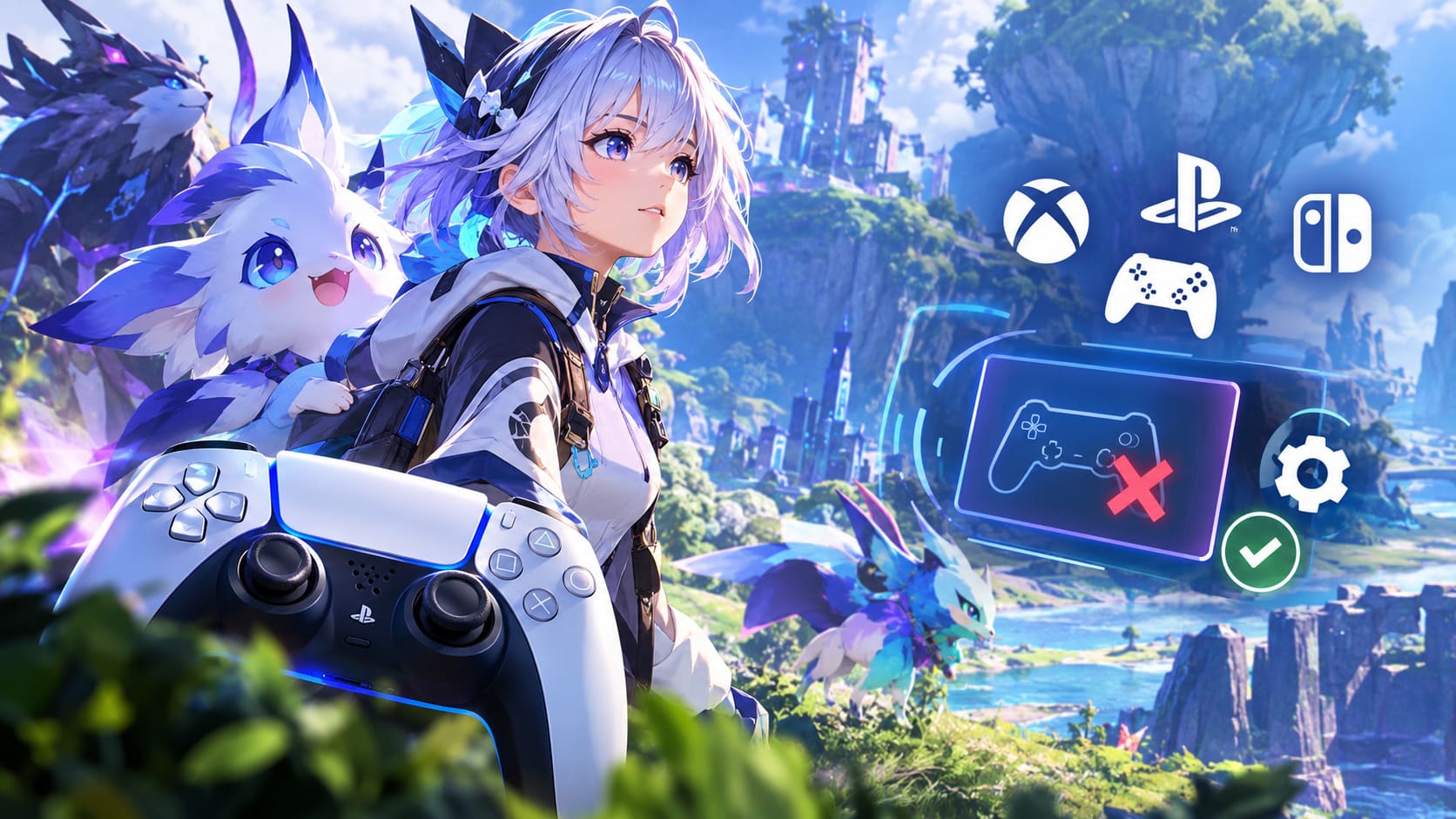
Aniimo supports controllers, but PC gaming has always had an awkward relationship with gamepad input because Windows can expose the same physical controller through different input layers. Steam Input, DS4Windows, Bluetooth drivers, virtual controllers, and the game’s own native input system can sometimes end up competing for attention.
That can produce some pretty bizarre results.
| Problem | What You May Notice | Most Likely Area to Check |
|---|---|---|
| Controller completely ignored | Keyboard prompts remain on screen | Steam Input / detection |
| Character constantly spins | Camera or movement behaves randomly | Virtual controller conflict |
| Buttons act strangely | Menus open by themselves | Multiple input devices |
| Controller works in gameplay only | Menus don’t respond correctly | UI/input compatibility |
| DualSense behaves inconsistently | Some buttons or sticks fail | Native vs Steam Input |
| Controller stops after launching | Worked before entering Idyll | Startup detection |
I’ve seen enough PC games behave this way to know that randomly changing ten settings at once usually makes troubleshooting harder. Change one input layer at a time and test the game after every major adjustment.
Start With the Simple Controller Detection Fix
Before getting into Steam settings or virtual drivers, completely shut down Aniimo.
Not just back to the title screen. Close the game and make sure its processes have actually disappeared.
Then disconnect your controller.
If you’re using a wireless controller, turn it off. If you’re using USB, unplug it.
Now reconnect or power on the controller before launching Aniimo.
This sounds almost too simple, but games can occasionally initialize their input devices during startup and fail to notice a controller that becomes available afterward. If Aniimo starts while Windows is still negotiating a Bluetooth connection, you can end up with a perfectly functional controller that the game simply doesn’t acknowledge.
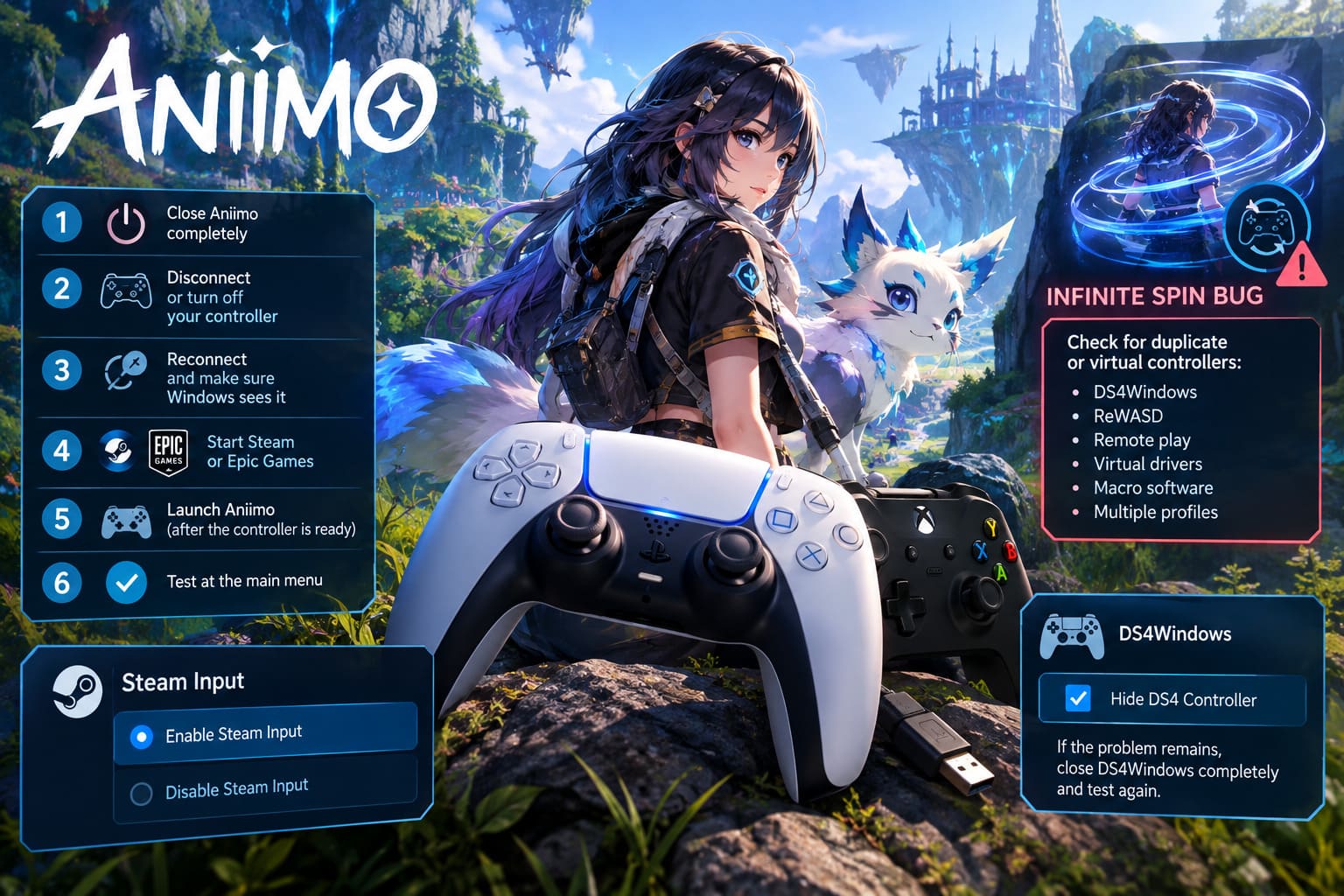
My preferred sequence is:
- Close Aniimo completely.
- Disconnect or turn off the controller.
- Reconnect the controller and make sure Windows recognizes it.
- Start Steam or the Epic Games Launcher.
- Launch Aniimo only after the controller is ready.
- Test the controller at the main menu before loading into Idyll.
If that fixes it, you don’t need to touch anything else.
Steam Input: Enable It, But Don’t Assume It’s Always Better
Steam Input is probably the first serious troubleshooting option I’d try on PC.
The reason is straightforward: Steam can translate different controllers into a more standardized input format. This can be particularly useful when you’re playing with a PlayStation controller and a game behaves better with an Xbox-style XInput device.
Open your Steam Library, right-click Aniimo, select Properties, and open the Controller section.
Look for the controller override option and try:
Enable Steam Input
Launch the game and test everything, including movement, camera controls, combat and menus.
If the controller suddenly works, great. You’re done.
But here’s the important part: Steam Input isn’t automatically the correct choice for every controller.
If you’re using a standard DualSense through USB and Aniimo already supports the device correctly, forcing another input layer can actually create a conflict. If enabling Steam Input makes things worse, go back to the same menu and select:
Disable Steam Input
Then test again.
This is one of those situations where two players can have the exact same controller and need completely different configurations.
The Infinite Spin Bug Usually Means Something Is Fighting Your Controller
The most irritating version of the Aniimo controller problem is the infamous spinning behavior.
Your character may start rotating continuously. The camera can behave as though someone is holding an analog stick. Menus may open unexpectedly, and buttons can appear to trigger themselves.
When that happens, I would immediately start looking for duplicate or virtual controller devices.
This is especially relevant if you use:
- DS4Windows
- ReWASD
- Remote-play software
- Virtual controller drivers
- Custom macro software
- Multiple controller profiles
The biggest problem is having Windows see your physical controller while another application simultaneously creates a virtual version of it.
Aniimo may then receive input from both.
If You Use DS4Windows
DS4Windows is useful for getting PlayStation controllers working with games that prefer Xbox-style input, but you don’t necessarily want Aniimo seeing both the physical DualSense/DualShock device and the virtual controller.
If you’re using DS4Windows, enable its Hide DS4 Controller option and then test Aniimo.
If the spinning problem remains, close DS4Windows completely and test the game again.
If Aniimo suddenly behaves normally, you’ve found the conflict.
At that point, I’d personally choose one translation system rather than stacking multiple ones. Using Steam Input and DS4Windows simultaneously isn’t going to make controller compatibility magically better.
Check Windows for Extra HID Devices
This is a less obvious fix, but it’s worth checking if your controller continues behaving strangely.
Open Device Manager in Windows and expand the Human Interface Devices section.
You may find more input hardware than you realize. Macro devices, virtual controllers, remote-play software and other peripherals can sometimes create additional HID entries.
You don’t need to start deleting drivers randomly. Instead, identify anything you know is creating a virtual controller or secondary input device and temporarily disable it for testing.
The important word here is temporarily.
Test Aniimo after each change. If the controller suddenly works, you’ve narrowed down the source of the conflict without turning your Windows installation into a guessing game.
What About Aniimo on Epic Games Store?
This is where Steam has a surprisingly useful advantage.
If you’re playing Aniimo through Epic Games Store and the native controller implementation isn’t behaving correctly, you can try adding the game to Steam as a Non-Steam Game.
Once added, launch it through Steam and configure Steam Input for the controller.
The idea isn’t to move your game installation. You’re simply using Steam as an input translation layer while still running the Epic version.
I wouldn’t call this an elegant solution. Ideally, Aniimo should handle supported controllers properly without requiring another launcher in the middle. But if it gets your DualSense or another gamepad working, that’s more important than keeping the setup perfectly clean during launch week.
When Aniimo Works in Gameplay but Not in Menus
This is a different problem, and it’s one of the reasons controller troubleshooting can feel so inconsistent.
You might successfully walk around Idyll, fight creatures and use Twining, only to open the Aniilog or inventory and discover that half the controls suddenly stop responding.
If that happens, don’t immediately assume your controller has disconnected.
The issue may be related to Aniimo’s menu navigation rather than controller detection itself.
Some interfaces can behave differently depending on whether you’re using the analog stick, D-pad or specific face buttons. If gameplay works normally, your controller is obviously being detected to some degree.
Try switching between the analog stick and D-pad when navigating menus. Also test whether pressing the usual confirm/back buttons manually restores navigation.
It’s not a satisfying workaround, but it can help distinguish an actual controller detection failure from a UI-specific bug.
PS5 and Xbox Series X/S Controller Problems
Console players have a much smaller hardware compatibility problem because Sony and Microsoft control their respective controller ecosystems.
Still, that doesn’t mean everything is immune to launch-day bugs.
If your DualSense or Xbox controller stops responding around the title screen, account linking or another loading stage, I’d start with a full controller restart.
On PS5, use the small reset button on the back of the DualSense if necessary. On Xbox, power-cycle the controller and reconnect it.
I’d also disconnect unnecessary USB accessories.
That means keyboards, USB headsets, hubs and other devices you don’t actually need to launch Aniimo.
Again, this isn’t something you should have to do permanently. It’s simply a way of eliminating variables when you’re trying to determine why the game isn’t accepting input.
Don’t Forget the Network and Account Initialization
Aniimo isn’t a traditional offline RPG where you can simply launch into a save file without talking to the game’s services.
The initial connection, account authentication and online systems can therefore complicate troubleshooting.
If your controller stops responding specifically while Aniimo is attempting to connect, link accounts or synchronize content, give the game a moment before assuming the controller has completely failed.
If the game is genuinely frozen, restart it and make sure the console or PC is properly connected to the internet before trying again.
I wouldn’t start changing DNS settings or reinstalling the entire game unless you’ve already established that the problem isn’t simply input-related.
My Recommended Fix Order
If I were troubleshooting Aniimo on my own PC, I wouldn’t try every solution at once. I’d use this order:
- Restart Aniimo with the controller already connected.
- Test another USB port if you’re using a wired controller.
- Try Enable Steam Input.
- If that fails, test Disable Steam Input.
- Close DS4Windows, ReWASD and other controller-mapping software.
- Look for virtual controller conflicts.
- Try launching an Epic installation through Steam.
- On console, restart the controller and temporarily remove unnecessary USB devices.
- Only after all of that would I start looking at deeper Windows driver issues.
This approach saves a lot of frustration.
Aniimo Crossplay Guide: How to Play Across PC, PS5, and Xbox Series X/S
Is Aniimo’s Controller Support Actually Broken?
I wouldn’t say that controller support is universally broken.
That’s an important distinction.
If Aniimo simply didn’t support controllers, nobody would be able to use them. The fact that many players can use Xbox and PlayStation gamepads normally suggests that the bigger problem is inconsistent input handling across different configurations.
That’s still a legitimate launch problem, though.
For a modern creature-catching RPG built around exploration and real-time combat, controller support isn’t some optional luxury. A lot of players are going to sit on the couch, pick up a gamepad and expect the game to work.
The spinning camera issue is particularly damaging because it can make the game look completely unplayable when the real problem is a duplicate input device sitting somewhere underneath Windows.
Aniimo Creature Catching Guide: Strategies to Catch Every Aniimo in Idyll
Final Thoughts
Aniimo has a lot going for it, and I really like the ambition behind the game. The combination of open-world exploration, creature collection and Twining gives it an identity beyond simply being another monster-catching RPG.
That’s why the controller problems are so frustrating.
I don’t want to spend my first evening in Idyll opening Device Manager, checking virtual HID devices and switching Steam Input on and off. I want to be out exploring, finding new Aniimo and experimenting with the game’s systems.
For now, the most reliable approach is to keep your setup simple. Make sure the controller is connected before Aniimo launches, avoid running multiple controller-mapping applications simultaneously, and test Steam Input in both directions rather than assuming one setting is universally correct.
If you’re still getting ghost inputs or a permanently spinning character after trying those steps, the problem may be deeper than your individual PC configuration. In that case, keeping Aniimo updated and reporting the exact controller model and connection method to Pawprint Studio is the sensible move.
Hopefully, the developers can smooth out these edge cases quickly. A game this focused on exploration deserves to let players explore Idyll without fighting their own controller first.