WARDOGS Server Browser Not Showing Up: 7 Ways to Fix the Empty Server List Bug (2026)
There are few things more annoying in a tactical shooter than getting everything ready for a match, only to discover that the game apparently has no servers at all.
That is exactly what some WARDOGS players have been running into during the 2026 Closed Beta and Playtest periods. You get through the queue, reach the multiplayer menu, open the server browser… and there is nothing. No lobbies. No matches. Just an empty list staring back at you.
I’ve seen this kind of problem in enough multiplayer games to know that the first reaction is usually the same: “Is the game dead already?” Thankfully, that doesn’t appear to be the case here.
The good news is that an empty WARDOGS server browser can often be fixed without reinstalling the entire game or spending an hour blaming your internet provider. In many cases, the problem comes down to filters, Steam settings, anti-cheat initialization, or a temporary client/network issue.
So, before you give up and launch another game, here are seven things I’d try first.
Why Is the WARDOGS Server List Empty?
Before changing anything, it’s worth understanding that a blank browser doesn’t necessarily mean there are no players online.
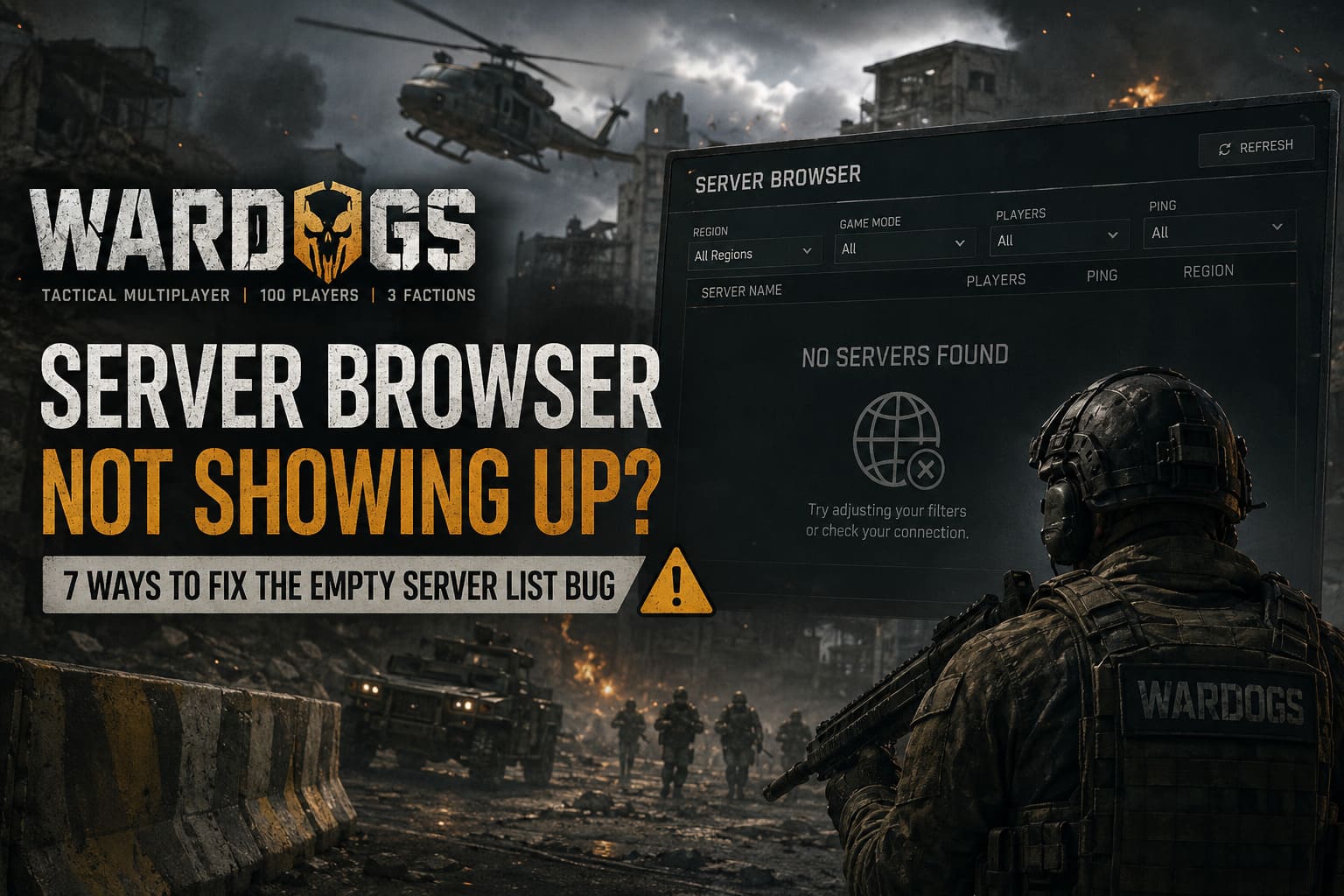
Several different things can prevent WARDOGS from displaying available matches. Some are related to the game’s current beta build, while others can come from Steam or Windows.
| Possible Cause | What It Can Affect | How Difficult Is It? |
|---|---|---|
| Multiple Region Filters | Server discovery | Easy |
| Anti-Cheat Error | Multiplayer authentication | Medium |
| Steam Ping Settings | Server responses | Easy |
| Incorrect Browser Filters | Visible lobbies | Easy |
| Corrupted Game Files | Client/server communication | Easy |
| DNS/Winsock Problems | Network connection | Medium |
| Server-Side Outage | Everyone’s connection | Nothing You Can Fix |
In my experience, the filter problem is the first thing I’d check. It’s quick, harmless, and there’s no reason to start messing with Windows networking before making sure the browser isn’t simply hiding everything.
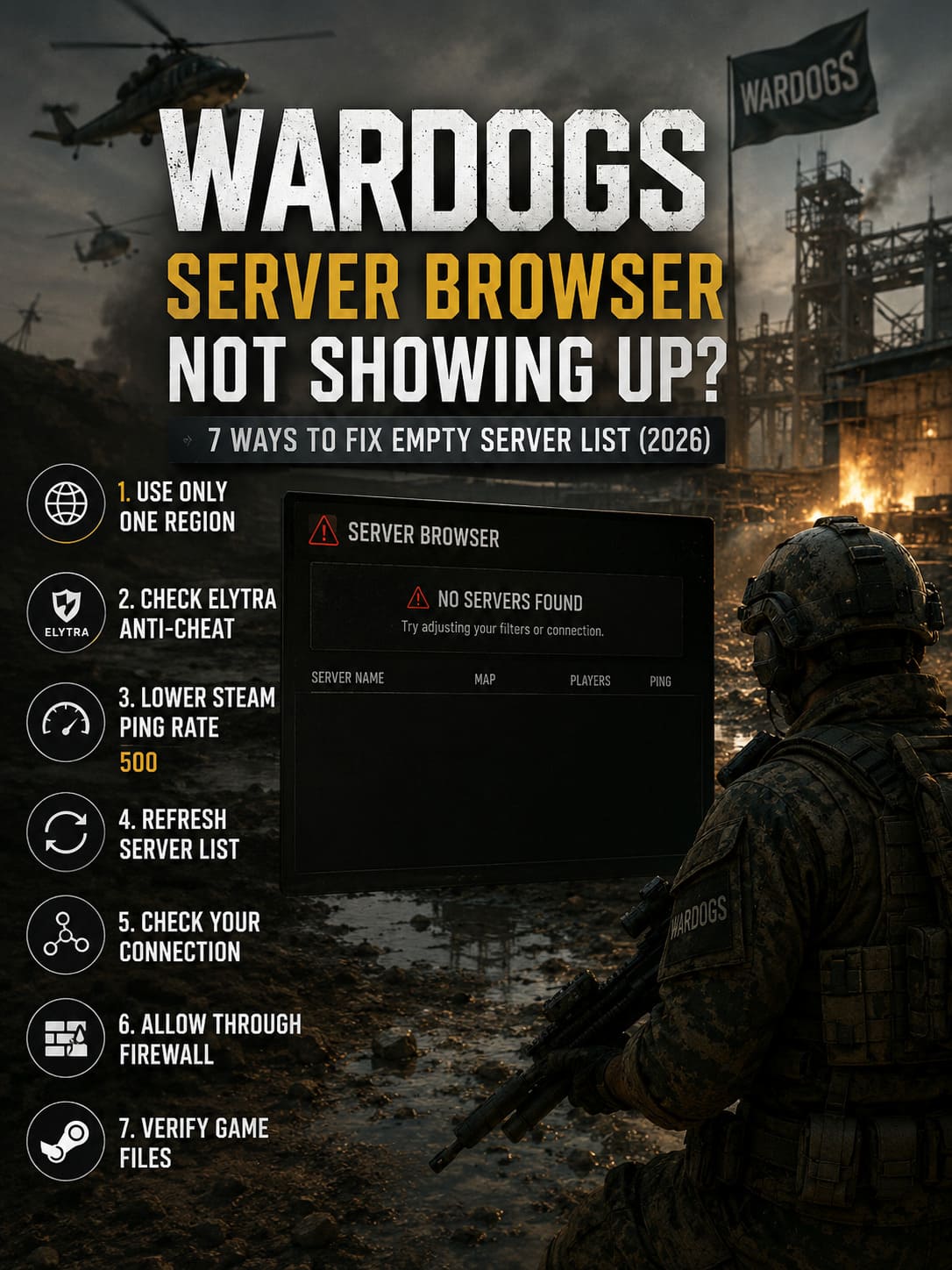
1. Try Using Only One Server Region
This is probably the first fix I’d recommend.
The WARDOGS server browser can behave strangely when multiple regions are selected. You might think that choosing every available region is the smart move because it should give you more servers. In theory, absolutely. In practice, beta software doesn’t always follow the rules.
If you have several regions enabled at once, try narrowing the search down to one region only.
For example:
- Open the WARDOGS Multiplayer menu.
- Enter the server browser.
- Find the region filter.
- Uncheck every region.
- Select only one region, such as EU Central or US East.
- Refresh the server list.
Give it a few seconds.
If servers suddenly appear, you’ve found the problem.
I’d actually keep this setup for now. During a beta, there’s little benefit in trying to outsmart the matchmaking system with complicated filters. Pick the region closest to you and let the game do its thing.
2. Check the Elytra Anti-Cheat Installation
This is the slightly more annoying fix, but it’s worth checking if the server browser remains completely empty.
WARDOGS relies on its anti-cheat system to establish a proper multiplayer session. If the anti-cheat component doesn’t initialize correctly, the game itself may still launch normally. That’s what makes this problem particularly confusing.
You can reach the main menu and everything looks fine, but multiplayer communication may still be broken.
If you’re seeing anti-cheat-related errors or the browser refuses to populate no matter what you do, try repairing the Elytra installation.
First, completely close WARDOGS and Steam. Don’t just close the Steam window—make sure Steam has actually exited.
Then navigate to your WARDOGS installation folder. A typical Steam installation may look something like:
C:\Program Files (x86)\Steam\steamapps\common\WARDOGS Playtest\Elytra
Look for Elytra-Setup.exe.
Right-click it and choose Run as administrator. If the setup utility provides a repair option, use Repair rather than uninstalling the component.
Once that’s finished, restart Steam and launch WARDOGS again.
One Extra Thing I’d Try
If you’re still getting an anti-cheat/RPC-related error, make sure Steam itself isn’t being blocked by Windows permissions. Running Steam as administrator can sometimes help with games that depend on external services.
I wouldn’t leave administrator mode enabled forever unless you actually need it, but it’s a useful troubleshooting step when you’re trying to figure out where the connection is breaking.
3. Lower Steam’s Server Browser Ping Rate
This one is easy to overlook.
Steam has a setting that controls how frequently its in-game server browser sends queries. On some systems and networks, particularly older routers or unstable Wi-Fi connections, aggressive server querying can cause problems.
Open Steam and go to:
Steam → Settings → In Game
Look for Server Browser Pings/Minute.
If it’s set very high, try lowering it to around 500. If your connection is particularly unreliable, you can experiment with an even lower value such as 250.
Restart Steam after changing the setting and then launch WARDOGS again.
Will this magically fix every empty server browser? No. I’d consider it more of a network troubleshooting trick than a guaranteed WARDOGS fix. But it’s simple enough to test, and you can always restore the previous value later.
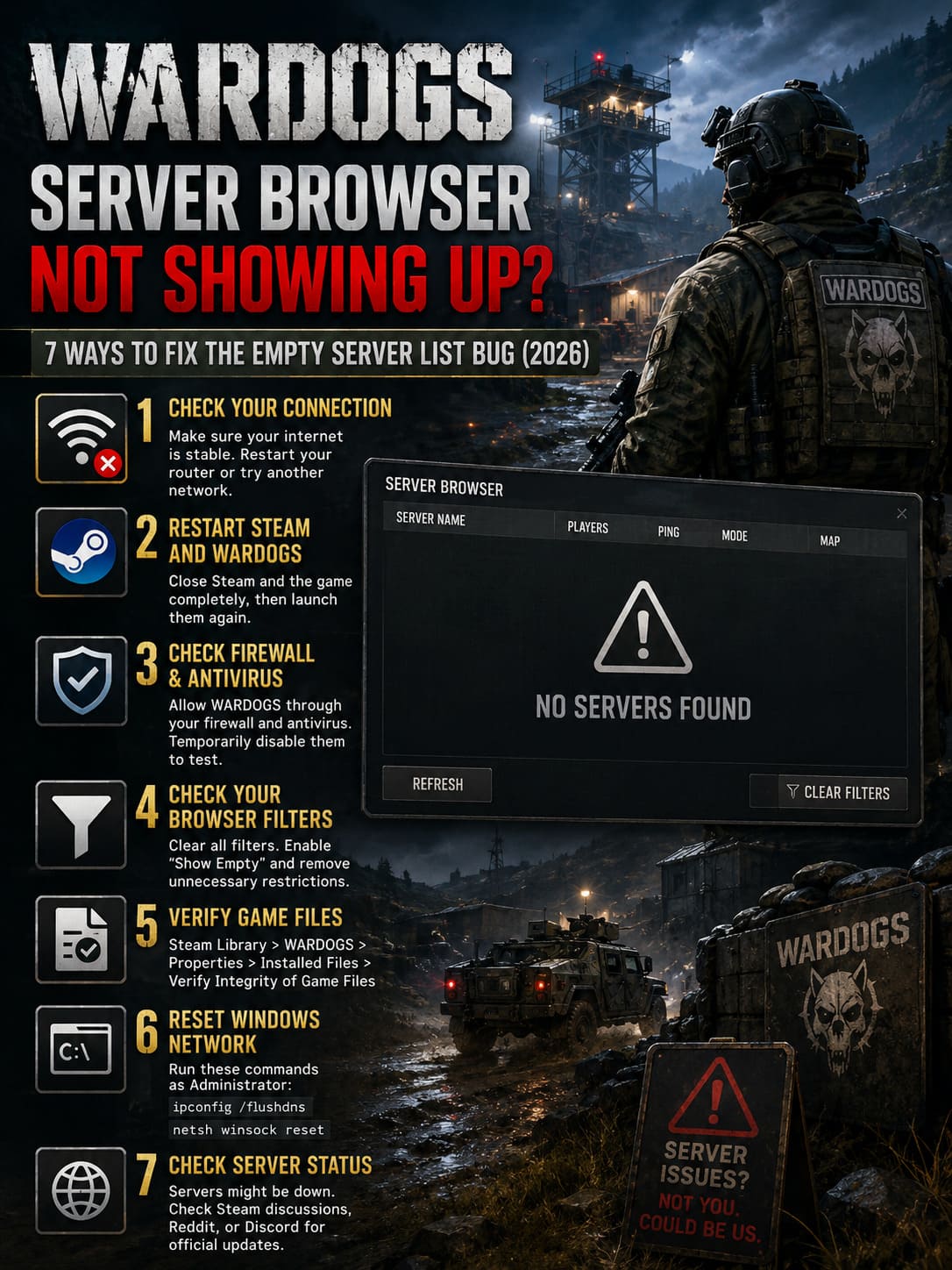
4. Check Your WARDOGS Browser Filters
Here’s another embarrassing one, because sometimes the game isn’t broken—we are.
I’ve lost count of how many times I’ve thought a multiplayer game was empty only to discover that I’d accidentally enabled some ridiculous combination of filters.
Open the WARDOGS server browser and go through the available options.
Make sure you aren’t accidentally filtering out servers based on:
- Empty servers
- Player count
- Password protection
- Server name
- Region
- Ping
- Game mode
- “Has Users Playing” or similar options
I’d recommend temporarily returning everything to the most basic configuration possible.
Clear any server-name search box, enable Show Empty if that option exists, and remove unnecessary player-count restrictions.
Then refresh.
If you’re testing the game during a beta, keeping filters minimal is especially useful. You want to know whether the browser itself works before adding another layer of conditions.
5. Verify the WARDOGS Game Files
If you’ve played through several updates, hotfixes, or Playtest builds, your local installation may simply be out of sync.
Steam makes checking this relatively painless.
Go to your Steam Library, right-click WARDOGS, and select:
Properties → Installed Files → Verify Integrity of Game Files
Steam will scan the installation and replace files that are missing or corrupted.
This won’t fix a server-side outage, obviously. But if a recent update left your client in a weird state, it’s one of the safest things you can try.
Personally, I recommend doing this before reinstalling WARDOGS completely. A full reinstall is a huge hammer for a problem that might be caused by one damaged or missing file.
And let’s be honest—nobody wants to wait for a giant tactical shooter to download again just to discover that the servers were down the whole time.
6. Reset Your Windows Network Configuration
If WARDOGS works for other players but your machine refuses to communicate with the multiplayer services, your local network configuration could be the culprit.
Windows stores DNS information and maintains its Winsock network catalog. Occasionally, these components can get into a state where resetting them is useful.
Open Command Prompt as Administrator and run:
ipconfig /flushdns
Then run:
netsh winsock reset
Restart your PC afterward.
The first command clears your DNS cache. The second resets the Windows Winsock configuration.
This isn’t a WARDOGS-specific magic spell, but it can help when your PC is having trouble reaching game services correctly.
If you’re playing over Wi-Fi, I’d also do one extremely boring test: try another connection if you can. A quick mobile hotspot test can tell you whether the problem is actually your home network.
If the WARDOGS server list suddenly appears when connected through another network, you’ve learned something important.
7. Check Whether WARDOGS Is Actually Having Server Problems
This is the step people often skip.
You can spend an entire evening changing Steam settings, reinstalling anti-cheat software, flushing DNS and sacrificing your router to the gaming gods… only to discover that the servers were down for everyone.
Before doing anything drastic, check the current community reports.
Look at the WARDOGS Steam discussions, Reddit community, and official Discord announcements. If dozens or hundreds of players are suddenly reporting an empty server browser at the same time, your PC probably isn’t the problem.
Beta tests are especially vulnerable to this kind of situation. Developers may be deploying hotfixes, restarting regional infrastructure, changing server capacity, or temporarily taking systems offline.
If everyone is seeing the same thing, the best fix may simply be waiting for the developers to restore the service.
WARDOGS Weapon Balance Meta Guide 2026: Best Guns and Tactical Loadouts
What I’d Do First
If I opened WARDOGS and saw a completely empty server list today, I wouldn’t immediately start changing Windows settings.
I’d go in this order:
- Set the browser to one region.
- Remove unnecessary filters.
- Restart WARDOGS and Steam.
- Check the Steam server browser ping setting.
- Verify the game files.
- Repair Elytra if there’s an anti-cheat error.
- Check whether the servers are down for everyone.
That order matters because the first few fixes take almost no time and don’t risk changing anything important on your PC.
WARDOGS 2026 Progression Guide: How to Complete Contract Objectives and Maximize Cash Fast
Final Thoughts
The empty WARDOGS server browser is exactly the kind of beta problem that can make a promising game look much more broken than it actually is.
And honestly, I’d rather deal with a weird filter bug than a shooter where the gunplay itself isn’t working. WARDOGS is clearly aiming for a more serious tactical experience, and getting into a match should be the easy part.
The most important thing is not to panic and immediately reinstall everything.
Start with the simple stuff. Check your region, clear the filters, restart Steam, and verify the game files. If that doesn’t work, move on to anti-cheat and network troubleshooting. And before spending an hour trying increasingly desperate fixes, check the community to see whether other players are having exactly the same problem.
During a Closed Beta, some bugs are simply going to be part of the experience. The server browser may be frustrating right now, but these issues are also exactly what playtests are designed to uncover.
Hopefully, once the developers have enough feedback, opening the WARDOGS server browser will become as simple as clicking Multiplayer and finding a match—rather than starting another troubleshooting session before you’ve even fired a shot.