How to Fix Allumeria Black Screen on Launch: 2026 Troubleshooting Guide for Infinimelon Voxel Sandbox
There are few things more annoying than finally sitting down to play a new sandbox game, clicking Play, and getting… nothing.
That is exactly what has been happening to some players trying to launch Allumeria, the 2026 voxel survival sandbox from UnobtainableMelon, also widely called Infinimelon by the community. The game has a lot going for it: procedural worlds, crafting, exploration, building, hostile creatures, and that satisfying feeling of slowly turning an empty patch of terrain into your own little survival base.
But none of that matters if the game opens to a completely black screen.
I ran into this kind of problem with enough PC games over the years to know that the first instinct — repeatedly launching the game and hoping Windows suddenly changes its mind — usually gets you nowhere. The good news is that an Allumeria black screen does not necessarily mean your hardware is too weak or that your installation is permanently broken.
In many cases, the problem is connected to Windows updates, corrupted local files, graphics initialization, shader compilation, custom assets, or fullscreen settings.
So, rather than throwing random fixes at the problem, I would work through the solutions below in roughly this order.
Why Does Allumeria Start With a Black Screen?
Before changing anything, it helps to understand what is actually happening.
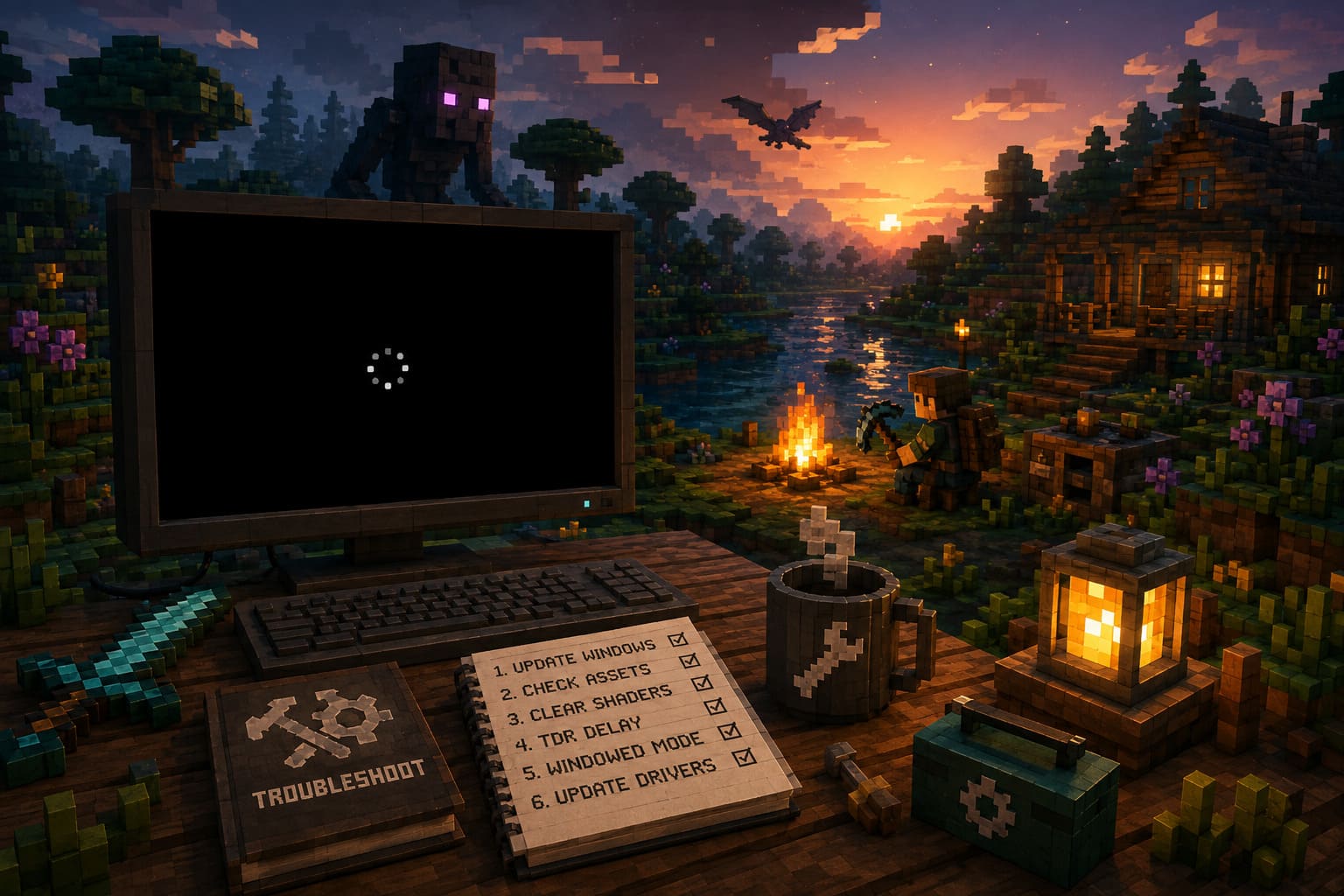
Allumeria has to initialize quite a few systems before you see the main menu. The game needs to load its assets, initialize the renderer, compile shaders, communicate with your GPU, and establish the correct display mode. If one of those steps fails, the result can be a black window that appears completely frozen.
The most common trouble spots are:
| Possible Cause | What You May Notice | Best First Fix |
|---|---|---|
| Outdated Windows | Game crashes immediately | Install Windows updates |
| Broken custom assets | Black screen after loading | Remove custom skins/assets |
| Shader problems | Previous version worked | Clear shader cache |
| GPU timeout | Long black screen or crash | Check TDR behavior |
| Display conflict | Black fullscreen window | Try Alt + Enter |
| Bad configuration | Game launches but shows nothing | Reset display settings |
Personally, I would start with the easy fixes before touching the Windows Registry. There is no reason to perform surgery on your operating system when a broken custom skin folder might be the actual culprit.
1. Update Windows Before Doing Anything Complicated
This is probably the least exciting solution on the list, but it is also one of the first things I would check.
Allumeria relies on modern Windows runtime components, and older or heavily outdated Windows 10 installations can create compatibility problems during startup. This appears to be particularly relevant to unusual Windows configurations, including some older LTSC installations.
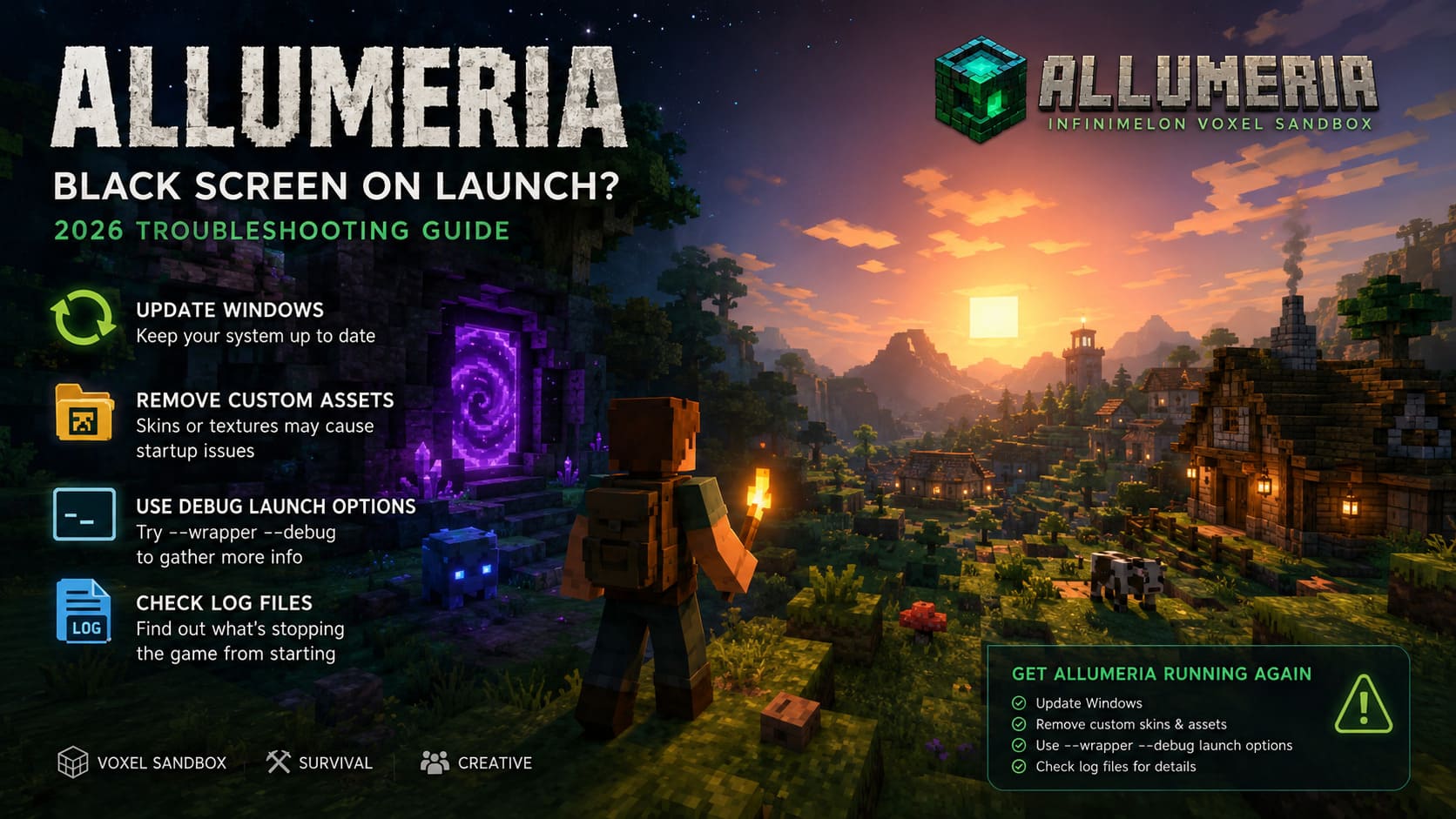
Go to:
Settings → Update & Security → Windows Update
Then select Check for updates and install everything available.
If Windows has been sitting on an old build for months because updates were paused, I would definitely fix that before blaming Allumeria.
Restart the PC afterward.
There is an important distinction here: simply having “Windows 10” or “Windows 11” is not enough. The actual build and installed patches matter.
If you’re using an LTSC or heavily customized Windows installation, troubleshooting can become more complicated because some modern runtime components may not behave exactly like they do on a normal consumer Windows build.
2. Remove Custom Skins and Asset Packs
This is one of those fixes that sounds too simple until it actually works.
Allumeria’s custom asset functionality gives players more freedom, but custom content also creates another possible failure point. A damaged texture, incorrect folder structure, or unusual image format can interfere with the game’s asset initialization.
If you have installed custom skins, textures, or experimental assets, temporarily remove them.
In Steam:
Library → Allumeria → Manage → Browse local files
Look through the installation directory for folders associated with custom textures, skins, or other manually added assets.
Don’t start deleting random game files. The goal is simply to remove third-party or experimental content you added yourself.
Then launch the game again.
If Allumeria suddenly reaches the menu, you’ve found your problem.
And honestly, this is the kind of fix I would try before messing with graphics drivers or registry settings.
3. Try Allumeria’s Debug Launch Parameters
If the game briefly shows an asset-loading screen and then disappears, it may be worth testing the developer-oriented launch parameters mentioned for troubleshooting.
Open your Steam Library, right-click Allumeria, select Properties, and find the Launch Options box.
Enter:
--wrapper --debugThen close the Properties window and launch the game.
The purpose here isn’t necessarily to magically make the game work forever. Instead, these parameters can help expose information about what is happening during startup and may generate additional diagnostic information in the game’s logs.
If the game still refuses to launch, check the game’s log files afterward.
This is especially useful if you’re trying to figure out whether you’re dealing with an asset failure, renderer initialization problem, or another startup exception.
4. Clear the Steam Shader Cache
This is one of my favorite troubleshooting steps for PC games because shader caches can occasionally become surprisingly stubborn.
Allumeria’s voxel rendering system has plenty of work to do when the game starts, and shader compilation can become a problem when cached data comes from an older build or was interrupted during an update.
Completely close Steam first.
Then navigate to your Steam installation’s shader cache directory, commonly found at:
C:\Program Files (x86)\Steam\steamapps\shadercache\Find the folder corresponding to Allumeria’s Steam application ID and remove that shader cache.
Restart Steam and launch the game.
The first launch afterward may take longer than usual. Don’t panic if you sit on a loading screen for a while. Rebuilding shaders can take time, especially on slower hardware.
This is also one reason I wouldn’t immediately assume a long first launch means the game has crashed.
5. Give the GPU More Time With TDR Settings
Now we’re getting into the more advanced stuff.
Windows has a system called Timeout Detection and Recovery, or TDR. In simple terms, Windows watches the graphics driver and expects the GPU to respond within a certain period. If the GPU appears to stop responding for too long, Windows can reset the graphics subsystem.
That can be a problem when a game is doing a particularly heavy amount of shader or rendering initialization.
The default behavior is generally based around a short timeout. If Allumeria is pushing your GPU hard during its first initialization, you may encounter a timeout instead of a successful launch.
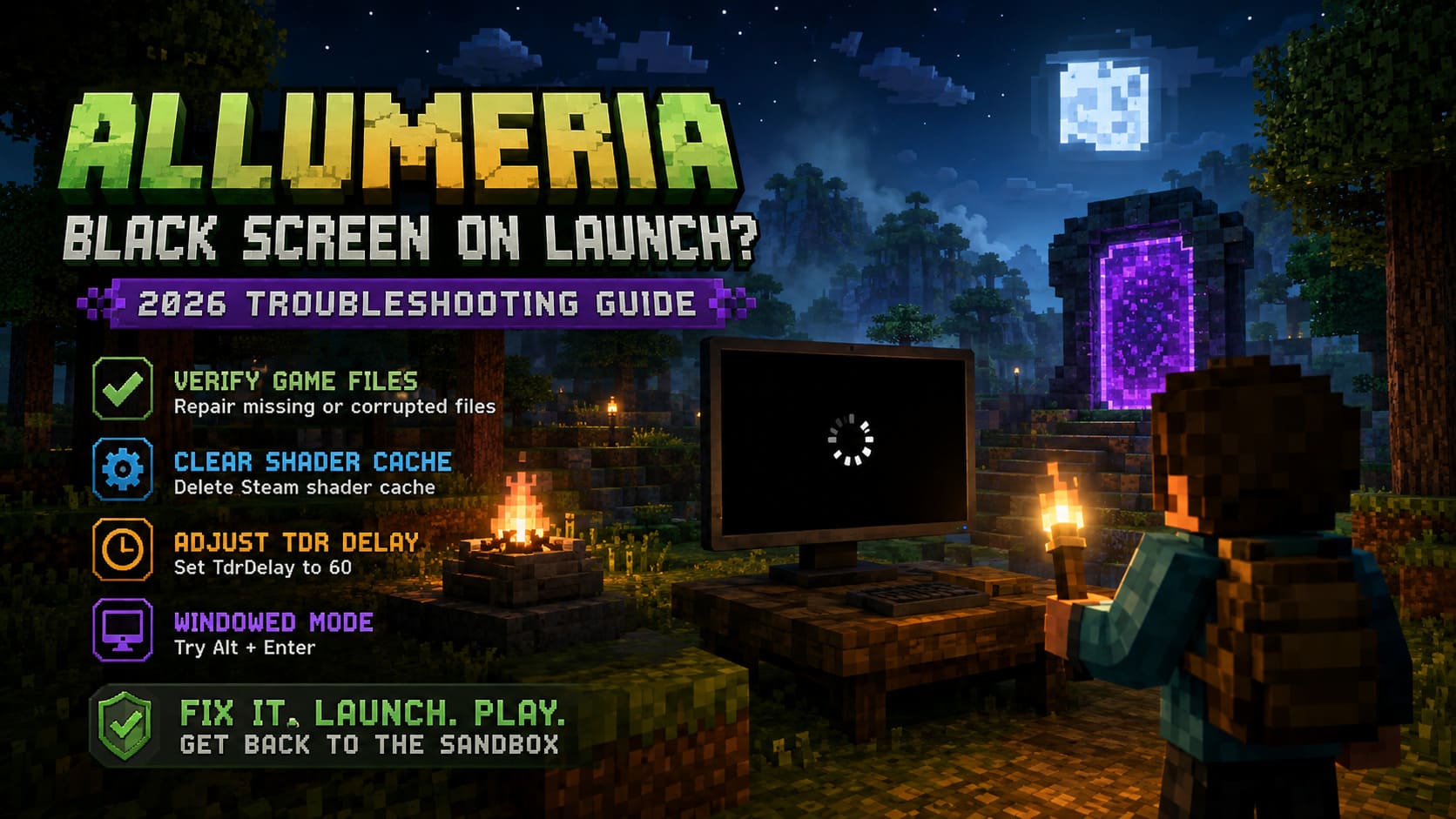
How to Change TdrDelay
Press:
Windows + R
Type:
regeditPress Enter.
Navigate to:
HKEY_LOCAL_MACHINE\SYSTEM\CurrentControlSet\Control\GraphicsDriversLook for a value called TdrDelay.
If it doesn’t exist, right-click an empty area and choose:
New → DWORD (32-bit) Value
Name it:
TdrDelayOpen it and select Decimal.
Set the value to:
60Then click OK and restart your computer.
After rebooting, try Allumeria again.
One Warning From Me
Don’t start changing random registry values.
The Registry isn’t a place where I recommend experimenting. If you’re uncomfortable making this change, skip it and work through the other fixes first. And if you do edit it, create a backup or restore point before making changes.
6. Force Allumeria Into Windowed Mode
If you’re running multiple monitors, an ultrawide display, a high-refresh-rate monitor, or a mixture of different resolutions, the fullscreen handshake can occasionally go wrong.
You may actually have a functioning game sitting behind a broken display mode.
When Allumeria is stuck on the black screen, try:
Alt + Enter
This commonly switches a game between fullscreen and windowed modes.
If the game suddenly appears, go straight into the graphics settings.
I would personally choose Borderless Windowed if you’re using multiple displays. It tends to be less troublesome than exclusive fullscreen when Windows has several monitors to manage.
Also check that the selected resolution and refresh rate match what your monitor actually supports.
Don’t Ignore Your GPU Drivers
Although the troubleshooting steps above focus heavily on Windows and configuration, graphics drivers are still an obvious suspect.
If your NVIDIA or AMD driver is extremely old, update it.
If the black-screen problem started immediately after a driver update, however, the situation is different. In that case, a rollback to a known-stable driver can sometimes make more sense than blindly installing the newest package.
I would also temporarily disable unnecessary overlays while testing:
- Steam Overlay
- Discord Overlay
- GPU recording overlays
- Performance monitoring overlays
You don’t necessarily have to uninstall anything. The goal is simply to reduce the number of things hooking into the game while you’re trying to identify the problem.
Check Your PC Against the Basics
Allumeria is a voxel sandbox, and large procedural worlds can become surprisingly demanding.
You don’t necessarily need an absurdly powerful gaming PC, but having enough memory and a reasonably modern GPU makes a difference.
| Component | Practical Target |
|---|---|
| OS | 64-bit Windows 10/11 |
| CPU | Intel Core i5 / AMD Ryzen equivalent |
| RAM | 8 GB minimum, 16 GB recommended |
| GPU | Modern dedicated NVIDIA or AMD graphics |
| Storage | SSD strongly recommended |
The 16 GB RAM recommendation is particularly sensible if you’re planning to generate large worlds or run other applications in the background.
An SSD won’t magically fix every black screen, but it can reduce asset and world-loading bottlenecks compared with an older mechanical hard drive.
Darkest Dungeon Low End Laptop Optimization Guide: Max FPS & Lag Fix (2026)
The Order I’d Actually Try These Fixes
If I were sitting at my own PC staring at the black Allumeria window, I wouldn’t immediately jump into the Registry.
I’d go in this order:
- Update Windows and restart.
- Remove custom skins and asset packs.
- Verify the game’s files through Steam.
- Try
--wrapper --debug. - Clear the Steam shader cache.
- Try Alt + Enter and switch to Borderless Windowed.
- Update or roll back the GPU driver if necessary.
- Only then consider changing TdrDelay.
That order saves time and keeps the more invasive troubleshooting steps until the end.
Final Thoughts
The Allumeria black screen problem is frustrating precisely because the game can appear to be doing absolutely nothing. A blank window doesn’t tell you whether the renderer is stuck, shaders are compiling, Windows has reset the GPU, or a bad asset has broken the loading process.
That’s why I wouldn’t treat every black screen as the same problem.
Start with Windows updates and custom asset removal, because they’re easy and reversible. Shader cache cleanup is another good middle-ground fix. Display settings are worth checking if you use multiple monitors. And if Allumeria is genuinely timing out while your GPU is working through its initial rendering workload, the TDR adjustment is the advanced option I’d investigate.
For me, the biggest lesson with early PC games is simple: don’t assume the most complicated explanation first. A broken configuration file or outdated Windows build can cause exactly the same “nothing but black” experience as a serious graphics initialization problem.
Work through the fixes one at a time, restart when necessary, and test after each major change. That way, when Allumeria finally reaches the menu and your voxel world appears, you’ll actually know what fixed it — instead of wondering which of fifteen random tweaks somehow worked.