Star Wars Zero Company Low FPS Cinematic View Fix: Complete Performance Guide
There is a lot to like about STAR WARS Zero Company. As someone who has spent a ridiculous number of hours jumping between turn-based tactics, strategy RPGs, and big-budget action games, I was especially interested in seeing what Bit Reactor could do with the Star Wars universe. The combination of XCOM-style squad management, the final days of the Clone Wars, and a story built around a group of mercenaries sounds like exactly the kind of strategy game I can disappear into for an entire weekend.
Unfortunately, there is one thing that can pull you out of the experience very quickly: low FPS during Cinematic View sequences. The strange part is that the game can feel perfectly smooth while you’re moving units around the battlefield, only to suddenly turn into a stuttering mess when a character fires a weapon or activates an ability. If you’ve experienced that sudden performance collapse, you’re definitely not the only player looking for a Star Wars Zero Company low FPS fix.
The good news is that there are several things worth trying before you start blaming your GPU or assuming your PC simply isn’t powerful enough. Some solutions involve the game’s graphics settings, while others are related to shaders, upscaling, drivers, or simply turning off the cinematic camera altogether.
How to Fix Resonance A Plague Tale Legacy Black Screen on Launch (2026 PC Guide)
Why Does Star Wars Zero Company Have Low FPS During Cinematic View?
The first thing worth understanding is that normal tactical gameplay and Cinematic View don’t necessarily stress your PC in the same way. During the standard tactical camera, you’re looking at the battlefield from a relatively distant angle. The engine doesn’t need to render every character, surface, effect, and lighting detail at extremely close range.
Then someone takes a shot.
The camera suddenly moves in, the perspective changes, and the game has to present the action like a miniature Star Wars movie. You might get a close-up of a blaster firing, a Force ability exploding across the battlefield, or an enemy getting hit from a dramatic camera angle. It looks great when everything works properly, but that transition can create a surprisingly heavy rendering workload.
This is particularly relevant because Star Wars Zero Company uses Unreal Engine 5, which brings technologies such as Lumen and Nanite into the mix. These features can produce impressive lighting, reflections, geometry, and environmental detail, but they also give the hardware considerably more work to do. In my experience with Unreal Engine 5 games, cinematic camera transitions are exactly the kind of situation where small optimization problems can become much more obvious.
There can also be shader compilation involved. If the game encounters an effect, animation, material, or environmental asset that hasn’t been compiled or cached yet, the first time you see it can result in a nasty hitch. When that happens at the exact moment the camera zooms into an action sequence, it can look like the game itself is broken.
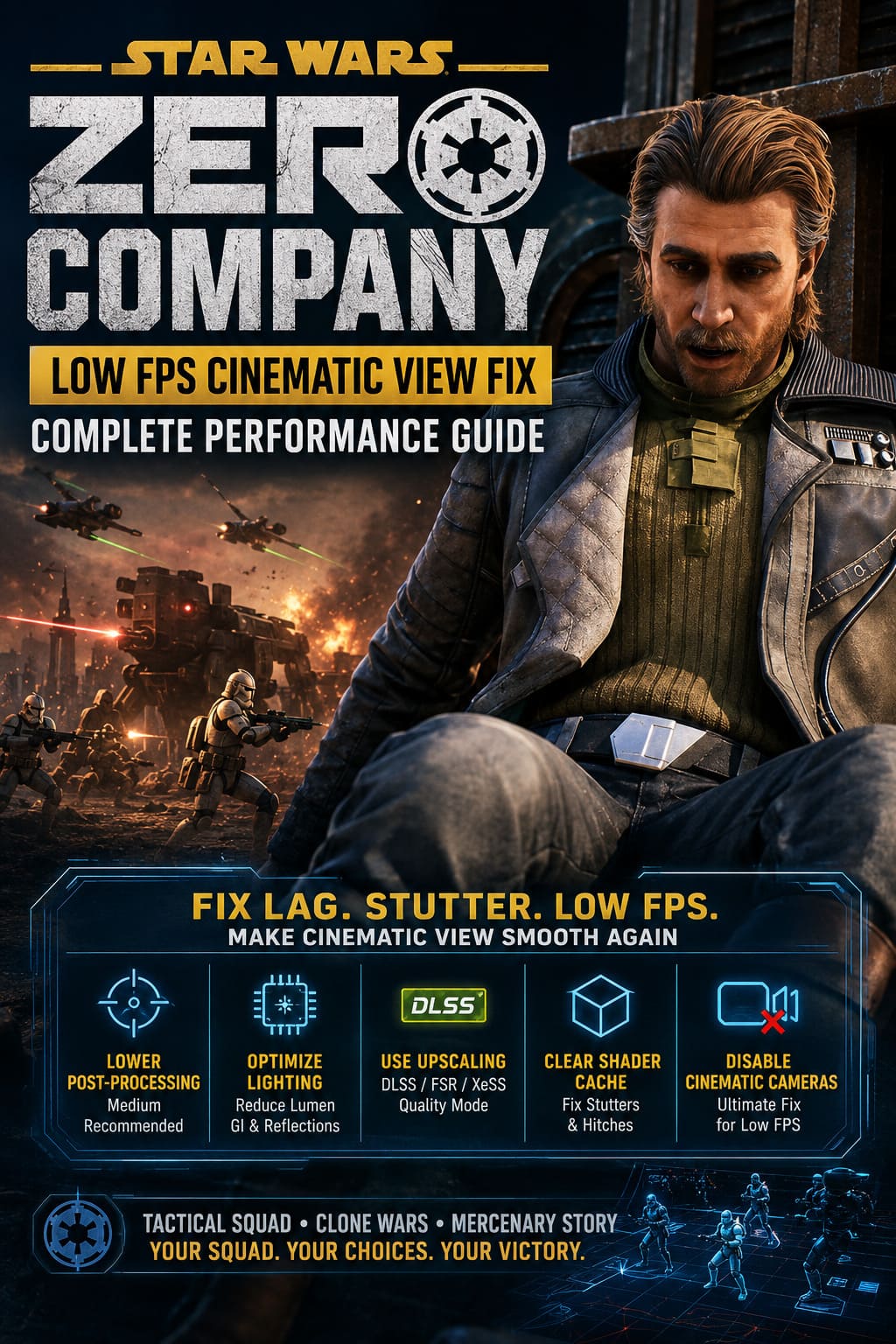
The Best Star Wars Zero Company Low FPS Fixes
Before changing everything at once, I recommend testing the solutions individually. That way, you’ll know which setting actually helped your system instead of randomly lowering every graphics option and wondering why the game suddenly looks like it came from another decade.
1. Lower Post-Processing Quality
Post-processing is one of the first settings I’d change.
Cinematic sequences tend to make heavier use of depth of field, motion effects, blur, and other visual filters. These effects can look fantastic in screenshots, but they aren’t particularly important to the actual tactical gameplay.
Try changing Post-Processing Quality from Epic or High to Medium. You may notice that cinematic shots aren’t quite as polished, but the difference during normal gameplay should be relatively small.
If you’re dealing with severe FPS drops rather than minor stuttering, this is one of the easiest changes to test.
2. Reduce Cinematic Camera Quality or Scaling
If your graphics menu provides a dedicated option for the cinematic camera or its resolution scaling, avoid leaving it at the most demanding setting.
A Balanced or Performance-oriented cinematic setting can reduce the resolution used during these close-up shots. This is particularly useful if your game runs well at the normal tactical camera but struggles whenever the camera moves close to the characters.
Personally, I’d rather lose a little cinematic sharpness than watch a ten-second animation run at what feels like five frames per second.
3. Lower Lumen-Related Settings
Unreal Engine 5’s lighting can be demanding, particularly when the game is combining dynamic illumination with reflections and detailed environments.
If you’re still experiencing drops, try reducing Global Illumination and Reflections by one quality level. You don’t necessarily need to drop everything to Low. A single step down can sometimes provide a much better performance-to-quality balance.
This is one of those settings where I prefer making small compromises rather than destroying the entire visual presentation. Star Wars games live or die by atmosphere, and Zero Company is much more enjoyable when the environments still look good.
4. Disable Motion Blur and Film Grain
This one is almost a personal rule for me in PC games.
Turn off Motion Blur and Film Grain.
Neither feature is necessary for tactical gameplay, and both can make the image look less clear. Motion blur can also make existing frame-time problems feel even worse because the entire screen becomes visually smeared during camera movement.
Film grain is mostly an aesthetic choice, so disabling it costs you practically nothing in terms of gameplay. If you’re troubleshooting performance, there is little reason to keep unnecessary visual effects enabled.
Star Wars Zero Company Shader Stuttering: Clear the Cache
If your biggest problem is not consistently low FPS but short freezes and stutters when new cinematic actions happen, shaders are worth investigating.
Shader compilation is a common source of stuttering in modern PC games. The first time the engine encounters a particular combination of effects, materials, lighting, or animations, it may need to prepare shaders for your hardware.
That can be especially noticeable in a game like Zero Company because cinematic cameras reveal assets from angles you may not have seen during regular tactical play.
Let the Initial Shader Process Finish
When launching the game, don’t immediately rush into your campaign if the game is performing shader compilation or another initial preparation process.
Give it time to finish.
It sounds ridiculously simple, but skipping an initial compilation process and immediately starting a demanding campaign is not exactly helping the situation. If you’re troubleshooting a new installation, allowing the game to finish its preparation before playing is one of the easiest things to try.
Clear the DirectX Shader Cache
If the stuttering persists, you can also clear the Windows DirectX Shader Cache.
- Open Windows Search and type Disk Cleanup.
- Select your Windows system drive.
- Look for DirectX Shader Cache in the cleanup options.
- Select it and allow Windows to remove the cached files.
- Restart your PC.
- Launch Star Wars Zero Company again.
- Give the game enough time to rebuild whatever shaders it needs.
Don’t be surprised if the first launch after clearing the cache isn’t immediately perfect. The whole point is that the cache has been cleared, so some data needs to be generated again.
Use DLSS, FSR, or XeSS If Your Hardware Supports It
Running a modern Unreal Engine 5 game at native resolution can be unnecessarily expensive, particularly at 1440p or 4K.
This is where an upscaling technology can make a very noticeable difference.
| Technology | Best For | Suggested Starting Point |
|---|---|---|
| DLSS | NVIDIA RTX GPUs | Quality |
| FSR | AMD and compatible GPUs | Quality |
| XeSS | Intel and supported hardware | Quality |
| Frame Generation | Supported modern GPUs | Test after stabilizing base FPS |
For an NVIDIA RTX system, I’d start with DLSS Quality rather than immediately jumping to Performance. Quality mode usually provides a good compromise between image clarity and GPU workload.
AMD users should experiment with FSR Quality if available. Intel GPU owners can similarly test XeSS.
The important thing is not to throw every feature on at the same time. First get the underlying frame rate reasonably stable, then experiment with frame generation if your hardware supports it. Frame generation can be useful, but it isn’t a magic cure for severe underlying stutter.
Check Your GPU Driver and Windows Graphics Settings
Sometimes the problem isn’t actually inside the game.
If you’ve recently installed Star Wars Zero Company or updated your GPU, make sure you’re running a current graphics driver. Driver-level optimizations can matter quite a bit with new releases, especially during the first few weeks when developers and GPU manufacturers are still ironing out compatibility issues.
Windows also has Hardware-Accelerated GPU Scheduling (HAGS). If your system supports it, you can find the option under the Windows graphics settings and test it enabled.
I’d treat this as an experiment rather than a guaranteed solution. PC configurations vary wildly, and a setting that improves performance on one machine can make absolutely no difference on another.
The same applies to the NVIDIA Control Panel or AMD’s software suite. For the game’s executable, you can experiment with a maximum-performance power profile and make sure the driver isn’t aggressively managing the GPU’s power state.
Don’t Ignore CPU Bottlenecks
One mistake I see frequently in PC troubleshooting is assuming that low FPS automatically means the GPU is the problem.
A strategy game can put considerable pressure on the CPU, particularly when there are lots of characters, AI calculations, animations, physics effects, and camera transitions happening simultaneously. If your GPU usage suddenly drops while one CPU core is heavily loaded, lowering texture quality isn’t going to magically solve the problem.
This is another reason why DLSS or FSR should be viewed as one tool rather than a universal solution. Upscaling primarily reduces GPU workload. If you’re CPU-limited during Cinematic View transitions, the improvement may be smaller than expected.
The Most Reliable Workaround: Disable Cinematic Action Cameras
Now we get to the solution I would personally recommend if none of the previous options work.
Turn off Cinematic Action Cameras.
Yes, it sounds like you’re removing one of the game’s coolest features. And, honestly, you are. Those dramatic camera cuts are part of what makes combat feel cinematic rather than purely mechanical.
But there’s an important trade-off.
If your game is perfectly smooth in the standard tactical camera and only collapses when Cinematic View activates, disabling the feature can remove the trigger entirely. Your characters can continue performing their attacks while the camera stays in the stable tactical perspective.
For players who care more about responsive gameplay than flashy camera work, this is a completely reasonable compromise.
I’d rather play a smooth turn-based strategy game with a consistent frame rate than wait for every blaster shot to finish while my PC struggles to render a Hollywood close-up.
Recommended Settings for a Smooth Experience
If I were configuring Zero Company on a mid-range gaming PC, I’d start somewhere around this general profile:
- Post-Processing: Medium
- Global Illumination: Medium
- Reflections: Medium
- Motion Blur: Off
- Film Grain: Off
- Upscaling: Quality
- Cinematic Camera Scaling: Balanced or Performance
- Frame Generation: Optional, depending on hardware
- Cinematic Action Camera: On initially, then disable if the problem persists
The important thing is that you don’t need to run every setting on Low. Modern games often have a few particularly expensive options that have a much bigger impact on performance than others.
What Should You Try First?
If you don’t want to spend an evening changing twenty different options, I’d follow this order:
- Lower Post-Processing to Medium.
- Disable Motion Blur and Film Grain.
- Reduce Global Illumination and Reflections.
- Enable DLSS, FSR, or XeSS in Quality mode.
- Allow shader compilation to finish.
- Clear the DirectX Shader Cache if stuttering continues.
- Update your GPU driver.
- Test Windows and GPU power-management settings.
- Disable Cinematic Action Cameras as the final workaround.
This approach lets you keep as much of the game’s visual quality as possible while targeting the settings most likely to affect the problem.
Final Thoughts
STAR WARS Zero Company has the ingredients of a fantastic tactical strategy game, and that’s why performance problems like this are so frustrating. When the game is running properly, the combination of squad tactics, Star Wars atmosphere, character abilities, and cinematic combat can be genuinely exciting. After playing plenty of turn-based games, I appreciate when a developer tries to make individual attacks feel like memorable moments instead of simply watching another number disappear from an enemy’s health bar.
At the same time, cinematic presentation should never come at the expense of basic playability.
If you’re suffering from the Star Wars Zero Company low FPS Cinematic View bug, start with the simple graphics changes before doing anything drastic. Lower post-processing, reduce demanding lighting effects, disable unnecessary filters, and use an appropriate upscaler. If the problem looks more like random freezing than permanently low FPS, give shader compilation and the DirectX cache some attention.
And if absolutely nothing works, don’t be afraid to disable the cinematic camera. It may remove some of the spectacle, but you’ll still have the tactical combat underneath it—and, for me, that’s the part of Zero Company I’d rather have running perfectly.
As the game receives performance updates and further optimization work, some of these issues may eventually become less common. Until then, a few sensible settings changes can make the difference between an impressive tactical Star Wars experience and a frustrating slideshow every time someone pulls a blaster trigger.