How to Fix Star Wars Zero Company Stuttering on AMD Radeon GPU
Star Wars Zero Company has the kind of presentation that can make you forget you’re playing a turn-based strategy game. The Clone Wars atmosphere, detailed battlefields, character animations, and dramatic camera work give every mission a surprisingly cinematic feel. Unfortunately, some PC players using AMD Radeon GPUs have been running into the opposite kind of drama: stuttering, inconsistent frame times, sudden FPS drops, and annoying micro-freezes that become especially noticeable when switching between tactical and close-up camera views.
I’ve played enough demanding PC games to know that a high average FPS number doesn’t automatically mean a game is running well. You can have 100 FPS on the counter and still feel every camera movement if frame times are jumping all over the place. That’s why I’d approach Star Wars Zero Company AMD stuttering as a frame-time problem first and an FPS problem second. The good news is that several fixes are fairly simple, and you don’t necessarily have to destroy the game’s visual quality to make it smoother.
How to Boost Performance in Star Wars: Zero Company on Low-End PCs
Why Is Star Wars Zero Company Stuttering on AMD Radeon?
One of the more frustrating things about this type of stuttering is that it doesn’t always happen in the same situation. You might be perfectly smooth while commanding your squad and then suddenly get a hitch when the camera zooms toward a character, rotates across a busy section of the map, or pulls back to show the entire battlefield. That can happen because the game is suddenly loading or processing additional geometry, lighting, effects, animations, and environmental details.
Shader compilation can also be part of the problem. When the game encounters a visual effect or asset that hasn’t been prepared yet, your GPU may briefly struggle while the necessary shader work is completed. Driver settings, Windows graphics features, overlays, and aggressive frame-rate targets can make these problems even more obvious, so I would work through the fixes below in order rather than changing everything at once.
1. Start With a Clean AMD Radeon Driver Installation
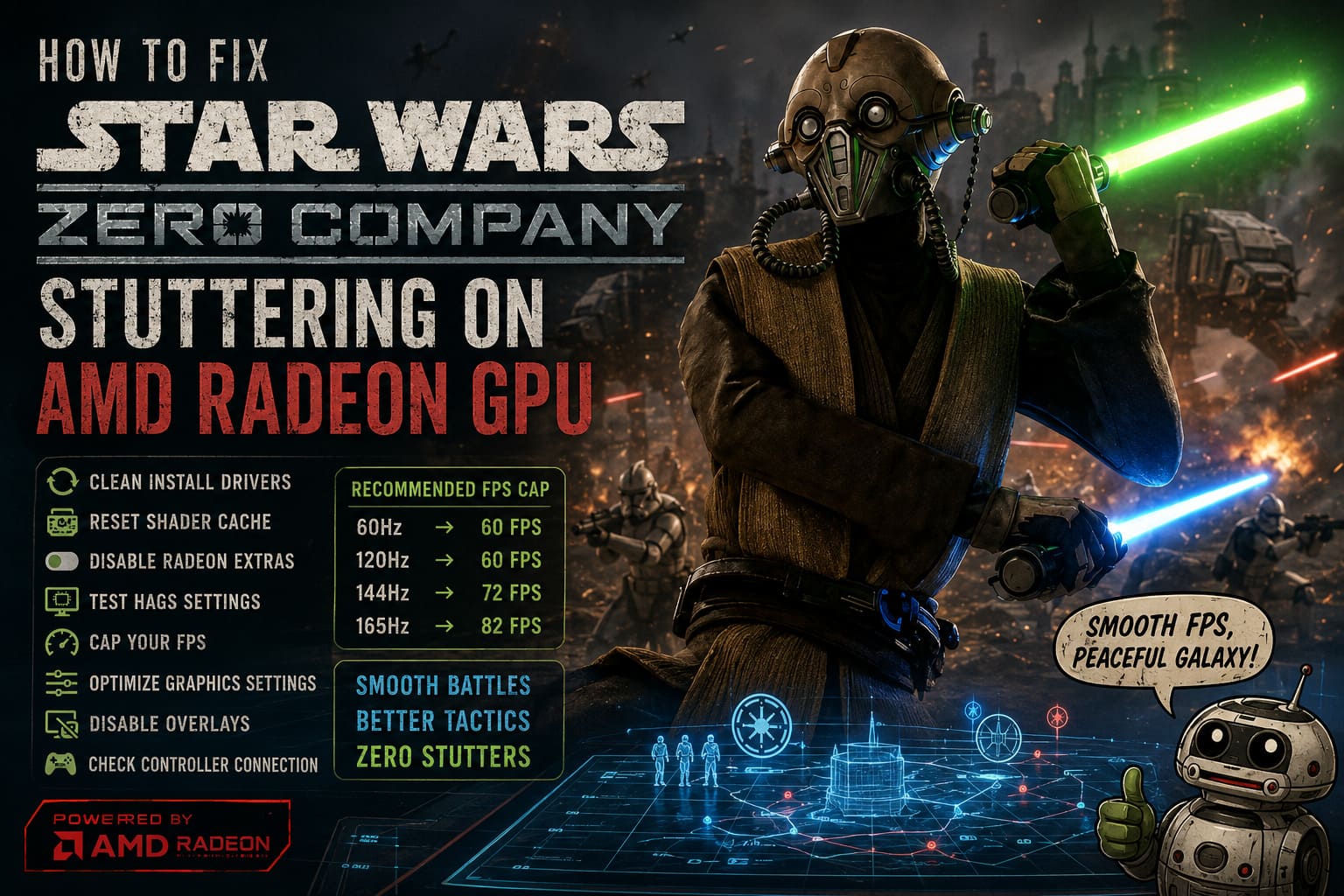
If Star Wars Zero Company started stuttering after installing or updating your graphics driver, I’d begin there. Simply installing a newer AMD driver over the existing one is convenient, but it doesn’t always remove old profiles, cached data, or other leftovers that can cause strange behavior in a new game.
A cleaner approach is to use Display Driver Uninstaller (DDU) in Windows Safe Mode to remove the existing display-driver installation. After restarting Windows, install the latest compatible AMD Software: Adrenalin Edition package. This gives you a much cleaner starting point and can eliminate problems caused by corrupted driver files or old game profiles.
Personally, I wouldn’t skip this step if you’ve already tried several driver versions and the game still behaves strangely. Sometimes the problem isn’t that the driver is outdated; it’s that Windows and the driver installation have accumulated enough leftovers to create an unpredictable combination.
2. Reset the AMD Shader Cache
Shader cache problems are another thing I would check early. A game can run beautifully most of the time but pause for a fraction of a second when a new explosion, character effect, lighting effect, or environmental asset appears for the first time. Those tiny pauses are particularly irritating in a game where you’re constantly moving the camera around a detailed battlefield.
Open AMD Software: Adrenalin Edition and look through the graphics settings for the option to reset the shader cache. After resetting it, restart your PC before launching the game again. Don’t panic if you experience a little stuttering during the first few minutes afterward, because the game may need to rebuild shader data as you encounter different effects and locations.
If performance gradually becomes smoother after playing for a while, that’s a useful indication that shader compilation or cached data was contributing to the problem.
3. Disable Extra Radeon Features for the Game
AMD Adrenalin contains plenty of useful features, but I don’t automatically enable every option just because it exists. Features such as Radeon Anti-Lag, Radeon Boost, and Enhanced Sync can be great in the right type of game, yet a turn-based strategy title has different priorities from a competitive shooter.
Open the Gaming section in Adrenalin and create or select the profile for Star Wars Zero Company. For troubleshooting, turn off these extra driver-level features and allow the game to manage its own rendering behavior. If the stuttering disappears, you can experiment with enabling features individually later instead of turning everything back on simultaneously.
That’s an important part of PC troubleshooting in general: change one variable at a time. Otherwise, you can fix the problem without ever discovering what actually caused it.
4. Test Hardware-Accelerated GPU Scheduling
Hardware-Accelerated GPU Scheduling (HAGS) is another Windows setting worth testing if you’re dealing with inconsistent frame times. It can behave differently depending on the Windows version, driver version, and hardware combination, so there isn’t a universal setting that works perfectly for every Radeon system.
Open Windows Graphics Settings and locate the Hardware-Accelerated GPU Scheduling option. If it is enabled, try disabling it and restart your computer. Play several missions afterward rather than judging the change from a thirty-second test, because some stuttering only becomes obvious when the game is streaming a lot of assets or when the camera is moving rapidly across a large battlefield.
If turning HAGS off makes no difference, you can always restore the previous setting. Treat it as an experiment rather than a permanent rule.
5. Cap Your FPS Instead of Chasing the Highest Number
This is one of my favorite fixes for games that technically run at high FPS but don’t feel smooth. An uncapped frame rate can make your GPU work unnecessarily hard, leaving less headroom for sudden rendering workloads. When the game suddenly has to process a complicated battlefield, that lack of headroom can turn into a noticeable frame-time spike.
I’d recommend setting a sensible FPS limit based on your monitor. For example, if your display is 144Hz or 165Hz, you don’t necessarily need to push the game toward the maximum possible frame rate. A stable 60, 72, or 82 FPS target can feel much better than a fluctuating 100–150 FPS experience if the latter produces constant frame-time spikes.
| Display Refresh Rate | Suggested Starting FPS Cap | Why Try It? |
|---|---|---|
| 60Hz | 60 FPS | Simple and consistent target |
| 120Hz | 60 FPS | Leaves additional GPU headroom |
| 144Hz | 72 FPS | Good balance between smoothness and stability |
| 165Hz | 82 FPS | Useful compromise for demanding scenes |
If you’re using AMD FreeSync, also pay attention to how VSync is configured. You don’t want several different synchronization systems fighting over frame delivery. The ideal combination depends on your monitor and driver configuration, so test the setup rather than assuming that one universal VSync rule applies to every PC.
6. Lower the Settings That Actually Matter
You don’t have to turn Star Wars Zero Company into a blurry mess just to stop stuttering. I’d start with the settings that are expensive without dramatically changing the overall appearance. Motion Blur, Film Grain, and Cinematic Lens effects are good candidates to disable if you want a cleaner image and a little more rendering headroom.
Next, experiment with Volumetric Fog and Shadow Quality. These settings can become surprisingly expensive when you’re looking across a complicated battlefield filled with lighting, smoke, environmental objects, and characters. Try Medium before dropping everything to Low, then check whether the camera movement feels more consistent.
VRAM management is also worth watching on Radeon cards with smaller memory capacities. If the game offers a VRAM-related configuration option and you’re regularly approaching the card’s memory limit, reducing the target can sometimes be preferable to letting the game push the GPU right to the edge.
7. Turn Off Overlays While Troubleshooting
Overlays are easy to forget because they’re usually invisible until you need them. Steam, EA, Discord, and AMD can all place their own layers over a game, and while they don’t automatically cause problems, disabling them temporarily removes several possible sources of interference.
I would turn off the Steam overlay, EA App overlay, Discord overlay, and AMD in-game overlay while testing. If the stuttering disappears, enable them again one at a time to identify which one is responsible. This takes a few minutes but is much more useful than randomly reinstalling Windows or changing half a dozen unrelated graphics settings.
8. Check Your Controller Connection
This is a less obvious troubleshooting step, but it’s worth testing if you’re using a controller. Some players have reported stuttering or asset-streaming problems while using Bluetooth-connected controllers, although this isn’t something I’d treat as a guaranteed universal bug.
Try connecting the controller directly through USB or using a dedicated wireless adapter if you have one. Then play the same section of a mission and compare the frame-time behavior. If the problem disappears, you’ve found a very specific hardware or input-path issue rather than a problem with your Radeon GPU itself.
My Recommended AMD Settings for Star Wars Zero Company
If I were setting up a Radeon PC for Star Wars Zero Company from scratch, I’d keep the configuration fairly conservative. I’d use a clean driver installation, reset the shader cache, disable unnecessary Adrenalin features, cap the FPS to a stable target, and leave enough GPU headroom for those moments when the camera suddenly reveals half the battlefield.
| Setting | Recommended Starting Point |
|---|---|
| AMD Anti-Lag | Off while troubleshooting |
| Radeon Boost | Off |
| Enhanced Sync | Off while troubleshooting |
| Shader Cache | Reset and rebuild |
| Motion Blur | Off |
| Film Grain | Off |
| Volumetric Fog | Medium |
| Shadow Quality | Medium |
| FPS Limit | Stable target appropriate for your display |
| Overlays | Off during troubleshooting |
What I’d Try First
If you don’t want to spend an entire evening changing every setting in Windows and Adrenalin, start with the basics. Clean-install the Radeon driver, reset the shader cache, disable driver-level extras, and cap your FPS. Those four changes address several of the most common causes of unstable frame times without forcing you to sacrifice the game’s overall visual quality.
After that, test HAGS, overlays, graphics quality, and your controller connection one at a time. The goal isn’t simply to make the FPS counter higher; it’s to make the game feel consistent when you’re rotating the camera, zooming between squad-level views and the tactical overview, and moving through effects-heavy battles.
Final Thoughts
Star Wars Zero Company stuttering on AMD Radeon GPUs can be incredibly frustrating because the game itself is much more enjoyable when its presentation works properly. Turn-based combat doesn’t require the insane frame rates of a competitive shooter, but it absolutely benefits from stable frame delivery. A camera that constantly hitches while you’re surveying a battlefield can make an otherwise excellent tactical experience feel strangely unpolished.
There isn’t one magic AMD setting that will fix every PC, and that’s something worth keeping in mind when troubleshooting. Radeon hardware comes in a huge range of performance levels, Windows configurations differ, and driver behavior can change between releases. Start with the cleanest possible driver and shader setup, give the GPU some breathing room with a sensible FPS cap, then work through the remaining variables until you find the combination that keeps your battles smooth.
Once the stutters are gone, you can finally concentrate on the part that actually matters: building your squad, making the right tactical calls, and surviving another mission without wondering why your GPU suddenly decided to take a Clone Wars vacation.