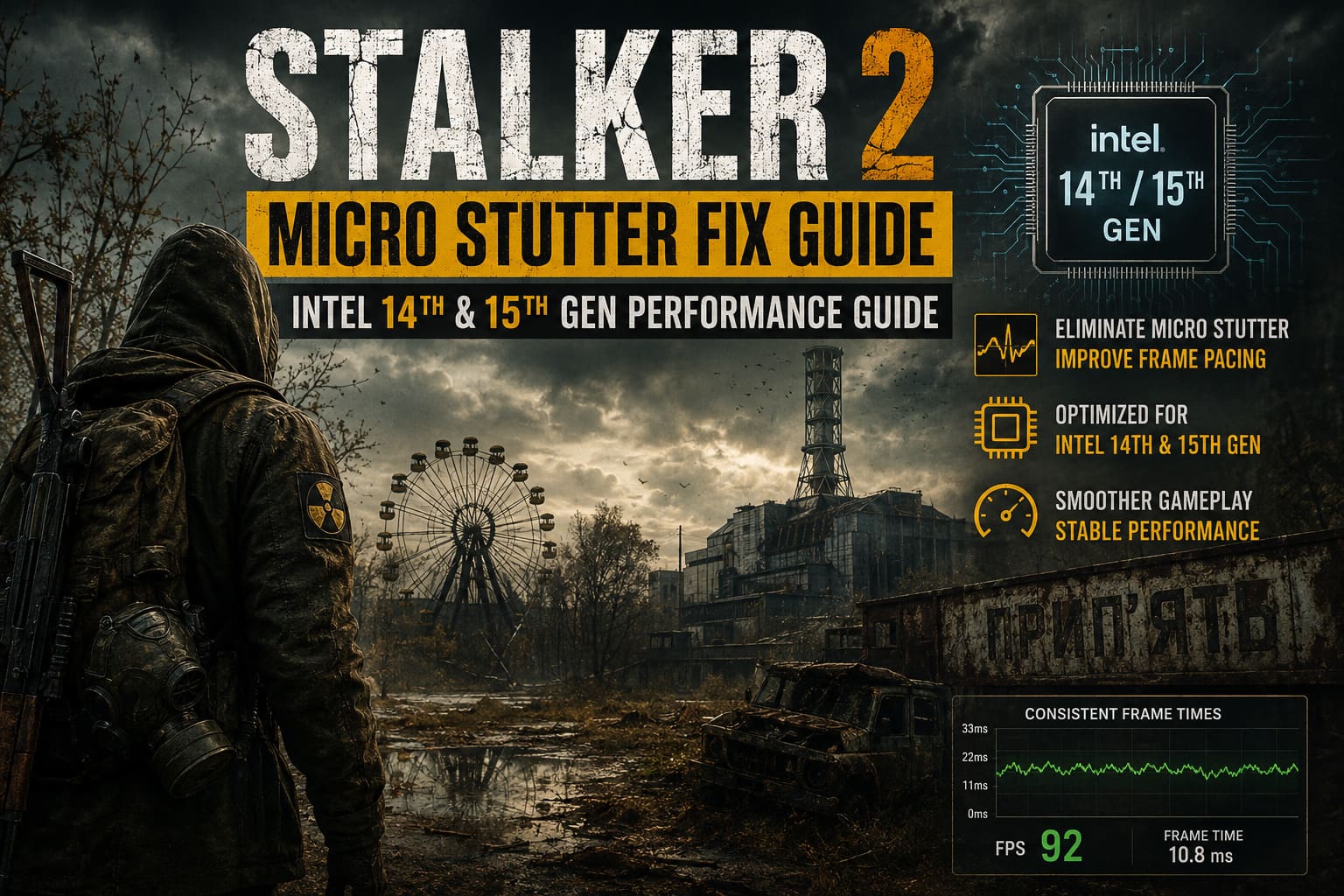
STALKER 2 Micro Stutter Fix Guide: Intel 14th & 15th Gen Performance Guide
If there is one thing that can ruin an otherwise great STALKER 2 session, it is not a Bloodsucker jumping out of the darkness. It is watching your FPS counter report 80, 90, or even 120 FPS while the game still feels like it is hitching every few seconds.
That weird disconnect between average FPS and actual smoothness is where micro-stuttering and poor frame pacing become a serious problem.
S.T.A.L.K.E.R. 2: Heart of Chornobyl is an extremely demanding Unreal Engine 5 game. The Zone constantly throws huge environments, NPCs, foliage, lighting effects, physics, animations, and streamed assets at your hardware. Even a very expensive gaming PC can struggle when moving rapidly between areas or entering crowded locations.
Intel 14th Gen processors such as the Core i9-14900K and Core i7-14700K, along with newer Core Ultra desktop CPUs, can be particularly sensitive to how Windows, BIOS firmware, background processes, and the game engine distribute workloads.
I have spent enough time fighting PC stutter to know the difference between “your PC is simply too slow” and “something is messing with frame pacing.” STALKER 2 often falls into the second category.
The good news is that there are several practical things you can do.
Why STALKER 2 Can Stutter on Modern Intel CPUs
Before changing half your PC configuration, it helps to understand what is actually happening.
Hybrid CPU Scheduling
Modern Intel desktop processors use different types of cores. Performance cores handle demanding workloads, while Efficient cores are designed for background and lighter tasks.
Windows does a surprisingly good job managing this arrangement, but a demanding Unreal Engine 5 game can create some awkward situations. STALKER 2 is constantly processing world streaming, AI, physics, rendering preparation, and background tasks.
When important work gets moved between different CPU resources, the average FPS might barely change while individual frame times suddenly spike.
And that is exactly what you feel as a stutter.
BIOS, Microcode, and Power Behavior
If you are using a 13th or 14th Gen Intel desktop processor, BIOS updates should not be treated as optional housekeeping.
Intel and motherboard manufacturers have released firmware and profile changes addressing stability and power behavior on affected platforms. An outdated BIOS can also leave a motherboard using overly aggressive automatic settings.
That can produce excessive temperatures, power fluctuations, and thermal throttling under sustained gaming loads.
For STALKER 2, where the CPU can remain under heavy load for long periods, that is a terrible combination.
Asset Streaming
This is probably the biggest part of the puzzle.
The Zone is huge, and the game continuously streams content as you move through it. When you sprint toward a new settlement or rapidly cross an area, the engine has to bring new textures, geometry, NPC data, animations, and other resources into memory.
You can have a powerful GPU and still experience a nasty hitch when this happens.
That is why traversal stutter can remain even when your normal FPS looks perfectly healthy.
1. Start With Your BIOS and Intel Platform Drivers
This is the boring fix. Do it anyway.
Restart your PC and enter the motherboard BIOS. You can usually access it by pressing Delete or F2 during startup.
First, check the installed BIOS version.
You can also press Windows + R, type msinfo32, and check the BIOS version and date inside System Information.
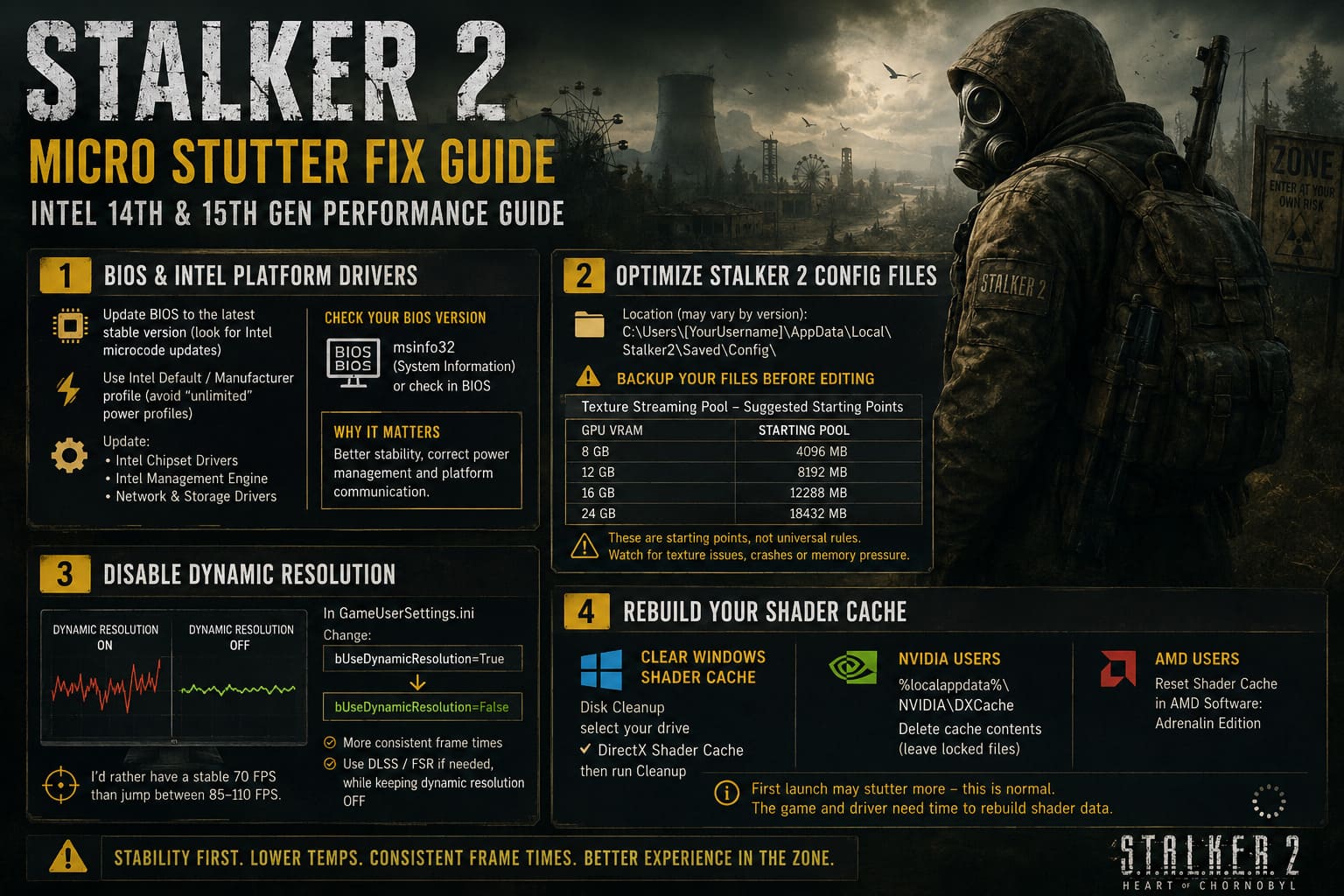
Visit the support page for your exact motherboard model and compare your current firmware with the latest stable release.
Look specifically for BIOS releases containing Intel microcode updates, platform stability improvements, or CPU power-management changes.
Use Intel-Appropriate Power Profiles
After updating the BIOS, check your CPU configuration.
If your motherboard offers several automatic profiles, be careful with options that essentially translate to “ignore Intel’s limits and push everything harder.”
For troubleshooting, start with an Intel Default or manufacturer profile that follows Intel’s recommended operating behavior.
This is especially important if you have an i9 processor.
An aggressively configured 14900K running extremely hot may look impressive in benchmark screenshots, but I would much rather have consistent frame times than another 100 MHz during a firefight.
Also update your motherboard’s:
- Intel chipset drivers
- Intel Management Engine components
- Network and storage drivers where applicable
These updates are not magic FPS boosters. Their value is stability and proper platform communication.
2. Clean Up STALKER 2’s Configuration Files
Unreal Engine games expose a huge number of settings behind the normal graphics menu.
That does not mean every Engine.ini tweak found online is automatically useful. Some commands can become outdated between game versions, while others can actually make performance worse if they conflict with the engine’s current streaming behavior.
Still, configuration adjustments can be useful when you are dealing specifically with texture-streaming problems.
The configuration folder is commonly found under:
C:\Users\[YourUsername]\AppData\Local\Stalker2\Saved\Config\
The exact subfolder can vary depending on the version and distribution.
Before editing anything, make a backup of your configuration files.
If you already have a heavily modified Engine.ini, testing from a clean configuration can sometimes be more useful than stacking another twenty commands on top of it.
For systems with substantial VRAM, users commonly experiment with texture-streaming pool settings and related streaming parameters. A reasonable starting point is to keep the pool allocation below the card’s total VRAM rather than blindly assigning every available gigabyte to the game.
| GPU VRAM | Suggested Starting Pool |
|---|---|
| 8GB | 4096 MB |
| 12GB | 8192 MB |
| 16GB | 12288 MB |
| 24GB | 18432 MB |
These values should be treated as starting points, not universal laws.
If your system starts showing texture corruption, memory pressure, crashes, or worse frame pacing, revert the change. More allocated VRAM does not automatically mean smoother gameplay.
3. Disable Dynamic Resolution if You Want Predictable Frame Times
Dynamic resolution is useful when the priority is maintaining a target frame rate.
But if you are troubleshooting inconsistent frame pacing, I prefer taking as many moving variables out of the equation as possible.
Open GameUserSettings.ini in the same configuration directory and look for:
bUseDynamicResolution=True
If present, test:
bUseDynamicResolution=False
The idea is simple: instead of allowing the game to continuously adjust internal resolution based on performance, you give the GPU a more predictable workload.
If you use DLSS or FSR, you can still use an upscaling mode while keeping dynamic resolution disabled.
Personally, I would rather run a stable 70 FPS than bounce between 85 and 110 FPS while the frame-time graph looks like it has been attacked with a chainsaw.
4. Rebuild Your Shader Cache
This is one of the first things I would try after a major STALKER 2 update or GPU driver change.
Old shader data can become less useful after patches, driver updates, or changes to game files. The result can be hitching when the game encounters effects or materials that need new shader work.
Clear the Windows Shader Cache
Search Windows for Disk Cleanup.
Select your Windows drive and check:
DirectX Shader Cache
Then run the cleanup.
Do not randomly select every category unless you actually want to remove unrelated files.
NVIDIA Users
You can also inspect:
%localappdata%\NVIDIA\DXCache
Delete the cache contents that Windows allows you to remove. Files currently locked by another process can simply be left alone.
AMD users can use the shader-cache reset option available through AMD Software: Adrenalin Edition.
After clearing the cache, the next launch may initially feel worse.
That is normal.
The game and driver need to rebuild shader data. Give the process time before deciding the fix failed.
5. Deal With Intel P-Core and E-Core Scheduling
This is where things get interesting.
Start with Windows doing the scheduling. Don’t immediately disable E-Cores across your entire system.
Launch STALKER 2, open Task Manager with Ctrl + Shift + Esc, go to Details, find the game’s executable, and check its process settings.
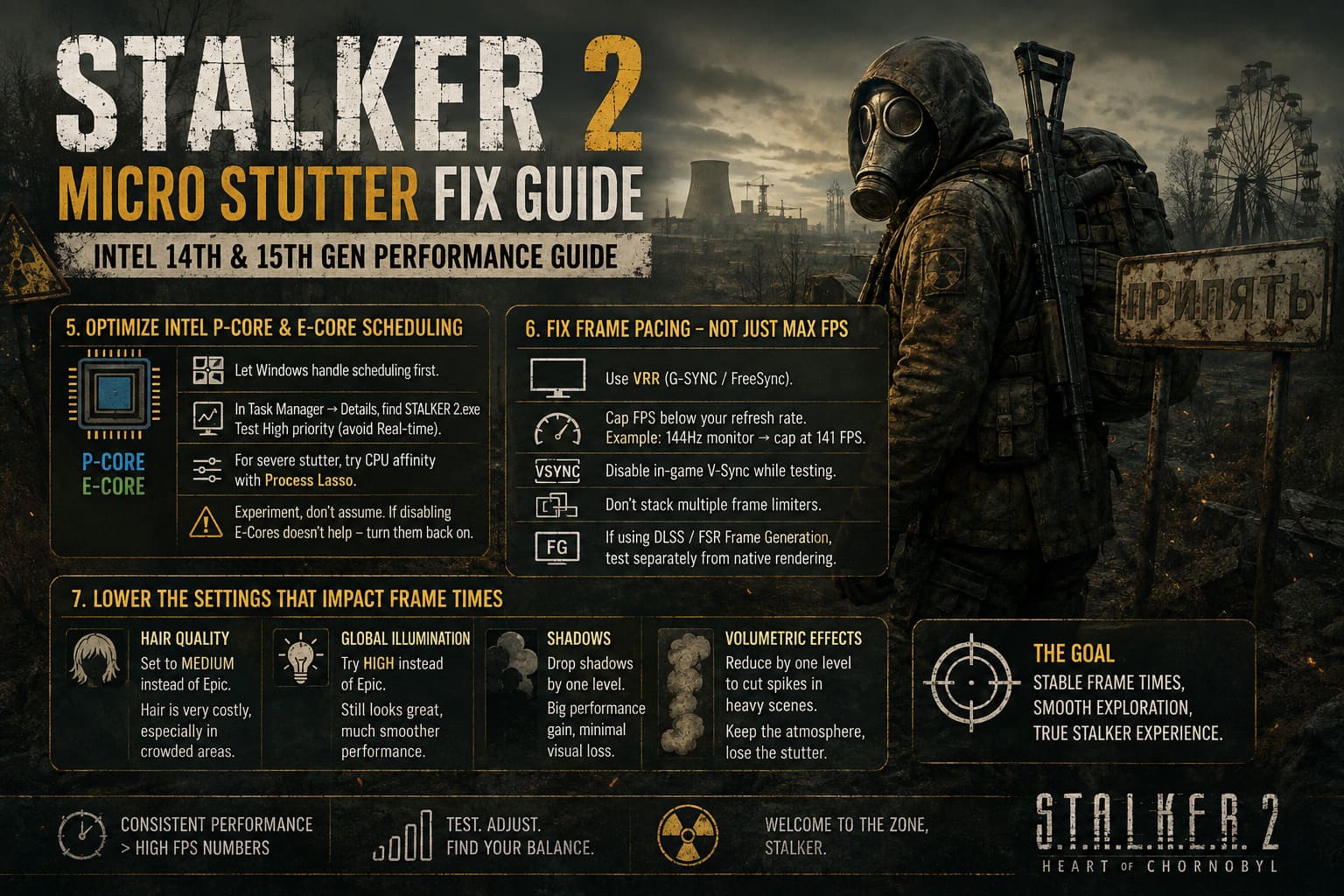
You can test High priority, but I would not recommend blindly using Real-time priority. That can cause more problems than it solves by starving other Windows processes.
If the game continues to show severe spikes, advanced users can experiment with CPU affinity using a utility such as Process Lasso.
The idea is to test whether keeping the game primarily on the Performance Core side of the processor improves consistency.
This is very much a troubleshooting experiment, not a universal recommendation.
If disabling E-Cores makes no measurable difference, turn them back on. There is no reason to sacrifice useful CPU resources because an internet tweak told you it was mandatory.
6. Fix Your Frame Pacing Before Chasing Maximum FPS
This is probably my biggest recommendation.
Stop chasing the highest possible FPS number.
STALKER 2 benefits enormously from consistent frame delivery.
If you are using a VRR monitor such as G-SYNC or FreeSync, configure the display and frame-rate cap around that refresh rate.
For a 144Hz display, for example, a cap around 141 FPS is commonly used to stay inside the VRR range.
But there is an important catch: frame generation changes the equation.
If you are using DLSS or FSR Frame Generation, the displayed FPS can be much higher than the game’s underlying rendered frame rate. Adding aggressive driver-level settings on top of frame generation can create confusing results.
Start simple:
- Disable in-game V-Sync while troubleshooting.
- Use your monitor’s VRR technology if available.
- Test a sensible FPS cap.
- Avoid stacking multiple frame limiters.
- Compare native rendering and frame generation separately.
And don’t automatically assume NVIDIA Control Panel Ultra Low Latency Mode will fix everything. Sometimes it helps. Sometimes it changes nothing. Sometimes another combination produces better results.
Test instead of blindly copying settings.
7. Lower the Settings That Actually Hurt Your Frame Times
If your average FPS is acceptable but the game still stutters, dropping every graphics setting to Low is usually the wrong approach.
Target the settings that create the biggest workload.
Hair Quality
Try Medium instead of Epic.
Character hair can be surprisingly expensive, particularly around NPC-heavy areas.
Global Illumination
If you are running Epic global illumination and your GPU or CPU is already struggling, test High.
STALKER 2 still looks fantastic at High. I would happily sacrifice a little lighting fidelity for smoother traversal.
Shadows
Dropping shadows by one preset level can reduce the workload without making the Zone look dramatically worse.
Volumetric Effects
Heavy volumetric effects can contribute to performance drops in dense scenes. Try reducing them one level rather than gutting the entire graphics preset.
The goal isn’t to make STALKER 2 look like a 2014 game.
The goal is to remove the settings that create ugly frame-time spikes while preserving the game’s atmosphere.
A Few Things You Should Not Do
There are plenty of STALKER 2 optimization guides floating around with enormous Engine.ini blocks.
I would be careful.
Do not paste fifty console variables into your configuration without knowing what they do.
Some commands may be deprecated, ignored, or behave differently after an update. Others can increase memory usage or introduce visual problems.
The same applies to forcing extreme CPU affinity configurations.
If a tweak claims it will “eliminate 100% of stutter” on every Intel processor, GPU, and motherboard combination, be skeptical.
PC performance is annoyingly individual.
A Core i9-14900K paired with an RTX 4090 and 64GB of RAM can behave differently from the exact same CPU paired with an RTX 4070 Ti Super, different motherboard, different BIOS, and different memory configuration.
STALKER 2 Console Commands: How to Enable Developer Mode & Debug Console Guide (2026)
My Recommended STALKER 2 Intel Troubleshooting Order
If I were setting up a fresh high-end Intel gaming PC specifically for STALKER 2, this is the order I would follow:
- Update BIOS and Intel platform drivers.
- Use sensible Intel CPU power settings.
- Reset questionable motherboard overclocking profiles.
- Clean shader caches after major updates.
- Test dynamic resolution disabled.
- Establish a stable VRR-friendly FPS cap.
- Reduce Hair, Global Illumination, Shadows, and Volumetric settings if necessary.
- Only then experiment with Engine.ini streaming tweaks.
- Use CPU affinity experiments as an advanced troubleshooting step.
That order matters.
There is no point spending an hour editing Engine.ini if your motherboard is running an outdated BIOS or your CPU is thermal throttling.
STALKER 2 Exoskeleton Repair Guide: How to Fix Tier 3 Exo Suits Cheaply
Final Verdict
STALKER 2 is one of those games that exposes weaknesses you never noticed in other titles. You can have a monster GPU, loads of RAM, and a modern Intel CPU and still get those irritating little pauses when moving through the Zone.
The good news is that micro-stuttering is not necessarily a sign that your PC is incapable of running the game.
On Intel 14th and newer platforms, start with BIOS stability and sensible CPU configuration. Then move through shader-cache cleanup, dynamic-resolution testing, frame-pacing adjustments, and carefully selected graphics changes.
Engine.ini tweaks can help in specific situations, but I would treat them as the advanced layer rather than the first thing you touch.
Most importantly, judge the result by frame-time consistency, not just the FPS counter.
When STALKER 2 finally stops hitching while you’re sprinting through the Zone, it feels like a completely different game. The atmosphere gets better. Gunfights feel cleaner. Exploration stops being interrupted by those tiny freezes.
And honestly, after surviving enough Bloodsuckers, mutants, anomalies, and questionable quest bugs, the last thing you need is your CPU deciding to become another enemy.