WARDOGS Voice Chat Not Working: How to Fix the 2026 Proximity Mic Bug
If there is one thing a tactical shooter cannot afford to screw up, it is voice chat. WARDOGS lives and dies on communication. You need to warn your squad about an approaching vehicle, call out a sniper position, coordinate a push, or simply tell the guy next to you that you’re about to breach a room. When proximity voice chat suddenly stops working, the whole match can turn into a frustrating guessing game.
That is exactly what some WARDOGS players have been running into in 2026.
The annoying part is that the microphone itself often isn’t broken. Windows can detect it. Your headset works perfectly in Discord. The WARDOGS audio settings may even show the correct input device. Yet once you load into a match, your teammates hear nothing. Sometimes you can hear your squad but cannot speak. Other times both squad and proximity chat completely disappear after moving from the lobby into an active match.
I’ve seen this kind of VoIP bug ruin otherwise great tactical games, and WARDOGS is particularly vulnerable because communication isn’t some optional social feature. It is part of the gameplay loop. Fortunately, there are several fixes worth trying before you give up and switch the entire squad to Discord.
Why Is WARDOGS Voice Chat Not Working?
The WARDOGS proximity microphone problem appears to come in several different forms. Players have reported everything from microphones failing after spawning to voice channels becoming completely silent after returning to the lobby.
The most common symptoms include:
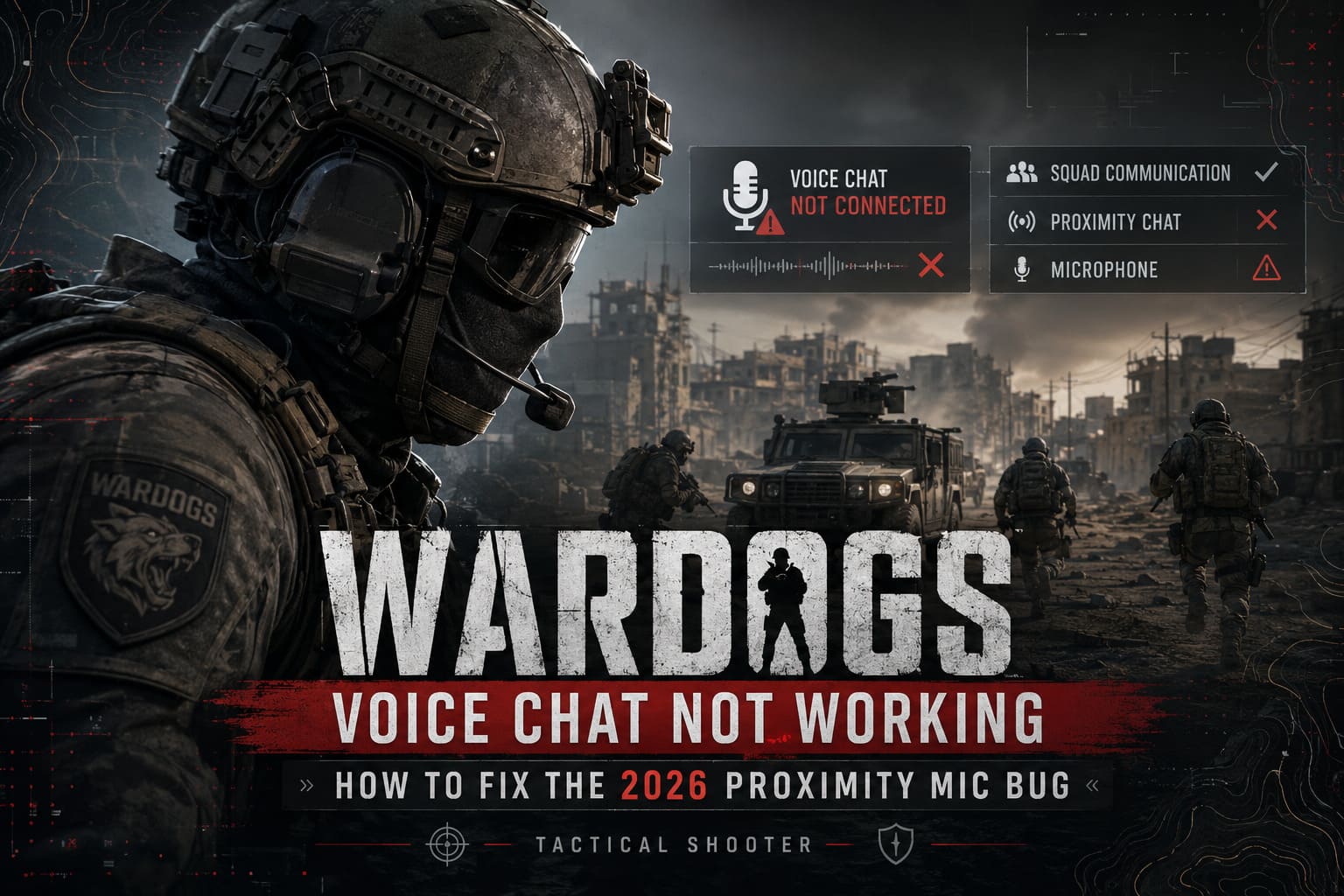
- The microphone icon shows a muted or warning indicator even though the mic works elsewhere.
- WARDOGS detects the microphone in its settings, but your voice doesn’t reach other players.
- You can hear teammates but cannot transmit your own voice.
- Proximity chat works during one match and disappears after returning to the lobby.
- Squad voice works while local proximity communication does not.
- Voice chat suddenly stops after changing audio devices, joining a party, or loading into another match.
That last one is particularly irritating. You can spend ten minutes checking Windows settings only to discover that the game simply lost its VoIP connection when transitioning between menus and gameplay.
There also appears to be a nasty interaction between Windows communication devices, microphone processing, Steam audio features, and the game’s own voice system. Virtual microphones from webcams, capture software, wireless headsets, and other applications can make things even messier.
So, let’s start with the fixes that take almost no time.
1. Toggle WARDOGS Voice Chat Off and Back On
This is the first thing I’d try because it is ridiculously simple and, when the problem is a stuck VoIP session, surprisingly effective.
If your microphone stops working after spawning:
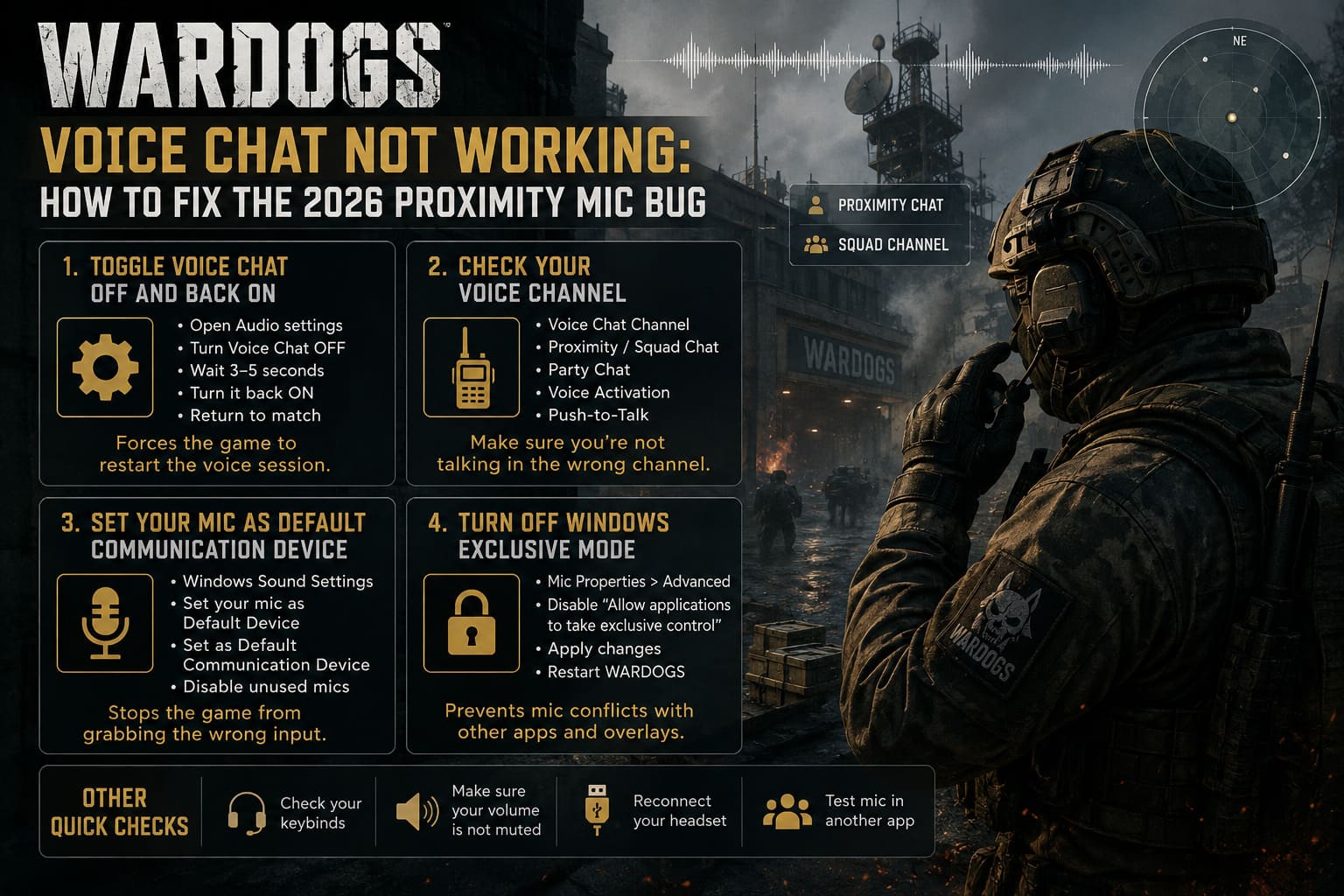
- Press Escape while you’re in the match.
- Open the Audio settings.
- Find the Voice Chat or Game Chat option.
- Turn voice chat completely OFF.
- Wait around 3–5 seconds.
- Turn it back ON.
- Return to the match and test your microphone.
If nothing happens, repeat the toggle once more.
The reason this works is pretty straightforward: the game may have loaded into the match without properly establishing the voice session. Restarting the setting can force the audio system to initialize again instead of leaving you stuck with a dead connection.
Don’t immediately restart the entire game. Try this first. It takes seconds and can save you from sitting through another loading screen.
2. Check Which Voice Channel You’re Actually Using
This one sounds obvious, but tactical shooters love making voice channels unnecessarily confusing.
WARDOGS can separate communication between squad members and nearby players, meaning your microphone may technically be working while you’re simply transmitting into the wrong channel.
Open your audio settings and check the available voice options. Depending on the current version and platform, look for settings related to:
- Voice Chat Channel
- VOIP Selection
- Squad Chat
- Proximity Chat
- Party Chat
- Voice Activation
- Push-to-Talk
If you have an option similar to Squad and Proximity or All Lobby, make sure it isn’t restricted to party-only communication.
Also check your keybinds.
If proximity chat and squad radio use separate buttons, it is incredibly easy to press the wrong one during a chaotic firefight. I’ve made this mistake in other shooters myself: spending half a match convinced the microphone was broken when I was simply talking into a channel nobody nearby could hear.
3. Make Your Microphone the Windows Default Communication Device
PC players should pay particular attention to this fix.
Windows can have multiple input devices active simultaneously. Your headset microphone might be the device you actually use, while Windows has decided that your webcam microphone, monitor microphone, controller microphone, or virtual audio cable is the default communication device.
That can cause games to grab the wrong input.
Go to Windows Sound Settings and check the Input section. Select the microphone you actually want to use.
Then open the classic sound control panel:
Sound → Recording
Find your main microphone, right-click it, and select:
- Set as Default Device
- Set as Default Communication Device
If you have several unused microphones listed, consider disabling them temporarily.
This is especially useful if you’ve recently connected a new headset, webcam, USB microphone, controller, or audio interface.
Don’t Forget Wireless Headsets
Bluetooth and wireless headsets can be particularly annoying because Windows sometimes exposes multiple versions of the same hardware. One may be the normal high-quality playback profile while another is the headset’s communication profile.
If WARDOGS keeps switching input devices, manually selecting your intended microphone before launching the game can make a huge difference.
4. Turn Off Windows Exclusive Mode
Another potential source of microphone conflicts is Exclusive Mode.
Some applications can take control of an audio device and prevent another program from accessing it correctly. When Steam, voice software, recording utilities, or other background applications fight over the microphone, WARDOGS may end up with a device that technically exists but doesn’t actually transmit.
To change this:
- Open Sound Settings.
- Go to your microphone’s properties.
- Open the Advanced tab.
- Look for Exclusive Mode options.
- Disable Allow applications to take exclusive control of this device.
- Apply the changes.
- Restart WARDOGS.
I’d especially try this if your microphone works perfectly in Discord but fails only inside the game.
5. Check Steam’s Voice Processing
Steam’s own voice features can sometimes complicate troubleshooting because there are multiple layers of audio processing between your physical microphone and the game.
If you’re playing WARDOGS through Steam, open Steam Settings → Voice and inspect the available microphone processing options.
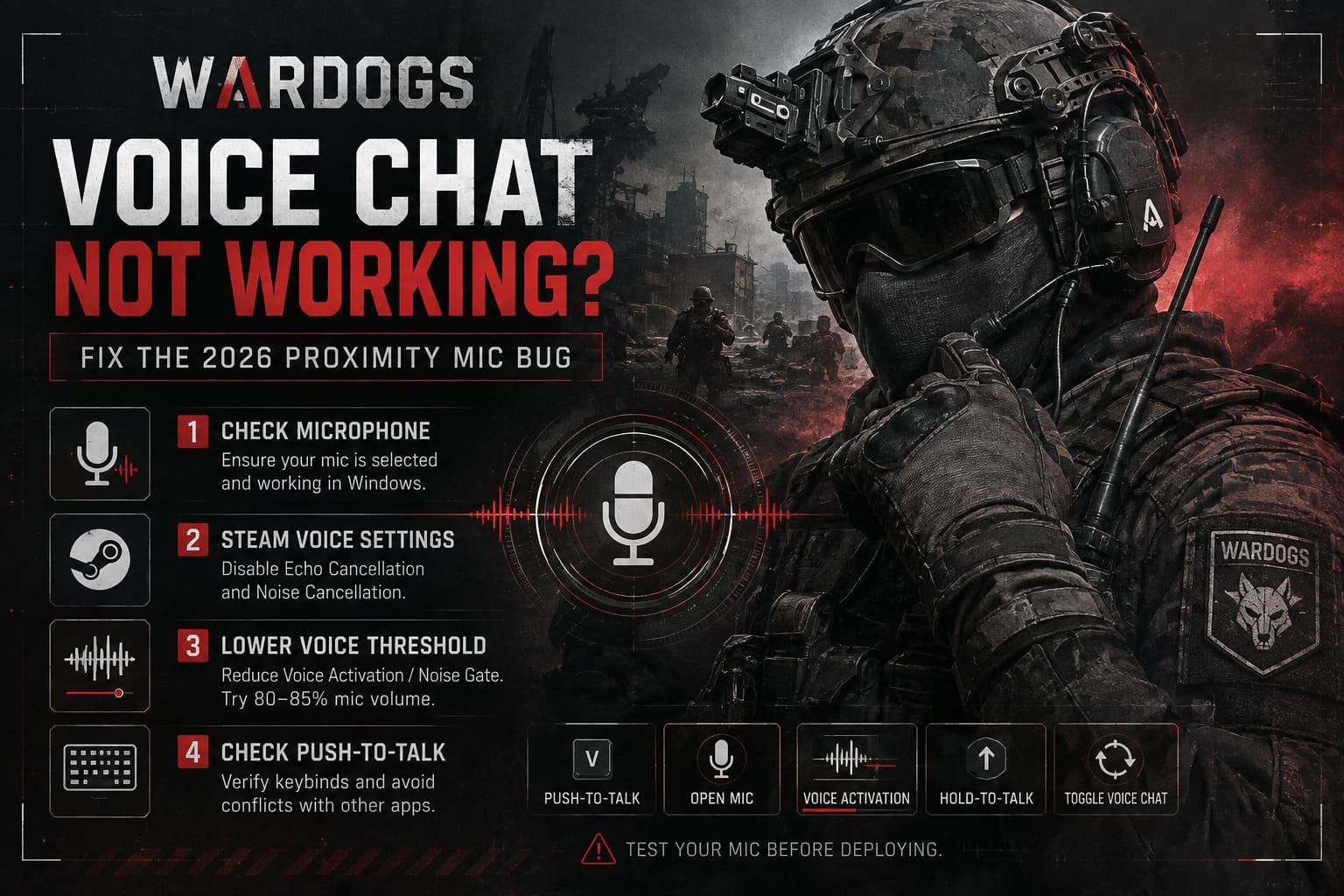
If features such as Echo Cancellation or Noise Cancellation are enabled, temporarily disable them and test WARDOGS again.
The goal here isn’t necessarily to keep every Steam voice feature permanently disabled. You’re simply eliminating another processing layer that could potentially interfere with the game’s own voice system.
If the problem disappears, turn features back on one at a time until you find the setting responsible.
6. Lower the Voice Activation Threshold
A microphone can be working perfectly and still sound completely dead to other players if the game’s voice detection threshold is too aggressive.
Check WARDOGS for options such as:
Voice Activation Threshold, Noise Gate, Microphone Sensitivity, or Voice Detection.
If the threshold is set too high, quiet speech may never trigger transmission.
Try lowering it significantly and test your microphone.
At the same time, don’t assume that 100% microphone volume is automatically better. Excessive input gain can introduce clipping and aggressive automatic gain control, which can make voice processing behave strangely.
A good starting point is around 80–85% Windows microphone volume, followed by an in-game voice test.
You want your voice to be loud enough to trigger detection without turning every syllable into distorted digital noise.
7. Make Sure Push-to-Talk Isn’t Silently Betraying You
This deserves its own section because it has fooled gamers for years.
Check whether WARDOGS is using:
- Push-to-Talk
- Open Mic
- Voice Activation
- Hold-to-Talk
- Toggle Voice Chat
If you’re using Push-to-Talk, verify the assigned key.
Then make sure another application isn’t using the same keybind.
For example, if your communication button overlaps with a Steam shortcut, Discord function, controller command, or another game action, you can end up with a situation where the microphone technically works but never activates when you expect it to.
Test the microphone deliberately in a quiet area before jumping into another firefight.
WARDOGS Voice Chat Fixes at a Glance
| Fix | What It Can Solve | Platform |
|---|---|---|
| Toggle Voice Chat | Stuck VoIP session after spawning | PC & Consoles |
| Check Voice Channel | Wrong squad or proximity channel | PC & Consoles |
| Set Default Communication Device | Windows selecting the wrong microphone | PC |
| Disable Exclusive Mode | Audio software conflicts | PC |
| Adjust Noise Gate | Voice being filtered out | PC & Consoles |
| Leave Console Party Chat | Game chat being overridden | Consoles |
PlayStation 5: Fixing WARDOGS Proximity Chat
Console troubleshooting is a little different because the operating system controls more of the audio environment.
On PS5, start by checking your microphone status and headset configuration.
If you’re using a headset rather than the DualSense microphone, make sure the correct input device is selected. Also check that you haven’t accidentally muted the controller or microphone.
Then look at your PlayStation party status.
This is important.
If you’re sitting inside a PlayStation Network party, the console may prioritize party communication instead of the game’s own voice channel. Leave the console party completely and return to WARDOGS.
Now test proximity chat again.
If voice suddenly starts working, you’ve found the problem.
Also check the PS5 microphone settings under the system’s Sound options and make sure your intended headset is being recognized correctly.
Xbox Series X|S: Check Privacy and Communication Settings
Xbox players should check their privacy restrictions if WARDOGS voice chat refuses to work.
Navigate through:
Settings → Account → Privacy & online safety → Xbox privacy
Then open:
View details & customize → Communication & multiplayer
Make sure voice communication is allowed where required, particularly if you’re playing with people through cross-platform multiplayer.
Privacy restrictions can produce confusing symptoms because the microphone itself may appear functional while communication with other players is blocked.
After changing the settings, restart WARDOGS and test the microphone again.
Don’t Forget to Test After Every Change
One mistake I see constantly with troubleshooting guides is changing six things simultaneously.
Don’t do that.
Make one change, launch or re-enter a match, and test the microphone.
If the problem is fixed, you know exactly which setting caused it.
If nothing changes, move to the next fix.
This matters because WARDOGS voice chat problems can have completely different causes. A player with the wrong Windows communication device needs a different solution from someone whose console party is overriding game chat.
Could the WARDOGS Voice Chat Servers Be Broken?
Absolutely.
This is the possibility you shouldn’t ignore.
If your microphone works in Discord, Windows recognizes it correctly, other games have no problems, and multiple WARDOGS players are suddenly reporting the exact same voice issue, stop changing settings for a moment.
The problem could be server-side.
Voice communication depends on backend services just like matchmaking and other online features. If those services are having problems, there is nothing you can fix locally.
This is also why community reports are useful. If players are simultaneously reporting that proximity chat stopped working after a particular update or server maintenance period, that’s a strong clue that the issue isn’t sitting inside your PC.
The Best Emergency Workaround
If you’ve tried everything and WARDOGS proximity chat is still dead, there is one brutally simple workaround:
Use Discord for squad communication temporarily.
It obviously doesn’t restore proximity chat, and for a game built around immersive local communication, it’s not an ideal solution.
But if you’re playing competitively with friends, having reliable squad communication is much better than spending an entire match screaming into a microphone that nobody can hear.
For random teammates, you’re unfortunately stuck waiting for the game’s VoIP system to recover or for the developers to push a fix.
WARDOGS Weapon Purchasing and Gear Insurance Guide (2026 Economy Strategy)
Final Verdict: Fix the Basics Before Reinstalling WARDOGS
A broken microphone in WARDOGS can feel like a hardware failure, but in many cases the microphone itself is perfectly healthy.
Start with the in-game Voice Chat toggle. Then check your voice channel, Windows default communication device, microphone permissions, Steam processing, noise gate, and push-to-talk settings.
Console players should pay particular attention to party chat and system privacy settings.
The biggest mistake is going straight for drastic solutions like reinstalling the entire game. If WARDOGS detects your microphone but doesn’t transmit your voice, reinstalling several dozen gigabytes of game files is unlikely to be the first thing I’d reach for.
The fastest troubleshooting order is:
- Toggle WARDOGS Voice Chat off and back on.
- Confirm you’re using the correct squad/proximity channel.
- Set your microphone as the Windows Default Communication Device.
- Disable Exclusive Mode and conflicting audio processing.
- Lower the voice activation threshold.
- Check Push-to-Talk and microphone keybinds.
- Leave PlayStation/Xbox party chat if you’re on console.
- Check whether other players are experiencing a wider VoIP outage.
WARDOGS is at its best when communication is flowing naturally: someone whispers a warning nearby, a squadmate calls out armor, footsteps approach, and suddenly the whole team knows exactly what is happening. When proximity chat breaks, that entire layer of tension disappears.
So before blaming your headset, work through the VoIP stack from the game outward. In my experience, the fix is usually hiding somewhere between a wrong communication device, a stuck voice session, an overly aggressive microphone filter, or a platform-level chat conflict.
And if none of that works? Don’t rage-quit the match just yet. Grab Discord, keep the squad together, and wait for the next WARDOGS update to hopefully kick that microphone bug back into the dirt.