How to Fix Call of Duty Modern Warfare 4 Low FPS and DX12 Stuttering on PC
If there is one thing that can ruin a good Call of Duty session faster than a bad teammate, it is random DX12 stuttering. Modern Warfare 4 can look fantastic and still feel awful when the frame rate suddenly drops, the image freezes for a fraction of a second, or the game produces a nasty hitch right as you aim at someone.
I have spent enough time tweaking Call of Duty on PC to know that chasing the highest possible FPS number is not always the answer. A system showing 150 FPS can feel worse than one locked around 100 FPS if the frame times are all over the place. In Modern Warfare 4, that distinction matters even more because the game is heavily dependent on DirectX 12, shader compilation, asset streaming, VRAM management, and CPU scheduling.
The good news is that you do not necessarily need a new GPU to fix the problem. In my experience, the biggest improvements usually come from getting the game’s resource management under control and removing a few Windows and background-process problems.
Here is the Modern Warfare 4 PC stuttering fix setup I would try before spending money on new hardware.
Why Modern Warfare 4 Can Stutter Even on a Good PC
The frustrating part about DX12 stuttering is that your average FPS can look completely healthy while the game still feels terrible.
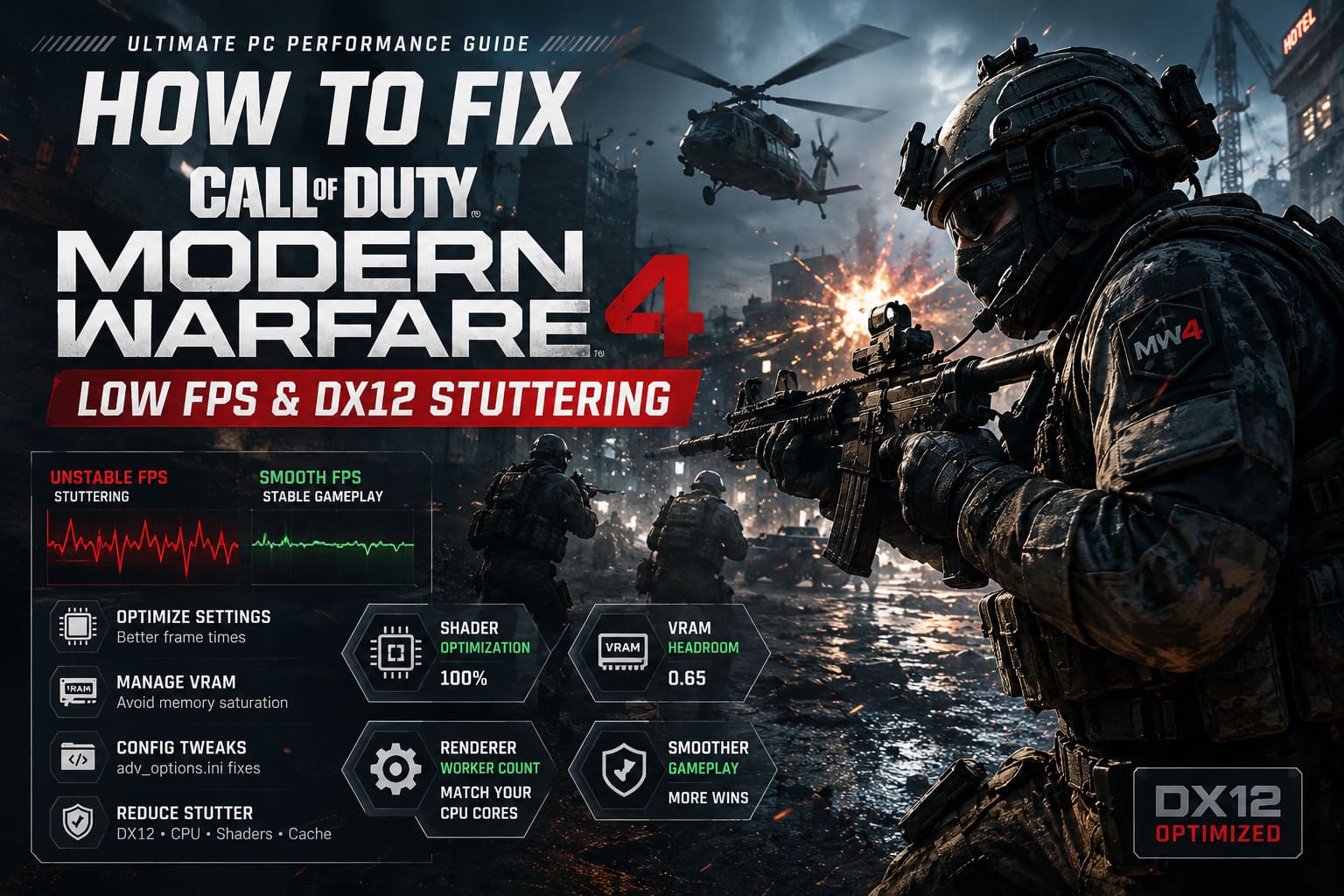
You might be sitting at 120–160 FPS and suddenly experience a 100–200 ms hitch when:
- A new section of a map loads.
- You aim down sights for the first time.
- An explosion or complex visual effect appears.
- A new player skin or weapon asset enters view.
- The killfeed updates during a busy fight.
- The game finishes loading additional shader data.
This is usually a frame-time problem rather than a simple FPS problem.
Modern Warfare 4 has to constantly move assets between your storage drive, system RAM and GPU VRAM. DirectX 12 gives the game much more direct control over these resources, which is great when everything is configured properly. When the engine guesses incorrectly about available memory or shader states, however, you can get those horrible little freezes that make aiming feel inconsistent.
And honestly, that is what bothers me most. Losing 20 FPS is one thing. Having the screen freeze for a split second while someone is shooting at you is a completely different problem.
Start With the Shader Optimization Process
Before changing ten different Windows settings, check the obvious thing first: shader optimization.
Every time you update the game, install a new graphics driver, or make certain major graphics changes, Modern Warfare 4 may need to rebuild shader data. If you jump straight into multiplayer while this process is incomplete, the game can compile assets during gameplay.
That is exactly the sort of behavior that creates sudden frame-time spikes.
Go into the game’s graphics settings and find the shader optimization option. If the game offers Restart Shaders Optimization, use it after clearing a corrupted cache or updating your GPU driver.
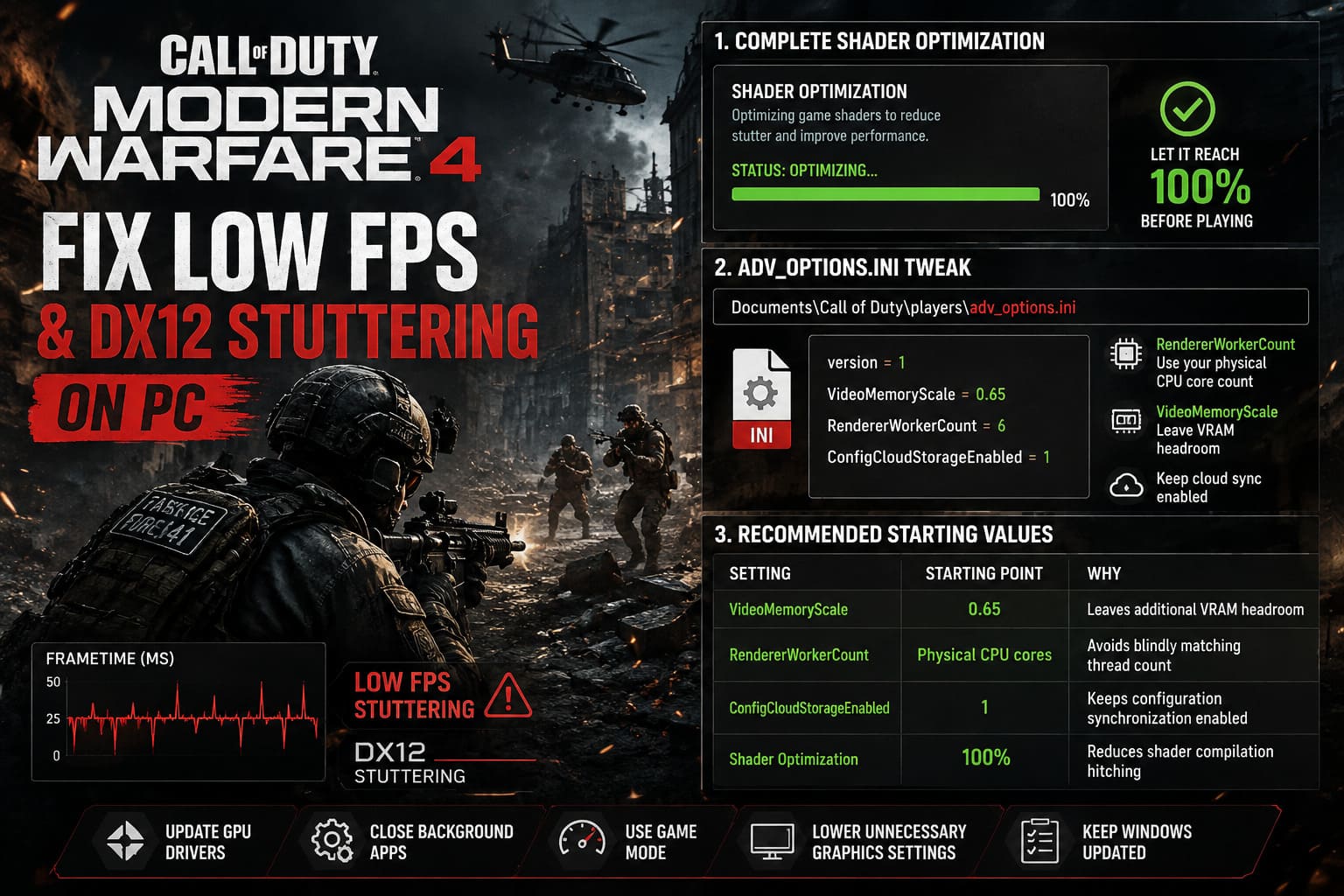
Then leave the game alone while the process completes.
I would not launch a match at 70–80% and assume everything will be fine. Let it reach 100% before testing performance.
It sounds painfully basic, but this is one of the first things I check whenever Call of Duty suddenly starts behaving badly after an update.
The Adv_Options.ini Fix Worth Trying
One of the more useful community tweaks involves the game’s adv_options.ini configuration file.
The file is generally located inside the Call of Duty player configuration folder, commonly under your Windows Documents directory.
Look for:
Call of Duty\players\adv_options.iniBefore editing anything, make a backup copy. If the file does not exist, the game may generate it after launching, or you can create an INI file manually if necessary.
A configuration worth testing is:
version = 1
VideoMemoryScale = 0.65
RendererWorkerCount = 6
ConfigCloudStorageEnabled = 1
Do not blindly copy the RendererWorkerCount value, though. That is the part I would personally treat as hardware-dependent.
If your CPU has six physical cores, a value of 6 can make sense. An eight-core processor may benefit from 8 instead. The important point is that you should not assume your logical thread count is automatically the correct setting.
The VideoMemoryScale value is also something I recommend approaching carefully. A value around 0.65 is a reasonable starting point for troubleshooting aggressive VRAM allocation, especially if you are seeing texture-related hitching.
The reason is simple: leaving some VRAM headroom can be better than allowing the game to push memory usage right to the edge.
My Suggested Starting Values
| Setting | Starting Point | Why |
|---|---|---|
| VideoMemoryScale | 0.65 | Leaves additional VRAM headroom |
| RendererWorkerCount | Physical CPU cores | Avoids blindly matching thread count |
| ConfigCloudStorageEnabled | 1 | Keeps configuration synchronization enabled |
| Shader Optimization | 100% | Reduces shader compilation hitching |
After saving the file, some players choose to mark it Read-Only to stop the game from changing the values. Personally, I would first test whether the settings actually improve your system before locking the file permanently. If an update changes the game’s configuration structure, a read-only file can create its own headaches.
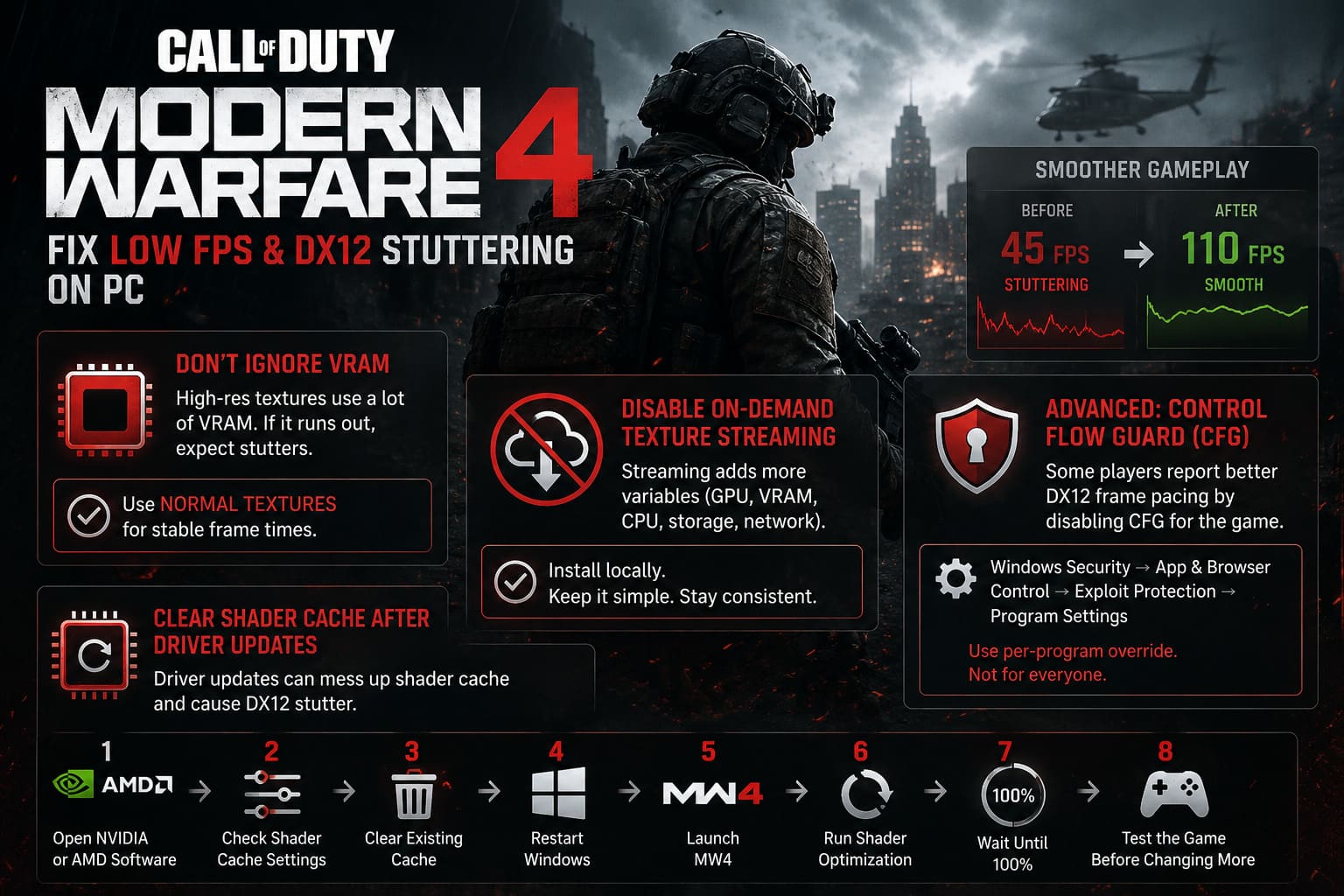
Don’t Ignore VRAM
This is probably the biggest mistake I see in PC optimization discussions: people focus entirely on GPU utilization and ignore VRAM.
You can have a powerful GPU that still struggles if the game is constantly running out of usable video memory.
Modern Warfare 4’s high-resolution textures, streaming assets and advanced lighting can consume a considerable amount of VRAM. When the available VRAM becomes saturated, the engine has to move data elsewhere. That can result in inconsistent frame delivery even though the GPU itself is technically capable of rendering the game.
If you have a GPU with limited VRAM, I would rather run Normal textures with stable frame times than max out textures and suffer constant hitching.
That is especially true for competitive multiplayer.
Disable On-Demand Texture Streaming
If you are chasing consistency, I would also test On-Demand Texture Streaming turned off.
The feature can improve texture quality by downloading additional assets, but it introduces another variable into the performance equation.
You are now dealing with:
GPU + VRAM + CPU + storage + network + asset streaming.
That is a lot of things that can potentially interrupt your game.
If your connection is unstable or your storage drive is already busy, streaming assets while playing can make the experience even more unpredictable.
For a competitive setup, I prefer installing what I need locally and keeping the gameplay pipeline as simple as possible.
Windows Exploit Protection: A More Advanced Experiment
There is another tweak that has circulated through PC optimization communities involving Control Flow Guard (CFG).
Windows uses CFG as a security feature designed to make certain memory-based exploits harder to execute. Some players have reported better DX12 frame pacing after disabling CFG specifically for the game’s executable.
You can find the setting through:
Windows Security → App & Browser Control → Exploit Protection → Program Settings
Add the Modern Warfare 4 executable and look for Control Flow Guard (CFG).
If you choose to test this, use the per-program override rather than disabling the protection globally.
That distinction is important.
I would also consider this an advanced troubleshooting step, not something every player should immediately change. Security mitigations exist for a reason, and if your game already runs smoothly, there is little reason to modify them.
If you test the option and performance does not improve, simply restore the Windows default.
Clear the Shader Cache After Driver Problems
A graphics driver update can sometimes leave you with a messy shader cache situation.
If Modern Warfare 4 was running perfectly yesterday and suddenly starts stuttering immediately after a GPU driver update, I would consider rebuilding the cache before doing anything more complicated.
The general process is:
- Open your NVIDIA or AMD graphics software.
- Check the shader cache settings.
- Clear the existing cache if your driver software provides that option.
- Restart Windows.
- Launch Modern Warfare 4.
- Run shader optimization again.
- Wait until the process reaches 100%.
- Test the game before changing additional settings.
I strongly prefer doing this systematically instead of changing fifteen settings at once. Otherwise, you have no idea which change actually fixed the problem.
My Windows Settings for Better Frame-Time Consistency
I do not recommend turning Windows into a stripped-down gaming operating system just to gain three frames per second.
There are, however, a few background features worth checking.
Start with background recording. Windows capture features can consume CPU, GPU and storage resources while you play. If you never use them, turn them off.
I would also disable unnecessary overlays.
The usual suspects include:
- Discord overlay
- Steam overlay
- Xbox Game Bar
- NVIDIA overlay
- AMD overlay
- Performance-monitoring overlays
Overlays are not automatically bad, but every extra application interacting with the game adds another potential source of problems.
For troubleshooting, I like to run the game with as few overlays as possible. Once the game is stable, I add back the ones I actually need.
Should You Use Ultimate Performance?
Windows has an Ultimate Performance power plan that can be enabled through an elevated Command Prompt.
The command is:
powercfg -duplicatescheme e9a42b02-d5df-448d-aa00-03f14749eb61After that, the plan can be selected from Windows Power Options.
Does it magically fix Modern Warfare 4? No.
I would not expect some huge FPS increase from it. The benefit is more about keeping the system from aggressively prioritizing power efficiency during demanding workloads.
On a desktop gaming PC, the difference may be tiny. On some systems, particularly those with aggressive power-management behavior, it can still be worth testing.
The Modern Warfare 4 Graphics Settings I Would Actually Use
Here is where I disagree with the “everything on Low” crowd.
You do not need to make Modern Warfare 4 look like a game from 2012 to get good performance.
The goal should be stable frame times with good visibility.
| Graphics Option | Recommended Setting |
|---|---|
| Display Mode | Fullscreen or preferred low-latency mode |
| Texture Resolution | Normal |
| On-Demand Texture Streaming | Off |
| Shadow Quality | Low |
| Shadow Map Resolution | Low |
| Cache Spot Shadows | On |
| Cache Sun Shadows | On |
| Upscaling | DLSS/FSR/XeSS Quality |
| Ray Tracing | Off for competitive play |
| Motion Blur | Off |
| Depth of Field | Off |
For textures, I would increase the setting if your GPU has plenty of VRAM and the frame-time graph remains clean.
The same applies to shadows. If lowering shadows gives you only a tiny performance improvement but makes the game look significantly worse, raise them one step and test again.
The important part is not blindly following somebody else’s exact settings.
DLSS, FSR or Native Resolution?
If you are GPU-limited, an upscaler can provide a significant FPS improvement.
I normally start with Quality mode rather than immediately jumping to Performance.
Quality keeps the image much closer to native resolution while still reducing rendering workload. If your GPU is struggling badly, Balanced can be the next step.
I would avoid using an aggressive performance mode unless you genuinely need it. Competitive shooters reward clarity, and excessive upscaling can make distant targets look soft or introduce distracting artifacts.
How to Tell What Is Actually Causing the Stutter
This is the part I wish more optimization guides explained.
Don’t just look at FPS.
Modern Warfare 4’s performance telemetry can tell you much more.
If GPU Time is consistently higher than CPU Time, you are probably GPU-bound.
If CPU Time is significantly higher, your processor or another CPU workload may be limiting the game.
If both look reasonable but you still experience giant frame-time spikes, I would start investigating shader compilation, asset streaming, VRAM pressure, background applications and storage activity.
That is why a 160 FPS average means very little on its own.
A smooth 120 FPS with consistent frame delivery feels vastly better than 160 FPS with periodic 200 ms freezes.
How to Fix Audio Out of Sync in Call of Duty: Modern Warfare 4 Beta (PC, PS5, Xbox)
My Recommended Troubleshooting Order
If I had a fresh installation of Modern Warfare 4 that was stuttering, this is the order I would use rather than changing everything randomly:
- Complete shader optimization.
- Restart the game and Windows.
- Disable unnecessary overlays and background recording.
- Turn off On-Demand Texture Streaming.
- Lower textures if VRAM usage is close to the limit.
- Rebuild the shader cache after driver changes.
- Test a sensible
adv_options.iniconfiguration. - Check CPU and GPU frame times.
- Experiment with advanced Windows settings such as CFG only if the problem remains.
- Test each change individually.
That last step matters more than people think.
If you change the INI file, Windows power plan, shader cache, texture settings and overlays all at the same time, you might get better performance, but you will never know why.
Best DMZ 2.0 Loadout in Call of Duty Modern Warfare 4: Meta Guide (2026)
Final Thoughts
Modern Warfare 4 does not need to run at the absolute highest FPS your hardware can technically produce. What matters to me, especially in multiplayer, is consistent frame delivery.
A stable 120 FPS feels fantastic. A 160 FPS average that randomly collapses into a 200 ms hitch does not.
The biggest things I would focus on are shader optimization, VRAM headroom, texture streaming, sensible graphics settings and background software. The adv_options.ini tweak can also be useful, but I would treat it as a troubleshooting tool rather than a universal magic configuration.
And I would be cautious with aggressive Windows modifications. Disabling security features or forcing unusual system configurations can sometimes help a particular machine, but they should not be the first thing you touch.
For most players, the best Modern Warfare 4 PC setup is actually pretty boring: keep the drivers clean, let shaders finish compiling, leave enough VRAM headroom, remove unnecessary overlays, use an appropriate upscaling mode and prioritize stable frame times over benchmark screenshots.
That is the difference between a PC that technically runs Call of Duty and one that actually feels good when the lobby gets chaotic.