How to Fix Audio Out of Sync in Call of Duty: Modern Warfare 4 Beta (PC, PS5, Xbox)
The Call of Duty: Modern Warfare 4 beta has barely landed, and I have already run into the kind of technical problem that can completely ruin a shooter: the sound does not always match what is happening on screen.
For a normal game, a little audio delay might be annoying. In Call of Duty, it can be a real problem. If a gunshot plays a fraction of a second late, footsteps arrive after the enemy has already moved, or campaign dialogue does not match the character’s mouth movements, the whole experience starts to feel broken.
I have always considered audio one of the most important parts of Call of Duty. You can lower some graphics settings and still have a great match. But when directional sound stops behaving properly, it becomes much harder to read what is happening around you.
The good news is that MW4 beta audio desync is not necessarily a hardware problem. Depending on your setup, the delay can come from Windows audio processing, spatial sound, Bluetooth limitations, HDMI formats, console audio settings, shader compilation, or even temporary game-side glitches.
Here are the fixes I would try first, starting with the simplest ones.
Why Is Call of Duty: Modern Warfare 4 Beta Audio Out of Sync?
There does not appear to be one universal cause behind every audio problem in the beta.
On PC, the biggest suspects are usually audio drivers, Windows spatial processing, Bluetooth headset modes, sample-rate settings, and background CPU activity. The situation gets even more complicated when you combine a gaming headset with software such as Dolby Atmos, DTS, Windows Sonic, or a manufacturer’s own audio application.
The beta can also put additional pressure on the system while shaders and other assets are being prepared. If the CPU suddenly becomes heavily occupied, you may notice stuttering, delayed effects, or sound arriving noticeably behind the image.
Console players have a different set of potential problems. HDMI audio processing, Dolby formats, 120Hz modes, soundbars, AV receivers, and headset virtualization can all introduce additional processing between the game and your ears.
So rather than changing twenty settings at once, I recommend working through the fixes below one at a time.
PC Fixes: Start With Your Windows Audio Settings
PC is where I would spend the most time troubleshooting because there are simply more variables involved.
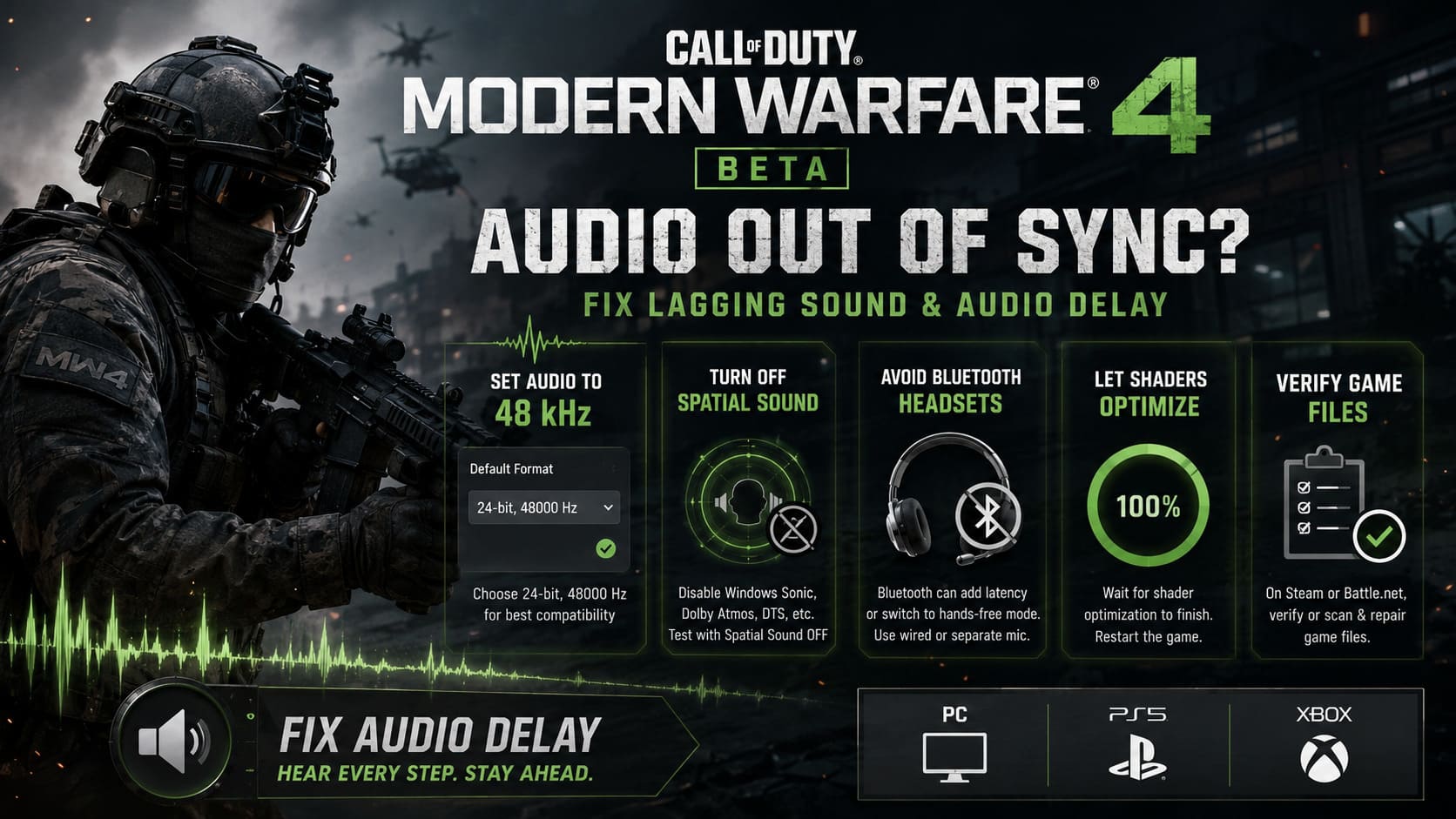
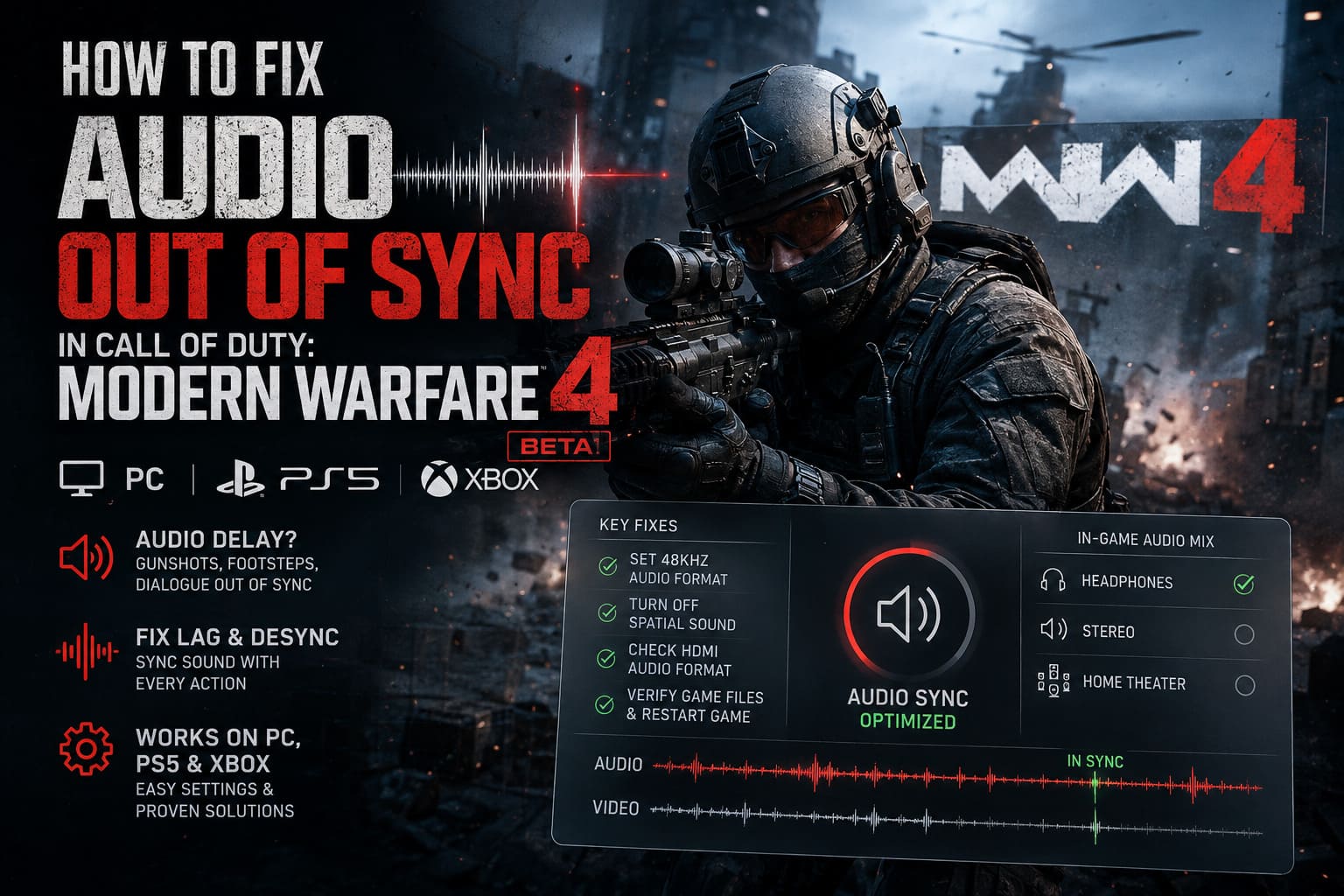
1. Set Your Audio Device to 48 kHz
One of the first things I would check is the Windows sample rate.
Modern games commonly work comfortably with 48 kHz audio, and keeping Windows and the game on a sensible, consistent format can eliminate unnecessary conversion.
To change it:
- Open Control Panel and select Hardware and Sound.
- Open Sound and find your active headset or speakers.
- Right-click the device and choose Properties.
- Open the Advanced tab.
- Under Default Format, try 24-bit, 48000 Hz.
- Click Apply and restart MW4.
If 48 kHz does not help, you can also test another available format. The important thing is avoiding an unnecessarily extreme configuration such as 192 kHz simply because it looks better on paper.
For gaming, I would rather have a stable audio pipeline than a huge theoretical studio-quality setting.
2. Turn Off Windows Spatial Sound
This is another setting I would test immediately.
If you are using Windows Sonic, Dolby Atmos, DTS, or another spatial audio solution, the game may effectively be processing sound through multiple layers.
Go to your headset’s Windows sound properties and find the Spatial Sound option. Set it to Off temporarily and launch the beta again.
If the delay disappears, you have found the likely culprit.
You can then experiment with your preferred spatial solution later. Personally, when troubleshooting a competitive shooter, I prefer starting with the simplest possible audio chain. Once everything is synchronized, I can add extra processing back.
3. Be Careful With Bluetooth Headsets
Bluetooth is convenient, but it is not my first choice for competitive Call of Duty.
When a game activates the headset microphone, Windows can switch some Bluetooth devices into a hands-free communication mode. The audio quality can suddenly become worse, and latency can become much more noticeable.
If your wireless headset suddenly sounds muffled, compressed, or delayed, check whether Windows has switched it into a hands-free profile.
If possible, disable the headset’s hands-free telephony service and use a separate microphone instead.
This is especially worth testing if your audio is fine everywhere else but becomes terrible as soon as you join voice chat.
4. Let Shader Optimization Finish
This is one of those fixes that sounds boring, but it can make a difference.
After installing a Call of Duty beta, I would not immediately jump into a match. Give the game time to complete its shader-related preparation if it provides a progress indicator.
Starting a match while the system is still processing shaders and loading assets can create CPU spikes. If the game is already struggling to keep frame delivery smooth, audio problems can become more obvious.
If the game provides a shader optimization or restart option, run it again and wait until the process has finished.
Then restart the game before testing another match.
5. Verify the Game Files
If your installation was interrupted, updated incorrectly, or contains damaged files, there is no point chasing complicated Windows settings first.
On Steam, use the game’s Properties > Installed Files > Verify integrity of game files option.
On Battle.net, use the launcher’s Scan and Repair function.
It is a simple step, but it can save a lot of unnecessary troubleshooting.
PS5: Fixing MW4 Audio Delay
PS5 is much easier to troubleshoot because there are fewer variables.
If your audio is delayed, I would first look at the console’s output format and then test whether the problem is related to 3D audio or a high-refresh-rate setup.
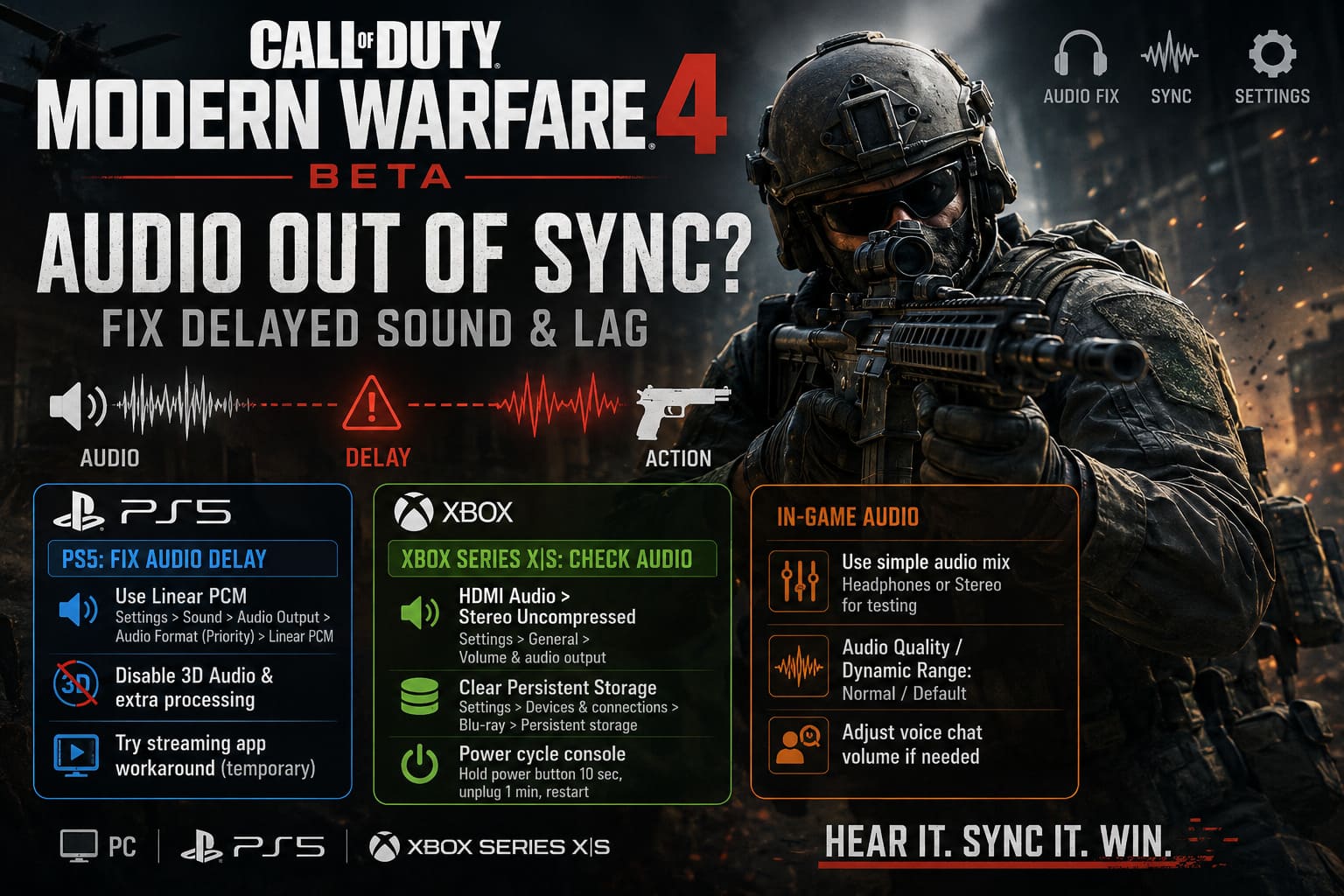
1. Change Audio Output to Linear PCM
If your PS5 is connected directly to a television, monitor, or soundbar, try Linear PCM instead of Dolby-based formats.
Go to:
Settings > Sound > Audio Output > Audio Format (Priority)
Then select Linear PCM.
The reason I recommend this as a troubleshooting step is simple: PCM avoids some of the additional encoding and decoding involved with compressed or bitstream formats.
If the audio immediately becomes synchronized, you know that the problem was probably somewhere in the external audio processing chain rather than the game itself.
2. Temporarily Disable Extra Audio Processing
If you use 3D Audio for headphones, a soundbar processing mode, or another virtual surround feature, turn it off temporarily.
Run a quick multiplayer match and listen for weapon sounds, reloads, footsteps, and menu effects.
If everything is suddenly synchronized, you can turn features back on individually until you identify which setting causes the delay.
That is much better than changing everything simultaneously and then having no idea which fix actually worked.
3. Try the Community Streaming-App Workaround
Some players have reported a strange workaround involving opening a media application and then returning to the game.
The basic idea is to start MW4, open the PS5 Control Center, launch a streaming application, let it load, and then return to MW4.
The game may disconnect from its online session and require you to reconnect.
This is not the first fix I would recommend, and I would definitely treat it as a temporary workaround rather than a guaranteed solution. Still, if the game suddenly returns to normal synchronization afterward, it may help until a beta update addresses the underlying issue.
Xbox Series X|S: Check HDMI Audio First
Xbox users should start with the audio output format.
Go to:
Settings > General > Volume & audio output
Under speaker audio, locate HDMI audio and change it to:
Stereo uncompressed
If you use a wireless headset, also test it without Dolby Atmos or other virtual surround processing enabled.
This is not necessarily saying that Dolby Atmos is bad. Quite the opposite. It can sound excellent when everything is working properly. But when troubleshooting audio delay, reducing the number of processing stages makes the problem much easier to isolate.
If stereo uncompressed fixes the delay, you can later experiment with your preferred surround format again.
Clear Xbox Persistent Storage
If your Xbox has accumulated old cached media data, clearing persistent storage is another troubleshooting option.
Go to:
Settings > Devices & connections > Blu-ray > Persistent storage
Choose Clear persistent storage.
Afterward, perform a complete power cycle.
Hold the Xbox power button for around 10 seconds until the console shuts down. Disconnect the power cable, wait about a minute, reconnect it, and start the system again.
This will not magically repair every MW4 audio problem, but it is a reasonable cache-cleaning step when other troubleshooting has failed.
Don’t Ignore the In-Game Audio Mix
There is one more area I would check before blaming your hardware: the game’s own audio configuration.
Open Settings > Audio in MW4 and look for the available audio mix options.
For troubleshooting, I would start with a simple profile such as Headphones or Stereo rather than a highly processed home-theater setup.
If the beta offers an audio quality or dynamic-range option, use Normal or Default while testing.
Once the synchronization problem is gone, you can start adjusting the mix for competitive play.
I would also avoid making dramatic voice-chat changes at the same time. If the problem appears specifically when teammates start talking, lower voice-chat volume and test again.
Best DMZ 2.0 Loadout in Call of Duty Modern Warfare 4: Meta Guide (2026)
Quick MW4 Audio Troubleshooting Checklist
| Platform | First Setting To Try | Second Step | Extra Test |
|---|---|---|---|
| PC | 24-bit, 48 kHz | Disable Spatial Sound | Verify Files |
| PS5 | Linear PCM | Disable Extra 3D Processing | Test Without 120Hz |
| Xbox | Stereo Uncompressed | Disable Dolby Processing | Power Cycle Console |
| PC Bluetooth | Stereo Headset Mode | Disable Hands-Free | Use Separate Microphone |
What I Would Try First
If I were sitting down to play the MW4 beta tonight and suddenly noticed gunshots arriving late, I would not start with complicated fixes.
- Restart the game completely.
- Make sure shader preparation has finished.
- Set PC audio to 24-bit/48 kHz.
- Disable Windows spatial audio.
- Switch console audio to uncompressed/Linear PCM.
- Test without Dolby, DTS, or other virtual surround processing.
- Verify the game installation.
- Only then start experimenting with more unusual workarounds.
That approach takes less time than changing ten settings simultaneously and hoping something sticks.
Call of Duty Modern Warfare 4 Campaign Locations: Full Confirmed List for 2026 Game
Is the MW4 Beta Audio Problem Going to Be Fixed?
Probably, yes.
The important thing to remember is that this is a beta. Audio synchronization problems, shader-related stuttering, crashes, server issues, and strange interactions between different hardware configurations are exactly the sort of problems developers are trying to identify before release.
If your game suddenly develops audio delay after an update, or the problem appears across multiple platforms, there may be very little you can fix locally. At that point, a developer-side patch is the real answer.
For now, though, there are plenty of things worth testing.
The biggest takeaway is that you should not immediately assume your headset is dying or your console is broken. In many cases, the problem can come from an extra layer of audio processing sitting between the game and your speakers.
For PC, I would start with 48 kHz audio and disabled spatial processing. For PS5, Linear PCM is my first test. On Xbox, Stereo Uncompressed is the obvious starting point.
And honestly, I would rather play MW4 with basic stereo that is perfectly synchronized than use every fancy surround feature available while hearing an enemy’s footsteps half a second after they have already sprinted past me.
In a Call of Duty match, that half-second can be the difference between getting the kill and staring at the killcam wondering what just happened.
If none of these fixes work, the problem is likely deeper in the beta itself, and waiting for the next game update may be the only realistic solution.