How to Fix Mortal Shell 2 Crash on Launch on Windows 11 (2026 Guide)
If you have been waiting for Mortal Shell 2 and finally got your hands on it, there is nothing more annoying than launching the game only to be greeted by a black screen, an Unreal Engine crash, or a fatal error before you even reach the main menu.
As someone who genuinely enjoys soulslike games, this is exactly the kind of problem that can ruin the first evening with a new release. You are ready for another brutal adventure, you have your controller or mouse and keyboard prepared, and then Windows simply throws you back to the desktop.
The good news is that launch crashes on Windows 11 are often fixable. The most common suspects are graphics drivers, shader caches, DirectX settings, overlays, memory configuration, and corrupted game files.
Below are the fixes I would personally try, starting with the easiest ones and moving toward the more technical solutions.
Quick note: Some of these fixes are system-level changes, so I would not blindly apply all of them at once. Try one solution, launch the game, and see whether the problem disappears.
First: Make Sure Your PC Is Ready for Mortal Shell 2
Before blaming Windows or the game, check the basics.
Mortal Shell 2 is considerably more demanding than the original game, especially with its Unreal Engine 5 technology and more ambitious environments. A PC that handled the first Mortal Shell comfortably may still struggle with the sequel.
| Component | Recommended Baseline |
|---|---|
| Operating System | Windows 10/11 64-bit |
| CPU | Intel Core i7-10700K / AMD Ryzen 5 3600 or better |
| RAM | 16 GB minimum, 32 GB preferred |
| GPU | RTX 2060 SUPER / Radeon RX 6600 or better |
| VRAM | 8 GB recommended |
| DirectX | DirectX 12 |
| Storage | Around 70 GB free |
| Drive | SSD strongly recommended |
The SSD requirement is particularly important. Unreal Engine 5 games stream a lot of assets while you play. If you have installed Mortal Shell 2 on an old mechanical HDD, moving it to an internal SSD is one of the first things I would try.
Personally, I would not waste an hour experimenting with obscure Windows settings if the game is sitting on a slow HDD with limited free space.
1. Try DX11 Before Doing Anything Complicated
This is probably the first launch option I would test if Mortal Shell 2 crashes immediately.
Although DirectX 12 is the expected API for modern PC games, individual hardware and driver combinations can behave differently. If DX12 initialization is causing the crash, forcing another rendering path may allow the game to start.
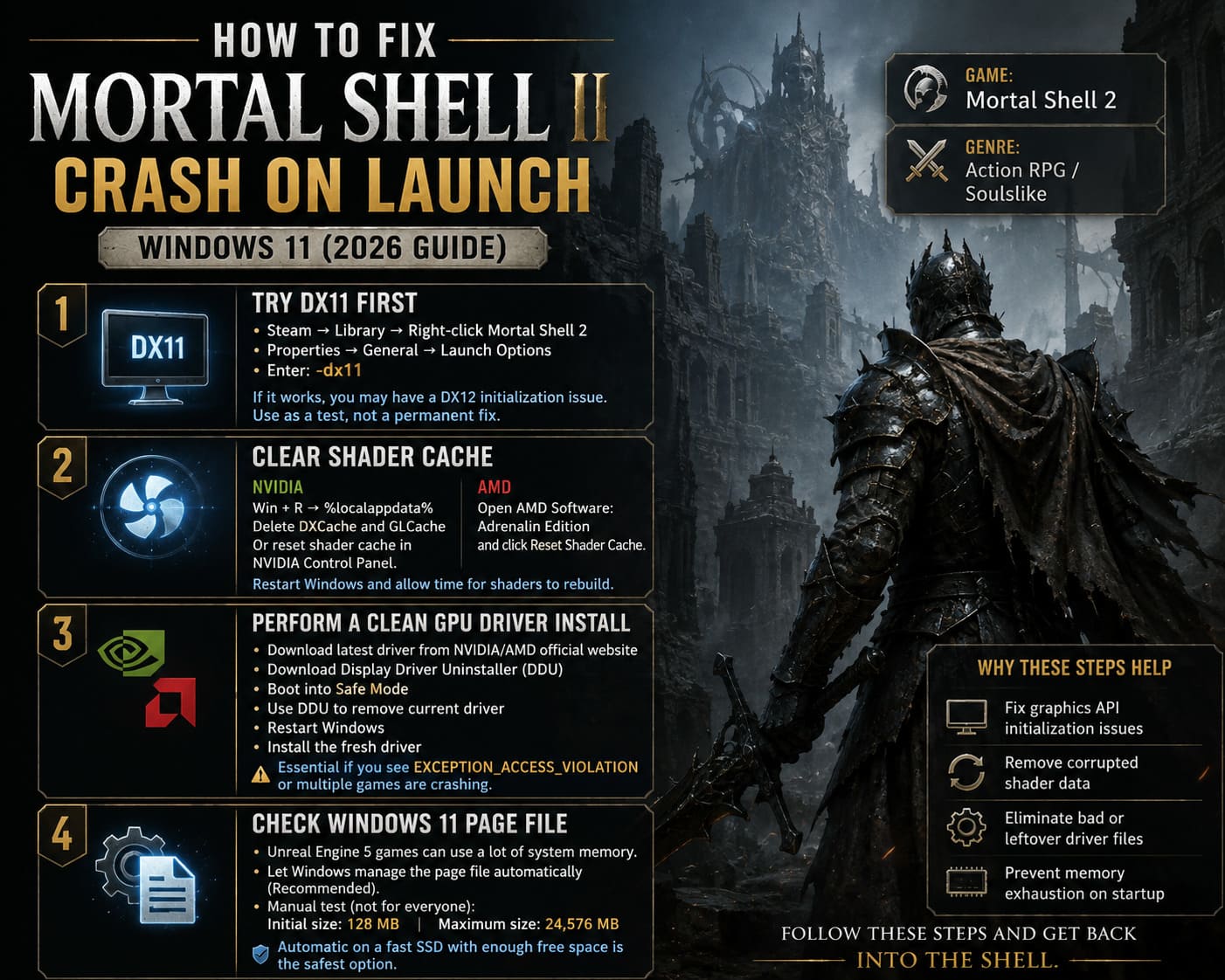
In Steam:
- Open your Library.
- Right-click Mortal Shell 2.
- Select Properties.
- Stay on the General tab.
- Find Launch Options.
- Enter
-dx11.
Close the window and launch the game again.
If it works, great. You have immediately narrowed the problem down to the game’s normal graphics initialization.
I would treat this as a troubleshooting experiment rather than a permanent recommendation. If the game runs properly without the parameter after a driver or game update, remove it.
2. Clear Your Shader Cache
This is another fix I would absolutely try after an update or failed shader compilation.
The first launch of an Unreal Engine 5 game can involve a lot of shader preparation. If cached shader data becomes corrupted, you can end up with the classic symptoms: black screen, crash after the splash logo, freezing around shader compilation, or a crash immediately after reaching 100%.
NVIDIA
On an NVIDIA system, press Windows + R, enter %localappdata%, and look for NVIDIA cache folders such as DXCache and GLCache.
Delete the cached contents rather than deleting unrelated NVIDIA folders.
You can also open the NVIDIA graphics control panel/application and return the shader-cache configuration to its normal/default behavior.
AMD
AMD users can open AMD Software: Adrenalin Edition, enter the graphics settings and use the available Reset Shader Cache option.
After clearing the cache, restart Windows and give the game time to rebuild its shaders.
Don’t panic if the next startup takes longer. A clean shader compilation can take noticeably longer than subsequent launches.
3. Give Your GPU Driver a Proper Clean Install
If you recently upgraded your graphics driver, or have installed several driver versions over the years, a clean installation can be worth the effort.
I especially consider this when the crash message mentions things such as EXCEPTION_ACCESS_VIOLATION or when other Unreal Engine games have started behaving strangely too.
A typical clean-driver process looks like this:
- Download the current driver directly from your GPU manufacturer’s official website.
- Download Display Driver Uninstaller (DDU) from its trusted source.
- Boot Windows into Safe Mode.
- Use DDU to remove the existing graphics driver.
- Restart Windows.
- Install the freshly downloaded NVIDIA or AMD driver.
This is more work than clicking “Update Driver,” but it can eliminate old driver components and profiles that survive normal upgrades.
If Mortal Shell 2 is the only game crashing, I would try the simpler solutions first. If several games are suddenly crashing, however, a clean GPU driver installation becomes much more interesting.
4. Check Windows 11’s Page File
Here’s one of the less obvious fixes.
Modern Unreal Engine games can consume a surprisingly large amount of system memory during startup, shader compilation, and asset loading. If Windows has a badly configured or unusually small page file, the game may crash before it can properly initialize.
My recommendation is actually to let Windows manage the page file automatically unless you have a specific reason to configure it manually.
If you still want to test a custom configuration, you can find it under:
System Properties → Advanced → Performance Settings → Advanced → Virtual Memory
One possible troubleshooting configuration from the original approach is:
- Initial size: 128 MB
- Maximum size: 24,576 MB
However, I would not automatically consider those values ideal for every PC. A manually configured page file can create more problems if the settings are inappropriate.
For most players, Automatic management on a fast SSD with sufficient free space is the safer starting point.
5. Turn Off Every Overlay You Don’t Need
This is one of those boring fixes that actually deserves more attention.
Game overlays hook into the rendering process, and occasionally those hooks don’t play nicely with a new game, graphics driver, or anti-cheat/protection software.
Before launching Mortal Shell 2, temporarily disable:
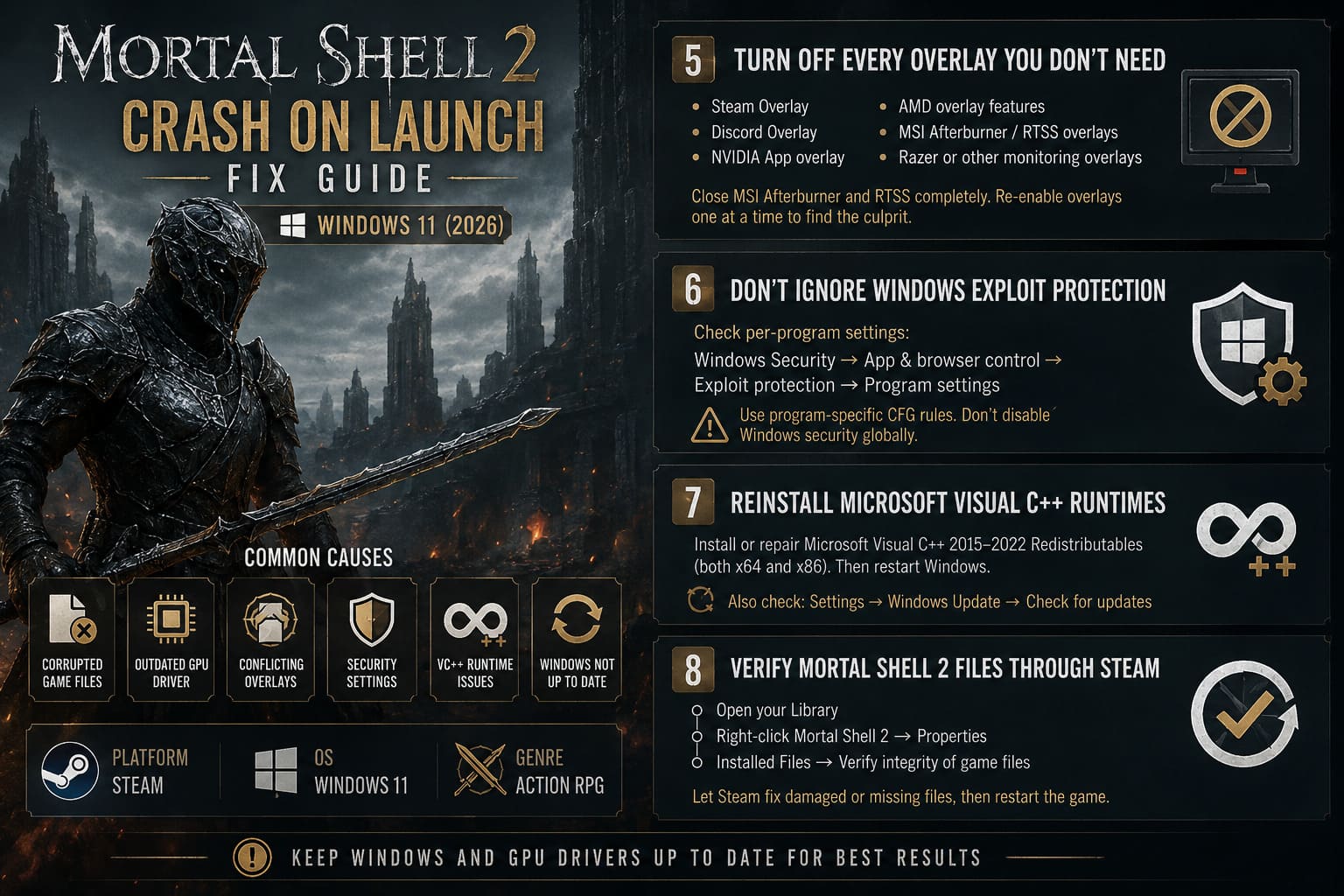
- Steam Overlay
- Discord Overlay
- NVIDIA App overlay
- AMD overlay features
- MSI Afterburner/RTSS overlays
- Razer or other hardware-monitoring overlays
If you use MSI Afterburner and RTSS, I would completely close them rather than merely hiding their windows.
You don’t necessarily need to live without overlays forever. Once you find a stable configuration, turn them back on one at a time to discover which application was responsible.
6. Don’t Ignore Windows Exploit Protection
This is a much more advanced workaround, and I would leave it near the bottom of the list.
Windows 11 includes security features such as Control Flow Guard (CFG). In unusual cases, specific applications can behave badly with certain exploit-protection configurations.
You can check the per-program settings through:
Windows Security → App & browser control → Exploit protection → Program settings
If Mortal Shell 2 has a reproducible crash that survives driver updates, shader-cache cleanup, file verification, and overlay removal, you can investigate whether a program-specific CFG configuration is involved.
Important
I wouldn’t disable Windows security protections globally just to make one game launch.
If you experiment with CFG, use a program-specific rule for the game’s executable, document the change, and restore the default setting if it doesn’t help.
For me, this is a last-resort troubleshooting step, not something every Mortal Shell 2 player should do.
7. Reinstall the Microsoft Visual C++ Runtimes
Sometimes the problem isn’t really the game at all.
PC games depend on various Microsoft runtime components, and damaged or missing Visual C++ redistributables can cause startup failures and DLL-related errors.
Install or repair the current Microsoft Visual C++ 2015–2022 Redistributables, including both the x64 and x86 packages.
Afterward, restart Windows.
While you’re at it, check:
Settings → Windows Update → Check for updates
I know it sounds painfully obvious, but when you’re troubleshooting a brand-new PC release, keeping Windows and your GPU driver current is much easier than trying to guess which old system component is broken.
8. Verify Mortal Shell 2’s Files Through Steam
This should probably be one of your first troubleshooting steps, not your last.
If the game crashed during an update, download, installation, or shader preparation, a damaged file can prevent the executable from starting correctly.
In Steam:
- Open your Library.
- Right-click Mortal Shell 2.
- Select Properties.
- Open Installed Files.
- Select Verify integrity of game files.
Let Steam finish the entire process.
If it discovers damaged or missing files, allow Steam to replace them and then restart the game.
I would also avoid modifying random files inside the installation folder unless a developer specifically recommends doing so. With modern games, deleting the wrong configuration or anti-cheat file can turn a simple problem into a bigger one.
What I Would Try First
If Mortal Shell 2 were crashing on my own Windows 11 PC, I wouldn’t immediately start changing security settings or manually editing the page file.
I’d go in this order:
- Verify the game files.
- Update the GPU driver.
- Disable overlays and monitoring tools.
- Clear the shader cache.
- Try
-dx11. - Confirm the game is installed on an SSD.
- Repair the Visual C++ redistributables.
- Investigate the Windows page file.
- Use DDU for a completely clean GPU driver installation.
- Only then consider advanced Exploit Protection changes.
This approach saves time because you’re starting with fixes that are relatively safe and reversible.
Don’t Forget the Developer’s Hotfixes
There is one final piece of advice that is easy to overlook with a new PC release: sometimes the problem isn’t your PC.
If hundreds of players suddenly start reporting the same crash after launch, there may be nothing meaningful you can change locally. A game-side hotfix can fix an issue that no amount of driver reinstalling will solve.
Keep an eye on the game’s Steam announcements, official community channels, and developer updates. If an experimental or public test branch is offered specifically to address launch stability, it may be worth trying — but I would only use it if the developer clearly indicates that it contains relevant fixes.
BeastLink Multiplayer Fix: How to Play Co-Op and Fix Party Invites Not Working Error
Final Thoughts
I love soulslike games, but I don’t think struggling to launch one should count as part of the difficulty curve.
Mortal Shell 2 is supposed to test your patience with enemies, bosses, exploration, and combat — not with a black screen and an Unreal Engine error before the main menu.
The good thing is that most launch problems can be approached methodically. Start with Steam file verification, drivers, overlays, shader caches, and the DX11 test. If those don’t work, move toward the more advanced Windows and memory troubleshooting.
And most importantly, change one thing at a time. If you apply ten fixes simultaneously and the game suddenly starts working, you’ll have no idea which one actually solved the problem.
For a new release, that’s the most sensible approach: keep your system clean, keep your drivers current, avoid unnecessary background software, and give the developers a little time to squash those inevitable launch-day bugs.
Because once Mortal Shell 2 actually gets past that splash screen, then the real suffering can begin.