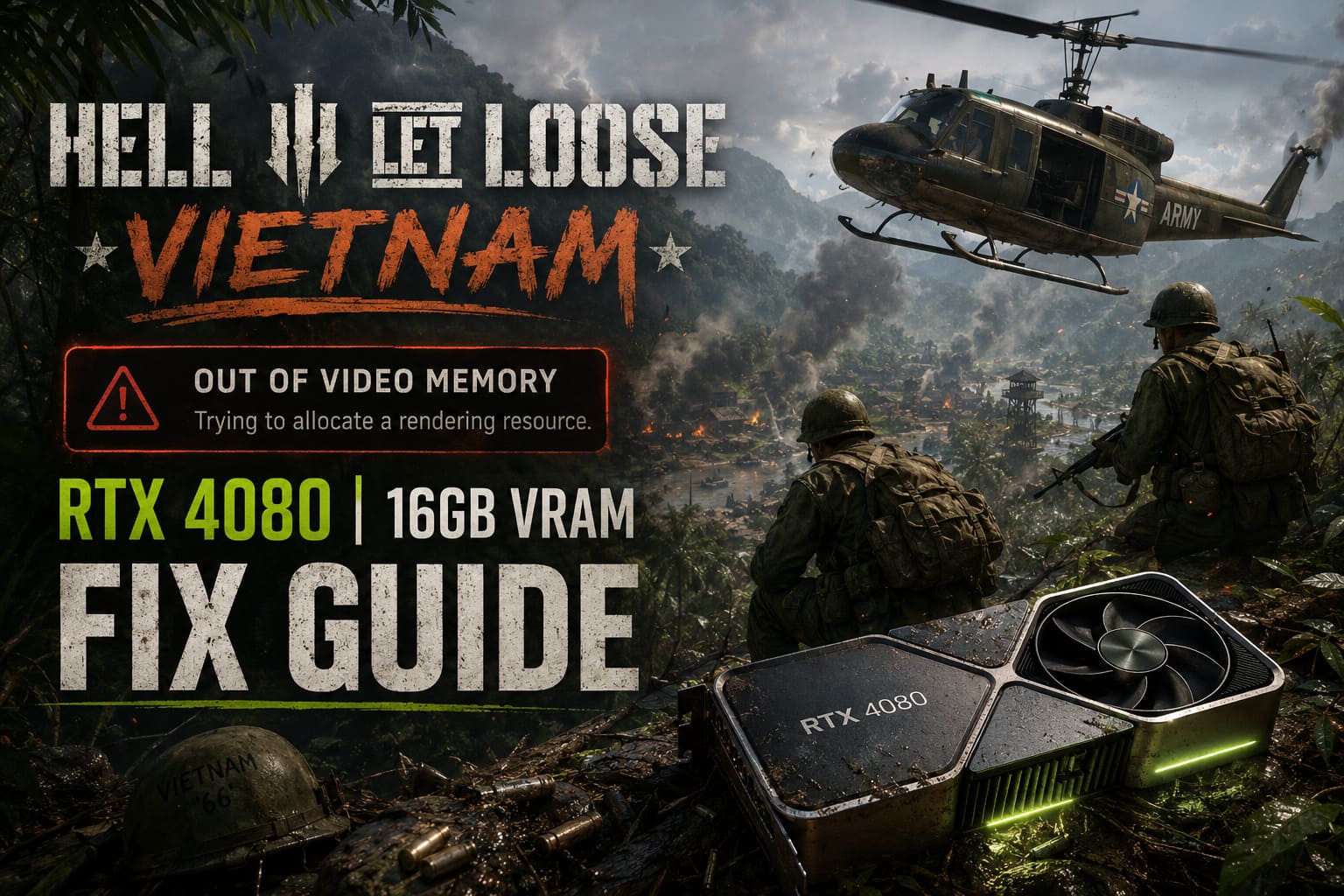
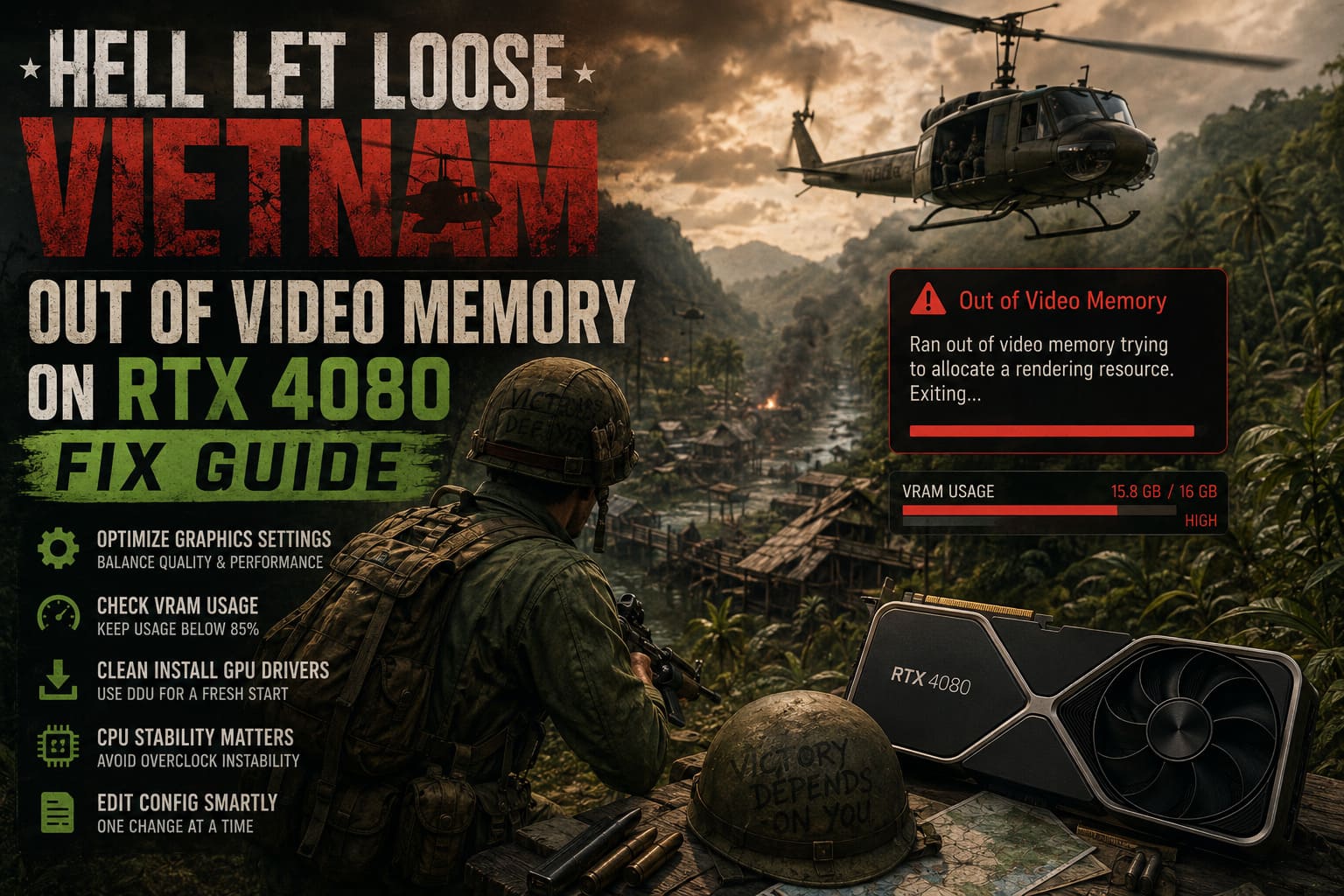
Hell Let Loose Vietnam Out of Video Memory on RTX 4080 Fix Guide
If there is one thing that can instantly ruin a great Hell Let Loose: Vietnam session, it is watching a game crash with an “Out of Video Memory” error while sitting in front of an RTX 4080 with 16GB of VRAM.
Seriously, this is one of those PC gaming errors that makes you stare at the screen for a few seconds and wonder whether Windows has suddenly forgotten what hardware is installed in your computer.
The RTX 4080 is still an extremely capable GPU. Hell Let Loose: Vietnam may be demanding, especially with its jungle environments, large multiplayer battles, helicopters, lighting effects, and Unreal Engine 5 rendering features, but a 16GB graphics card should not simply collapse because a match gets busy.
Unfortunately, some players are running into exactly that problem.
The crash can appear as a LowLevelFatalError, an Unreal Engine rendering failure, or the more direct warning that the game is “Out of video memory trying to allocate a rendering resource.” In my experience, the important thing is not to immediately assume that your RTX 4080 is the problem.
The more likely explanation is a combination of UE5 memory management, shader caches, Windows virtual memory, drivers, game configuration, and occasionally CPU stability.
So, rather than throwing every graphics setting to Low and hoping for the best, here is the troubleshooting route I would actually use on an RTX 4080 system.
Why Is Hell Let Loose: Vietnam Running Out of VRAM on an RTX 4080?
The first thing worth understanding is that the error message is not always a literal measurement of your GPU being completely out of physical VRAM.
Unreal Engine can request additional rendering resources, shaders, textures, buffers, and other assets while the game is running. If that allocation fails for another reason, the engine can still report the failure as an out-of-video-memory condition.
That is why this problem can affect high-end PCs.
Hell Let Loose: Vietnam is particularly interesting because the game combines large-scale multiplayer maps with dense vegetation, dynamic lighting, shadows, particles, vehicles and rapidly changing combat situations. A helicopter flight over the jungle followed by a firefight around a heavily defended position is exactly the kind of scenario where the renderer has a lot of work to do.
There are several potential trouble spots:
| Possible Cause | What It Can Look Like | First Thing I’d Try |
|---|---|---|
| Shader Cache Problems | Crash during loading or after updates | Clear shader cache |
| Pagefile Too Small | Random allocation or LowLevelFatalError | Increase virtual memory |
| UE5 Rendering Pressure | Crashes during heavy combat | Reduce shadows/post-processing |
| Driver Conflicts | Crashes after driver updates | Clean NVIDIA installation |
| CPU Instability | Shader compilation crashes | Return CPU to baseline settings |
| Broken Configuration | Settings reset or repeated crashes | Rebuild GameUserSettings.ini |
The good news is that most of these problems can be tested without replacing your hardware.
Fix #1: Give Windows More Virtual Memory
This is probably the first thing I would investigate if the game repeatedly crashes despite having plenty of VRAM.
Your pagefile is not a replacement for physical RAM or GPU memory, but Windows and Unreal Engine can rely on virtual memory during demanding asset and shader workloads. If the pagefile is restricted, the game can encounter allocation problems that eventually surface as a misleading VRAM error.
On a system with 32GB of RAM, I would start with a 16GB initial pagefile and allow it to grow to around 32GB.
For a 16GB RAM machine, something around 16GB initial and 24GB maximum is a reasonable troubleshooting starting point.
To change it:
- Open Windows Search and type Advanced System Settings.
- Open View advanced system settings.
- Select the Advanced tab.
- Under Performance, click Settings.
- Open the Advanced tab again.
- Find Virtual memory and select Change.
- Disable automatic management.
- Select the SSD used by Windows or the game.
- Enter an appropriate Initial and Maximum size.
- Click Set, then apply the changes.
- Restart the PC.
I strongly recommend putting the pagefile on a fast SSD with plenty of free space.
If you have plenty of storage available, I would personally rather give Windows room to breathe than run a modern UE5 game with an unnecessarily restricted pagefile.
Fix #2: Clear the Shader Cache
This is another fix I would try very early.
Games built around Unreal Engine can become surprisingly temperamental when shader caches survive multiple patches, driver changes, or configuration changes.
If the problem started immediately after an update, don’t underestimate this possibility.
Open Windows Disk Cleanup, select your system drive, and enable DirectX Shader Cache before cleaning it.
You can also check the game’s local configuration directory under %localappdata%. Depending on the current build, the Hell Let Loose: Vietnam folder structure may differ, so don’t blindly delete random folders.
If you find the game’s Saved\Config directory, backing it up before removing configuration files is a smart move.
The downside is simple: your graphics and other local settings may return to their defaults.
The upside is that you get a clean configuration instead of forcing the latest game build to work with potentially outdated settings.
Fix #3: Test DirectX 11 Instead of DirectX 12
This is one of those fixes I consider a diagnostic tool as much as a solution.
If the game supports the relevant launch parameter in your current build, try:
-dx11
You can add it through Steam by opening the game’s Properties and entering the argument in Launch Options.
Why try this?
Because DirectX 12 can expose different driver and memory-management behavior than DX11. If your crashes disappear under DX11, you have learned something useful: the problem may be related to the DX12 rendering path rather than the physical capability of your RTX 4080.
However, I wouldn’t automatically stay on DX11 forever.
If DX11 performs worse, causes visual problems, or isn’t supported properly by the current version of the game, remove the launch option and return to the game’s default renderer.
And I would avoid randomly stacking multiple undocumented launch parameters. More launch options do not automatically equal more stability.
Fix #4: Stop Running Everything on Epic
This is where I disagree with the usual PC gaming mentality.
Having an RTX 4080 does not mean every slider needs to be on Epic.
Hell Let Loose: Vietnam is a multiplayer game. Stable frame pacing and consistent performance are much more valuable than squeezing the final few percent of visual quality out of every setting.
For troubleshooting, I would start here:
- Display Mode: Fullscreen
- Resolution: Native monitor resolution
- Texture Quality: High
- Shadow Quality: Medium
- Foliage Quality: Medium or High
- Post-Processing: Medium
- DLSS: Quality
- Frame Generation: Enabled if stable on your system
Textures are not necessarily the first setting I would destroy on a 16GB RTX 4080. Instead, I would pay particular attention to shadows, foliage, post-processing and other effects that can create significant rendering overhead.
The jungle is also an important factor.
A relatively empty urban area might run beautifully while dense Vietnamese vegetation, lighting, smoke and combat effects push the renderer much harder.
If your crash consistently happens in busy jungle firefights rather than during simple movement, reducing the expensive rendering settings makes sense.
Fix #5: Be Careful With GameUserSettings.ini Tweaks
Manual configuration editing can help, but this is where I would stop blindly copying “magic” settings from random forum posts.
If you want to experiment, first launch the game normally and create your preferred settings. Then locate the game’s GameUserSettings.ini under its local configuration directory.
A useful starting point for stability testing is:
r.PostProcessingQuality=2
You can also test DLSS through the game’s own settings rather than forcing unsupported parameters manually.
And here is an important warning: I would not immediately mark the file Read-only.
That trick can prevent the game from overwriting your changes, but it can also create new problems when the developers change configuration variables between updates.
I prefer testing one change at a time.
If the crash disappears, then you know which change helped.
Fix #6: Don’t Ignore CPU Stability
This one sounds completely unrelated to VRAM, but it isn’t necessarily.
If you have an aggressively tuned Intel Core i9-13900K, i9-14900K, or another high-end processor running motherboard-enhanced power settings, Unreal Engine shader compilation can expose instability that other games never reveal.
The same general principle applies to heavily overclocked AMD systems.
Before blaming Hell Let Loose: Vietnam, temporarily return your CPU to conservative, manufacturer-recommended settings.
On Intel systems, check whether your motherboard is using an aggressive unlimited-power profile instead of the manufacturer’s baseline configuration.
For overclocked systems, temporarily reducing the multiplier or removing the overclock is an easy diagnostic test.
If the crashes suddenly disappear, your RTX 4080 probably wasn’t the real culprit.
It was simply the component that happened to receive the error after the unstable workload propagated through the rendering pipeline.
Fix #7: Reinstall the NVIDIA Driver Properly
If you’ve upgraded GPUs, installed several NVIDIA driver versions, or experienced graphical problems in other games, I would consider a clean driver installation.
A typical approach is:
- Download the current NVIDIA driver for the RTX 4080.
- Download Display Driver Uninstaller (DDU) from its trusted source.
- Disconnect from the internet temporarily if necessary to prevent Windows from installing another driver.
- Boot into Windows Safe Mode.
- Run DDU and remove the NVIDIA driver.
- Restart normally.
- Install the fresh NVIDIA driver.
- Restart again.
- Test Hell Let Loose: Vietnam before reinstalling additional GPU utilities.
You don’t need to do this every time a game crashes.
But if multiple games are suddenly producing graphics-driver or memory-related errors, a clean driver installation becomes much more reasonable.
What I Would Actually Change First
If this were my RTX 4080, I wouldn’t perform seven changes simultaneously.
I’d use a controlled approach:
First: increase or verify the Windows pagefile.
Second: clear the DirectX shader cache.
Third: lower shadows, foliage and post-processing from Epic.
Fourth: test the game again without overlays and unnecessary background applications.
Fifth: investigate DX11 if the current build supports it.
Sixth: only then start looking at CPU stability, driver cleanup and deeper configuration edits.
That order matters because otherwise you can “fix” the crash without ever discovering what actually caused it.
A Few Things I Wouldn’t Do
I have seen plenty of PC troubleshooting guides recommend increasingly aggressive tweaks whenever a game starts crashing.
I wouldn’t immediately undervolt the GPU, modify obscure NVIDIA Profile Inspector flags, force random Re-Size BAR values, or download unofficial optimization packs.
More tweaking isn’t automatically better.
Re-Size BAR itself is perfectly legitimate technology, but manually forcing obscure profile flags through third-party utilities isn’t something I would consider a first-line fix for an Unreal Engine crash.
Likewise, don’t start deleting every folder you find under AppData without making a backup.
If the game is working except for an occasional crash, make one change at a time.
Hell Let Loose Vietnam High Ping Fix: How to Stop Server Lag, Stuttering, and Rubber-Banding
RTX 4080 Recommended Stability Profile
Here is the baseline I would personally use while troubleshooting:
| Setting | Recommended Starting Point |
|---|---|
| Resolution | Native |
| Display Mode | Fullscreen |
| Textures | High |
| Shadows | Medium |
| Foliage | Medium/High |
| Post-Processing | Medium |
| DLSS | Quality |
| Frame Generation | On, if stable |
| Background Apps | Minimized |
| Overlays | Disabled for testing |
Once the game survives several long matches without crashing, start increasing individual settings.
That’s much better than switching everything to Epic immediately and then wondering which setting caused the next failure.
Hell Let Loose Vietnam Class XP Guide: Best Class to Level Up Fast
Final Thoughts
The frustrating part of an RTX 4080 “Out of Video Memory” crash in Hell Let Loose: Vietnam is that the error makes the problem sound much simpler than it actually is.
Your 16GB GPU isn’t suddenly inadequate.
The more realistic explanation is that a demanding Unreal Engine 5 workload is hitting a weak point somewhere in the interaction between the game, shader compilation, Windows memory management, drivers and your system configuration.
And honestly, that’s why I wouldn’t obsess over VRAM usage alone.
Start with the boring fixes: pagefile, shader cache, sensible graphics settings and a clean configuration. Then move toward DX testing, driver cleanup and CPU stability if the problem survives.
For me, the golden rule with PC troubleshooting is simple: change one thing, test it properly, and only then move to the next one.
If Hell Let Loose: Vietnam can run for several hours through dense jungle combat, artillery barrages, vehicle fights and helicopter operations without throwing another LowLevelFatalError at you, that’s a much more meaningful stability test than simply watching the main menu sit at 144 FPS.
The RTX 4080 has more than enough horsepower for this game. The real challenge is getting the game and Windows to use that hardware consistently.