The Last Disease Z Crash on Launch Fix: How to Stop Startup Crashing, Black Screen, and Freezing in 2026 Game by Bublig
The Last Disease Z has the kind of opening that makes you want to get into the game immediately. You boot it up, expecting to spend the next few hours scavenging, building a shelter, shooting zombies, and figuring out how long you can survive on the island. Then the game crashes before the main menu, freezes on a black screen, or simply disappears back to the desktop. Not exactly the apocalypse fantasy most players signed up for.
After spending plenty of time with survival games and dealing with more launch problems than I would like to admit, I have learned one thing: don’t reinstall the game ten times before checking the simple stuff. The Last Disease Z is still an evolving PC survival title, and Early Access games can be particularly sensitive to drivers, corrupted files, overlays, old configuration data, and Windows permissions. If you’re trying to fix a The Last Disease Z crash on launch, work through the solutions below in order. Some take less than a minute, while others are worth trying only if the easier fixes don’t work.
The Last Disease Z Dedicated Server Setup Guide: Host Your Own Zombie Co-Op Server
Why Does The Last Disease Z Crash Before Starting?
A crash during startup is usually different from a crash that happens while you’re already playing. When the game cannot reach the main menu, it may be failing while loading graphics settings, checking files, creating temporary data, or initializing one of its background systems. In my experience with PC survival games, this is often where seemingly unrelated software causes the biggest headaches.
GPU driver settings are one possible culprit, especially when you have global image enhancements enabled. Corrupted Steam files are another obvious possibility. Old configuration files left behind by an earlier build can also cause trouble, particularly if you played an older version or demo before installing the current release. So rather than changing ten Windows settings at once, it makes more sense to start with the fixes that are quick, safe, and easy to reverse.
1. Turn Off GPU Image Sharpening
This is one of those fixes that sounds almost too simple, but it is worth checking. NVIDIA and AMD software can apply additional image processing on top of what the game itself is doing. Most of the time that is harmless, but an Early Access game does not always behave perfectly with every driver-level feature.
If you’re using an NVIDIA GPU, open NVIDIA Control Panel and go to Manage 3D Settings. Look for Image Sharpening or the equivalent sharpening option and disable it, then apply the change. AMD users should open Adrenalin, find their gaming profile, and switch Radeon Image Sharpening off.
After changing the setting, completely close Steam and launch it again. I would not change half a dozen graphics-driver options at the same time. If this fixes the crash, you’ll know exactly what caused it.
2. Verify The Last Disease Z Files on Steam
File verification should be near the top of your troubleshooting list. It is quick, harmless to your installation, and can repair missing or damaged files without forcing you through a complete reinstall. A failed update or interrupted download is enough to leave a game with one bad asset that prevents it from starting correctly.
Open Steam and go to your Library. Right-click The Last Disease Z, select Properties, then open Installed Files. Choose Verify integrity of game files and let Steam finish the scan.
If Steam finds something wrong, it will download the replacement files automatically. Once the process is complete, restart Steam and try the game again. This is especially worth doing if the crash appeared immediately after a game update.
3. Perform a Proper Cold Restart
Sometimes the problem isn’t actually the game installation. Steam can leave background processes running after a crash, and those processes don’t always shut down as cleanly as they should. The result can be a second launch that fails in exactly the same place, making you think the game itself is broken.
Press Ctrl + Shift + Esc to open Windows Task Manager. Check for Steam, Steam Web Helper, and any remaining The Last Disease Z processes. End the relevant tasks, then start Steam again and launch the game from a completely fresh session.
This is one of my favorite troubleshooting steps because it costs almost nothing. Before changing system files or reinstalling a game, give Windows and Steam a clean start.
4. Update Your GPU Drivers and Windows Components
If your graphics driver is seriously outdated, a new game build can expose problems that older games never showed. This is particularly relevant when the crash happens during the first few seconds of startup, before you even see normal gameplay.
Check the official driver software for your GPU manufacturer and install the latest stable driver available for your hardware. Also install pending Windows updates. It is worth checking your Microsoft Visual C++ Redistributable packages as well, since games frequently rely on these runtime components.
Don’t overlook DirectX-related components either. Windows 10 and Windows 11 already include much of what modern games need, but keeping the operating system and supporting runtimes current removes another possible source of incompatibility.
5. Try Administrator Mode and Disable Full-Screen Optimizations
Windows permissions can occasionally get in the way when a game needs to create or modify configuration and cache files. It isn’t the first thing I would try, but if file verification and driver changes haven’t helped, it is an easy experiment.
In Steam, right-click The Last Disease Z and choose Manage > Browse local files. Find the main game executable, right-click it, select Properties, and open the Compatibility tab. From there, test Run this program as an administrator.
You can also try Disable full-screen optimizations. This setting can sometimes help when a game opens to a black screen or freezes during the transition into fullscreen mode, particularly on systems using high refresh-rate displays.
6. Check How Much Free Storage You Have
This one gets ignored surprisingly often. You might have enough space for the game’s listed installation size but still have too little free room for Windows, Steam, shader caches, temporary files, and other data created during startup.
If your system drive is almost full, clear some space before trying anything drastic. I would aim for at least 10 GB of genuinely free space rather than running Windows with only a few gigabytes remaining.
If you’ve already reinstalled The Last Disease Z several times on the same drive and nothing changed, trying another internal SSD can also be useful. You don’t necessarily need to move the game to an external drive; a different healthy internal drive is generally the better test.
7. Remove Old Configuration Data Carefully
This is the fix I would save for later because it involves local game data. If you played an earlier demo, beta, or older build of The Last Disease Z, an outdated configuration file could potentially conflict with the current version. A clean configuration can sometimes solve strange startup behavior when everything else looks correct.
Press Windows Key + R, type %localappdata%, and press Enter. Look for folders connected to Bublig or The Last Disease Z. Before deleting anything, make a backup copy of the relevant folder somewhere else. Then remove or rename the original configuration folder and launch the game again.
I prefer renaming the folder rather than immediately deleting it. For example, adding “_backup” to the folder name gives you an easy way to restore it if the change doesn’t help. The game should recreate fresh configuration data when it starts.
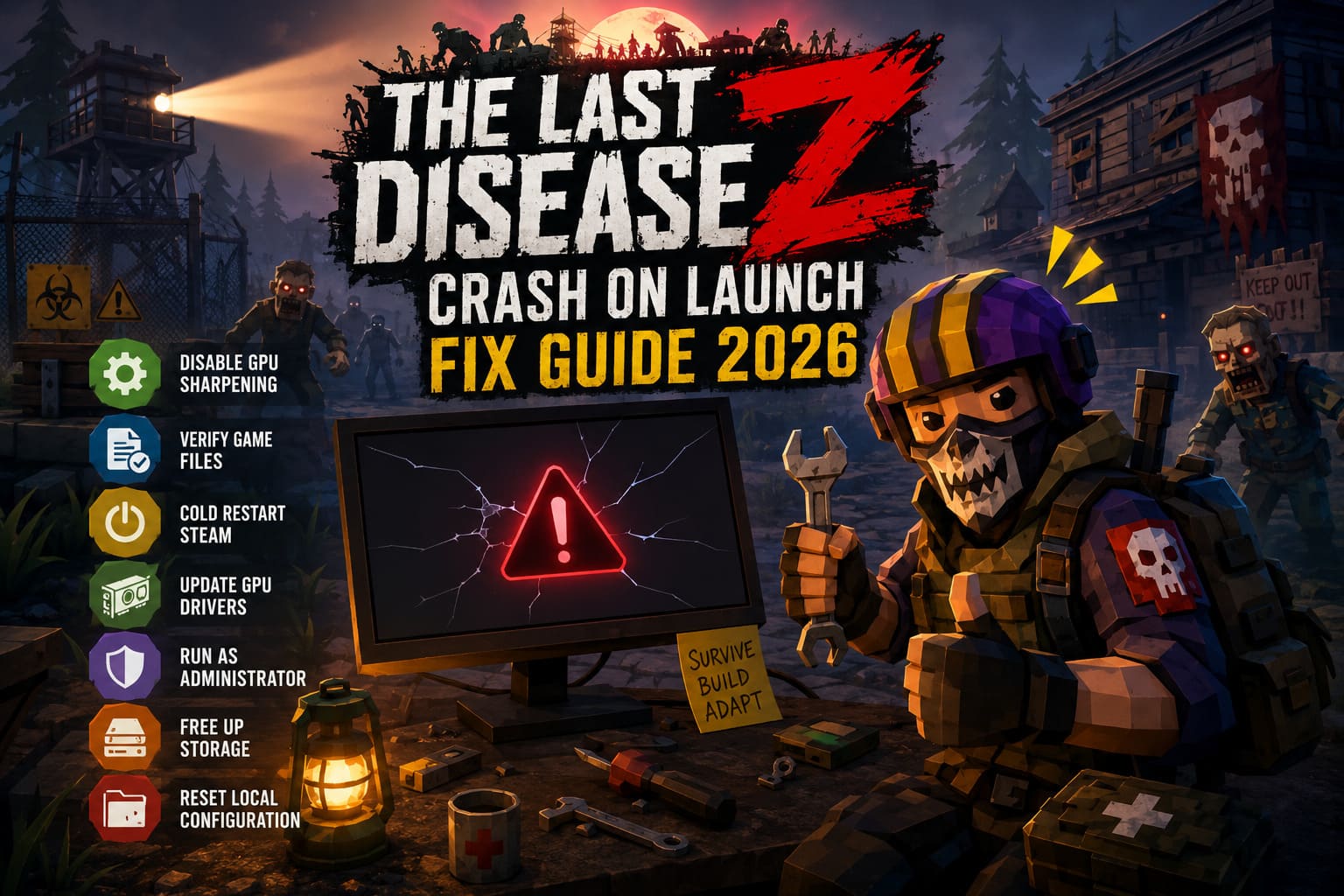
Quick The Last Disease Z Crash Fix Checklist
| Fix | What It Can Solve | Difficulty |
|---|---|---|
| Disable GPU sharpening | Driver and rendering conflicts | Easy |
| Verify Steam files | Corrupted or missing game files | Easy |
| Cold restart Steam | Stuck background processes | Easy |
| Update GPU drivers | Driver compatibility problems | Easy |
| Run as administrator | Permission-related startup failures | Medium |
| Free storage space | Temporary file and cache problems | Easy |
| Reset local configuration | Broken or outdated settings | Medium |
What If The Game Still Opens to a Black Screen?
A black screen deserves slightly different attention from a straightforward crash. If you can hear music or menu sounds while seeing nothing, the game may actually be running and simply failing to display correctly. In that situation, Disable full-screen optimizations, resetting graphics configuration, and switching between fullscreen and borderless modes are sensible things to test.
I would also disconnect unnecessary overlays while troubleshooting. Steam Overlay, Discord, GPU recording tools, FPS counters, and other monitoring software can hook into a game during startup. Usually that is fine, but when you’re chasing a mysterious black screen, removing those variables makes the process much easier.
Should You Reinstall The Last Disease Z?
Reinstalling is the classic PC gaming solution, but I would leave it toward the end rather than treating it as step one. If Steam’s file verification reports no problems and the crash survives driver, configuration, and background-process checks, then a clean installation starts making more sense.
If you do reinstall, don’t blindly put everything back exactly where it was. Check your available storage and consider another drive if you suspect the original installation location is involved. More importantly, remember that a reinstall does not always remove local configuration data, so an old settings folder can survive and recreate the same problem after a fresh download.
Final Thoughts on The Last Disease Z Startup Crashes
The Last Disease Z crash on launch problem is frustrating, but it doesn’t automatically mean your PC cannot run the game. Early Access survival games are complicated pieces of software, and startup is where drivers, Steam services, Windows permissions, configuration files, and game assets all have to cooperate before you even get control of your character.
If I were troubleshooting this on my own PC, I would start with the boring fixes: restart Steam completely, verify the files, disable GPU sharpening, and check for driver updates. After that I would move toward administrator mode, storage checks, and finally resetting local configuration data. That approach takes less time than immediately reinstalling everything, and it gives you a much better idea of what is actually causing the crash.
Once The Last Disease Z finally gets past that stubborn startup screen, the real game begins. Zombies, mutants, bandits, crafting, exploration, and all the usual survival-game chaos are a lot more enjoyable when the biggest threat isn’t your desktop.