How to Fix Tom Clancy’s Ghost Recon Wildlands Co-Op Connection Errors on Ubisoft Connect (2026 Guide)
There are few things more annoying than getting a group of friends together for a Ghost Recon Wildlands session, only to discover that nobody can actually connect.
Wildlands is still one of my favorite games for co-op. The huge Bolivian map, ridiculous stealth approaches, convoy ambushes, synchronized shots, and those completely unplanned moments when everything goes wrong are exactly what make it special. But the online side of the game can feel much older than the gameplay itself.
In 2026, players can still run into Ubisoft Connect connection errors, failed squad invites, NAT problems, disconnected lobbies, Ribera errors, Tarija errors, and endless “offline” connection statuses. Sometimes everything appears normal until you try to invite a friend. Other times the game simply refuses to recognize that online services are available.
After dealing with this kind of problem myself, I would not immediately start reinstalling the entire game or changing a dozen Windows settings at once. There are several simpler things worth trying first. Some are surprisingly basic, while others involve your DNS, firewall, launcher cache, or router.
Here is the troubleshooting route I would personally follow if Ghost Recon Wildlands co-op suddenly stopped working.
Why Ghost Recon Wildlands Co-Op Can Be So Difficult to Connect
The first thing to understand is that Wildlands is an older game running through a modern launcher and online infrastructure.
That combination can occasionally create weird problems.
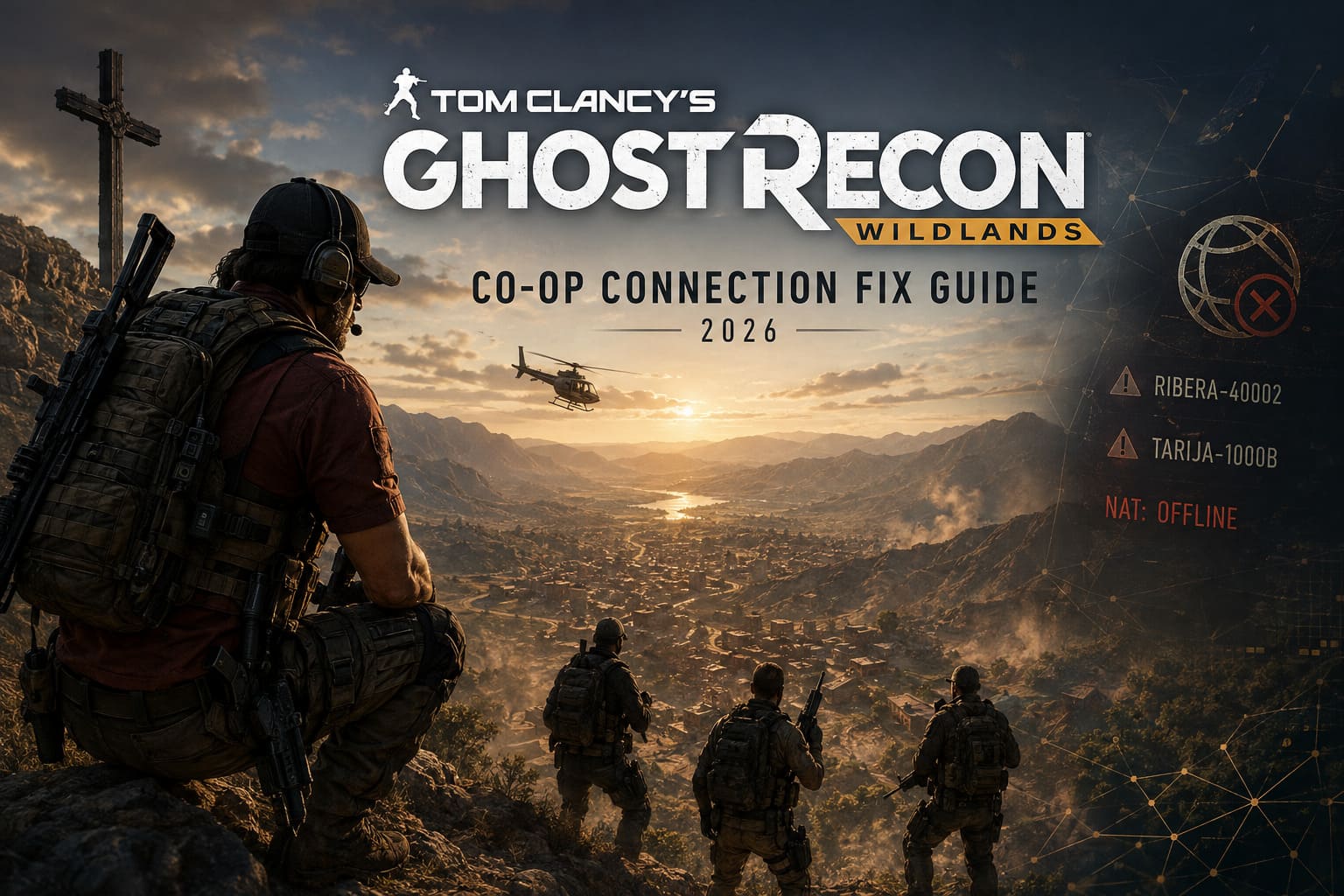
The game itself needs to communicate with Ubisoft’s online services while Ubisoft Connect is handling account authentication, social features, synchronization, and other background services. If one part of that process takes too long to respond, Wildlands may simply behave as though your connection is unavailable.
This is why you can sometimes have perfectly normal internet access while the game insists that you are offline.
I have also found that these problems can be inconsistent. One day you can join a friend’s squad instantly, and the next day the same setup produces an error after sitting on the loading screen for ages. That makes troubleshooting especially frustrating because it is easy to assume something is permanently broken when the actual issue may just be a failed synchronization.
Before doing anything drastic, I recommend starting with the easiest workaround.
The Simple 3–5 Minute Warm-Up Trick
This is probably the first thing I would try before touching DNS settings, firewall rules, or router configuration.
Instead of launching Wildlands and immediately opening the multiplayer menu, load into the single-player world first.
Once your character is actually standing in Bolivia, leave the game alone for approximately three to five minutes.
Don’t immediately open menus, invite people, or repeatedly attempt to connect. Just let the game sit in the world.
The reason this can help is fairly simple: it gives the game and Ubisoft Connect additional time to finish their background communication and authentication processes.
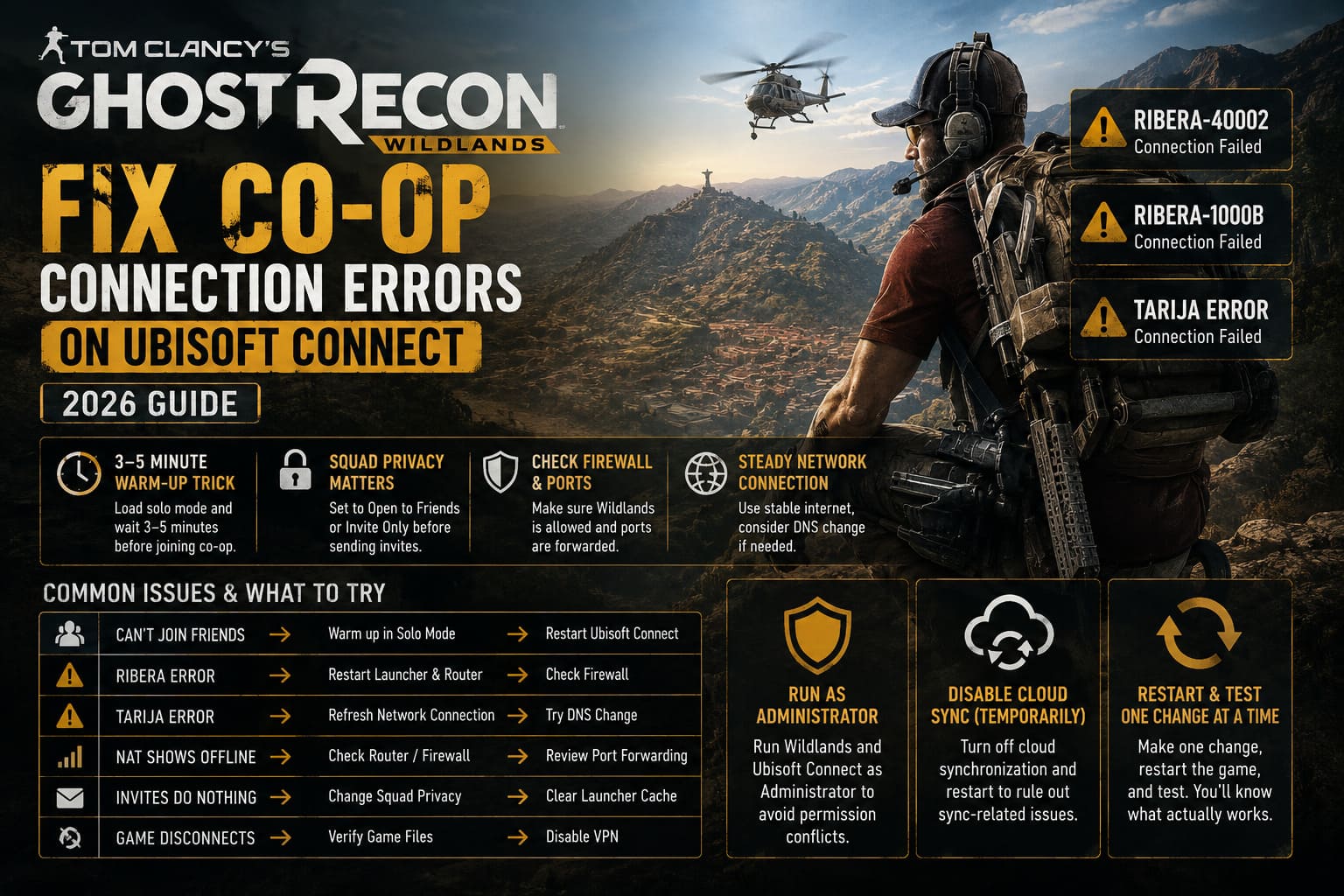
- Open the game and enter your solo session.
- Wait until your character has fully spawned into the open world.
- Leave the game running for roughly three to five minutes.
- Open the tactical map and move to the squad or lobby section.
- Check whether your online status has changed.
- Open your squad privacy settings.
- Switch the setting to Open to Friends or Invite Only.
- Try sending an invitation again.
This sounds almost too simple, but older multiplayer games sometimes behave better when you give their online services a little breathing room.
If this fixes your problem, honestly, I would just use it. There is no prize for performing complicated network surgery when waiting a few minutes gets your squad back into Bolivia.
Ribera and Tarija Errors: What I Would Try First
The Ribera and Tarija errors are among the most recognizable connection problems associated with Wildlands.
If you are repeatedly seeing codes such as Ribera-40002 or Ribera-1000B, I would approach the problem from both the game-client and network sides.
The important thing is not to change everything simultaneously. Make one adjustment, restart the game, and test it. Otherwise, you will have no idea which solution actually worked.
| Problem | First Thing To Try | If It Still Fails |
|---|---|---|
| Can’t Join Friends | Warm up in Solo Mode | Restart Ubisoft Connect |
| Ribera Error | Restart Launcher And Router | Check Firewall |
| Tarija Error | Refresh Network Connection | Try DNS Change |
| NAT Shows Offline | Check Router/Firewall | Review Port Forwarding |
| Invites Do Nothing | Change Squad Privacy | Clear Launcher Cache |
| Game Disconnects | Verify Game Files | Disable VPN |
Run Wildlands and Ubisoft Connect as Administrator
This is an old Windows troubleshooting trick, but it is still worth testing.
Completely close Wildlands and Ubisoft Connect. Then locate the game executable and your Ubisoft Connect shortcut.
Right-click each one and open Properties → Compatibility. From there, enable Run this program as an administrator.
Apply the changes and launch the game again.
I would not claim this magically fixes every multiplayer issue, because it obviously doesn’t. However, if Windows permissions are interfering with the launcher or game communication, elevated privileges can remove one possible obstacle.
And because it takes less than a minute to test, there is very little downside.
Try Disabling Ubisoft Connect Cloud Synchronization
Cloud synchronization is useful, but when troubleshooting an older Ubisoft game, I prefer eliminating unnecessary variables.
Open Ubisoft Connect and go into its settings. Look for the cloud-save synchronization option and temporarily disable it.
Then restart the launcher and Wildlands.
The idea here isn’t that cloud saves inherently cause multiplayer problems. Rather, a synchronization problem can sometimes complicate startup and account-related communication, especially when the launcher is already struggling to communicate correctly.
If disabling cloud synchronization makes your co-op work again, you have identified a useful workaround.
Just remember that cloud synchronization exists for a reason, so I would treat this as a troubleshooting step rather than permanently disabling it without thinking about your save situation.
Clear the Ubisoft Connect Cache
If Wildlands has suddenly stopped connecting after working normally for weeks, I would definitely consider clearing the launcher cache.
Close Ubisoft Connect completely, including its background process if it remains active.
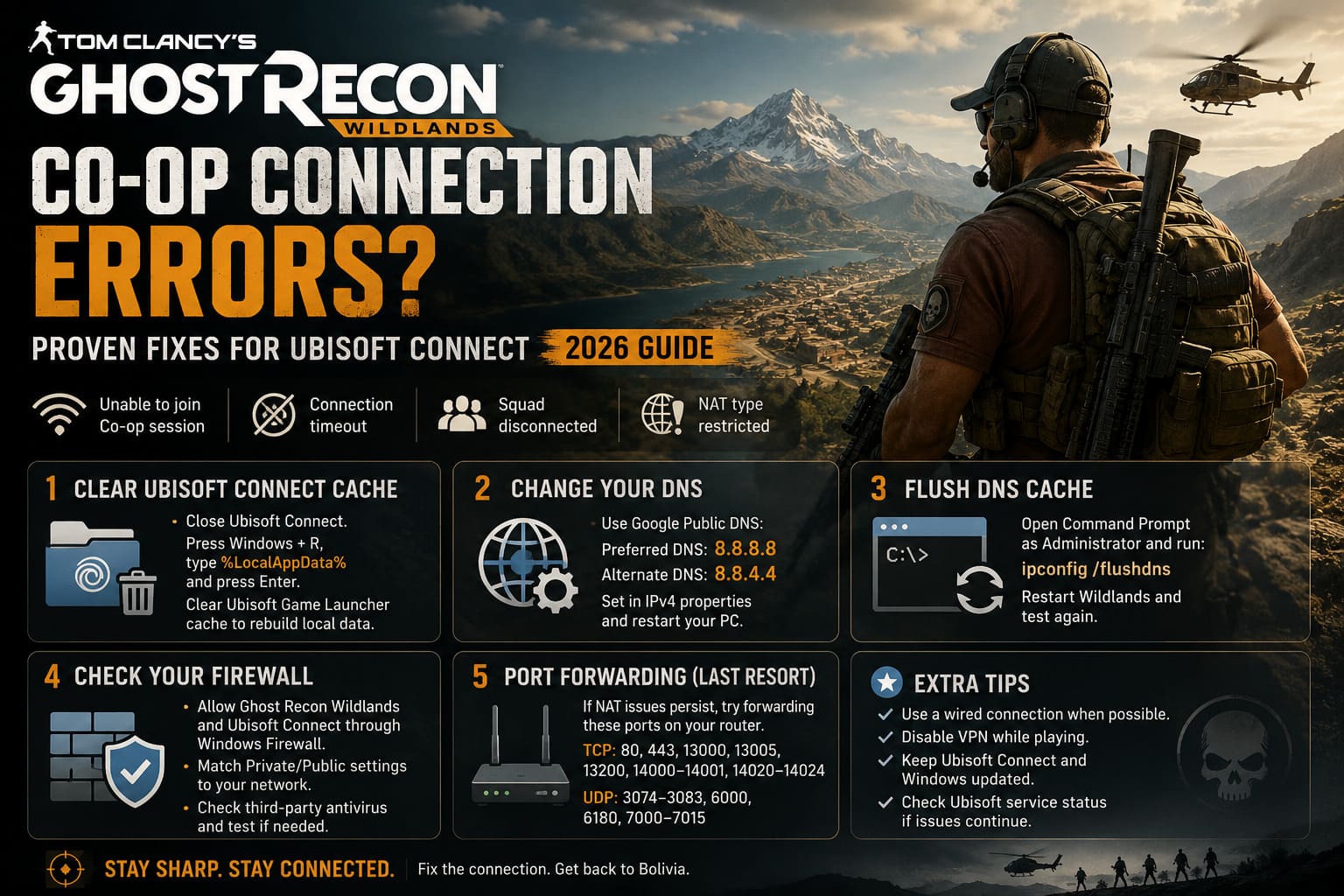
Press Windows + R, enter:
%LocalAppData%
and press Enter.
Look for the Ubisoft Game Launcher-related local data and clear the appropriate cache files or folder. The exact launcher structure can change over time, so avoid deleting unrelated Windows folders simply because they look suspicious.
The point is to force Ubisoft Connect to rebuild potentially corrupted local session or cache information.
This is one of those fixes I like because it doesn’t involve changing your router or reinstalling a huge game. If the problem is caused by stale local data, rebuilding it can be enough.
Change Your DNS If the Connection Still Looks Broken
If the easy fixes don’t work, I would move on to DNS.
Your internet provider’s default DNS isn’t necessarily bad, but changing to a major public DNS service can sometimes help when a game is struggling to resolve or reach particular online services.
For Google’s public DNS, the commonly used addresses are:
- Preferred DNS: 8.8.8.8
- Alternate DNS: 8.8.4.4
In Windows, go to your network adapter’s IPv4 properties and manually enter those addresses.
After applying the change, restart your PC.
I wouldn’t expect a DNS change to fix every Wildlands multiplayer error. It isn’t a magic “better internet” switch. But if the issue is related to DNS resolution or a problematic route from your ISP, it is absolutely worth testing.
Flush the Windows DNS Cache
While you’re working on DNS, clear the existing Windows resolver cache too.
Open Command Prompt as Administrator and run:
ipconfig /flushdns
Windows should confirm that the DNS resolver cache was successfully flushed.
Restart Wildlands afterward and test the connection again.
This is another quick fix where there is little reason not to try it when troubleshooting persistent connection problems.
Check Your Firewall Before Touching the Router
Windows Firewall or third-party antivirus software can sometimes interfere with multiplayer communication.
Open your Windows firewall settings and make sure Ghost Recon Wildlands and Ubisoft Connect are allowed through the firewall.
If the firewall asks you to choose between Private and Public networks, make sure the configuration matches the type of network you actually use.
Also check whether you are running an aggressive third-party security suite. Temporarily testing with its network protection disabled can help identify whether the security software is responsible.
I strongly recommend turning protection back on after testing. Don’t leave your PC exposed just because Wildlands decided to be difficult.
Port Forwarding: The Last Resort I Would Try
If your NAT status refuses to cooperate and every other solution has failed, then it may be worth looking at your router.
Depending on your setup, port forwarding can help with NAT-related multiplayer problems. Commonly referenced Wildlands ports include:
TCP: 80, 443, 13000, 13005, 13200, 14000–14001, 14020–14024
UDP: 3074–3083, 6000, 6180, 7000–7015
However, I would put this much lower on my troubleshooting list.
Router configuration can become unnecessarily complicated, particularly if you are using carrier-grade NAT, mesh networking, multiple routers, or an ISP-provided gateway. Opening ports blindly is not something I recommend doing just because one Reddit comment said it worked.
If you know your router well, investigate it. If you don’t, try the simpler solutions first.
Don’t Forget to Verify Your Game Files
If you own Wildlands through Steam, checking the installation is another easy step.
Open your Steam Library, right-click Tom Clancy’s Ghost Recon Wildlands, select Properties, then open Installed Files and choose Verify integrity of game files.
Steam will compare the local installation against the expected files and replace anything damaged or missing.
This won’t fix a router problem, obviously. But if an update was interrupted or a local file became corrupted, it can eliminate that possibility without requiring a complete reinstall.
Tom Clancy’s Ghost Recon Wildlands Tier 1 Mode Fast Leveling Guide (2026 Strategy)
My Recommended Order of Attack
If I were troubleshooting Wildlands with friends tonight, this is the order I would use:
- First: launch the game, enter the solo world, and wait three to five minutes.
- Second: check squad privacy and try the invitation again.
- Third: completely restart Wildlands and Ubisoft Connect.
- Fourth: disable VPNs and temporarily test whether security software is interfering.
- Fifth: clear Ubisoft Connect’s local cache.
- Sixth: flush DNS and, if necessary, test Google DNS.
- Seventh: check Windows Firewall permissions.
- Finally: investigate router NAT and port forwarding.
This approach saves a lot of unnecessary work.
A Few Things Everyone in the Squad Should Check
If you are playing with three or four friends, don’t assume the problem is automatically on the host’s side.
Have everyone check their setup.
Make sure nobody is connected through a VPN, everyone has restarted Ubisoft Connect, and everyone can reach the online services normally. If one particular player consistently causes the lobby to fail, that player’s network configuration is a much stronger suspect.
I would also have everyone enter their own solo session before attempting to create the squad. It sounds silly, but with Wildlands’ older online architecture, giving the game a little time to establish its connection can make a noticeable difference.
Final Thoughts
Ghost Recon Wildlands is absolutely still worth playing in co-op in 2026, and connection problems shouldn’t be the reason you abandon it.
The frustrating part is that the game doesn’t always tell you what is actually wrong. You can have a perfectly healthy internet connection and still get dumped into an error screen because the game, launcher, authentication service, or router didn’t agree on what should happen next.
Personally, I would avoid jumping straight into complicated router changes. Start with the five-minute solo warm-up, restart Ubisoft Connect, check your firewall, clear the launcher cache, and only then move toward DNS and NAT troubleshooting.
And if you’re planning a four-player session, have everyone perform the basic checks before the host starts sending invitations.
Sometimes the difference between a broken Wildlands evening and an incredible night of tactical chaos is literally five minutes of patience and one launcher restart.
Once the connection finally behaves, you’re back in Bolivia—and that’s where Wildlands is at its best.