How to Fix Tom Clancy’s Ghost Recon Wildlands Crash on Launch on Windows 11 (2026 Guide)
There are few things more annoying than installing an old favorite, sitting down ready to play, and watching it disappear before the main menu even appears.
That is exactly what can happen with Tom Clancy’s Ghost Recon Wildlands on Windows 11. You click Play, Ubisoft Connect does its thing, the splash screen appears for a second, and then… nothing. Back to the desktop.
Sometimes the game crashes instantly. Sometimes you get a black screen. Other times, Wildlands seems to launch normally but sits forever on the initial loading screen.
I have a particular dislike for this kind of PC problem because the game itself usually isn’t the real culprit. Wildlands is an older DirectX 11 title running on an operating system, CPU architecture, graphics driver stack, and launcher environment that simply did not exist when the game was designed.
The good news is that you don’t necessarily need to reinstall Windows or start changing dozens of random settings.
I’ve put together the fixes I would personally try, starting with the ones that have the best chance of solving the problem without turning your PC into a science experiment.
Why Does Ghost Recon Wildlands Crash on Launch in Windows 11?
Before changing anything, it helps to understand why this happens.
Wildlands was built around an older PC environment. Modern Windows 11 systems can introduce several compatibility variables at once:
- DirectX 11 and modern graphics driver behavior
- Intel hybrid CPUs with P-cores and E-cores
- Easy Anti-Cheat
- Ubisoft Connect background services
- Fullscreen optimization features
- Old Visual C++ dependencies
- Corrupted configuration or launcher cache files
The frustrating part is that two PCs with almost identical hardware can behave completely differently.
One may launch Wildlands normally. Another may crash before reaching the menu.
That’s why I recommend working through the fixes in order rather than applying everything at once. If one change solves the problem, you’ll know what actually worked.
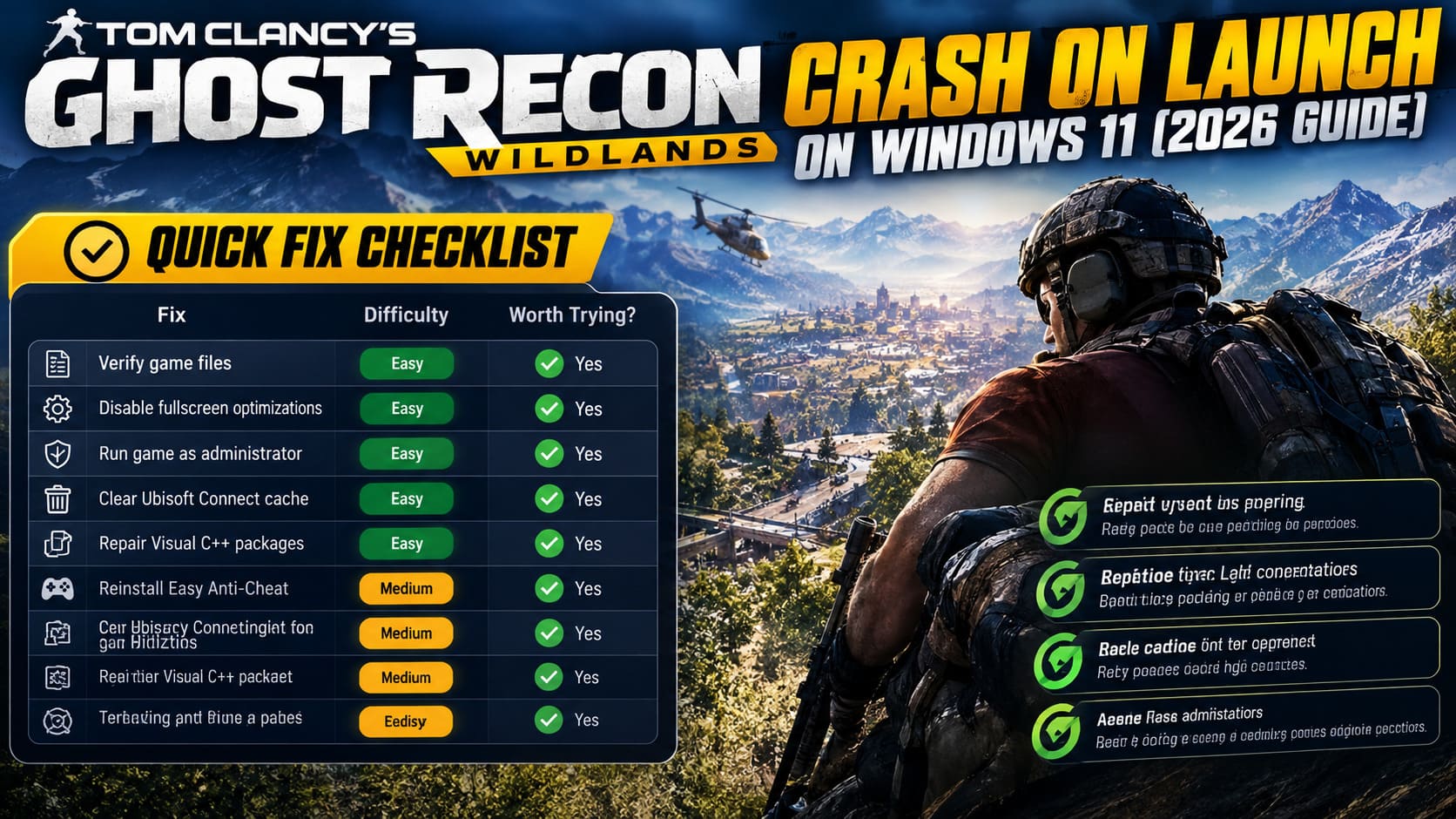
Quick Fix Checklist
If you don’t want to read the entire guide first, here’s the order I’d personally follow:
| Fix | Difficulty | Worth Trying? |
|---|---|---|
| Verify game files | Easy | Yes |
| Disable fullscreen optimizations | Easy | Yes |
| Run game as administrator | Easy | Yes |
| Clear Ubisoft Connect cache | Easy | Yes |
| Repair Visual C++ packages | Easy | Yes |
| Reinstall Easy Anti-Cheat | Medium | Yes |
| Test DXVK | Medium | Highly Recommended |
| Limit CPU affinity/E-cores | Advanced | Especially on Intel CPUs |
| Disable E-cores in BIOS | Advanced | Last resort |
My advice is simple: start with the easy fixes and only move into BIOS changes if Wildlands is still refusing to cooperate.
Fix 1: Try DXVK If Wildlands Immediately Crashes
This is probably the most interesting workaround in this entire guide.
DXVK is a translation layer that converts Direct3D 9/10/11 calls to Vulkan. In other words, instead of letting the game communicate with the modern Windows graphics stack through its original DirectX 11 path, DXVK gives it another route.
And for certain older games, that can make a surprisingly big difference.
I’ve always liked this type of solution because you’re not changing the game itself. You’re essentially giving an old engine a compatibility bridge to modern hardware.
How to Install DXVK for Ghost Recon Wildlands
- Download the latest stable DXVK release from its official project repository.
- Extract the archive somewhere convenient.
- Open the extracted DXVK folder.
- Enter the x64 folder.
- Find d3d11.dll and dxgi.dll.
- Copy both files.
- Open your Ghost Recon Wildlands installation directory.
- Paste the DLL files next to the game’s main executable.
- Back up any existing files with the same names before replacing them.
- Launch Wildlands normally.
If DXVK is compatible with your particular setup, the game may suddenly get past the crash that previously happened during startup.
One Important Warning
Don’t download random DLL files from questionable “DLL download” websites.
That’s a terrible habit to get into. If you’re going to experiment with DXVK, get it from the legitimate project source.
Also remember that third-party translation layers can introduce their own problems. If the game starts behaving worse, simply remove the added files and return to the original configuration.
Fix 2: Intel E-Cores Can Be a Problem
This is one of the first things I’d investigate if you’re using a relatively recent Intel processor.
Modern Intel CPUs use a hybrid architecture containing Performance Cores (P-cores) and Efficient Cores (E-cores). That’s great for modern software, but older games weren’t necessarily designed with this scheduling model in mind.
Wildlands predates this architecture by several years.
The result can be strange behavior: crashes, hanging during initialization, inconsistent performance, or a game that appears to load forever.
Option A: Disable E-Cores in BIOS
This is the more aggressive solution.
Restart your PC and enter the motherboard BIOS. Depending on your motherboard, this is commonly done with Delete, F2, F10, or F12 during startup.
Look for CPU-related settings such as:
- Efficient Cores
- E-Cores
- Active Efficient Cores
- CPU Configuration
- Advanced Processor Settings
If your BIOS provides the option, temporarily disable the E-cores.
Save the changes and boot into Windows.
Then try Wildlands again.
My Opinion
I wouldn’t permanently disable E-cores just to play one game unless you absolutely have to.
It’s useful as a diagnostic test. If Wildlands suddenly launches normally, you’ve learned something important about the problem.
You can then look for a less invasive solution.
Fix 3: Limit Wildlands to Specific CPU Cores
If you don’t want to touch BIOS settings, a CPU-affinity utility can provide another option.
Tools such as Process Lasso can create persistent CPU-affinity rules for applications.
The idea is to restrict Wildlands and, where appropriate, related launcher processes to a set of CPU threads that avoids the E-cores.
This is particularly interesting on Intel systems where Wildlands crashes or hangs during startup but behaves normally when running on a more traditional core configuration.
However, I consider this an advanced fix.
Don’t start changing CPU affinity randomly. If you’re not comfortable with processor topology and thread assignments, try the simpler compatibility fixes first.
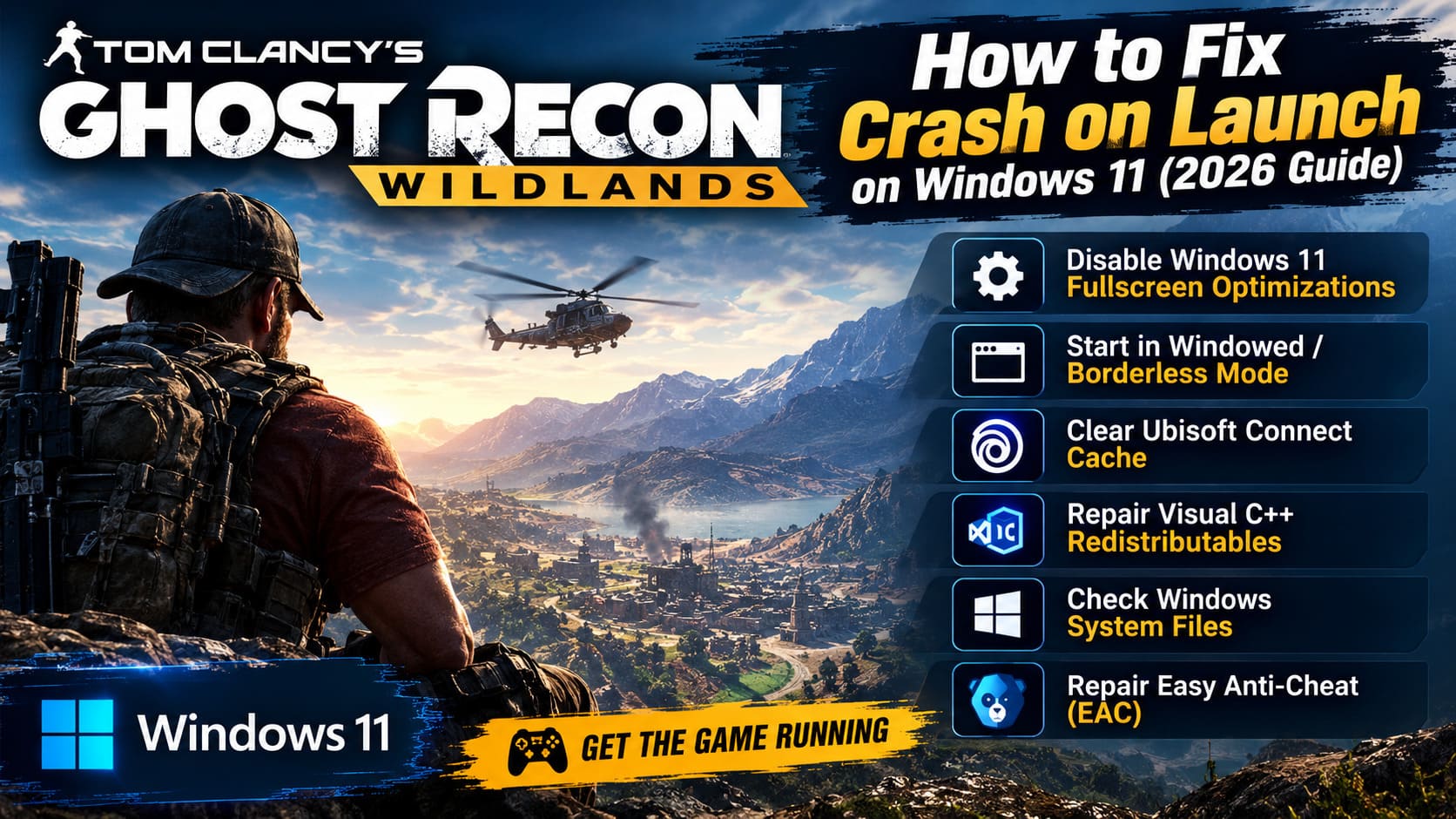
Fix 4: Disable Windows 11 Fullscreen Optimizations
This is one of those fixes that takes about 30 seconds, so there’s really no reason not to try it.
Find the Wildlands executable in the installation directory.
Right-click it and choose Properties.
Open the Compatibility tab.
Enable:
- Disable fullscreen optimizations
- Run this program as an administrator
Click Apply and then OK.
If your installation contains additional relevant executables, you can apply the same compatibility settings to them.
Why Does This Help?
Windows 11 has several display and presentation optimizations designed around modern applications.
Older games can occasionally have problems with the way these features interact with fullscreen rendering, overlays, and graphics drivers.
For Wildlands, forcing a simpler presentation path is worth testing.
If you’re experiencing a crash immediately after the splash screen, this is one of the first things I’d try.
Fix 5: Start Wildlands in Windowed or Borderless Mode
If fullscreen mode is causing the crash, forcing the game to start in a less restrictive display mode can help.
If your launcher supports launch arguments, try:
-windowed -noborder
This can be especially useful if the game crashes while changing resolution or switching into fullscreen.
Once you’re successfully inside the game, you can experiment with your preferred display settings.
Personally, I’d rather get the game running in borderless windowed mode first and worry about squeezing out the last few frames later.
Fix 6: Clear the Ubisoft Connect Cache
Sometimes the problem isn’t Wildlands at all.
Ubisoft Connect can accumulate cached data that becomes corrupted or incompatible after updates.
Fully close Ubisoft Connect first.
Open Task Manager with Ctrl + Shift + Esc and make sure Ubisoft-related processes aren’t still running.
Then navigate to the Ubisoft Game Launcher installation directory and locate the cache folder.
Delete the contents of that cache.
Don’t delete random Ubisoft folders just because they look old. The goal is to clear the cached launcher data, not dismantle the entire installation.
Restart Ubisoft Connect and try launching Wildlands again.
Also Reset the Game Configuration
If the game continues to crash before reaching the menu, your local Wildlands configuration may be damaged.
Look inside your Windows Documents > My Games folder for the Ghost Recon Wildlands directory.
Instead of immediately deleting everything, I recommend renaming the folder first.
For example:
Ghost Recon Wildlands → Ghost Recon Wildlands_backup
This lets the game create a fresh configuration while keeping your original files available in case you need them.
That’s always safer than deleting everything immediately.
Fix 7: Repair Microsoft Visual C++ Redistributables
Older PC games can depend on runtime components that modern Windows installations don’t always have in the exact condition the game expects.
Open:
Settings → Apps → Installed Apps
Search for Microsoft Visual C++ Redistributable packages.
If you see older versions such as 2012, 2013, or 2015-2022, use the available Modify/Repair option where supported.
You can also check the Wildlands installation directory for its included support or redistributable installers.
After repairing the packages, restart Windows.
Then test the game again.
Fix 8: Check Windows System Files
If Windows itself has damaged or mismatched system files, troubleshooting the game can become a complete waste of time.
Open Command Prompt as Administrator.
Run:
sfc /scannow
Let Windows complete the scan.
Don’t close the window just because the progress seems stuck. Depending on the system, it can take a while.
Once the process finishes, restart your computer.
This isn’t a Wildlands-specific fix, but it’s a sensible step when you’re dealing with unexplained crashes across older applications.
Fix 9: Repair Easy Anti-Cheat
Wildlands relies on Easy Anti-Cheat for its online functionality, and a damaged EAC installation can prevent the game from starting correctly.
Open the Wildlands installation directory and look for the EasyAntiCheat folder.
Find the Easy Anti-Cheat setup executable.
Right-click it and choose Run as administrator.
Select Ghost Recon Wildlands from the available game list and use the repair or installation option provided by the utility.
Afterward, restart the PC and try again.
Don’t Use Random EAC Bypass Tools
You’ll occasionally see people recommending unofficial “EAC bypass” launchers when searching forums.
I wouldn’t make that my first choice.
Apart from potentially breaking multiplayer functionality, unofficial bypass software can create security and account risks that aren’t worth taking just to get an old game running.
Stick to repairing the legitimate installation whenever possible.
Fix 10: Give the Game More Time Than You Think
This sounds ridiculous.
Sometimes it works.
On certain systems, particularly after configuration changes or a fresh installation, Wildlands can appear completely frozen during its initial startup process.
If the game is sitting on the splash screen but isn’t actually crashing, give it 10–15 minutes before killing the process.
I know. Waiting fifteen minutes for a game to start in 2026 feels absurd.
But if the process is still active and the system isn’t throwing an error, it can be worth waiting once before deciding that the installation is broken.
If it eventually reaches the menu, let it finish loading and then restart the game normally.
If every subsequent launch is still taking fifteen minutes, obviously, that’s not a real solution. It’s a clue that something else needs fixing.
What I Would Try First
If this were my PC, I wouldn’t apply all ten fixes at once.
I’d go in this order:
- Verify the game installation.
- Clear the Ubisoft Connect cache.
- Reset the Wildlands configuration folder.
- Disable fullscreen optimizations.
- Run the game as administrator.
- Repair Visual C++ components.
- Repair Easy Anti-Cheat.
- Try DXVK.
- Investigate CPU affinity if using a modern Intel hybrid CPU.
- Only then consider disabling E-cores in BIOS.
That order matters because it keeps the troubleshooting process relatively clean.
There’s no point disabling half the features on your PC if clearing one corrupted launcher cache would have solved the problem.
Ghost Recon Wildlands Windows 11 Troubleshooting Table
| Problem | Fix I’d Try First |
|---|---|
| Instant crash after clicking Play | DXVK / fullscreen optimization |
| Black screen then desktop | DXVK / windowed mode |
| Stuck on splash screen | Wait 10–15 minutes, then investigate CPU affinity |
| Intel 12th–14th Gen or newer | Test E-core/CPU-affinity solution |
| Ubisoft Connect refuses to launch game | Clear launcher cache |
| Crash after changing graphics settings | Reset configuration folder |
| EAC-related startup failure | Repair Easy Anti-Cheat |
| Missing runtime errors | Repair Visual C++ |
| Multiple Windows applications crashing | Run SFC |
| Fullscreen causes immediate crash | Disable fullscreen optimizations |
Final Thoughts
Ghost Recon Wildlands is still a fantastic PC game, which makes it especially frustrating when Windows 11 decides that starting it is somehow an impossible task.
The important thing to remember is that this isn’t necessarily a sign that your hardware is too weak. In fact, the opposite can be true. Modern CPUs, newer Windows builds, current graphics drivers, and hybrid processor architectures can create compatibility problems that simply didn’t exist when Wildlands originally launched.
If I had to pick the two fixes I’d investigate first, they’d be DXVK and the Intel E-core/CPU scheduling issue.
But don’t ignore the boring fixes. Clearing the Ubisoft Connect cache, resetting the game’s configuration, disabling fullscreen optimizations, repairing Visual C++ and reinstalling Easy Anti-Cheat are all relatively safe and easy to test.
And if Wildlands appears to be completely frozen on that little splash screen, don’t immediately reach for the power button or Task Manager. Give it a few minutes. Sometimes older PC games have the bizarre ability to make you think they’ve crashed when they’re actually still working.
That’s the annoying reality of keeping older games alive on modern Windows.
Once you get Wildlands running properly, though, it’s worth the effort. The huge open-world map, tactical firefights, co-op gameplay, and freedom to approach missions your own way still hold up remarkably well. I’d much rather spend ten minutes fighting Windows compatibility problems than give up on one of Ubisoft’s better open-world shooters.