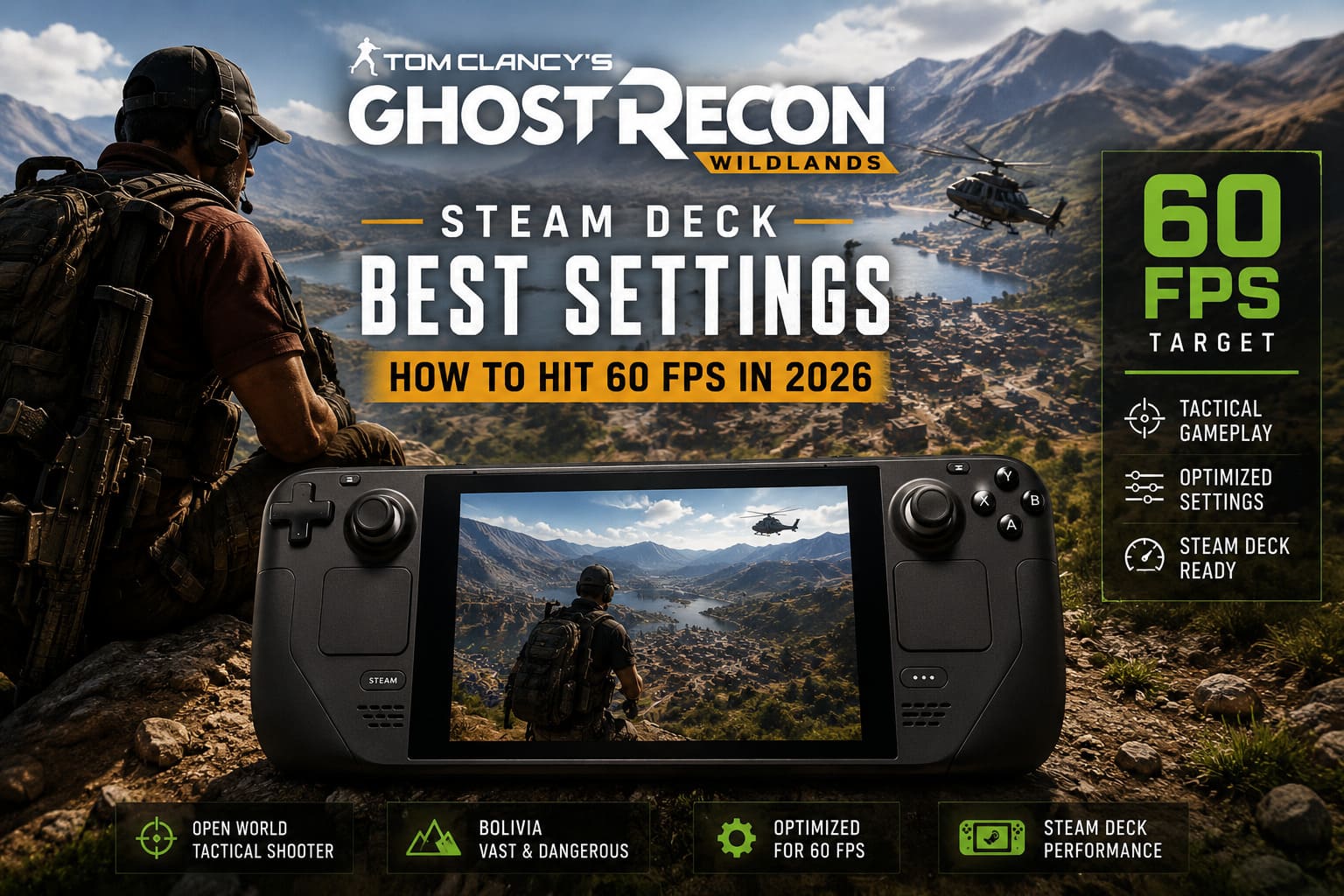
Tom Clancy’s Ghost Recon Wildlands Steam Deck Best Settings: How to Hit 60 FPS in 2026
There are few things more satisfying than dropping into Bolivia with a suppressed rifle, tagging half a cartel outpost through your scope, and clearing the entire base without raising an alarm. Tom Clancy’s Ghost Recon Wildlands still has one of the most enjoyable open-world tactical loops Ubisoft has ever built.
Playing it on a Steam Deck, though, can be a very different story.
Wildlands was never exactly a lightweight PC game. The enormous Bolivian map, long draw distances, dense vegetation, weather effects, shadows, vehicles, AI activity, and constant world streaming can push hardware surprisingly hard. On a desktop PC, you can throw more horsepower at the problem. On a Steam Deck, every watt matters.
For a long time, I considered 30 FPS the sensible target for Wildlands on Valve’s handheld. A stable 30 is much better than an inconsistent 45 that constantly jumps around. But after spending a ridiculous amount of time experimenting with graphics options, Proton versions, SteamOS settings, and the game’s more demanding visual effects, I’ve found that 60 FPS is a realistic target in 2026—as long as you’re willing to make some smart compromises.
The trick isn’t turning everything down until Bolivia looks like a PS2 game. It’s identifying the settings that actually hammer the Steam Deck and spending your limited GPU and CPU budget where it matters.
Can Ghost Recon Wildlands Really Run at 60 FPS on Steam Deck?
Yes—but don’t expect a perfectly locked 60 FPS everywhere.
This is the first thing I’d make clear before anyone starts changing settings. Wildlands is still a demanding open-world game, and its performance can fluctuate dramatically depending on what you’re doing.
Walking around a relatively quiet outpost? 60 FPS is achievable.
Driving through a busy area at full speed? Expect some drops.
Flying a helicopter across a densely populated province while the game streams terrain, vegetation, vehicles, enemies, and buildings? That’s where the Steam Deck starts sweating.
My goal with this setup isn’t to chase an imaginary “locked 60 FPS under every possible circumstance.” Instead, it’s about creating a configuration that feels consistently responsive during normal gameplay, while keeping the inevitable heavy-scene drops short and relatively painless.
That’s a much better experience than constantly bouncing between 30, 40, and 50 FPS.
Why Wildlands Is So Demanding on Steam Deck
Wildlands uses Ubisoft’s AnvilNext 2.0 engine, and the game was designed around much more powerful desktop and console hardware than the Steam Deck.
The biggest problem isn’t one individual graphics setting. It’s the combination of several systems working simultaneously.
- Huge visibility distances.
- Constant terrain and asset streaming.
- Dense forests and vegetation.
- Dynamic weather and lighting.
- Large numbers of NPCs and vehicles.
- CPU-heavy world simulation.
That means the Steam Deck can run into both GPU and CPU limitations depending on the location.
I’ve found draw distance to be particularly nasty. It looks great when cranked up, but you’re basically asking the Deck to keep track of an enormous amount of Bolivia at once. That’s not a great trade when the objective is 60 FPS.
Shadows are another easy target. They can make the game look prettier, but their performance cost is wildly disproportionate to how much visual benefit you actually get on a small 800p display.
My Recommended Ghost Recon Wildlands Steam Deck Settings
If you’re looking for a starting point rather than spending an entire evening testing individual options, use this preset.
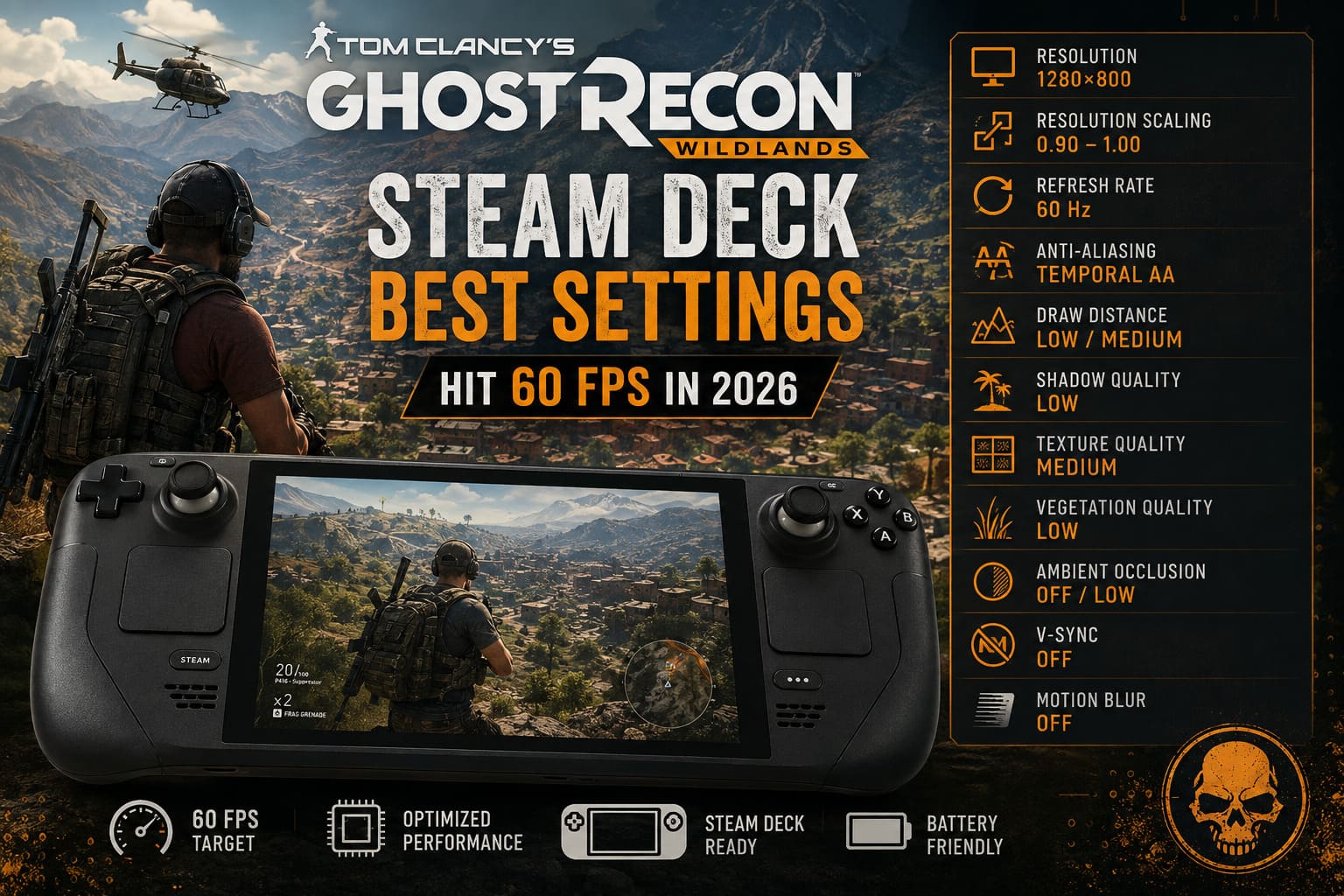
| Setting | Recommended Value |
|---|---|
| Display Mode | Fullscreen |
| Resolution | 1280×800 |
| Resolution Scaling | 0.90–1.00 |
| Refresh Rate | 60 Hz |
| V-Sync | Off |
| Frame Rate Limit | Off In-Game |
| Anti-Aliasing | Temporal AA |
| Ambient Occlusion | Off / Low |
| Draw Distance | Low / Medium |
| Texture Quality | Medium |
| Anisotropic Filtering | 4x / 8x |
| Shadow Quality | Low |
| Terrain Quality | Medium |
| Vegetation Quality | Low |
| Motion Blur | Off |
| Iron Sights Blur | Off |
| Bloom | On |
| God Rays | Off |
| Subsurface Scattering | Off |
| Long Range Shadows | Off |
This isn’t the prettiest possible configuration. That’s not what we’re trying to accomplish.
The idea is to protect the settings that actually improve image quality while cutting the options that are notorious performance hogs.
Resolution and Scaling
Keep the native 1280×800 resolution whenever possible.
If the frame rate starts collapsing in particularly demanding areas, reducing Resolution Scaling to 0.90 is one of the easiest emergency fixes.
I actually prefer dropping resolution scaling slightly over destroying every other graphics setting. At 800p, the image still looks perfectly respectable, especially when you’re moving through the world rather than staring at individual rocks.
Temporal AA also helps hide some of the roughness that comes with running a demanding open-world game at a relatively low resolution.
The Settings That Matter Most
Not every graphics option deserves equal attention.
If you only have five minutes to optimize Wildlands, these are the settings I’d touch first.
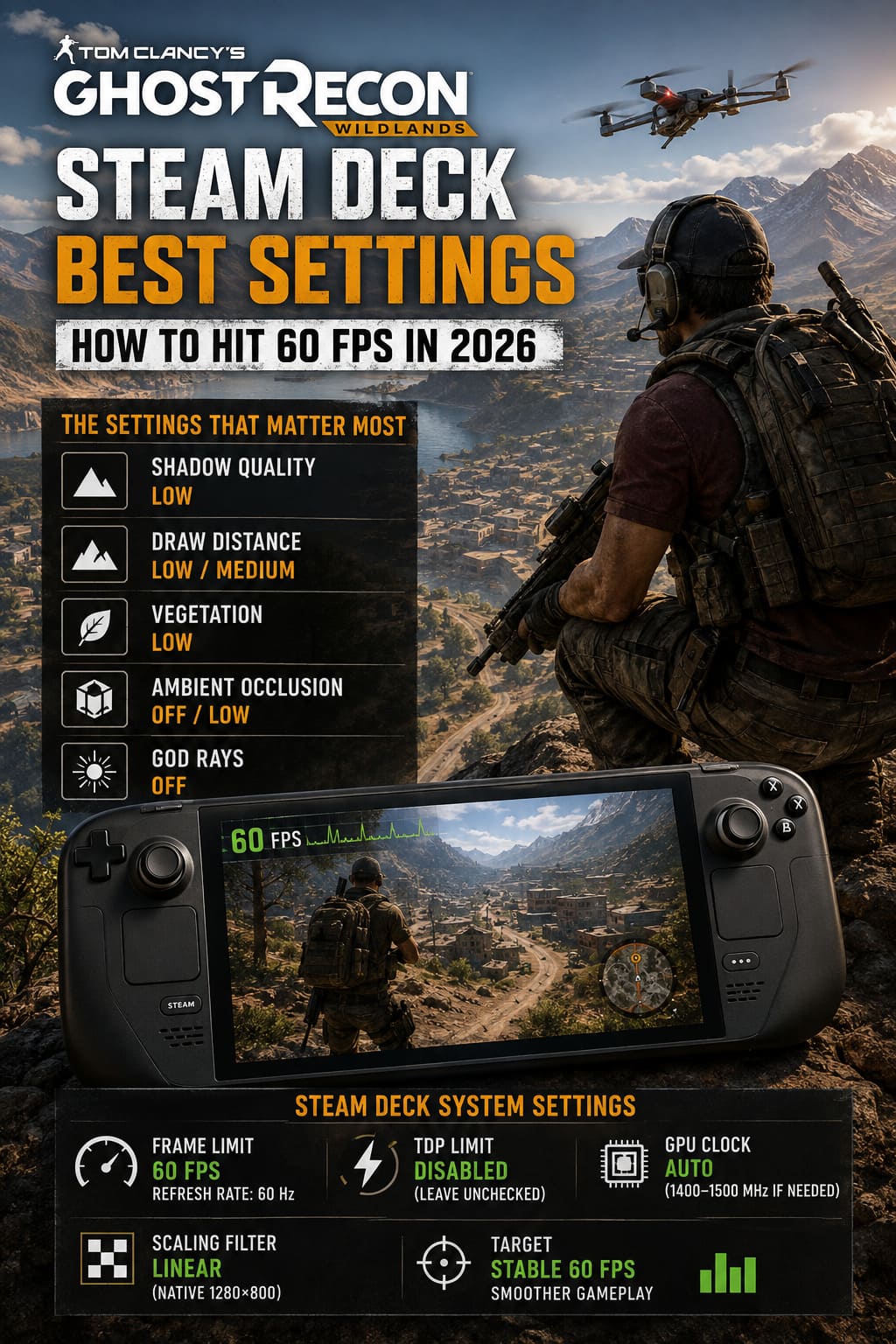
1. Shadow Quality — Set It to Low
This is the big one.
Shadows are one of the easiest ways to gain meaningful performance in Wildlands.
High-quality shadows can look fantastic on a large monitor, but the Steam Deck’s 800p screen isn’t the place where I’d spend precious GPU resources on them.
Moving from High or Ultra down to Low can provide a surprisingly large performance improvement, particularly when you’re in areas with lots of buildings, trees, and dynamic lighting.
And honestly? Once you’re actually playing, you barely notice.
2. Draw Distance — Low or Medium
This setting is much more important than it looks.
Wildlands already has a gigantic world. Increasing draw distance tells the engine to keep even more of that world active and visible.
On the Steam Deck, that’s asking for trouble.
Medium is my preferred compromise, but Low is worth using if you’re chasing every possible frame.
You may notice objects popping into view a little earlier. I’d take that trade every single time if it means avoiding nasty CPU-related frame-time spikes.
3. Vegetation — Low
Bolivia is beautiful largely because of its vegetation.
Unfortunately, that vegetation is also one of the Deck’s worst enemies.
Dense foliage means more objects to render and more environmental detail for the CPU and GPU to process. Jungle regions and heavily forested provinces can expose performance problems very quickly.
Set Vegetation Quality to Low.
The world still looks like Bolivia. You’re not removing every tree from the map.
4. Ambient Occlusion — Off or Low
Ambient Occlusion adds nice contact shadows around objects, buildings, rocks, and characters.
It also isn’t worth much when you’re trying to squeeze toward 60 FPS.
I’d start with Off. If you have performance to spare and really dislike the flatter look, Low is perfectly reasonable.
5. God Rays — Off
Volumetric lighting effects are another classic “looks amazing, costs too much” setting.
God Rays can make sunsets and explosions look spectacular, but they’re not something I want to sacrifice several frames for on a handheld.
Turn them off and spend those frames somewhere more useful.
Steam Deck Performance Settings You Should Change
The in-game menu is only half the battle.
Open the Steam Deck’s Quick Access Menu using the three-dot button and make the following adjustments.
Set the System Frame Limit to 60 FPS
If you’re targeting 60 FPS, let SteamOS handle the frame cap.
I recommend leaving the game’s own frame limiter disabled and using the system-level limiter instead. This gives you a cleaner place to control frame pacing without stacking multiple frame-rate controls on top of each other.
Set the display refresh rate to 60 Hz and the frame limit to 60 FPS.
Leave TDP Limit Disabled
Don’t artificially restrict the Steam Deck’s power budget when you’re trying to maintain high frame rates.
Leave TDP Limit unchecked.
Wildlands can absolutely use the additional power during heavy scenes, especially when you’re driving through dense environments or flying over large sections of the map.
GPU Clock: Start With Auto
Normally, I’d leave GPU Clock Frequency on Auto.
If you’re experiencing strange micro-stutters despite apparently having enough performance, experimenting with a manual clock around 1400–1500 MHz can sometimes help stabilize behavior.
I wouldn’t make this your first tweak, though.
Start with Auto. If the game is behaving strangely, then experiment.
Scaling Filter: Linear
For native 1280×800 rendering, Linear is my preferred choice.
I don’t see much reason to stack SteamOS FSR on top of the game’s own resolution scaling unless you’re deliberately rendering below native resolution to recover performance.
Otherwise, the extra sharpening can make Wildlands’ already busy image look overly processed.
The Ubisoft Connect Overlay Problem
This is one of those issues that can make you think your graphics settings are completely broken.
You launch the game, everything looks great, and you’re cruising around at a smooth frame rate. Ten or fifteen minutes later, performance starts falling apart.
Suddenly you’re looking at 15–20 FPS and wondering what happened.
Community reports have repeatedly pointed toward Ubisoft Connect and its in-game overlay as a potential source of instability on Steam Deck and Proton.
If you’re experiencing gradual performance degradation during longer sessions, disabling the overlay is absolutely worth trying.
How to Disable Ubisoft Connect’s In-Game Overlay
- Switch the Steam Deck to Desktop Mode.
- Open the desktop Steam client.
- Launch Ghost Recon Wildlands.
- Once the game reaches its title screen, return to the desktop.
- Find Ubisoft Connect in the system tray.
- Open Ubisoft Connect’s settings.
- Locate the option for in-game overlay for supported games.
- Disable it.
- Completely close Ubisoft Connect.
- Return to Gaming Mode and launch Wildlands again.
I consider this one of the first troubleshooting steps worth trying if your frame rate is good initially but progressively gets worse.
A perfectly optimized graphics preset doesn’t help much if something in the background is chewing through resources during your session.
Proton Experimental Is Worth Testing
Compatibility layers have come a long way, and Proton Experimental should absolutely be part of your testing process in 2026.
Wildlands is one of those games where a compatibility-layer update can change the experience without you touching the graphics settings at all.
If your current Proton version gives you strange crashes, launcher behavior, stuttering, or inconsistent performance, try Proton Experimental before spending an hour tweaking individual graphics options.
That said, don’t blindly assume the newest option is always best.
If Experimental introduces a new problem, testing another known-working Proton release can be worthwhile. Steam Deck performance is sometimes weirdly game-specific.
What Performance Should You Actually Expect?
This is where I want to keep expectations realistic.
The phrase “60 FPS Steam Deck settings” doesn’t mean the frame counter will permanently sit at exactly 60.
Wildlands has too many variables for that.
Open Areas and Smaller Outposts
In relatively light areas, you can expect roughly 58–60 FPS with the optimized configuration.
This is where the setup really shines. Running around an outpost, scouting enemies through your binoculars, sneaking between buildings, and engaging smaller groups feels extremely responsive.
Driving and Flying
This is where things get more interesting.
When you’re driving quickly through the countryside or flying a helicopter across the map, the engine has to stream a ridiculous amount of information.
Brief drops into the 50–55 FPS range are completely believable.
The important thing is that they shouldn’t turn into persistent stuttering.
Heavy Combat
Large firefights, explosions, Unidad encounters, vehicles, mortar strikes, and dense environments can push the Steam Deck considerably harder.
Don’t be shocked by occasional dips into the high 40s during especially chaotic moments.
I’d much rather have a configuration that normally feels fast and responsive with short drops during extreme scenes than one that sacrifices image quality everywhere just to make the FPS counter look perfect.
LCD vs OLED: What Changes?
Both Steam Deck models can benefit from these settings.
The OLED model has the obvious advantage in battery efficiency and its superior display, while the LCD model remains perfectly capable of running Wildlands with the right configuration.
Don’t expect the OLED model to magically transform Wildlands into a permanently locked 60 FPS experience. The fundamental CPU/GPU limitations are still there.
The bigger advantage is endurance.
| Steam Deck Model | Approximate Battery Life |
|---|---|
| Steam Deck LCD | Around 1.5 Hours |
| Steam Deck OLED | Around 2–2.5 Hours |
These numbers can obviously move around depending on brightness, system activity, power draw, temperature, and your exact configuration.
If you’re traveling and don’t need 60 FPS, I’d seriously consider dropping to 40 or 45 FPS.
That’s the sweet spot I use when battery life matters more than maximum responsiveness.
What About Multiplayer and Easy Anti-Cheat?
This deserves a warning.
The single-player experience is one thing. Multiplayer can be considerably more complicated on Linux and Proton.
If you encounter Easy Anti-Cheat problems while trying to join co-op, don’t immediately assume your Steam Deck is broken.
Wildlands’ online compatibility has historically been more troublesome than simply launching the campaign.
You may encounter EAC-related errors that return you to the menu or prevent multiplayer sessions from working correctly.
There are community-created workarounds involving modified files, but I would be extremely cautious with random DLL downloads or unofficial files.
Personally, I would not recommend downloading mysterious “EAC bypass” files from random websites just to force co-op functionality. The security risk isn’t worth it.
For a clean Steam Deck setup, I’d rather keep the installation as close to vanilla as possible and focus on getting the single-player campaign running correctly.
How to Fix Tom Clancy’s Ghost Recon Wildlands Crash on Launch on Windows 11 (2026 Guide)
My Final 60 FPS Steam Deck Preset
If you don’t want to read through the entire guide every time you reinstall Wildlands, here’s the short version:
1280×800, Temporal AA, Medium Textures, Low Shadows, Low Vegetation, Low/Medium Draw Distance, AO Off, God Rays Off, Long Range Shadows Off, V-Sync Off, SteamOS 60 FPS Limit, and Ubisoft Connect Overlay Disabled.
That’s the combination I’d start with.
If you’re still getting drops, lower Resolution Scaling from 1.00 to 0.90.
If the game remains unstable after that, don’t immediately start destroying the visuals. Test Proton Experimental, check background applications, and monitor whether performance gets worse after extended play sessions.
Is 60 FPS Worth Chasing?
Absolutely—if you’re the kind of player who notices frame pacing.
Wildlands feels completely different when you’re moving through Bolivia at high refresh rates. Aiming feels snappier, driving is smoother, camera movement is cleaner, and quick target acquisition becomes much more comfortable.
But there’s an important caveat.
A stable 40 FPS is better than a chaotic 60.
If your particular Steam Deck struggles with a specific province, don’t be afraid to lock the game to 40 or 45 FPS. The visual difference between Low and High shadows isn’t nearly as important as having consistent frame delivery during a firefight.
After all, the reason we’re playing Wildlands on a Steam Deck isn’t to stare at a benchmark graph.
It’s to disappear into Bolivia for a few hours, climb a hill overlooking a cartel compound, tag every guard in sight, synchronize shots with the AI squad, and then completely ruin someone’s evening with a well-placed sniper round.
With the right settings, Ghost Recon Wildlands is still a fantastic handheld tactical shooter in 2026. It may require more tweaking than it deserves, but once you get the configuration dialed in, the payoff is absolutely worth it.