GRAIN ROT Multiplayer Not Working? How to Fix Co-Op Issues and Play with Friends (2026 Guide)
There is something especially frustrating about a co-op horror game that looks like it was practically made for playing with friends, only to spend half an hour fighting the multiplayer menu instead of the monsters. That is exactly what some GRAIN ROT players are running into after the game’s Steam launch.
GRAIN ROT has a genuinely interesting setup. You and up to three other players take control of fragile wooden bodies inhabited by Living Sparks, head into hostile underground ruins, tear apart whatever furniture and resources you can find, and try to make it back alive. The whole thing is built around that classic extraction-game tension: how much more can we grab before it becomes too dangerous to stay?
Unfortunately, some players are discovering that getting four friends into the same session can sometimes be harder than surviving the ruins themselves. Steam invitations may fail, lobbies can disappear, loading screens can seemingly last forever, and some players report being thrown back to the main menu when they should be joining their friends.
I’ve put together this guide for exactly that situation. These are the fixes I would try first if GRAIN ROT multiplayer is not working, along with a few simple habits that can make co-op considerably less painful.
Why Is GRAIN ROT Multiplayer Not Working?
Before changing Windows settings and reinstalling anything, it is worth remembering that not every multiplayer problem is actually caused by your PC. GRAIN ROT is an indie game, and a popular launch can put considerably more pressure on matchmaking and session infrastructure than developers experienced during testing.
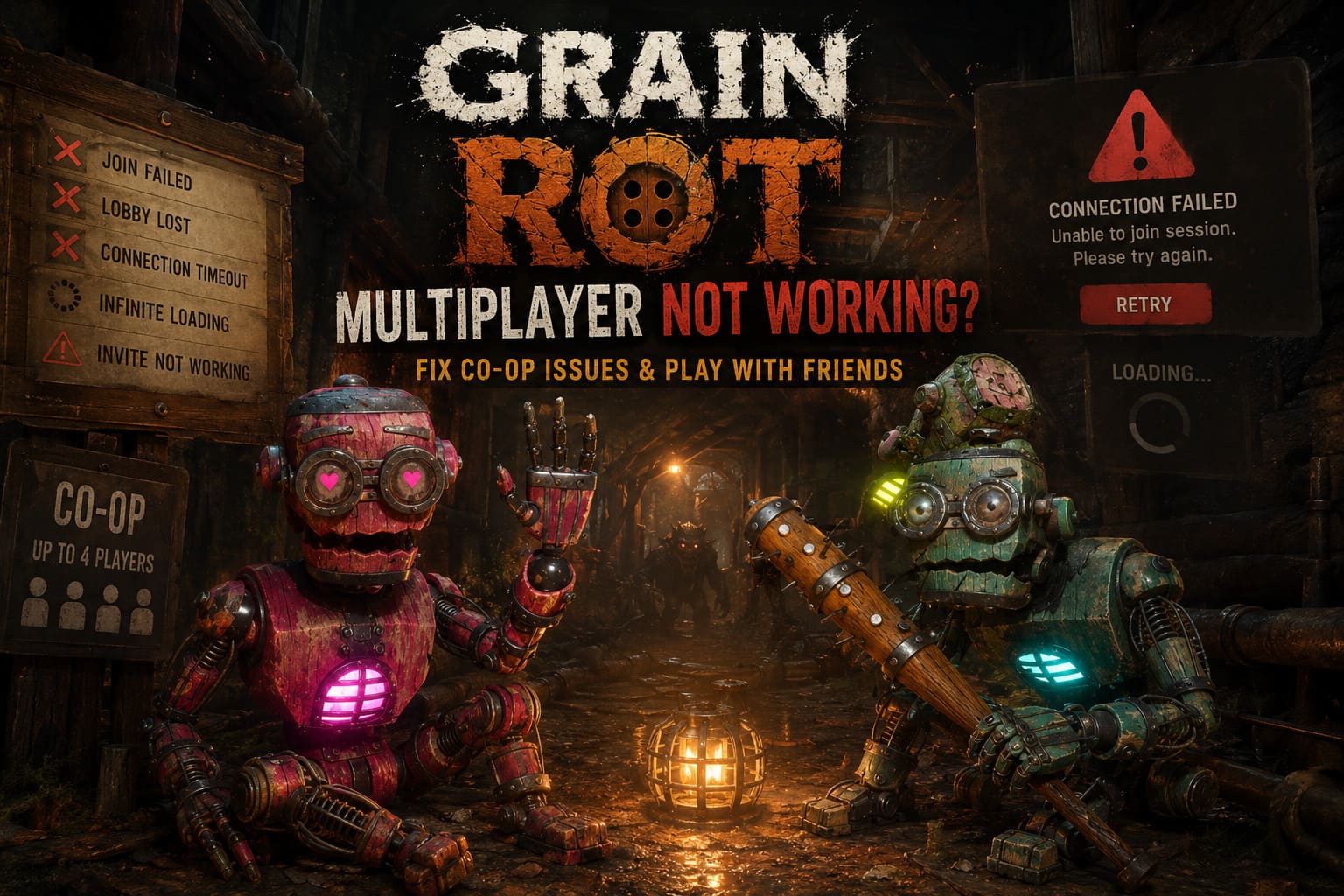
That is particularly important for a game that attracted a large amount of attention before release. When a lot of players suddenly try to create and join sessions at the same time, connection problems can appear even when your own internet connection is perfectly healthy.
There are several likely causes behind GRAIN ROT co-op problems:
- Steam invitation synchronization: The game may fail to properly process an invitation sent through its own multiplayer interface.
- Temporary matchmaking congestion: Busy servers or overloaded session services can cause lobbies to disappear or connections to time out.
- Firewall restrictions: Windows Defender or third-party security software may prevent the game from communicating correctly.
- Broken or outdated files: Leftover data from demos, tests, or previous installations can sometimes create version or asset conflicts.
- Local network conflicts: VPNs, virtual adapters and unusual DNS/network configurations can interfere with game traffic.
The good news is that most of these problems are relatively easy to test.
My First Recommendation: Use Steam Instead of the GRAIN ROT Invite Button
If I had to recommend only one thing to try first, this would be it. When an in-game invitation refuses to work, I would stop clicking the same button repeatedly and use Steam’s own friend interface instead.
The idea is simple: let Steam handle the invitation rather than relying entirely on the game’s internal multiplayer menu.
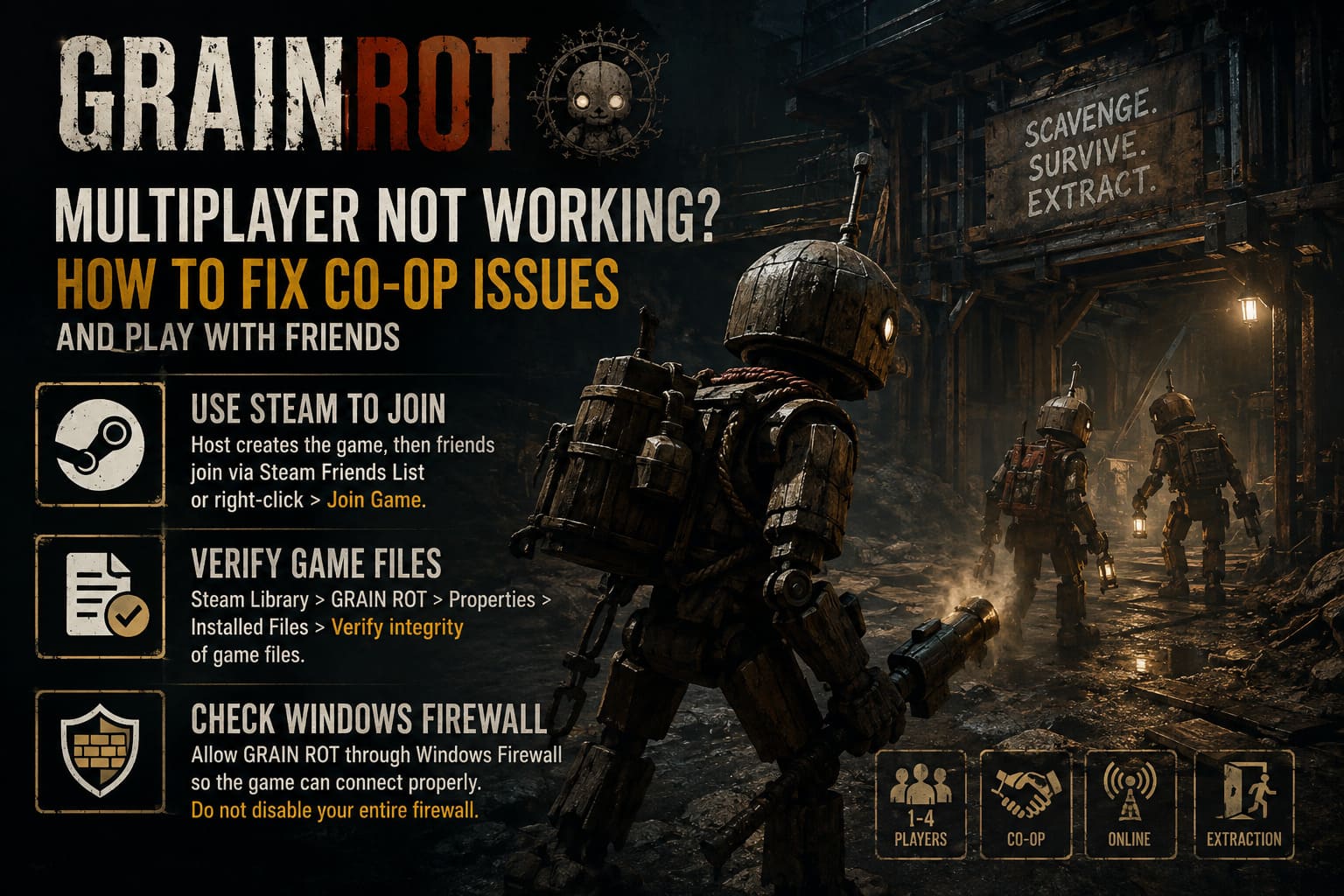
- Start GRAIN ROT and enter the main menu.
- Have one player choose Host Game and create the session.
- The friend who wants to join should open the Steam Friends List.
- Find the host’s profile and right-click their name.
- Select Join Game if the option is available.
- Alternatively, the host can use Steam’s invitation option to invite the other player.
This is one of those fixes that sounds almost too simple, but it is absolutely worth trying before you start changing firewall rules or reinstalling the game.
Check Your GRAIN ROT Installation
If you played an earlier demo, test build, or another version of the game before launch, I would definitely verify the installation. Games can leave behind unexpected files, and multiplayer is often one of the first places where a version mismatch becomes obvious.
Steam makes the process straightforward:
- Open your Steam Library.
- Right-click GRAIN ROT.
- Select Properties.
- Open Installed Files.
- Choose Verify integrity of game files.
Let Steam finish the scan completely. If it discovers missing or damaged files, it will download replacements automatically.
Personally, I would do this even if the game launches normally. If you are experiencing strange loading behavior or repeatedly failing to join a friend’s session, verifying the files is a low-risk troubleshooting step.
Check Windows Firewall Before Blaming Your Internet
One of the most annoying multiplayer problems is when everything looks normal until the game actually tries to establish the connection. You click Join, the loading indicator spins, and eventually you are dumped back to the menu.
That can happen when Windows Firewall is preventing the game from communicating properly.
To check it, search Windows for Allow an app through Windows Firewall. Open the result and select Change settings. Find GRAIN ROT in the list and make sure the appropriate network permissions are enabled.
If the game isn’t listed, use Allow another app and manually select the game’s executable from its installation directory.
I wouldn’t recommend randomly disabling your entire firewall just to test multiplayer. It is much better to create the appropriate exception and leave your normal Windows security protections enabled.
Try Running Steam and the Game as Administrator
This isn’t the most glamorous fix, and honestly, I wouldn’t make it my first choice. However, if GRAIN ROT continues to behave strangely after checking the firewall and game files, administrator permissions are worth testing.
Completely exit Steam first. Then launch Steam using Run as administrator and start GRAIN ROT normally.
You can also locate the game’s executable through Steam’s Manage > Browse local files option and test administrator compatibility settings directly on the executable.
If this suddenly fixes the multiplayer connection, you have a pretty good indication that Windows permissions were involved somewhere in the process.
Clear Steam’s Download Cache and Flush DNS
Sometimes the problem isn’t GRAIN ROT itself at all. Steam and Windows can both accumulate network-related data that becomes problematic after updates or configuration changes.
For Steam, open Steam > Settings > Downloads and look for Clear Download Cache. Steam will restart afterward, so make sure you are prepared to log back in.
For Windows DNS, open Command Prompt as administrator and run:
ipconfig /flushdns
Afterward, restart your PC. It is a simple step, but when you’re dealing with mysterious connection failures, refreshing the local network configuration can occasionally make the difference.
GRAIN ROT Multiplayer Fixes at a Glance
| Problem | What I Would Try First | Difficulty |
|---|---|---|
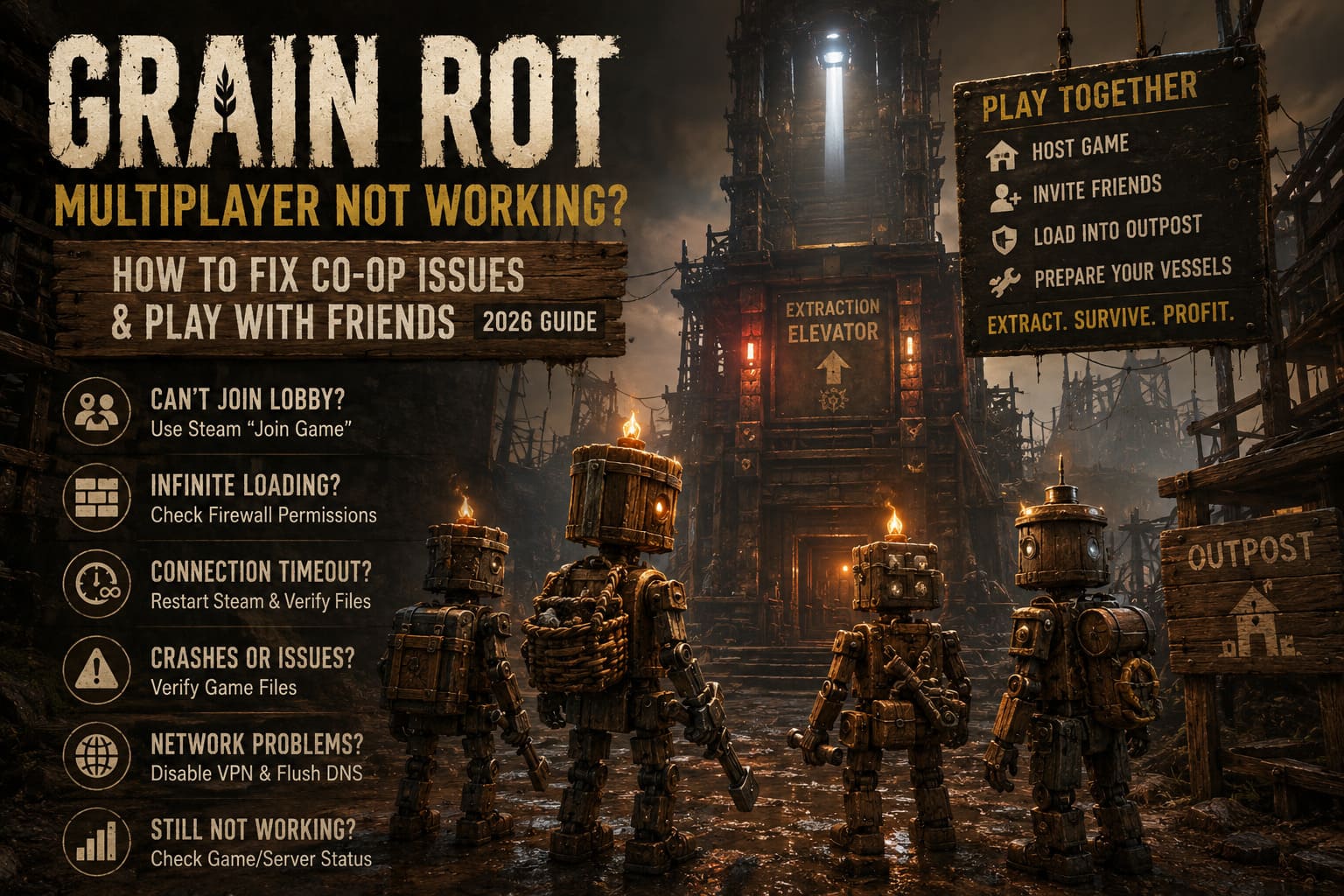
| Can’t join friend’s lobby | Use Steam’s Join Game option | Easy |
| Infinite loading | Check firewall permissions | Easy |
| Connection timeout | Restart Steam and verify files | Easy |
| Game crashes or behaves strangely | Verify game files | Easy |
| Network connection feels inconsistent | Disable VPN and flush DNS | Easy |
| Nothing works | Check for current game/server issues | Medium |
How to Play GRAIN ROT With Friends
Once the connection problem is solved, actually setting up a session should be the easy part.
I recommend letting the player with the most stable connection host. It doesn’t necessarily have to be the person with the fastest internet package. Stability and low packet loss are much more important when you are trying to keep a multiplayer session alive.
- Host the session: Select Host Game from the main menu.
- Choose your privacy: Use a friends-only option if you want a private expedition, or public settings if you’re looking for additional players.
- Invite through Steam: If the in-game invite doesn’t work, use Steam’s own friend interface.
- Wait in the Outpost: Make sure everyone has successfully loaded into the same Sanctuary before starting the expedition.
- Prepare your wooden vessels: Once everybody is ready, head toward the extraction elevator and begin the run.
If GRAIN ROT supports a session code in your current version, you can also use that system when available. Just remember that the exact multiplayer interface can change as the developers release patches.
Things I Would Disable Before Starting a Co-Op Session
There are a few pieces of software that can complicate multiplayer connections. If you are desperately trying to get into a friend’s game, temporarily remove anything that modifies your network connection.
- VPN applications
- Hamachi and similar virtual LAN tools
- Radmin VPN and other virtual network adapters
- Third-party network optimization software
- Overly aggressive antivirus network protection
You don’t necessarily need to uninstall any of these programs. The important thing is to make sure they aren’t actively rerouting or filtering the connection while you are testing GRAIN ROT multiplayer.
How to Fix GRAIN ROT Crashing on Launch: PC Troubleshooting Guide (2026)
Don’t Overlook Steam Download Region Settings
This is another small detail that is easy to overlook. Open Steam’s Settings > Downloads and check your Download Region.
If everyone in your group is using completely different regions, experimenting with the same nearby region can sometimes help when matchmaking behaves strangely. I wouldn’t treat this as a guaranteed fix, but it is quick enough to test.
More importantly, don’t start changing ten different network settings at once. Change one thing, test the connection, and then move to the next step. Otherwise, you’ll never know which change actually fixed the problem.
GRAIN ROT Beginner Guide: Shifting Ruins Walkthrough and Extraction Tips (2026)
What If None of These GRAIN ROT Multiplayer Fixes Work?
This is the point where I would stop assuming the problem is your PC.
If several friends are experiencing the same issue at the same time, especially immediately after a major update or during a busy launch period, the problem may simply be on the game’s side. No amount of reinstalling Steam is going to fix a matchmaking service that is currently having trouble.
Check the latest announcements from the developers and the game’s community channels for maintenance information, hotfixes, and reports from other players.
And honestly, this is one of the situations where patience can save you a lot of frustration. If you have already verified your files, checked the firewall, disabled VPN software, restarted Steam and tested Steam’s direct Join Game option, repeatedly reinstalling the entire game probably isn’t going to magically solve a server-side problem.
Final Thoughts: Don’t Let the Lobby Be Scarier Than the Ruins
GRAIN ROT is at its best when the multiplayer actually gets out of the way and lets the game do what it is supposed to do. Four players nervously entering a ruined underground location, arguing about whether they have collected enough resources, hearing something move in the darkness and then desperately trying to reach the elevator together—that is where the concept becomes genuinely fun.
Having the game kick you back to the menu before any of that happens is obviously a different kind of horror.
If your GRAIN ROT multiplayer is not working, I would start with the least invasive solutions: use Steam’s native Join Game feature, restart the launcher, verify your game files, and make sure Windows Firewall isn’t blocking the executable. After that, move on to clearing Steam’s cache, flushing DNS, disabling VPN software, and testing administrator permissions.
Most importantly, don’t assume every failed connection is your fault. A newly released multiplayer game can have problems that simply cannot be fixed from the player’s side. If the entire community suddenly starts reporting identical lobby failures, the best solution may be waiting for the next server-side fix.
For me, that’s the biggest rule with games like GRAIN ROT: fix the obvious stuff, don’t overcomplicate your network settings, and then get back into the ruins. The monsters should be the thing trying to stop your squad—not the Steam lobby.