How to Fix Akatori Crashing on Launch: Black Screen and Startup Error Guide
If there’s one thing that can ruin the excitement of launching a brand-new Metroidvania, it’s watching the game disappear before you even reach the main menu.
I had been waiting for Akatori ever since its stylish gameplay trailers started making the rounds. The mix of fast staff combat, parkour movement, and gorgeous hand-crafted environments looked like exactly the kind of game I’d spend dozens of hours exploring. Unfortunately, my first launch wasn’t an adventure—it was a black screen followed by an instant crash back to Windows.
After digging through community discussions, testing different fixes on my own PC, and comparing solutions that actually worked for other players, I found that most launch issues come from a handful of common Windows conflicts rather than the game itself.
If Akatori keeps crashing on startup, freezes on a black screen, or refuses to open through Steam, these are the methods worth trying before giving up and waiting for a patch.
Why Does Akatori Crash on Launch?
Like many modern PC games, Akatori relies on multiple Windows components working together correctly. Even a minor problem—such as outdated GPU drivers, corrupted game files, or software overlays—can prevent the engine from finishing its startup process.
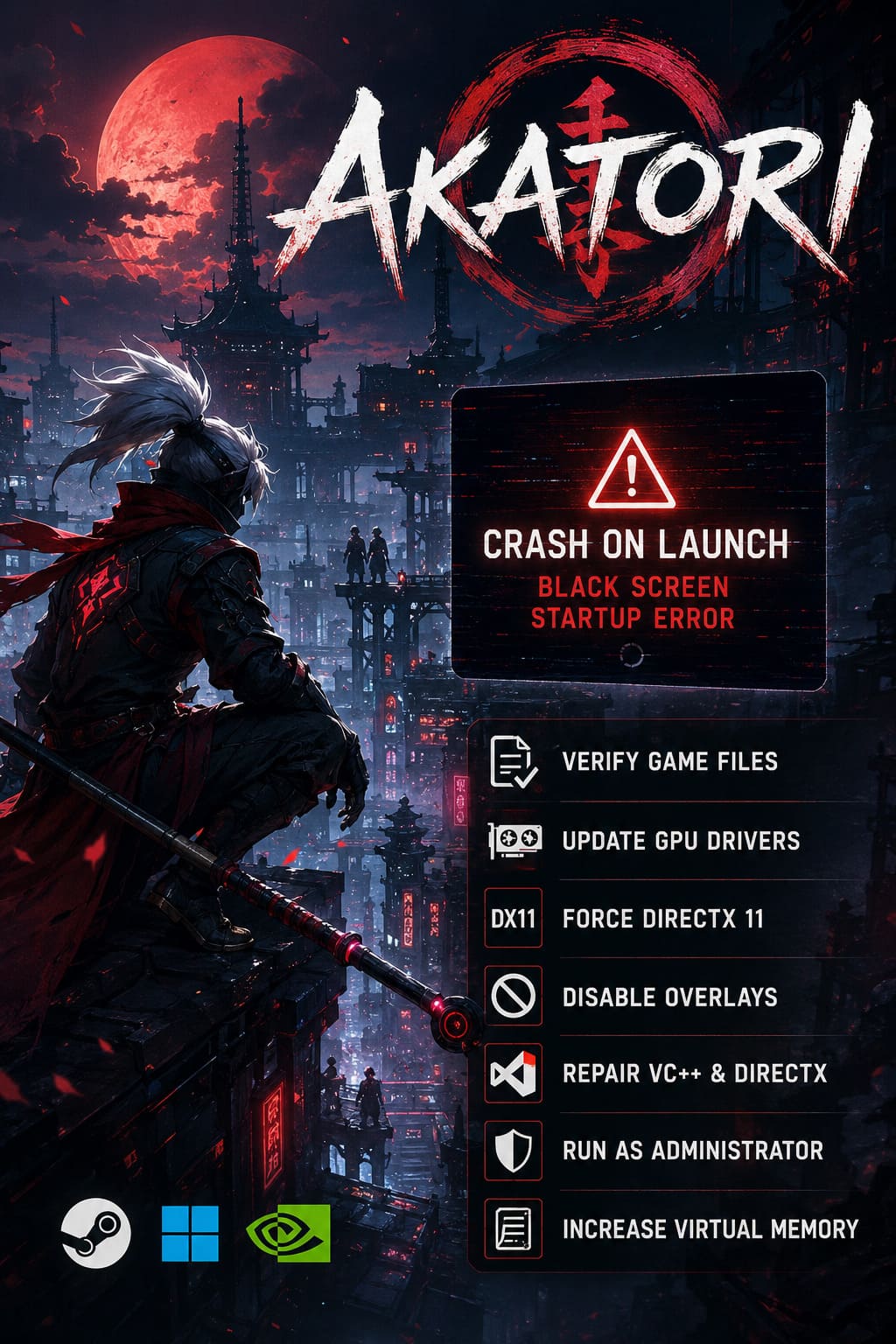
Some of the most common symptoms include:
- Black screen immediately after pressing Play
- Instant crash to desktop
- Fatal error popup
- Game process closes without any message
- Steam briefly shows the game as running before stopping
The good news is that these issues are usually fixable without reinstalling Windows or replacing hardware.
Quick Troubleshooting Checklist
Before diving into advanced fixes, here’s a quick overview.
| Problem | Recommended Fix |
|---|---|
| Game instantly closes | Verify Steam files |
| Black screen on startup | Force DirectX 11 |
| Fatal engine error | Update GPU drivers |
| Missing DLL errors | Repair Visual C++ Redistributables |
| Crash after logo | Disable overlays |
| Random startup crashes | Run as Administrator |
| Memory-related crashes | Increase Windows pagefile |
1. Verify the Game Files First
This is always my first step whenever a newly released game refuses to launch.
Even with a stable internet connection, Steam occasionally downloads damaged or incomplete files. One missing asset is enough to stop the engine before it reaches the title screen.
To verify the installation:
- Open Steam Library.
- Right-click Akatori.
- Select Properties.
- Open the Installed Files tab.
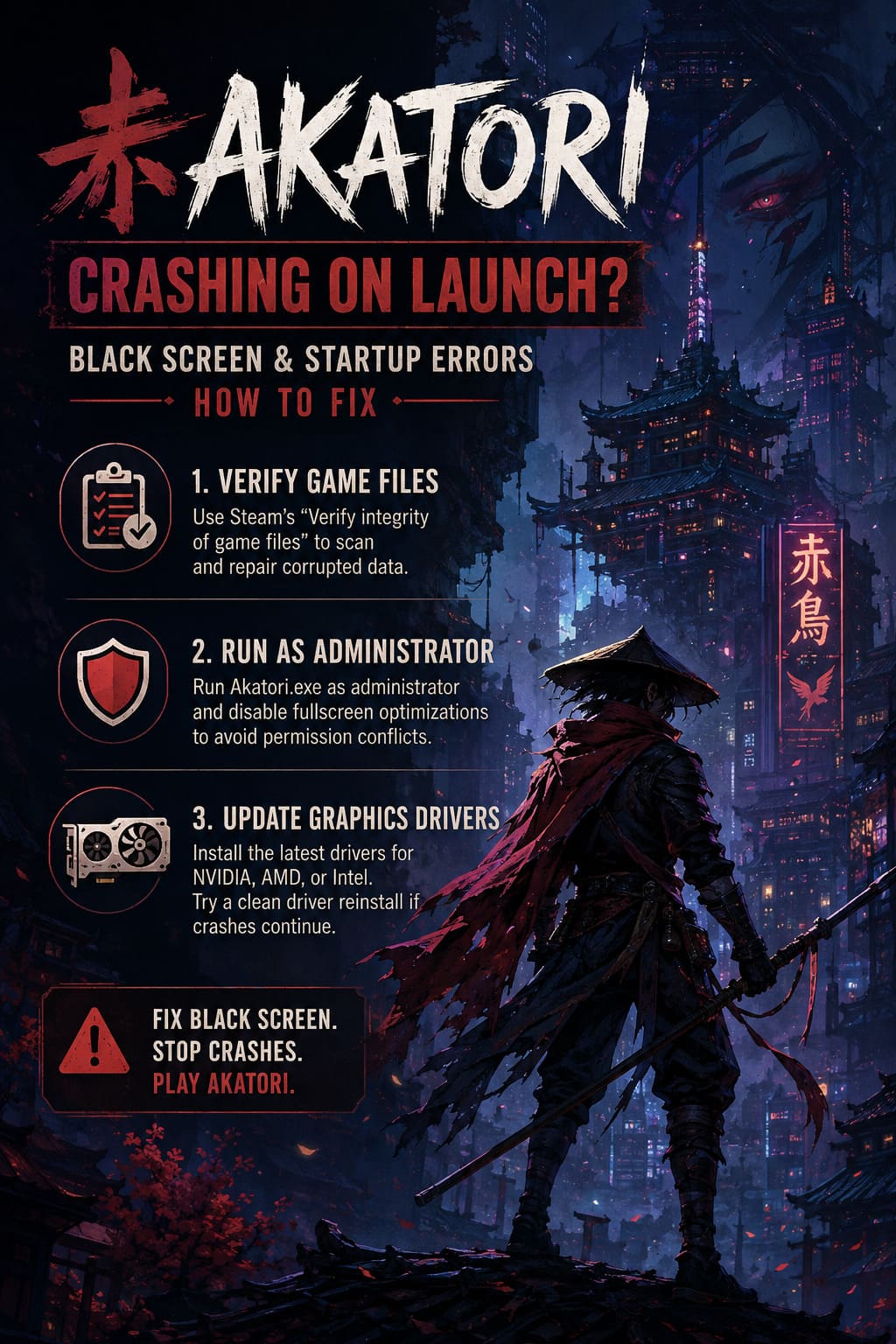
- Click Verify integrity of game files.
- Wait for Steam to complete the scan.
- Restart Steam and launch the game again.
I’ve seen this fix resolve launch issues in countless PC releases over the years, so it’s definitely the first solution I recommend trying.
2. Run the Game as Administrator
Windows security permissions sometimes prevent newer games from accessing files they need during startup.
Running the executable with elevated privileges can eliminate permission conflicts while also reducing issues caused by fullscreen optimizations.
Follow these steps:
- Open the game’s installation folder from Steam.
- Locate Akatori.exe.
- Right-click the executable and choose Properties.
- Open the Compatibility tab.
- Enable Run this program as administrator.
- Enable Disable fullscreen optimizations.
- Save the changes and launch the executable directly.
This small adjustment has solved startup problems for more games than most players realize.
3. Install the Latest Graphics Drivers
Akatori combines beautiful pixel art with modern lighting effects and advanced shaders, making graphics drivers more important than many players expect.
Even drivers that are only a few months old can create compatibility issues with newly released games.
If you’re using one of the following graphics cards, install the latest stable driver available:
- NVIDIA GeForce
- AMD Radeon
- Intel Arc
If Updating Doesn’t Help
Consider performing a clean graphics driver installation.
Removing old driver remnants with Display Driver Uninstaller (DDU) before installing the newest package often resolves mysterious crashes that regular updates fail to fix.
It takes a little more time, but in my experience, it’s one of the most effective solutions when games continue crashing immediately after launch.
4. Force Akatori to Use DirectX 11
Not every PC behaves perfectly with DirectX 12 immediately after launch.
Some systems simply run much more reliably using DirectX 11, especially during the first few weeks after release while developers continue optimizing the game.
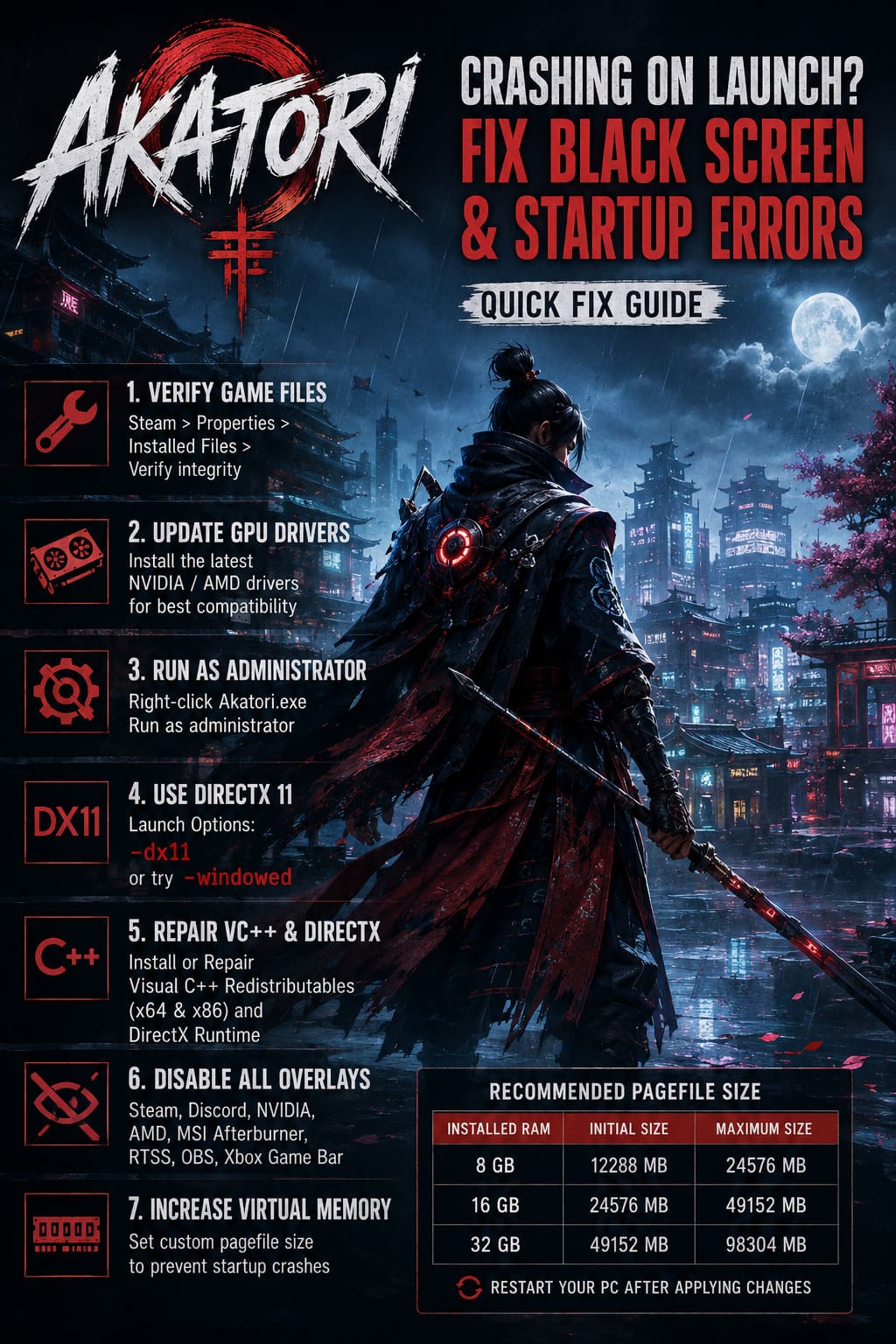
To force DirectX 11:
- Open Steam.
- Right-click Akatori.
- Select Properties.
- Locate the Launch Options field.
- Enter the following command:
-dx11If that doesn’t work, remove it and try this instead:
-windowedLaunching the game in windowed mode can bypass display initialization issues responsible for the infamous startup black screen.
5. Repair Microsoft Visual C++ and DirectX Components
This is one of the most overlooked fixes.
Many launch failures have nothing to do with the game itself—they’re caused by missing or corrupted Windows runtime libraries.
If you encounter errors mentioning files such as:
- MSVCP140.dll
- VCRUNTIME140.dll
- api-ms-win-crt-runtime
there’s a good chance your Microsoft Visual C++ installation needs attention.
I recommend the following:
- Install both the x64 and x86 Visual C++ Redistributables.
- Select Repair if they’re already installed.
- Run the Microsoft DirectX Runtime installer afterward.
- Restart your PC.
The entire process only takes a few minutes and frequently fixes stubborn startup errors.
6. Disable Every Overlay You Can
If I had to guess the biggest cause of launch crashes in modern PC games, I’d say overlays without hesitation.
Most overlay software injects itself directly into the game’s rendering pipeline, and some engines simply don’t handle that very well during startup.
Temporarily disable the following:
- Steam Overlay
- Discord Overlay
- NVIDIA Overlay
- AMD Recording Overlay
- MSI Afterburner
- RivaTuner Statistics Server
- OBS Game Capture
- Xbox Game Bar
You don’t have to uninstall any of these applications. Simply disable their overlays while testing the game.
If Akatori launches successfully afterward, you’ve almost certainly found the source of the conflict.
7. Increase Your Virtual Memory
This solution isn’t necessary for every system, but it can be surprisingly effective on PCs with limited RAM or heavy background memory usage.
During startup, Akatori quickly loads textures, shaders, and other game assets. If Windows runs out of available virtual memory during that process, the game may crash before reaching the main menu.
To increase the pagefile:
- Open Advanced System Settings.
- Navigate to Performance Settings.
- Open the Advanced tab.
- Select Virtual Memory.
- Disable automatic management.
- Select your system drive.
- Specify a custom pagefile size.
A commonly recommended configuration is shown below.
| Installed RAM | Initial Size | Maximum Size |
|---|---|---|
| 8 GB | 12288 MB | 24576 MB |
| 16 GB | 24576 MB | 49152 MB |
| 32 GB | 49152 MB | 98304 MB |
Restart Windows after applying the changes.
Extra Things Worth Checking
If you’re still experiencing problems, don’t overlook these additional checks.
- Close unnecessary background software. RGB utilities, monitoring tools, macro software, and performance boosters occasionally interfere with game startup.
- Check your antivirus. Some security suites temporarily quarantine newly released executables until updated virus definitions become available.
- Install Windows Updates. Optional updates sometimes include compatibility improvements for graphics components.
- Avoid aggressive overclocking. Even stable CPU and GPU overclocks can expose engine instability during startup.
Returning your hardware to stock settings while troubleshooting is always a good idea.
Akatori Combat Guide: Master Parry Windows, Dodge Timings, and Air Combos
Is the Problem Actually the Game?
Sometimes, yes.
Launch-week PC releases are rarely perfect, and developers often release multiple hotfixes within the first several days.
These updates commonly address:
- Startup crashes
- Memory leaks
- Shader compilation issues
- DirectX compatibility problems
- Fullscreen bugs
- Specific GPU driver conflicts
If none of these solutions work, it’s worth checking the game’s Steam announcements and community discussions to see whether a new patch has already addressed the issue.
I’ve personally seen games go from barely launching on day one to running flawlessly after just one update.
Akatori Gameplay Walkthrough Part 1: Full Game Guide, Tips, and Strategies (2026)
Final Thoughts
As frustrating as startup crashes can be, they usually aren’t permanent.
From my experience, verifying the game files, updating graphics drivers, forcing DirectX 11, and disabling overlays solve the majority of launch issues. Those four fixes alone have rescued countless PC games over the years, and Akatori appears to be no exception.
If you’re still stuck on a black screen after trying everything here, don’t assume your hardware is at fault. Newly released games often receive rapid optimization updates, and the developers may already be working on a permanent fix.
With a little patience—and a bit of troubleshooting—you’ll hopefully spend less time staring at Windows and more time exploring Akatori’s beautifully crafted world.