How to Fix The Division Resurgence Black Screen After Cinematic Bug
There are few things more frustrating than finally launching a brand-new game, watching an impressive opening cinematic, getting excited to jump into the action, and then staring at a completely black screen. Unfortunately, that’s exactly what many players have experienced in The Division Resurgence since launch. The game loads perfectly, the intro movie plays without noticeable issues, and just when it should transition into the main menu or character creator, everything suddenly goes dark.
After playing countless PC and mobile games over the years, I’ve seen this type of issue appear in many different forms. Sometimes it happens because of broken graphics settings, sometimes because of corrupted files, and sometimes because background applications interfere with the game engine. The good news is that the black screen after cinematic bug in The Division Resurgence usually has several possible solutions, and most of them are quick enough to try before waiting for an official patch.
If you are stuck hearing background music while looking at nothing but a black display, this troubleshooting guide covers the most effective fixes that have helped players get back into the streets of New York.
How to Fix The Division Resurgence Steam Deck Controls Map Glitch
Why Does The Division Resurgence Black Screen Bug Happen?
The opening cinematic itself is rarely the actual problem. The issue usually appears when the game switches from a pre-rendered video sequence into real-time gameplay. This is the moment when the engine needs to load textures, initialize shaders, prepare character models, connect online features, and activate your graphics hardware for gameplay.
If something interrupts this transition, the game may fail to render the next scene correctly. From my experience with many modern releases, these problems are usually connected to resolution conflicts, outdated drivers, damaged configuration files, slow storage devices, or software overlays running in the background.
Common symptoms include:
- Complete black screen after the intro cinematic
- Game audio continues playing normally
- Mouse cursor may still appear
- No access to the main menu or character creation
- Game appears frozen without crashing
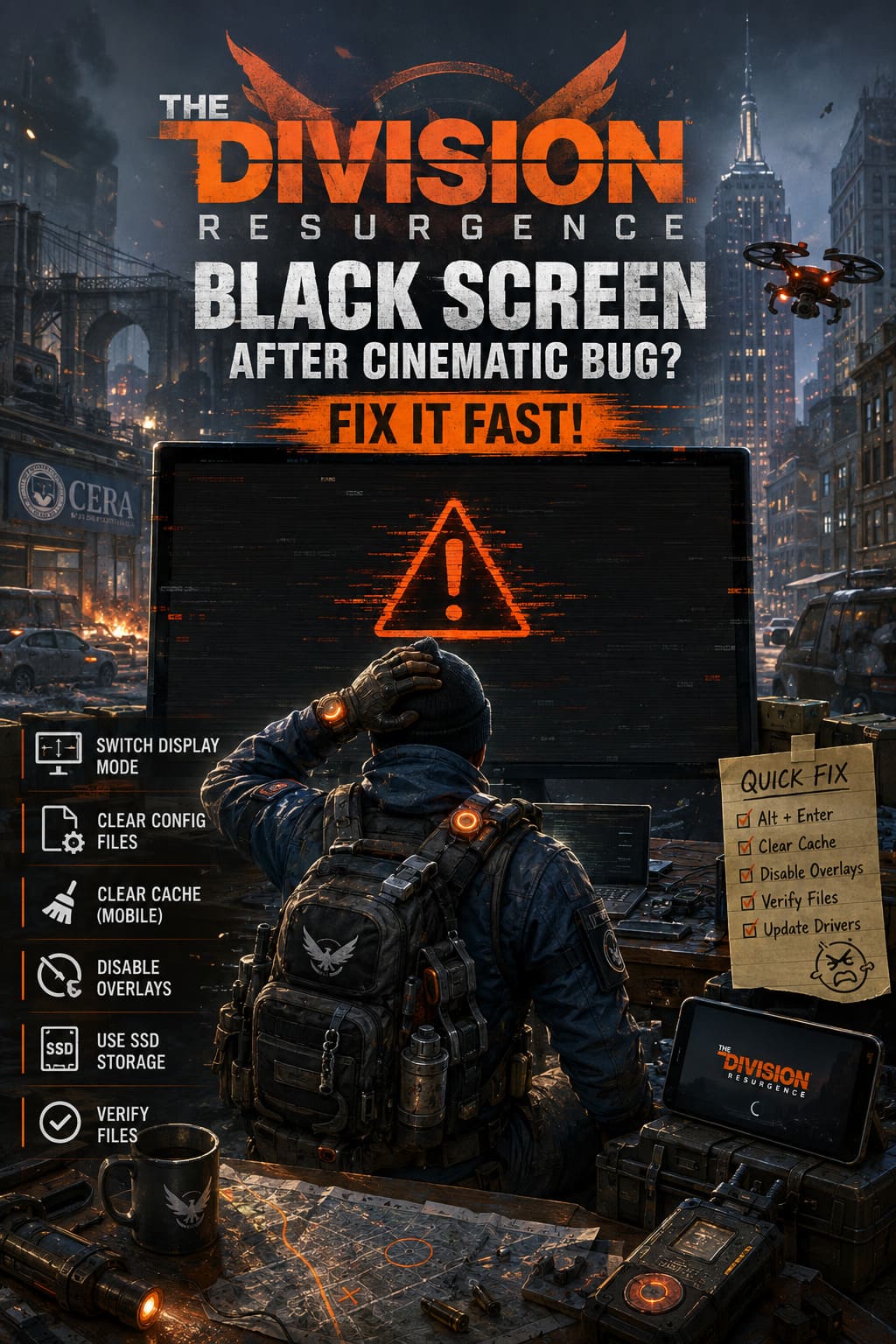
Fix #1: Switch Between Fullscreen and Windowed Mode
This is one of the first solutions I always try when a new PC game refuses to display correctly. Many launch problems happen because the game chooses an incorrect resolution, refresh rate, or fullscreen mode that does not match your monitor or graphics driver.
When The Division Resurgence goes black after the cinematic, press:
Alt + Enter
This shortcut forces the game to switch between fullscreen and windowed mode. If the image appears again, the problem was most likely caused by a display mode conflict.
After you regain control, open the graphics settings and adjust:
- Resolution: Use your monitor’s native resolution
- Display mode: Try Borderless Windowed
- Refresh rate: Match your monitor settings
- Restart the game after saving changes
I personally prefer Borderless Windowed mode during the first weeks of a game’s release because it avoids many strange fullscreen compatibility issues.
Fix #2: Remove Corrupted Configuration Files
Sometimes the game simply saves incorrect graphics settings and continues loading them every time you start. I’ve experienced this with many games after changing GPU settings, switching monitors, or experimenting with performance options.
The easiest solution is to remove the local configuration files and allow the game to create fresh settings.
Navigate to:
Documents → My Games → The Division Resurgence
Look for files related to graphics or game settings. Depending on your version, they may include:
| File | Purpose |
|---|---|
| settings.cfg | Stores graphics and display options |
| state.cfg | Contains saved rendering information |
| graphics.cfg | Controls visual configuration settings |
You can either edit these files manually or simply delete them. Removing them is usually the safer option because the game will automatically generate new default files during the next launch.
Your online progress should remain safe as long as your Ubisoft account is properly connected.
Fix #3: Clear Cache Data on Android and iOS
Mobile games often rely heavily on cached files to improve loading speeds. However, these temporary files can sometimes become corrupted after updates or failed loading attempts.
Android Devices
Android users can try the following steps:
- Open The Division Resurgence app information page
- Select Storage and Cache
- Tap Clear Cache
- Use Force Stop
- Restart your device and launch the game again
Be careful with the Clear Data option. If you are playing without a linked Ubisoft account, deleting all application data could potentially remove local progress.
iPhone and iPad Devices
Apple devices do not offer a direct cache clearing button for most applications. Instead, perform a clean restart:
- Close the game completely
- Restart your iPhone or iPad
- Wait around 30 seconds
- Launch The Division Resurgence again
It may seem like a simple solution, but restarting mobile devices often clears temporary memory issues that affect game rendering.
Fix #4: Disable Game Overlays and Background Applications
This is one of the most overlooked fixes. Modern gaming tools often inject themselves into games to display FPS counters, notifications, recording features, or performance information.
Usually these overlays work perfectly, but during cinematic transitions they can sometimes interfere with the rendering process.
Temporarily disable:
- Discord Overlay
- GeForce Experience Overlay
- AMD Software Overlay
- Ubisoft Connect Overlay
- Screen recording programs
- FPS monitoring applications
Mobile players should also disable floating apps, gaming assistants, and screen recording tools. Any application with permission to appear over other apps can potentially cause conflicts.
Fix #5: Install The Game on Faster Storage
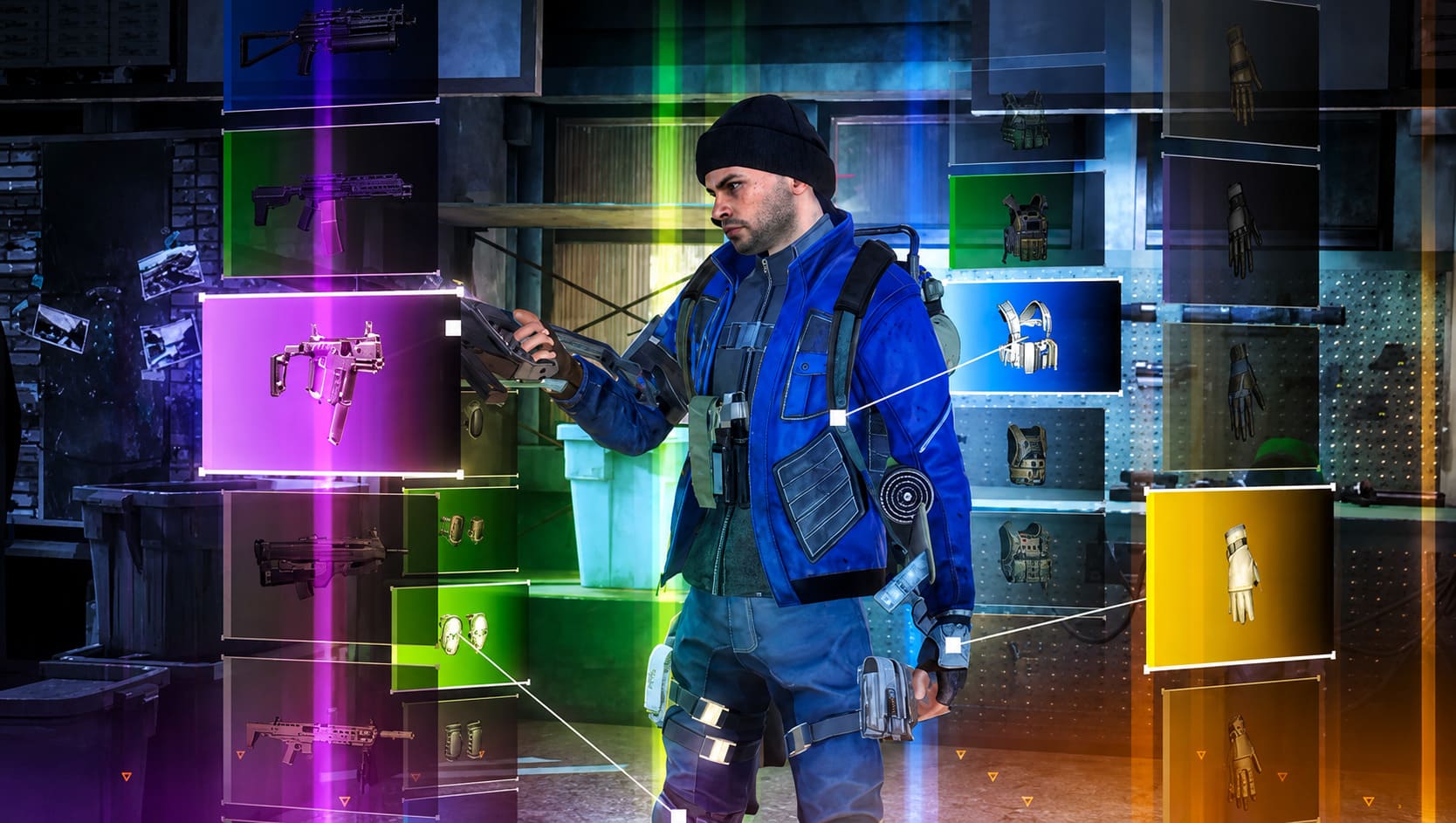
The Division Resurgence uses detailed environments and high-quality assets that need to load immediately after the intro sequence. If the game cannot read those files quickly enough, the engine may fail during the transition.
For PC players, installing the game on an SSD is strongly recommended. Older mechanical hard drives can create loading delays that cause unexpected freezes and black screens.
For mobile users, always install the game on internal device storage whenever possible. External MicroSD cards often have slower read speeds and may struggle with large modern games.
Fix #6: Verify Game Files
Corrupted installation files are another common reason behind strange launch problems. Large online games can occasionally download damaged assets, especially during busy release periods.
If you are using Ubisoft Connect:
- Open your game library
- Select The Division Resurgence
- Open game properties
- Select Verify Files
- Allow the launcher to repair damaged files
This process is much faster than reinstalling the entire game and should always be attempted first.
Fix #7: Perform a Clean Reinstallation
If none of the previous solutions work, a complete reinstall may be necessary. While reinstalling games is never fun, sometimes the installation package contains corrupted assets that cannot be repaired normally.
Before reinstalling:
- Remove the game completely
- Restart your device
- Download the latest version
- Use a stable internet connection
A fresh installation ensures every required cinematic, texture, and gameplay file is downloaded correctly.
Update Drivers and System Software
Keeping your system updated can solve many unexplained gaming problems. Graphics manufacturers frequently release driver updates specifically designed for new games.
Make sure you have the latest versions of:
- Graphics drivers
- Windows updates
- Android or iOS software
- Ubisoft Connect application
I’ve personally fixed several launch crashes and visual bugs simply by installing a newer GPU driver, so this step should not be ignored.
Will Ubisoft Release an Official Fix?
Since many players have reported the same black screen issue, Ubisoft is likely aware of the problem and working on additional stability improvements. Large online games often receive several patches during their first weeks as developers collect performance data from thousands of players.
Until an official hotfix arrives, these troubleshooting methods remain the best ways to bypass the cinematic transition problem and continue playing.
Final Thoughts
After spending years playing different PC and mobile games, I’ve learned that black screen errors often look much worse than they really are. In most cases, the game is not completely broken. Instead, one small part of the rendering process fails during a transition.
The best approach is to start with the simplest fixes first. Try switching display modes, disable overlays, clear cache files, verify the installation, and only then consider reinstalling the game.
Once you finally get past the opening cinematic, The Division Resurgence delivers the tactical cover-based action and tense atmosphere that longtime fans of the franchise expect. Hopefully Ubisoft continues improving stability, because the game has plenty of potential when it runs correctly.