Aniimo Best Graphics Settings for RTX 3060: Max FPS and Performance Guide
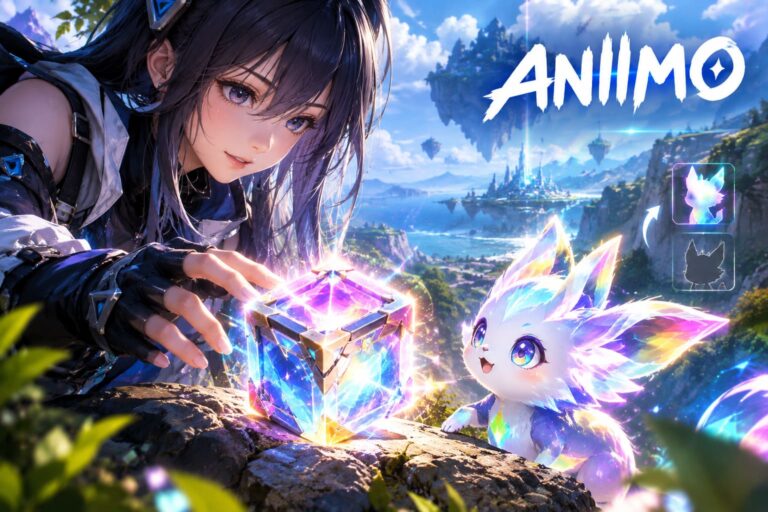
Aniimo is the kind of game that makes you stop moving just to look around. The world of Idyll is colorful, huge, and packed with the sort of environmental detail that can make a mid-range GPU work surprisingly hard. After playing enough open-world games to know that “Ultra” is often more of a marketing challenge than a sensible setting, I would not recommend simply maxing everything out on an RTX 3060. The better approach is to keep the settings that actually improve the image and cut back on the options that quietly eat your frame rate.
The RTX 3060 is still a very capable 1080p graphics card, especially the desktop 12GB model. That extra VRAM is useful in a game like Aniimo, where large environments, creature models, vegetation, and high-resolution textures can all be loaded at once. The problem is that having plenty of VRAM does not magically make the GPU faster at rendering shadows, foliage, reflections, and lighting calculations. For a stable experience, I would aim for a sensible 1080p configuration rather than chasing Ultra settings and accepting constant frame-time spikes.
Aniimo Mobile App Store Release Date: When Can You Play on iOS and Android?
Where the RTX 3060 Fits in Aniimo
Aniimo sits in an interesting spot for PC hardware. The RTX 3060 is stronger than the kind of GPU you would normally associate with minimum requirements, but it is also below the recommended RTX 3070 class of hardware. That makes it a classic “tweak the settings” card for this game. You have enough horsepower to make Idyll look genuinely impressive, but not enough to blindly push every demanding option to its maximum level.
In my experience with demanding open-world games, this is actually a good thing. The difference between High and Ultra is often difficult to notice while you’re running, fighting, gliding, or chasing a creature, while the performance difference can be immediately obvious. With Aniimo, I would rather have consistent frame pacing and responsive controls than a slightly prettier shadow that I will never consciously notice.
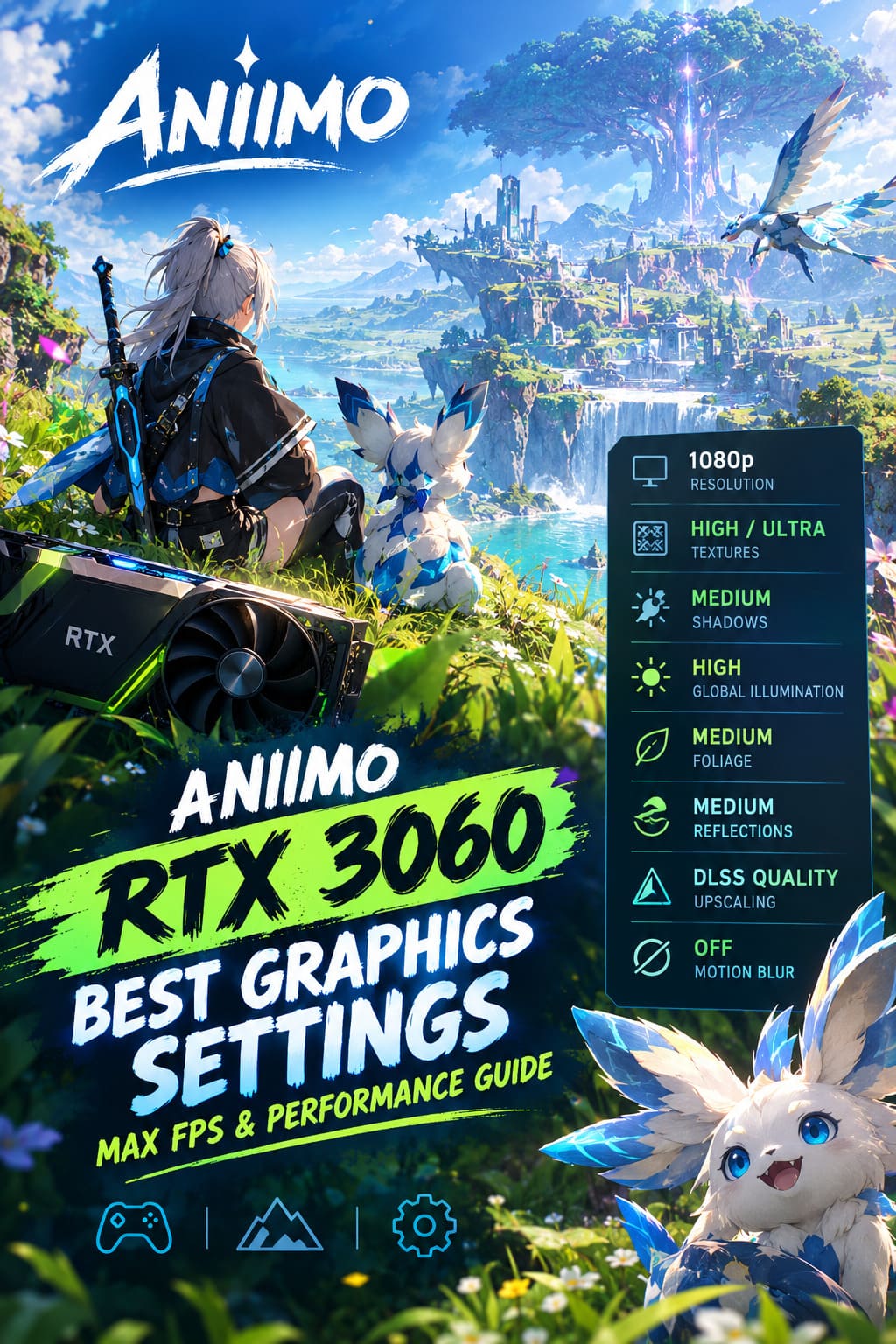
| Setting Area | Recommended Choice | Why |
|---|---|---|
| Resolution | 1920×1080 | Best balance for the RTX 3060 |
| Textures | High / Ultra | 12GB VRAM gives you plenty of room |
| Shadows | Medium | One of the easiest ways to recover FPS |
| Global Illumination | High | Keeps the world looking rich without the Ultra cost |
| Foliage | Medium | Reduces heavy environmental rendering |
| Reflections | Medium | Good visual quality without unnecessary GPU load |
| Upscaling | DLSS Quality | Excellent 1080p performance/image-quality balance |
| Motion Blur | Off | Sharper image during movement and combat |
The Best Aniimo Graphics Settings for RTX 3060
Resolution and Display Mode
For an RTX 3060, 1920×1080 is still the sweet spot. You can certainly experiment with 1440p if your monitor supports it, but the performance cost becomes much more noticeable in demanding parts of the world. At 1080p, the RTX 3060 has enough breathing room to maintain a much more comfortable frame rate without forcing you into aggressive DLSS modes.
I would also start with Fullscreen mode. Borderless works perfectly well for many players and is convenient if you regularly switch between applications, but exclusive fullscreen can sometimes provide slightly more consistent behavior on a demanding title. If you notice unusual micro-stutters, fullscreen is one of the first things I would test.
Keep V-Sync off if your monitor supports VRR through G-Sync or FreeSync. If you are seeing obvious tearing, however, there is no reason to stubbornly leave it disabled just because an optimization guide says so. A smooth image is more important than following a setting recommendation religiously.
Texture Quality: Keep It High
This is where the RTX 3060’s 12GB VRAM becomes particularly useful. I would set Texture Quality to High, and I would be comfortable testing Ultra if your particular setup has enough performance headroom. Textures generally have a much smaller effect on raw FPS than settings such as shadows or foliage, assuming you are not running out of video memory.
Lowering textures too aggressively can also make Aniimo look considerably worse. Creature surfaces, buildings, terrain, and environmental objects lose that crisp appearance, and in a game whose biggest attraction is exploring its world, that is a poor trade. I’d much rather reduce a few invisible GPU-heavy effects than turn the entire game into a blurry version of itself.
Model Quality: High
High Model Quality is another setting I would leave alone. Aniimo is built around its creatures and characters, so reducing model detail works against one of the game’s central visual strengths. The performance savings are generally less attractive than what you can achieve by adjusting shadows and vegetation.
Shadow Quality: Medium
If there is one setting I would immediately lower from an Ultra-style preset, it is Shadow Quality. Shadows can become surprisingly expensive in a large open world because the game has to account for lighting across huge areas filled with geometry. Medium usually preserves enough detail to keep the world believable while taking some pressure off the GPU.
This is also one of those settings where screenshots can be misleading. A maximum-quality shadow can look fantastic when you deliberately compare two still images, but while actually playing, you are unlikely to notice the difference nearly as much as you notice a sudden FPS drop. For that reason, Medium is an easy recommendation for an RTX 3060.
Global Illumination: High
I would keep Global Illumination on High. Aniimo’s colorful environments benefit significantly from good indirect lighting, and dropping this option too far can make locations feel flatter and less atmospheric. Ultra or Cinematic lighting can be tempting, but High gives you most of the visual benefit without making the GPU work unnecessarily hard.
Reflections: Medium
Reflections are another setting where moderation makes sense. Water, wet surfaces, and certain structures around Idyll can look better with higher reflection quality, but the performance cost is not always worth it. Medium is the setting I would use for everyday play, especially if you spend a lot of time around areas with water or dense scenery.
Foliage Density: Medium
Open-world vegetation is notorious for eating performance, and Aniimo is no exception. Fields, forests, grass, shrubs, and other environmental objects can put a surprisingly large workload on the GPU, particularly when you are moving quickly through the world. Medium Foliage Density is therefore one of my favorite compromises for an RTX 3060.
You still get a world that feels full and alive, but you avoid asking the GPU to draw every possible piece of vegetation at maximum density. This becomes especially useful during fast traversal, where maintaining stable frame times is more important than having an extra layer of grass in the distance.
Water Quality: Medium
Water Quality can also stay at Medium. Higher settings can make lakes and rivers more attractive, but unless water is the main thing you are staring at, the difference is relatively minor compared with the cost of more demanding settings. If you still have plenty of performance after optimizing everything else, this is one of the first settings I would experiment with increasing.
Post-Processing and Weather Settings
Aniimo’s dynamic weather is one of those features I would hesitate to sacrifice. Keep Advanced Weather Effects enabled if your system handles storms comfortably because changing weather contributes a lot to the atmosphere of Idyll. However, if you notice stutters specifically when large weather events begin, lowering this setting is a perfectly reasonable troubleshooting step.
Motion Blur should be off, at least in my opinion. I have turned motion blur off in most games I play, particularly action-heavy titles, because I prefer seeing the world clearly when spinning the camera or moving at high speed. It is especially useful in competitive or hectic encounters where visual clarity matters more than cinematic presentation.
DLSS Quality Is the RTX 3060’s Best Friend
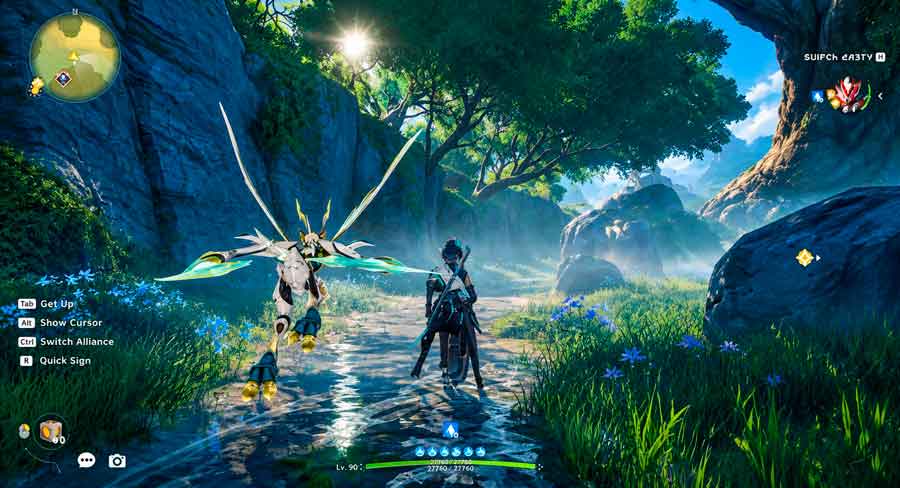
If you are using an RTX 3060, it would be a shame not to experiment with NVIDIA DLSS. For 1080p gaming, DLSS Quality is the mode I would start with because it provides a strong balance between image quality and performance. Instead of rendering every frame at the full internal resolution, the game renders at a lower resolution and uses NVIDIA’s reconstruction technology to produce the final image.
The important word here is Quality. At 1080p, I generally would not jump straight to DLSS Performance or even Balanced unless you are struggling badly with performance. Those aggressive modes can make distant objects and fine environmental details noticeably softer, which is particularly distracting in a game built around huge landscapes.
If your RTX 3060 is already producing a comfortably high frame rate, you can also experiment with DLAA. Unlike DLSS upscaling, DLAA focuses on anti-aliasing at native resolution rather than trying to increase performance. The image can look excellent, especially around thin vegetation and creature details, but you should expect little or no FPS benefit.
My Recommended RTX 3060 Preset
If I were setting up Aniimo on an RTX 3060 today, this is the configuration I would use before doing any further tweaking:
- Resolution: 1920×1080
- Display Mode: Fullscreen
- V-Sync: Off
- Texture Quality: High
- Model Quality: High
- Shadow Quality: Medium
- Global Illumination: High
- Reflection Quality: Medium
- Foliage Density: Medium
- Water Quality: Medium
- Advanced Weather Effects: On
- Motion Blur: Off
- Upscaling: NVIDIA DLSS
- DLSS Mode: Quality
This is not necessarily the absolute maximum-FPS configuration, and that is intentional. If your only goal is to see the biggest possible FPS number, you can lower almost everything and sacrifice a lot of visual quality. I think the better target for Aniimo is a stable 60 FPS or higher with good image quality, because an open-world RPG feels considerably better when the frame rate remains consistent instead of bouncing all over the place.
Windows and NVIDIA Tweaks Worth Trying
Graphics settings are only part of the equation. Before blaming the RTX 3060, make sure your PC is not creating unnecessary bottlenecks in the background. Start by installing the latest graphics driver available for your system, particularly if Aniimo has received a new optimization profile or performance update.
If your motherboard and processor support Resizable BAR, make sure it is enabled in the BIOS. It allows the CPU to access a larger portion of the GPU’s memory resources and can be useful in modern games with large amounts of streaming data. It is not a magical FPS button, but when every bit of performance matters, there is little reason to leave supported hardware features disabled.
Hardware-Accelerated GPU Scheduling is another Windows feature worth testing. Results can vary depending on the system, drivers, and game, so I would not promise a huge FPS increase, but it can be useful when you are trying to improve frame-time consistency. Also close unnecessary browser tabs, recording software, overlays, and other applications that consume CPU, RAM, or GPU resources while you play.
What to Change First If Aniimo Still Stutters
If you are still seeing drops after applying the recommended preset, don’t start randomly changing every option. Make one adjustment at a time so you can actually identify what is causing the problem. I would begin with shadows, foliage, reflections, and then global illumination, because these settings can have a much larger performance impact than textures.
If the problem happens specifically while entering a new area, during fast traversal, or when a large number of assets suddenly appear, the issue may not be pure GPU performance. Open-world games can experience asset-streaming and CPU-related stutters even when the average FPS looks healthy. In that situation, monitoring GPU usage, CPU utilization, VRAM, RAM, and frame times is much more useful than simply staring at the average FPS counter.
Final Verdict: Is the RTX 3060 Good Enough for Aniimo?
Yes, the RTX 3060 is a sensible 1080p GPU for Aniimo, but I would treat it as a card that benefits from intelligent settings rather than brute-force Ultra presets. Its 12GB VRAM gives it plenty of room for high-quality textures, while settings such as shadows and foliage should be kept under control to avoid unnecessary rendering overhead. DLSS Quality is also a particularly useful option when you want more performance without making the entire game look noticeably worse.
After playing a lot of visually demanding games, my general rule is simple: don’t sacrifice the parts of the game you actually look at just to preserve settings you barely notice. In Aniimo, that means keeping textures and models high, preserving good global illumination, and cutting back on shadows, foliage, reflections, and other expensive effects where the visual difference is relatively small. With that balance, the RTX 3060 can deliver a much more enjoyable journey through Idyll without making your GPU sound like it is preparing for takeoff.