Big Walk Best Graphics Settings for High FPS: PC Optimization Guide (2026)
House House surprised everyone once again. Instead of another small-scale comedy like Untitled Goose Game, the studio built something much larger with Big Walk—a cooperative multiplayer adventure where exploration, teamwork, and communication are the real mechanics. The world feels alive, packed with thick forests, rolling hills, environmental puzzles, and up to twelve players sharing the same massive map.
After spending hours testing different hardware configurations and reading performance reports from players across forums and PC communities, one thing became obvious: Big Walk isn’t as lightweight as its art style suggests.
The visual presentation looks clean and simple at first glance, but behind the scenes the game is constantly handling dynamic lighting, dense vegetation, long-distance rendering, environmental physics, and multiplayer synchronization. Those systems can quickly overwhelm older graphics cards and even respectable mid-range gaming PCs.
If you’ve noticed random FPS drops, uneven frame pacing, heavy stuttering while entering forests, or GPU usage sitting at 99% for long periods, don’t panic. Most of these problems can be reduced dramatically without making the game look ugly.
This guide focuses on getting the highest possible framerate while keeping Big Walk looking exactly like the relaxing adventure it was designed to be.
Why Big Walk Can Suddenly Lose Performance
One minute you’re walking through open fields at over 100 FPS.
A few minutes later your squad enters a heavily wooded area and performance suddenly crashes.
That’s not your imagination.
The largest performance hits usually come from a few specific rendering systems instead of the entire graphics engine.
Dynamic Shadows
The forests are filled with moving foliage, layered lighting, and constantly changing shadows. Every tree, branch, and environmental object adds more work for your GPU.
Shadow calculations are easily the biggest FPS killer in the game.
Large Rendering Distance
Big Walk encourages players to observe landmarks from long distances.
Rendering huge landscapes filled with vegetation and environmental detail increases both CPU and GPU workload, especially at higher resolutions.
Multiplayer Synchronization
Unlike many single-player games, Big Walk constantly processes player movement, environmental interactions, voice communication systems, puzzle states, and object synchronization.
More players naturally mean more CPU usage.
Native Resolution
Running the game at 1440p or 4K dramatically increases GPU load.
Instead of lowering your monitor resolution—which makes everything blurry—it’s much smarter to adjust the internal render scale when extra performance is needed.
Official PC System Requirements
Before tweaking anything, make sure your computer is reasonably close to the recommended hardware.
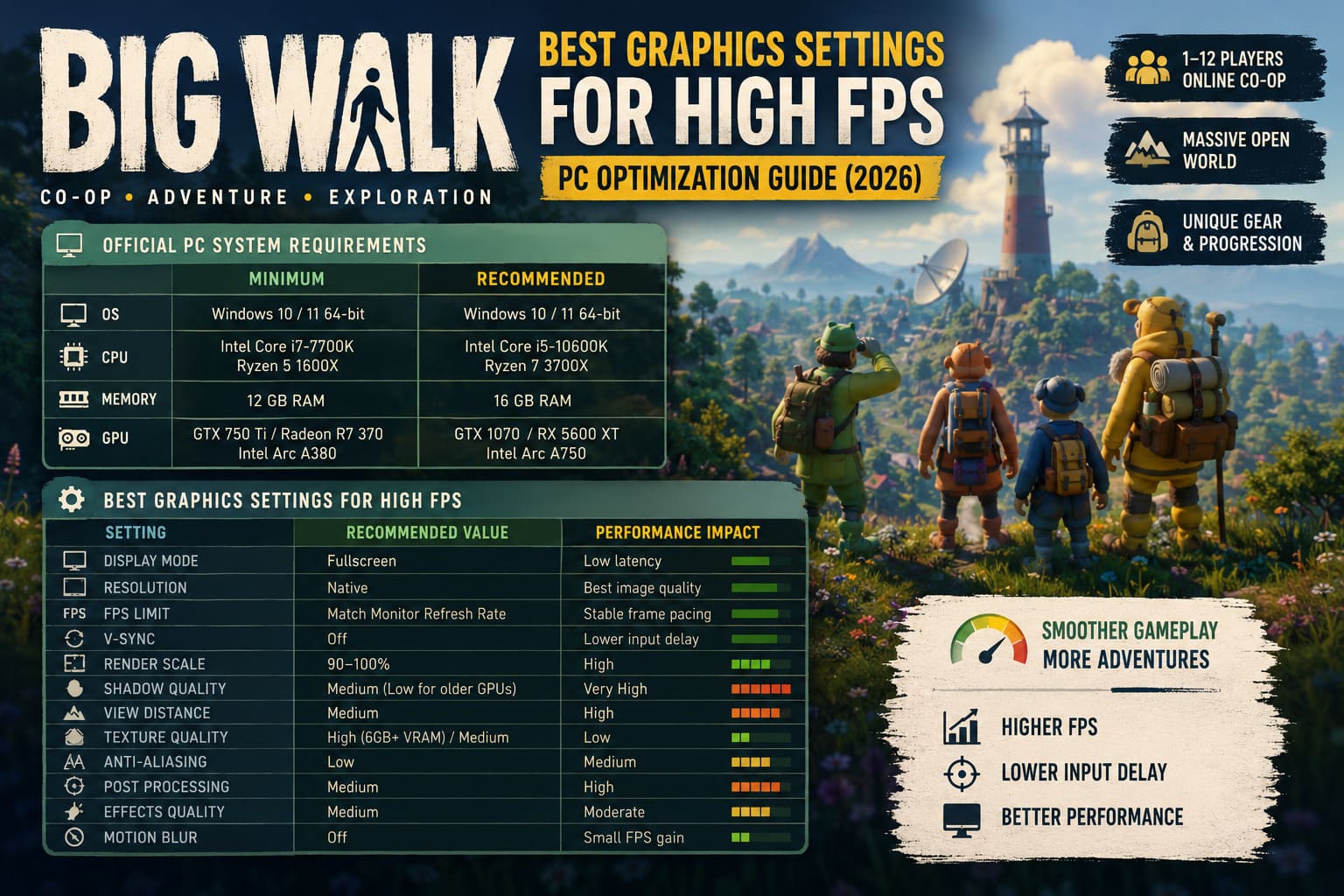
| Component | Minimum | Recommended |
|---|---|---|
| Operating System | Windows 10 / 11 64-bit | Windows 10 / 11 64-bit |
| CPU | Intel Core i7-7700K / Ryzen 5 1600X | Intel Core i5-10600K / Ryzen 7 3700X |
| Memory | 12 GB RAM | 16 GB RAM |
| Graphics Card | GTX 750 Ti / Radeon R7 370 / Intel Arc A380 | GTX 1070 / RX 5600 XT / Intel Arc A750 |
If you’re closer to the minimum requirements, the settings below will make a noticeable difference.
Best Graphics Settings for High FPS
After experimenting across different hardware and comparing community benchmarks, this configuration consistently delivers the best balance between image quality and smooth gameplay.
| Setting | Recommended Value | Performance Impact |
|---|---|---|
| Display Mode | Fullscreen | Low latency |
| Resolution | Native | Best image quality |
| FPS Limit | Match Monitor Refresh Rate | Stable frame pacing |
| V-Sync | Off | Lower input delay |
| Render Scale | 90–100% | High |
| Shadow Quality | Medium (Low for older GPUs) | Very High |
| View Distance | Medium | High |
| Texture Quality | High (6GB+ VRAM) / Medium | Low |
| Anti-Aliasing | Low | Medium |
| Post Processing | Medium | High |
| Effects Quality | Medium | Moderate |
| Motion Blur | Off | Small FPS gain |
These settings preserve the atmosphere without forcing your graphics card to work overtime.
Display Settings Worth Using
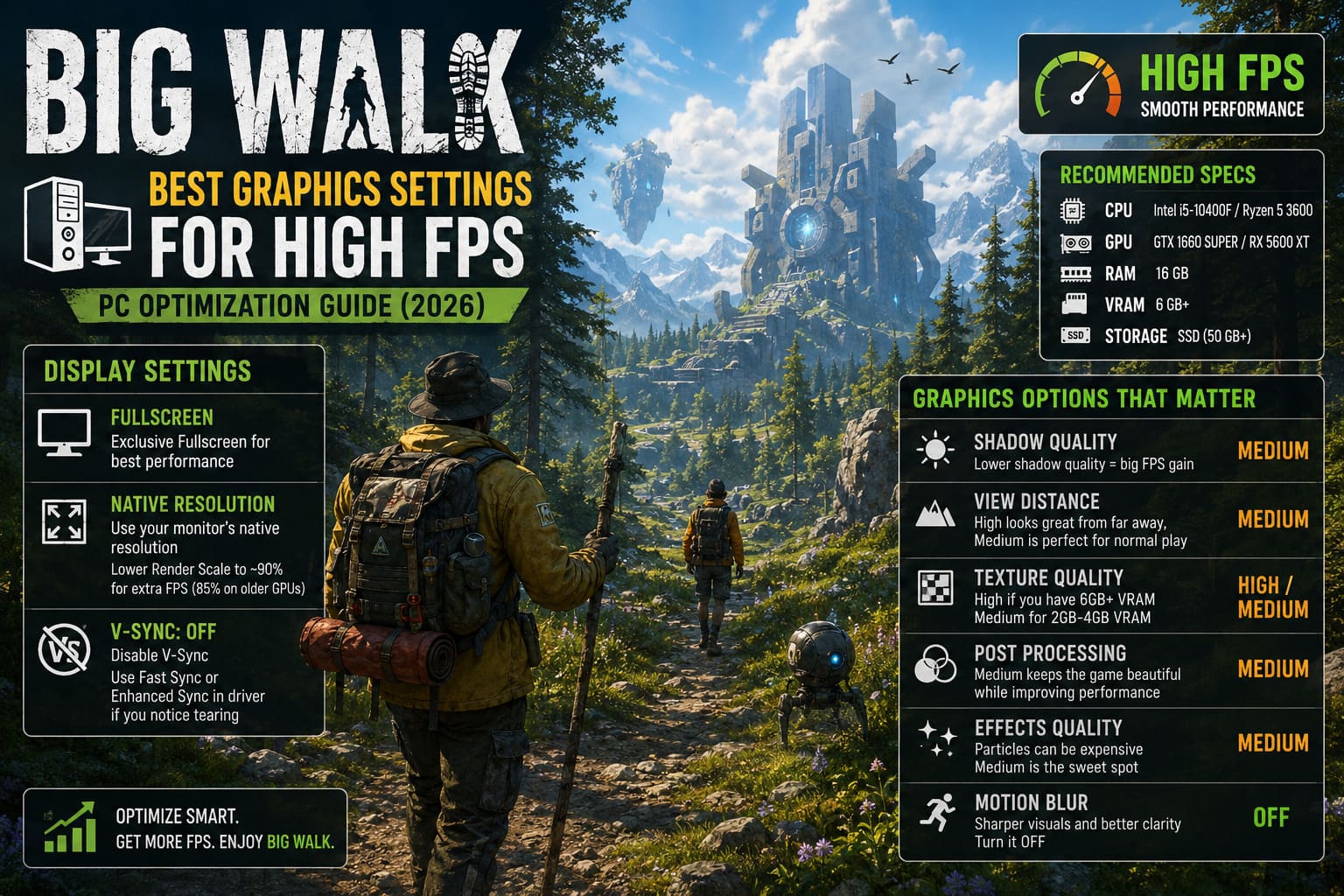
Fullscreen
Exclusive Fullscreen still offers the most consistent experience.
It reduces interference from Windows background tasks and usually produces slightly better frame pacing than Borderless mode.
Borderless remains a good choice if you’re constantly switching between Discord, browser windows, or streaming software.
Match Your Native Resolution
Keep your monitor running at its actual resolution.
Lowering Windows resolution makes everything softer—including menus.
Instead, reduce Render Scale if additional FPS is needed.
Dropping render scale to around 90% often provides a noticeable performance increase while remaining surprisingly sharp.
Older GPUs can even run comfortably around 85%.
Disable V-Sync
Input responsiveness feels much better without traditional V-Sync.
If screen tearing bothers you, GPU driver features such as Fast Sync or Enhanced Sync generally produce a smoother experience with much lower latency than the in-game option.
Graphics Options That Actually Matter
Many players lower every option to Low.
Honestly, that’s unnecessary.
Some graphics settings barely affect FPS at all.
Others completely dominate performance.
Here’s where your attention should go.
Shadow Quality
This is the first setting I’d reduce every single time.
Moving from High to Medium barely changes visual quality during gameplay but immediately reduces GPU load.
Low-end systems should simply use Low.
It’s the fastest way to recover lost frames inside dense forests.
View Distance
Epic draw distance looks impressive from mountain tops.
During normal exploration?
You’ll barely notice the difference.
Medium provides excellent visibility while significantly reducing CPU and GPU workload.
Texture Quality
Textures don’t heavily affect FPS unless your graphics card runs out of VRAM.
If your GPU includes 6GB or more, High textures are perfectly reasonable.
Cards with 2GB or 4GB should stick with Medium to avoid annoying hitching caused by memory swapping.
Post Processing
Screen-space effects, bloom, ambient occlusion, and similar visual enhancements quietly consume more resources than many players realize.
Medium keeps the environment attractive while recovering a respectable amount of performance.
Effects Quality
Environmental particles become surprisingly expensive during cooperative puzzle moments.
Medium is the sweet spot.
The visuals remain satisfying without unnecessary GPU overhead.
Motion Blur
I disable this in almost every PC game.
Big Walk is no exception.
The world becomes noticeably sharper while moving, tracking teammates feels easier, and every saved frame helps.
Windows Tweaks That Actually Improve Stability
Game settings alone won’t solve every performance issue.
Windows background services frequently steal CPU resources at the worst possible moments.
These adjustments are worth doing once.
Enable Game Mode
Windows Game Mode remains one of the easiest optimizations.
It reduces unnecessary background activity and gives games higher scheduling priority.
It only takes a few seconds to activate.
High Performance Power Plan
Laptop users especially should double-check this.
Balanced mode sometimes lowers CPU frequencies during longer gaming sessions.
Switching to High Performance or Ultimate Performance allows both CPU and GPU to sustain their maximum boost clocks much longer.
Update GPU Drivers
New game launches often receive dedicated driver optimizations from NVIDIA, AMD, and Intel.
Installing the newest driver can eliminate crashes, improve shader compilation, and even deliver free FPS improvements depending on your hardware.
Clean installations are generally the safest approach if you’re experiencing graphical glitches.
Disable Fullscreen Optimizations
This old Windows feature still causes occasional issues in modern games.
Locate Big Walk’s executable file.
Open Properties → Compatibility.
- Disable Fullscreen Optimizations
- Override High DPI Scaling Behavior
- Select System (Enhanced)
It’s a simple tweak that has helped many players reduce strange mouse behavior and inconsistent frametimes.
How to Fix Big Walk Crash on Launch, Startup Errors, and Freezing on PC
Extra Tips for Older Gaming PCs
If you’re still struggling to maintain 60 FPS, prioritize changes in this exact order:
- Lower Shadow Quality
- Reduce Render Scale to 90%
- Set View Distance to Medium
- Lower Effects Quality
- Reduce Texture Quality only if VRAM is limited
Following this order keeps visual quality surprisingly high while recovering the largest amount of performance.
Big Walk 2026: Beginner’s Guide, Co-Op Strategies, and Pro Tips
Final Thoughts
Big Walk proves that stylized visuals don’t automatically mean low hardware requirements. Once twelve players begin exploring together across dense forests packed with dynamic shadows and environmental interactions, even capable systems can start to sweat.
The good news is that the game responds extremely well to targeted optimization. You don’t need to sacrifice everything for smoother gameplay. Lowering the right settings—especially shadows, render scale, and post-processing—can transform the experience from inconsistent and stuttery into something that feels fluid throughout long cooperative sessions.
After many hours experimenting with different configurations, the setup above consistently delivered the best balance between image quality and framerate. Forest traversal became smoother, multiplayer exploration felt more responsive, and those frustrating random dips almost disappeared.
Instead of fighting your hardware, you’ll finally be free to enjoy what Big Walk does best: getting completely lost with friends, solving clever environmental puzzles, laughing over voice chat, and discovering whatever strange surprise waits beyond the next hill.