How to Fix ReStory: Chill Electronics Repairs Stuck on Loading Screen
There’s something incredibly relaxing about ReStory: Chill Electronics Repairs. Instead of rushing through battles or chasing high scores, you’re restoring old electronics, hunting for spare parts, and soaking in a nostalgic Tokyo atmosphere that feels surprisingly authentic. That’s exactly why it’s so frustrating when the game refuses to move beyond the loading screen. Nothing kills the cozy mood faster than watching the same animation loop forever.
After spending time browsing community discussions and trying different fixes myself, I realized that this isn’t a single bug with one universal solution. The loading screen problem can be triggered by several different things depending on your PC, your save data, or even software running quietly in the background. The good news is that most players eventually get the game working without waiting for a patch.
If ReStory: Chill Electronics Repairs is stuck on the loading screen, these are the fixes that are actually worth trying before giving up.
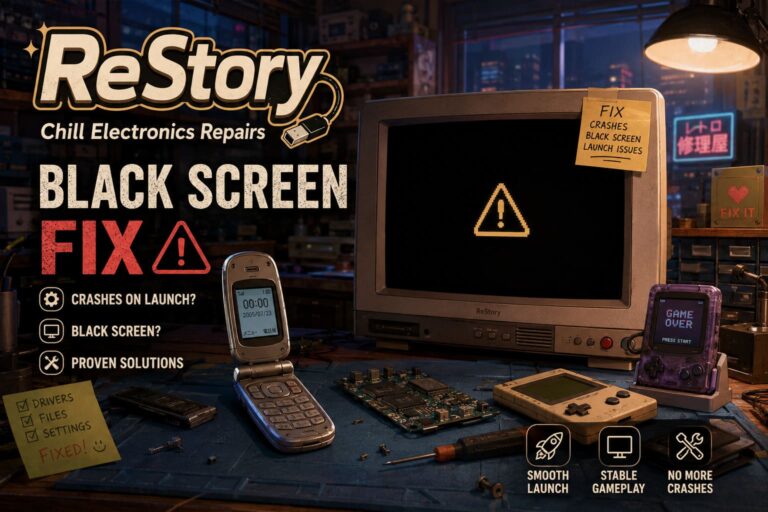
How to Fix ReStory Chill Electronics Repairs Black Screen on Startup
Why Does ReStory Freeze During Startup?
Modern PC games rely on dozens of systems working together before the main menu even appears. The game has to initialize graphics drivers, verify save files, load shaders, communicate with Steam, and prepare every asset.
If one of those steps fails, the result is often an endless loading animation instead of an obvious error message.
Some of the most common reasons include:
- Corrupted game files
- Broken Steam Cloud saves
- Outdated graphics drivers
- Overlay software conflicts
- Insufficient Windows permissions
- Shader cache issues
- Slow HDD installations
Fortunately, most of these problems can be fixed in just a few minutes.
Start With Steam’s File Verification
Whenever I run into startup issues with almost any Steam game, this is the first thing I try. It’s simple, doesn’t delete your progress, and fixes more problems than people expect.
Steam compares every installed file against the official version and automatically replaces anything that’s damaged or missing. Even a single corrupted asset can stop a game from reaching the main menu.
To verify your installation:
- Open Steam Library.
- Right-click ReStory: Chill Electronics Repairs.
- Select Properties.
- Open Installed Files.
- Click Verify integrity of game files.
Depending on whether your game is installed on an SSD or HDD, the scan may take a few minutes. Once it’s finished, restart Steam before launching the game again.
Run the Game as Administrator
Windows security sometimes blocks games from creating configuration files or accessing folders they need during startup.
This doesn’t happen on every system, but when it does, the loading screen can appear to freeze indefinitely.
To test this:
- Browse to the game’s installation folder.
- Right-click ReStory.exe.
- Open Properties.
- Select the Compatibility tab.
- Enable Run this program as an administrator.
- Apply the changes and launch the game.
It’s a quick fix that has solved launch issues for plenty of older and newer PC releases alike.
Steam Cloud Can Sometimes Be the Real Problem
One thing I’ve noticed over the years is that Steam Cloud isn’t always your friend. Most of the time it’s fantastic, but if your cloud save becomes corrupted, the game may never finish loading.
Disabling cloud synchronization is an easy way to test whether your save data is causing the issue.
After turning Steam Cloud off for the game, back up your local save folder before removing it. If the game suddenly launches normally afterward, you’ve almost certainly found the culprit.
Losing progress isn’t ideal, which is why making a backup first is always worth the extra minute.
Update Your Graphics Drivers
People usually associate graphics drivers with FPS improvements, but they’re just as important for launching games.
During startup, the GPU driver compiles shaders and initializes rendering. If something goes wrong during that process, many games simply freeze instead of displaying an error.
Whether you’re using NVIDIA, AMD, or Intel graphics, installing the newest driver version is always a good idea.
Don’t forget to restart Windows after the installation. That final reboot is easy to skip, but it often makes the difference.
Turn Off Every Overlay You Don’t Need
This is another fix that consistently surprises people.
Programs that inject overlays into games can interfere with startup. Even if they’ve worked perfectly with other titles, every game engine behaves differently.
I usually disable:
- Steam Overlay
- Discord Overlay
- MSI Afterburner overlay
- Razer Synapse background services (temporarily)
- RGB management utilities
- VPN software while testing
If the game starts normally afterward, you can enable each program one at a time until you discover which one was causing the conflict.
Give Windows More CPU Priority
This isn’t always necessary, but it’s worth trying if the loading animation keeps spinning without crashing.
Once the game is running:
- Open Task Manager.
- Go to the Details tab.
- Find ReStory.exe.
- Choose Set Priority.
- Select High.
I wouldn’t recommend using Realtime, since it can make Windows less responsive. High priority is generally enough to help the game finish loading if background applications are competing for CPU resources.
Clear the Shader Cache
Shader cache problems don’t receive much attention, but they can absolutely cause startup headaches.
When the cache becomes corrupted, the game may struggle to compile graphics correctly during launch.
If you’re using NVIDIA hardware, clearing the shader cache through the NVIDIA Control Panel is a quick troubleshooting step.
AMD users can perform similar maintenance through the Adrenalin software.
After clearing the cache, reboot your PC before trying again.
Install the Game on an SSD
This isn’t exactly a bug fix, but it’s easily one of the biggest improvements you can make.
Older mechanical hard drives simply aren’t built for today’s games. Thousands of tiny files need to be loaded quickly, and HDDs can become a serious bottleneck.
Moving the game to an SSD often reduces loading times dramatically.
| Storage Type | Loading Performance | Recommendation |
|---|---|---|
| HDD | Slow asset loading, possible timeouts | Acceptable but not ideal |
| SATA SSD | Much faster startup | Recommended |
| NVMe SSD | Fastest loading experience | Best choice |
If you already own an SSD with free space, transferring the installation through Steam takes only a few minutes.
Quick Troubleshooting Checklist
Before reinstalling the game completely, work through this checklist:
| Fix | Difficulty | Success Rate |
|---|---|---|
| Verify game files | Easy | Very High |
| Disable Steam Cloud | Easy | High |
| Update GPU drivers | Easy | High |
| Run as Administrator | Easy | Medium |
| Disable overlays | Easy | High |
| Clear shader cache | Medium | Medium |
| Move installation to SSD | Medium | High |
Following these steps in order usually saves a lot of unnecessary frustration.
Final Thoughts
One thing I genuinely appreciate about ReStory: Chill Electronics Repairs is that it’s different from the constant stream of action-heavy releases. Sitting down to repair vintage electronics while browsing a retro-style internet feels oddly comforting, and that’s exactly why it’s worth spending a little time fixing technical issues instead of uninstalling it immediately.
In my experience, the biggest offenders behind the endless loading screen are corrupted Steam Cloud saves, damaged game files, and overlay software. Those three account for a huge percentage of startup problems across PC games, not just ReStory. Once those are ruled out, updating drivers or moving the game to an SSD usually takes care of the remaining cases.
If none of these solutions work, it’s worth waiting for future updates from the developers. Launch-week issues are common, especially with smaller indie projects, and many of them receive stability patches once enough player reports come in.