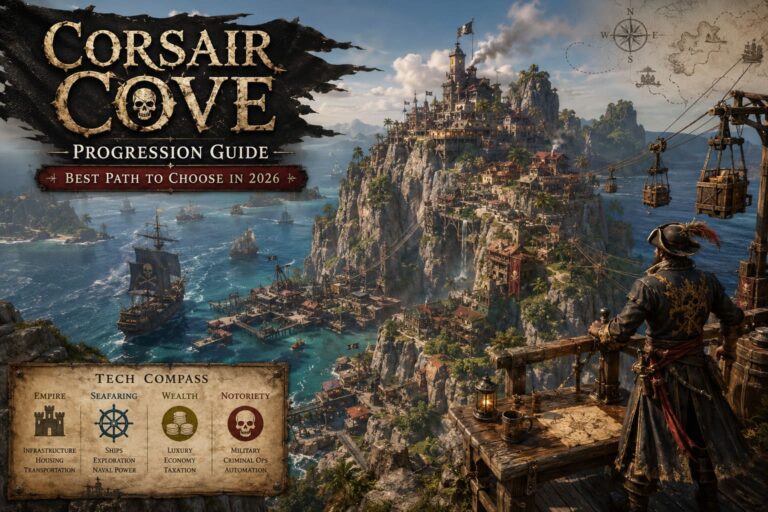
Corsair Cove DLSS 3 Frame Generation Guide: How to Fix Greyed Out Settings & Boost FPS
I’ve spent years tweaking PC games, from poorly optimized early access releases to massive strategy titles that can bring even high-end hardware to its knees. Corsair Cove immediately reminded me of those games that look deceptively simple at first but become significantly more demanding once your settlement grows into a living, breathing city. The more workers, ships, trade routes, and visual effects appear on screen, the more your GPU and CPU start working overtime.
If you’re using an RTX graphics card, DLSS is one of the easiest ways to recover performance without sacrificing image quality. Unfortunately, many players launch the game only to discover that DLSS Frame Generation is greyed out or refuses to activate. I ran into similar problems in other modern Unreal Engine and DirectX 12 titles, so most of the troubleshooting felt familiar.
The good news is that Corsair Cove isn’t broken. In most cases, the feature is disabled because of missing Windows settings, outdated drivers, or unsupported hardware. Here’s everything worth checking before assuming something is wrong with the game itself.
How to Fix Hell Let Loose: Vietnam Black Screen on Startup & Unreal Engine 5 Crashes
Why DLSS Frame Generation Is Disabled
The first thing to understand is that DLSS Super Resolution and DLSS Frame Generation are completely different technologies. DLSS Super Resolution has been available for several GPU generations and simply renders the game internally at a lower resolution before reconstructing the final image with AI. Frame Generation goes much further by creating entirely new frames between rendered ones, dramatically increasing the displayed frame rate.
That extra technology comes with stricter hardware requirements. If you’re running an RTX 4060, 4070, 4080, 4090, or their laptop equivalents, the option should normally be available. If it isn’t, something in your system configuration is preventing the game from enabling it.
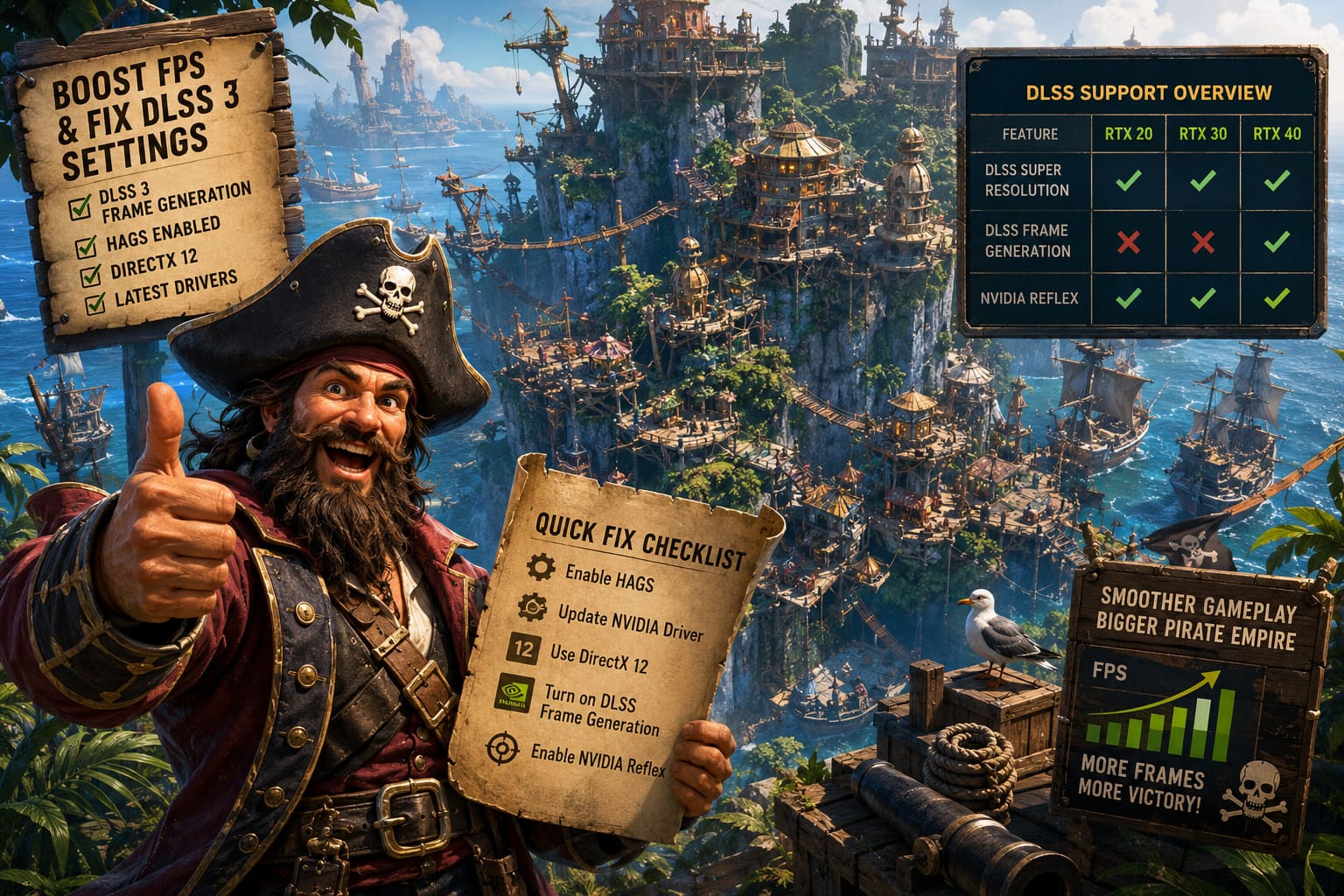
| Feature | RTX 20 Series | RTX 30 Series | RTX 40 Series |
|---|---|---|---|
| DLSS Super Resolution | ✅ Yes | ✅ Yes | ✅ Yes |
| DLSS Frame Generation | ❌ No | ❌ No | ✅ Yes |
| NVIDIA Reflex | ✅ Yes | ✅ Yes | ✅ Yes |
Turn On Hardware-Accelerated GPU Scheduling
This is easily the most common reason why the option stays greyed out. Windows includes Hardware-Accelerated GPU Scheduling (HAGS), and NVIDIA requires this feature for native Frame Generation. Fortunately, enabling it only takes a minute.
- Open Graphics Settings from the Windows search bar.
- Select Change Default Graphics Settings.
- Enable Hardware-Accelerated GPU Scheduling.
- Restart your PC.
Don’t skip the reboot. I’ve seen people enable HAGS, launch the game immediately afterward, and assume nothing changed. Windows doesn’t fully activate this feature until the operating system has restarted, so the extra minute is absolutely worth it.
Update Your NVIDIA Drivers
This sounds obvious, but it’s surprising how many issues disappear after installing the latest Game Ready Driver. Brand-new releases like Corsair Cove often receive launch-day driver optimizations, and older versions may not properly recognize the game’s rendering pipeline.
Whenever I install a major new game, I always spend a few minutes checking for driver updates first. It has become part of my routine because I’ve solved random crashes, missing graphics options, and unexpected FPS drops simply by updating NVIDIA’s software.
- Install the latest Game Ready Driver.
- Choose a Clean Installation if you’ve experienced crashes or graphical glitches.
- Restart Windows after the installation completes.
Fresh drivers often fix more than just DLSS problems. They can also improve shader compilation, reduce stuttering during the first hour of gameplay, and increase stability when large settlements begin filling the screen.
Make Sure You’re Running DirectX 12
Another setting that’s easy to overlook is the graphics API. Frame Generation requires DirectX 12, so if the game is running under another rendering mode, the DLSS options may stay unavailable regardless of your hardware.
Recommended In-Game Settings
- Open Graphics Settings.
- Select DirectX 12.
- Enable NVIDIA DLSS.
- Choose your preferred DLSS preset.
- Turn on Frame Generation.
If the option suddenly appears, restart the game after applying the settings. While not always required, I’ve found that many modern games initialize DLSS features much more reliably after a fresh launch.
Which DLSS Mode Should You Use?
The ideal DLSS preset depends on your monitor resolution and your priorities. Some players want the sharpest possible image, while others simply want the highest frame rate they can get during the late game.
| Resolution | Recommended DLSS Mode |
|---|---|
| 1080p | Quality |
| 1440p | Quality |
| 4K | Balanced |
| 4K (Maximum FPS) | Performance |
Personally, I almost always stick with Quality unless I’m gaming in 4K. It delivers an excellent balance between visual clarity and performance, especially once your pirate city is overflowing with docks, factories, smoke effects, fleets, and hundreds of active workers.
What About RTX 20 and RTX 30 Graphics Cards?
This is probably the question I’ve seen asked most often. Officially, NVIDIA limits native Frame Generation to RTX 40-series GPUs because only Ada Lovelace cards include the required Optical Flow Accelerator.
That hasn’t stopped the PC modding community from finding creative workarounds. Several unofficial projects translate DLSS Frame Generation requests into AMD FSR 3 Frame Generation, allowing older RTX cards to benefit from a similar technology.
Popular Community Tools
- DLSS Enabler
- dlssg-to-fsr3
Most of these modifications simply require copying replacement DLL files into the game’s installation directory. While the results can be surprisingly impressive, remember that these are unofficial solutions. Future patches may break compatibility, visual artifacts can occasionally appear, and you’ll need to update the mods whenever the game receives significant engine changes.
Fortunately, Corsair Cove is primarily a single-player strategy experience, so experimenting with community tools carries far less risk than doing the same thing in a competitive online game.
NVIDIA Reflex Is Worth Enabling
Frame Generation increases smoothness by creating additional frames, but it also introduces a small amount of input latency. That’s why NVIDIA Reflex should almost always be enabled whenever you’re using Frame Generation.
- Enable NVIDIA Reflex On.
- Use On + Boost if your GPU is consistently operating near full utilization.
- Avoid disabling Reflex while Frame Generation is active.
The improvement won’t magically transform the game, but every millisecond matters. Camera movement feels slightly more responsive, especially when quickly navigating around large islands packed with production buildings and dozens of moving ships.
Don’t Expect Miracles From a Low Base Frame Rate
One misconception I still see online is that Frame Generation can completely rescue an underpowered system. It simply doesn’t work that way. The technology performs best when your computer is already rendering around 50 to 60 FPS before the generated frames are added.
If your hardware is struggling to reach 25 FPS, doubling that frame count won’t suddenly create a flawless experience. You may still notice sluggish controls, ghosting around moving objects, or inconsistent camera motion. A much smarter approach is to optimize your graphics settings first, enable DLSS Super Resolution, and then activate Frame Generation as the final performance boost.
Additional Graphics Settings Worth Tweaking
Beyond DLSS, there are several graphics options that consistently deliver meaningful performance improvements in large-scale city builders. These settings become increasingly important once your pirate empire expands and hundreds of units are active simultaneously.
Settings to Lower First
- Shadow Quality
- Volumetric Effects
- Ambient Occlusion
- View Distance
- Reflection Quality
These settings usually have a much larger impact on performance than texture quality. If your graphics card has enough VRAM, I’d leave textures on High and instead reduce the more demanding lighting and shadow effects. In my experience, that’s where you’ll gain the biggest FPS improvements while keeping the game looking excellent.
Final Thoughts
After spending time with Corsair Cove, I don’t think its DLSS implementation is unusually problematic. Most issues come down to system configuration rather than bugs inside the game itself. Once HAGS is enabled, DirectX 12 is selected, and the latest NVIDIA drivers are installed, Frame Generation usually becomes available without much effort.
What impressed me most wasn’t simply the higher frame rate, but how much smoother the entire experience became during the late game. Managing an enormous pirate city with countless workers, fleets, production chains, and visual effects feels noticeably more enjoyable when camera movement stays fluid instead of stuttering every few seconds.
If you own an RTX 40-series graphics card, enabling DLSS Frame Generation is easily one of the best performance upgrades available in Corsair Cove. Players with RTX 20 or RTX 30 GPUs still have community-made alternatives worth exploring, provided they’re comfortable using unofficial mods and understand the occasional risks that come with them.