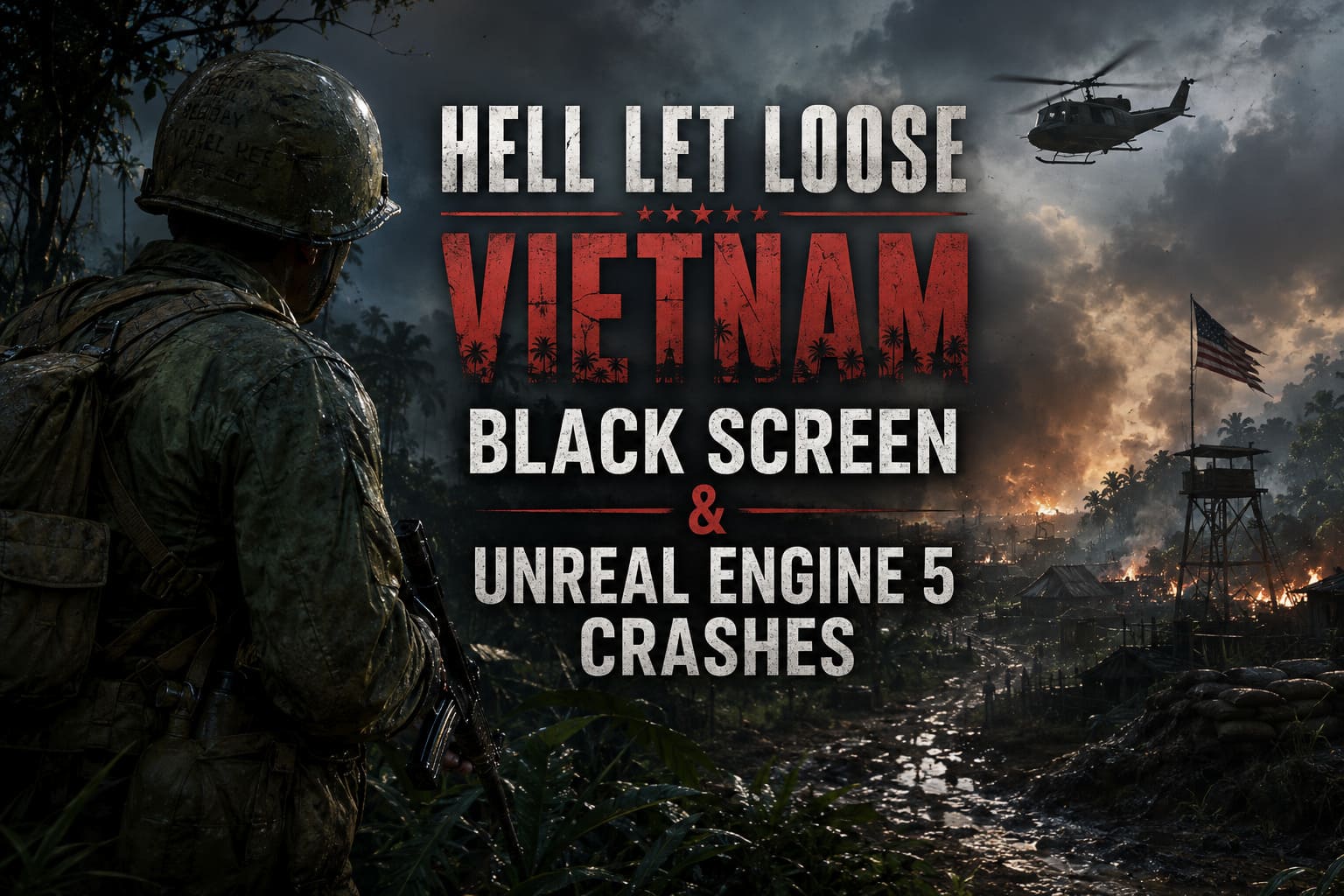
How to Fix Hell Let Loose: Vietnam Black Screen on Startup & Unreal Engine 5 Crashes
There are few things more frustrating than getting ready for a long tactical session with friends only to watch Hell Let Loose: Vietnam sit on a black screen instead of loading into battle. The game promises massive firefights, realistic teamwork, and stunning Unreal Engine 5 visuals—but for many PC players, the very first enemy is the startup screen itself.
After spending time reading community reports, testing different solutions, and comparing what actually works across different hardware, I’ve noticed something interesting: there usually isn’t one single cause behind the problem. Unreal Engine 5 is powerful, but it’s also far less forgiving than older engines when something in Windows, DirectX, or your graphics drivers isn’t behaving exactly as expected.
The good news is that most startup problems can be fixed without reinstalling Windows or replacing hardware. If your game freezes on a black screen, crashes before reaching the menu, or throws a Low Level Fatal Error, these are the methods I’d personally try first.
Why Does Hell Let Loose: Vietnam Get Stuck During Startup?
In my experience, Unreal Engine 5 titles generally fail for a handful of common reasons. While every PC is different, these issues appear again and again.
Some of the biggest culprits include:
- Corrupted shader cache after an interrupted first launch.
- DirectX 12 initialization failures caused by driver conflicts.
- Easy Anti-Cheat failing to initialize correctly.
- Background overlays interfering with UE5 rendering.
- Damaged configuration files inside Local AppData.
- Outdated Visual C++ runtime libraries or graphics drivers.
Because several of these problems produce almost identical symptoms, it’s worth working through each fix instead of guessing.
1. Launch the Game as Administrator
This is one of those fixes that sounds too simple, yet I’ve seen it solve startup issues surprisingly often.
UE5 games that rely on Easy Anti-Cheat occasionally fail during the permission check before the engine even begins rendering. Instead of displaying an error, the game simply stays black or closes without explanation.
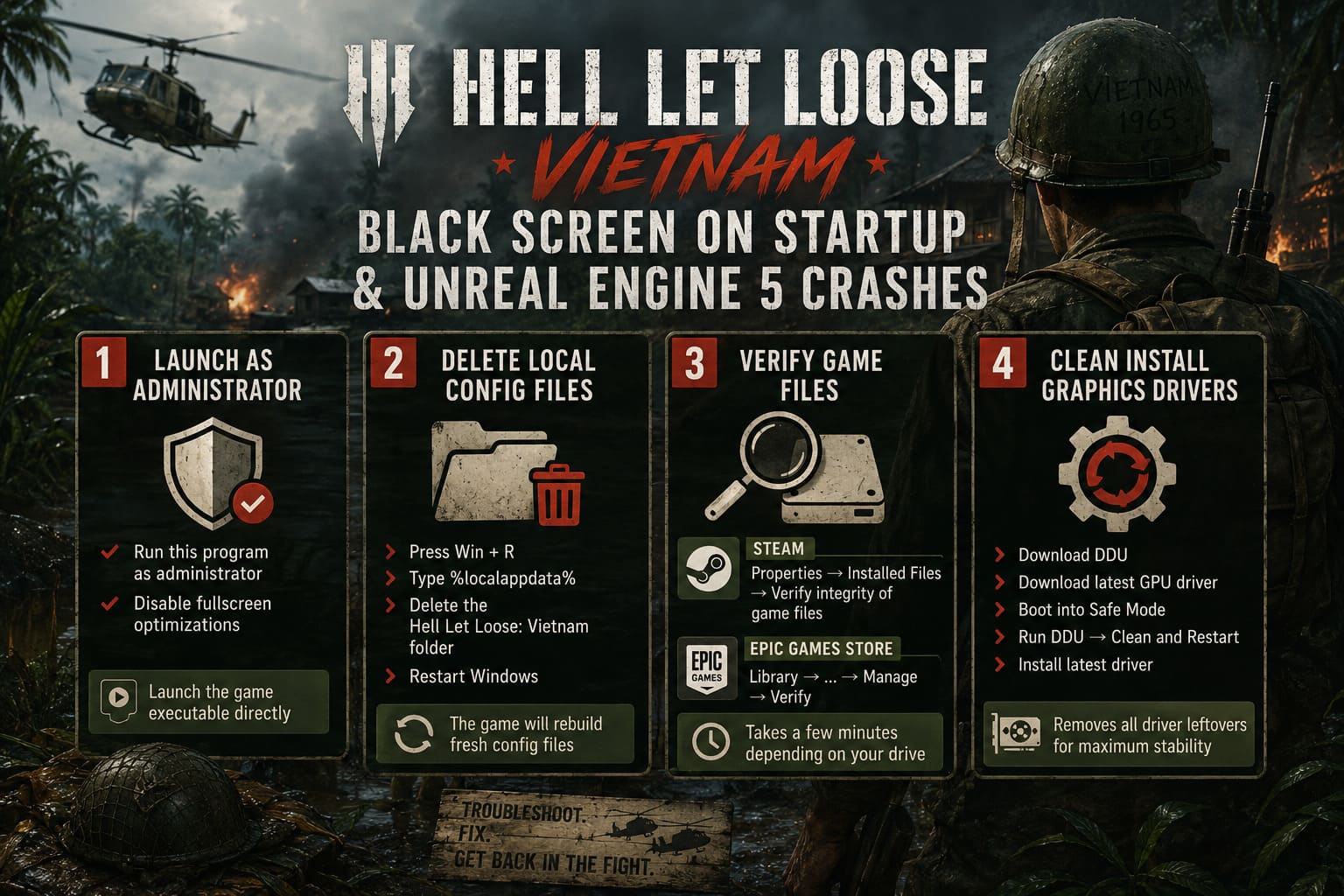
Here’s what I recommend:
- Open your Steam or Epic Games library.
- Browse to the installation folder.
- Find the main game executable.
- Open Properties → Compatibility.
- Enable Run this program as administrator.
- Enable Disable fullscreen optimizations.
- Click Apply and then OK.
Afterward, try launching the executable directly rather than using the launcher.
2. Delete the Local Configuration Files
If the game worked once and suddenly refuses to launch—or if it has never successfully completed its first startup—the local configuration may be corrupted.
Unreal Engine stores numerous settings inside the Local AppData folder, including graphics preferences, shader data, and cached engine files.
Deleting these files forces the engine to rebuild everything from scratch.
Follow these steps:
- Press Windows + R.
- Type %localappdata% and press Enter.
- Locate the Hell Let Loose: Vietnam folder.
- Delete it or rename it as a backup.
- Restart Windows.
- Launch the game again.
Your graphics settings will reset to their defaults, but the engine will recreate fresh configuration files automatically.
3. Verify the Game Files
Large Unreal Engine 5 games contain thousands of assets, and it only takes one damaged file to stop the engine during startup.
Whether the corruption happened during download or after an update, verifying the installation is one of the safest troubleshooting steps.
Steam
- Open Steam.
- Go to your Library.
- Right-click the game.
- Select Properties.
- Open the Installed Files tab.
- Click Verify integrity of game files.
Epic Games Store
- Open the Epic Games Launcher.
- Go to Library.
- Click the three-dot menu beneath the game.
- Select Manage.
- Click Verify.
Depending on your storage speed, verification usually finishes within a few minutes.
4. Perform a Completely Clean Graphics Driver Installation
This is probably the fix I’d recommend most strongly for players who recently updated their GPU drivers.
Many people simply install new drivers over old ones, but remnants of previous versions can cause DirectX 12 instability—especially in Unreal Engine 5.
Using Display Driver Uninstaller (DDU) removes every leftover driver component before installing a fresh version.
The process is straightforward:
- Download Display Driver Uninstaller (DDU).
- Download the latest graphics driver for your GPU.
- Boot Windows into Safe Mode.
- Launch DDU.
- Select Clean and Restart.
- Install the latest driver after Windows restarts.
Although it takes longer than a standard update, a completely clean driver installation often eliminates persistent Unreal Engine 5 crashes.
5. Repair Easy Anti-Cheat
Sometimes the game itself isn’t crashing.
Instead, Easy Anti-Cheat silently fails during initialization, causing the game window to remain black before eventually closing.
If your game exits after roughly 10 to 30 seconds without displaying any meaningful error message, this should be one of the first things you investigate.
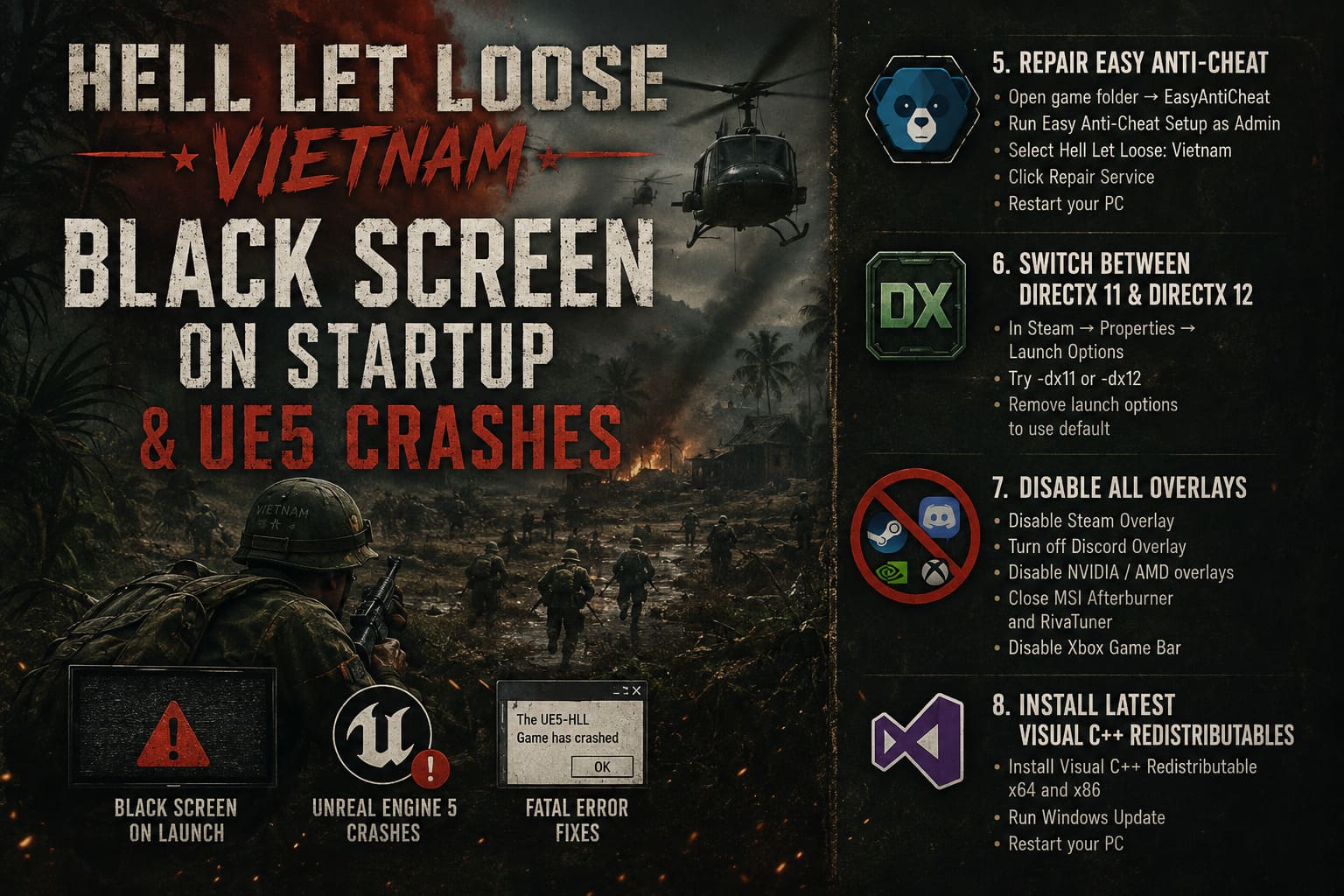
- Open the game’s installation directory.
- Locate the EasyAntiCheat folder.
- Run the Easy Anti-Cheat setup tool as Administrator.
- Select Hell Let Loose: Vietnam.
- Click Repair Service.
- Restart your PC.
Once the repair process is complete, launch the game normally and check whether the startup issue has been resolved.
6. Switch Between DirectX 11 and DirectX 12
Although Unreal Engine 5 is designed around DirectX 12, not every hardware configuration behaves the same.
I’ve seen players fix startup crashes simply by forcing the game to launch with DirectX 11.
Open Steam, right-click the game, select Properties, and enter one of the following launch options:
- -dx11
- -dx12
If neither option helps, simply remove the launch command and allow the game to use its default startup parameters.
7. Disable Every Overlay You Can Find
Modern gaming software includes numerous overlays that interact directly with the rendering pipeline.
Steam, Discord, GeForce Experience, AMD Software, MSI Afterburner, RivaTuner, and even Xbox Game Bar can occasionally interfere with Unreal Engine 5 during initialization.
I recommend temporarily disabling every overlay before testing the game again.
- Disable the Steam Overlay.
- Turn off Discord’s in-game overlay.
- Disable NVIDIA or AMD overlays.
- Close MSI Afterburner and RivaTuner.
- Disable Xbox Game Bar if it is active.
It only takes a few minutes and has resolved startup issues for many players.
8. Install the Latest Visual C++ Redistributables
Many players overlook this step because Windows usually installs these automatically.
However, corrupted or outdated runtime libraries can prevent Unreal Engine 5 executables from launching correctly.
Install both available packages:
- Visual C++ Redistributable x64
- Visual C++ Redistributable x86
After installation, run Windows Update, restart your computer, and test the game once more.
Which Fix Usually Works First?
Based on community feedback and my own troubleshooting experience, these are the solutions I’d prioritize.
| Problem | Likely Cause | Recommended Solution |
|---|---|---|
| Black screen immediately after launch | Corrupted shader cache | Delete the Local AppData folder |
| Game closes after several seconds | Easy Anti-Cheat failure | Repair Easy Anti-Cheat |
| Crash after developer logos | DirectX or graphics driver conflict | Perform a clean driver installation with DDU |
| Black screen with audio still playing | Overlay conflict | Disable all overlays |
| Low Level Fatal Error | Damaged engine files | Verify the integrity of the game files |
| Startup freeze after a GPU driver update | Driver compatibility issue | Reinstall graphics drivers cleanly |
Hell Let Loose Vietnam Guide: Best Beginner Roles to Play First (2026)
A Few Extra Things Worth Checking
Sometimes the fix isn’t inside the game at all.
If none of the solutions above work, it’s also worth checking these common system issues.
- Ensure Windows isn’t installing updates in the background.
- Temporarily disable any CPU or GPU overclock.
- Disconnect unnecessary USB devices.
- Close RGB lighting software while testing.
- Make sure your SSD has enough free space for shader compilation.
- Restart your PC after every major troubleshooting step.
These small adjustments can eliminate conflicts that are otherwise difficult to identify.
Hell Let Loose: Vietnam Class Guide – All 19 Unique Combat Roles Explained
Final Thoughts
One thing I’ve learned from troubleshooting Unreal Engine 5 games is that startup crashes are rarely random. Most of the time, the engine is failing during one of a handful of predictable stages—loading shaders, initializing DirectX, validating Easy Anti-Cheat, or reading local configuration files.
If I were helping a friend fix Hell Let Loose: Vietnam, I’d begin with the easiest solutions first: clear the Local AppData folder, verify the game files, and disable every overlay running in the background. If those don’t solve the issue, I’d move on to repairing Easy Anti-Cheat and performing a clean graphics driver installation using DDU.
It can be a little time-consuming working through each possibility, but once the game launches successfully, Unreal Engine 5 generally becomes much more stable. Spending a few extra minutes troubleshooting is far better than repeatedly staring at a black screen every time you’re ready to join a match. Work through these fixes methodically, and there’s a very good chance you’ll soon be back coordinating assaults, defending objectives, and enjoying everything Hell Let Loose: Vietnam has to offer.