G-Rebels HOSAS Raw Input Settings: Space Sim Configuration Guide
If you’ve invested in a G-Rebels HOSAS setup, you probably didn’t spend all that money just to let Windows decide how your joysticks should behave. Premium hardware deserves premium configuration, and that’s exactly where raw input comes into play.
After spending countless hours flying everything from competitive PvP dogfights to slow precision docking runs across multiple space simulators, one thing becomes painfully obvious: default controller settings leave performance on the table. Tiny input delays, hidden deadzones, and Windows filtering might not seem like much, but during intense combat they absolutely matter.
The good news? G-Rebels hardware is built to deliver incredibly accurate control. The even better news is that once raw input is configured correctly, the entire setup feels dramatically more responsive. Every small correction, every roll, every lateral thrust feels immediate instead of slightly delayed.
This guide walks through the complete process of configuring G-Rebels HOSAS using native raw input, explains why experienced pilots recommend this approach, and shares practical tuning advice that makes a noticeable difference during real gameplay.
Why Raw Input Is Worth Using
Most operating systems attempt to make controllers universally compatible. While that sounds convenient, it also means every movement passes through several software layers before reaching your game.
For casual titles, nobody notices.
For a six-degrees-of-freedom space simulator? You definitely will.
Raw input allows the simulator to communicate directly with the USB hardware instead of relying on legacy processing methods. Your joystick reports are read exactly as the controller sends them.
The benefits become obvious almost immediately:
- Lower input latency with fewer software layers involved.
- Higher positional accuracy during tiny aiming corrections.
- Independent axis detection for both sticks.
- Reduced filtering that can make controls feel sluggish.
- More consistent behavior across different games.
Instead of Windows trying to “help,” the simulator receives clean data straight from the G-Rebels controllers.
That is exactly what competitive pilots want.
Prepare Your Hardware Before Launching Any Game
One mistake many new HOSAS owners make is jumping directly into a simulator without checking firmware or calibration.
Even expensive hardware benefits from proper setup.
Before touching any game settings, open the official G-Rebels Device Manager utility and verify both controllers are running the latest firmware revision.
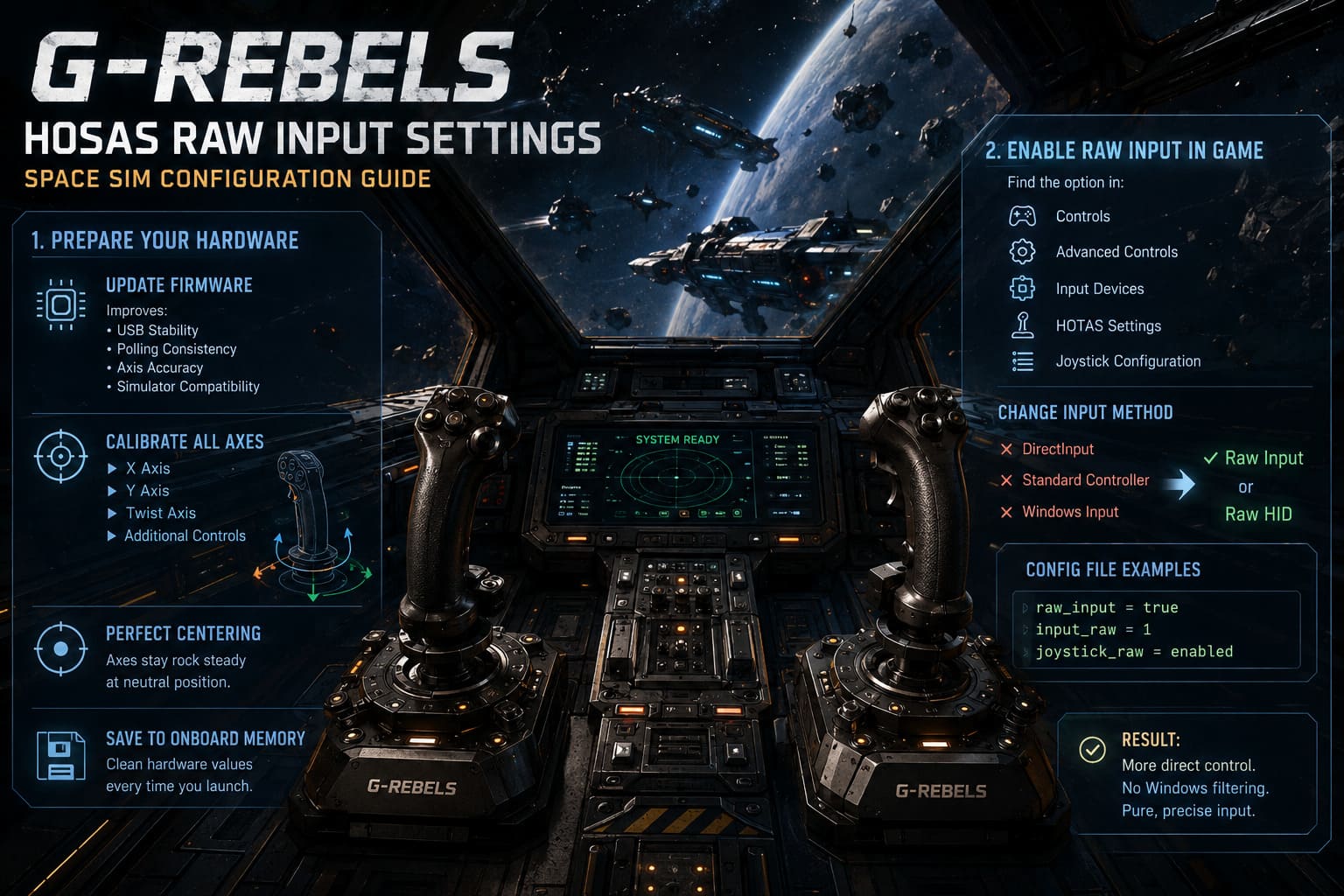
Firmware updates frequently improve:
- USB stability
- Polling consistency
- Axis accuracy
- Compatibility with newer simulators
Skipping this step can introduce strange issues that look like software bugs but actually originate from outdated controller firmware.
Once both sticks are updated, perform a complete calibration.
Move every axis through its entire physical range several times:
- X Axis
- Y Axis
- Twist Axis (if equipped)
- Additional Analog Controls
Pay close attention to center positioning.
One reason many enthusiasts choose G-Rebels hardware is its excellent mechanical centering. At rest, the axes should remain extremely stable instead of drifting around random values.
After calibration finishes, save the profile directly into the controller’s onboard memory whenever possible.
That ensures every game starts with clean hardware values before raw input even enters the picture.
Enable Native Raw Input Inside Your Space Simulator
Many modern simulators include native support for raw input, although the option is not always enabled by default.
Check your game’s controller settings.
Depending on the simulator, the option may appear under:
- Controls
- Advanced Controls
- Input Devices
- HOTAS Settings
- Joystick Configuration
Whenever available, switch the input method from:
- DirectInput
- Standard Controller
- Windows Input
to:
Raw Input or Raw HID.
Some older simulators require editing configuration files instead.
Common configuration variables include examples such as:
raw_input = true

input_raw = 1

joystick_raw = enabled
Exact variable names differ between engines, but the goal remains identical: instruct the simulator to bypass Windows filtering entirely.
Once enabled, joystick movement should immediately feel more direct.
The HOSAS Layout That Just Works
Ask ten veteran space sim players how to configure HOSAS, and you’ll probably receive eight similar answers.
That’s because years of experimentation have produced a layout that simply feels natural for 6DOF flight.
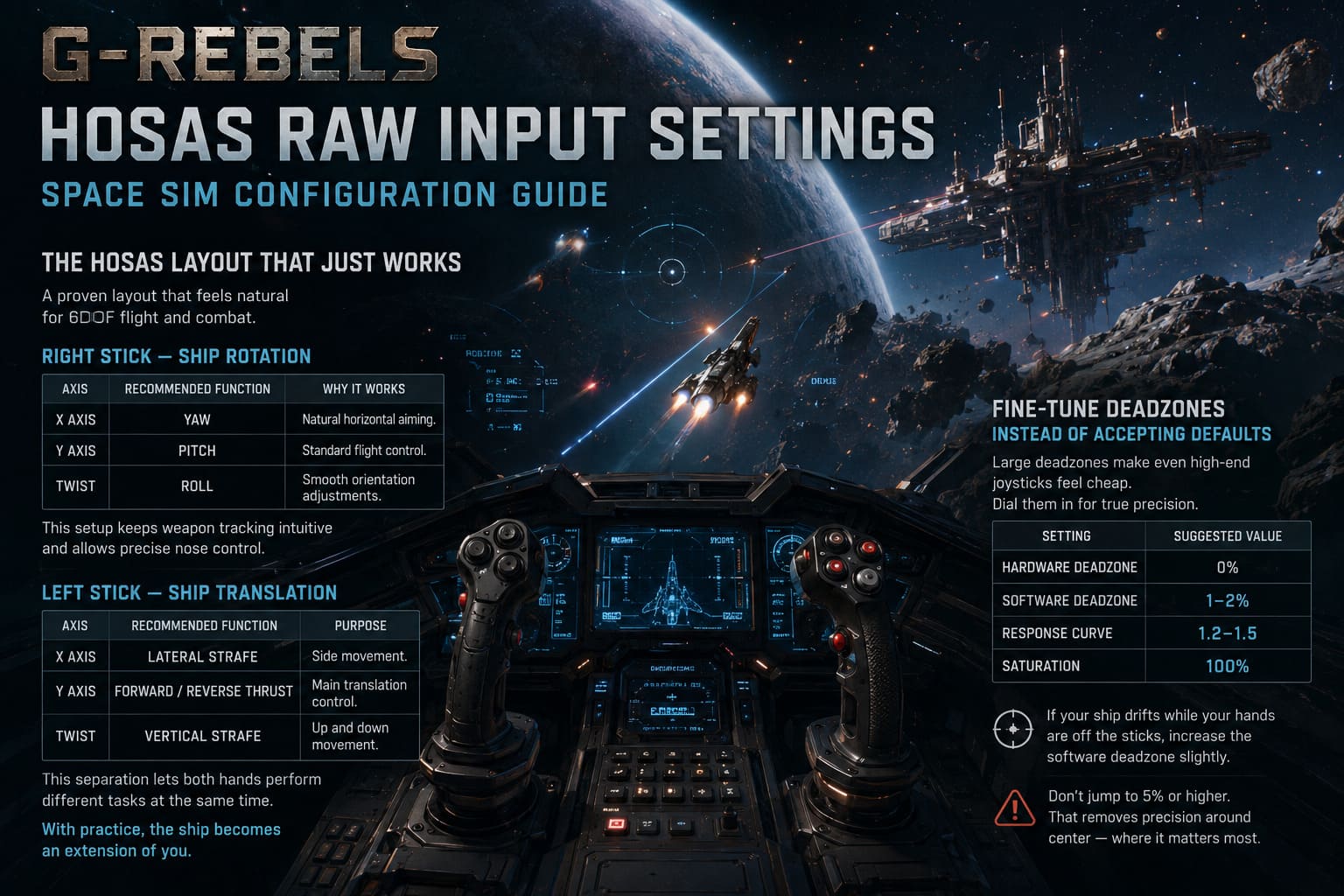
Right Stick — Ship Rotation
Your dominant hand should handle aiming.
| Axis | Recommended Function | Why It Works |
|---|---|---|
| X Axis | Yaw | Natural horizontal aiming. |
| Y Axis | Pitch | Standard flight control. |
| Twist | Roll | Smooth orientation adjustments. |
This arrangement keeps weapon tracking intuitive during combat while allowing precise nose control.
Left Stick — Ship Translation
Your non-dominant hand becomes responsible for movement through space.
| Axis | Recommended Function | Purpose |
|---|---|---|
| X Axis | Lateral Strafe | Side movement. |
| Y Axis | Forward / Reverse Thrust | Main translation control. |
| Twist | Vertical Strafe | Up and down movement. |
This separation lets both hands perform completely different jobs simultaneously.
Once your muscle memory develops, the ship almost feels like an extension of your body.
Fine-Tune Deadzones Instead of Accepting Defaults
One area where many players accidentally ruin a premium joystick is excessive deadzones.
Large deadzones make expensive hardware behave like budget equipment.
With G-Rebels controllers, you can generally keep hardware deadzones extremely small.
| Setting | Suggested Value |
|---|---|
| Hardware Deadzone | 0% |
| Software Deadzone | 1–2% |
| Response Curve | 1.2–1.5 |
| Saturation | 100% |
If your ship slowly drifts while your hands are completely off the sticks, increase the software deadzone slightly.
Don’t immediately jump to 5% or higher.
That removes a noticeable amount of precision around center, exactly where accurate aiming matters most.
Response Curves Can Completely Change the Feeling
Raw input is linear by design.
Every physical movement produces an equally proportional output.
While technically accurate, linear response sometimes feels too sensitive near the center.
Most experienced pilots soften the center slightly using a custom response curve.
A mild exponential or Bezier curve gives you:
- Finer aiming corrections
- Smoother docking
- Better formation flying
- Steadier mining operations
- Improved target tracking
Meanwhile, full stick deflection still delivers maximum rotation speed during emergency evasive maneuvers.
The result feels much more forgiving without sacrificing responsiveness.
Fixing Common Problems
Even the best hardware occasionally runs into software quirks.
Fortunately, most issues have straightforward solutions.
Left and Right Sticks Suddenly Swap
Some games reorder USB devices after rebooting.
If your translation stick suddenly controls aiming, don’t panic.
Try these fixes:
- Always connect both sticks to the same motherboard USB ports.
- Avoid passive USB hubs.
- Use dedicated USB 3.0 or USB 4.0 ports.
- Enable device ID locking if your simulator supports persistent controller UUIDs.
Keeping each joystick connected to the same physical port often prevents future confusion.
Ghost Inputs or Double Commands
If buttons activate twice or movement becomes unpredictable, another application is probably intercepting your controllers.
Common offenders include:
- Steam Input
- JoyToKey
- vJoy
- Virtual Controller Drivers
Disable controller emulation software whenever your simulator already supports raw input.
Running multiple input layers simultaneously usually creates duplicate commands rather than improving compatibility.
Strange Axis Drift
Persistent drift generally points toward one of three causes:
- Calibration wasn’t saved.
- Firmware needs updating.
- Software deadzone is too low.
Before assuming the hardware is faulty, recalibrate everything and restart the simulator.
Most drifting problems disappear after a clean calibration cycle.
Why Competitive Pilots Prefer Raw Input
The difference isn’t just measurable—it feels different.
Dogfights demand continuous micro-adjustments.
Planetary landings require incredibly smooth corrections.
Formation flying exposes every tiny inconsistency in your controls.
Raw input helps in all three scenarios because nothing is smoothing, accelerating, or filtering your joystick movements behind the scenes.
After switching, many players report that aiming becomes more predictable and ship handling feels “connected.”
That description sounds vague until you actually experience it.
Once you do, going back to standard Windows processing feels surprisingly sluggish.
G-Rebels PC Price, Steam Early Access Release Date, and Gameplay Overview (2026)
Final Thoughts
A G-Rebels HOSAS setup already represents serious hardware, but hardware alone doesn’t guarantee an exceptional flying experience. Proper configuration is what unlocks its full potential.
Updating firmware, performing a complete calibration, enabling native raw input, organizing your axes logically, and carefully adjusting response curves transforms the way your ship reacts in-game. Instead of fighting hidden software filters or oversized deadzones, every movement becomes intentional, immediate, and remarkably consistent.
There is no single “perfect” sensitivity that fits every pilot, and that’s part of the fun. Use the recommendations in this guide as a starting point, spend a few sessions tweaking curves and deadzones, and let your own flying style shape the final profile. Once everything clicks, whether you’re threading through asteroid fields, chasing enemy interceptors, or making flawless zero-G dockings, you’ll understand why so many experienced space sim veterans refuse to fly without raw input enabled. A properly tuned G-Rebels HOSAS doesn’t just improve your controls—it makes every hour in the cockpit more immersive, more precise, and far more rewarding.