SpiritVale Low End PC Optimization Guide: Ultimate FPS Boost & Fix Lag
After spending years playing and testing different MMORPGs, survival games, and demanding online titles on everything from powerful gaming systems to older budget machines, I have learned that Early Access games can be especially difficult for weaker hardware. SpiritVale is a great example of a game with impressive ideas, a beautiful world, and exciting real-time combat, but its ambitious visuals can push older PCs to their limits.
Developed by Baikun Interactive, SpiritVale offers a class-based MMORPG experience with cooperative battles, large environments, and a constantly expanding online world. However, because the game is still in Early Access, optimization is not always perfect. Many players experience low FPS, random freezes, frame drops during combat, and annoying stuttering when exploring areas filled with effects and other players.
From my experience with countless PC games, there is rarely one magic setting that fixes every performance problem. The best results usually come from combining several smaller improvements. Adjusting graphics options, changing Windows settings, forcing proper GPU usage, and reducing unnecessary background activity can completely change how smoothly SpiritVale runs.
This SpiritVale low end PC optimization guide focuses on practical improvements that help increase FPS, reduce input delay, lower hardware stress, and create a more stable gameplay experience without immediately buying expensive upgrades.
SpiritVale High Ping and Desync Fix: How to Stop Rubberbanding and Network Lag
Understanding SpiritVale Hardware Requirements and Performance Issues
Before changing settings, it is important to understand why SpiritVale can be demanding. The game uses large environments, detailed visual effects, real-time combat animations, and online systems that require both CPU and GPU resources. Older computers can quickly become overloaded when multiple effects, enemies, and players appear together.
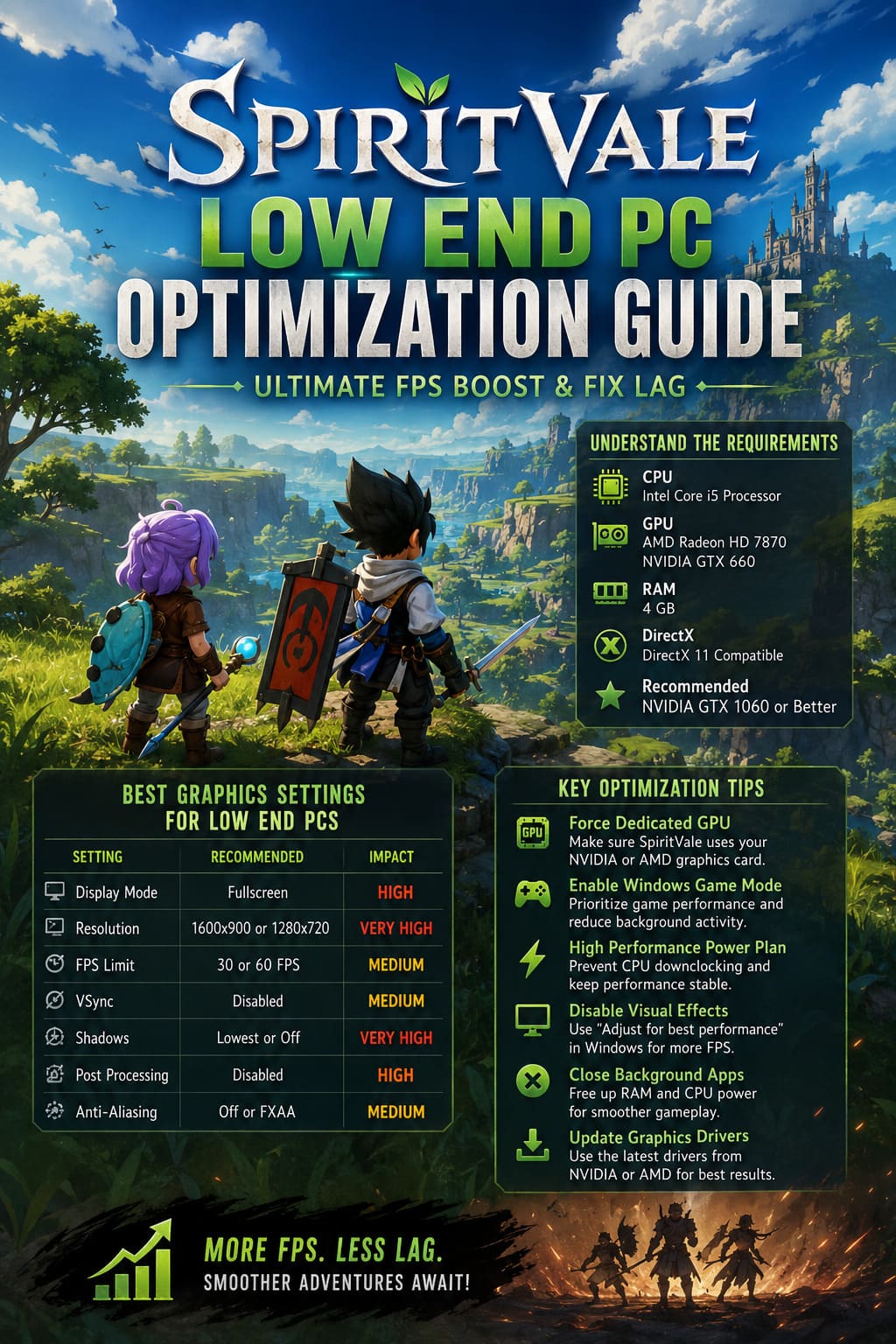
| Component | Minimum Requirement |
|---|---|
| CPU | Intel Core i5 Processor |
| GPU | AMD Radeon HD 7870 / NVIDIA GTX 660 |
| RAM | 4 GB |
| DirectX | DirectX 11 Compatible System |
| Recommended GPU | NVIDIA GTX 1060 or Better |
These specifications may not look extremely demanding, but Early Access games often have performance problems before final optimization passes are completed. Developers usually focus on adding new content, improving mechanics, and expanding the world before every visual system receives polishing.
If your computer is close to the minimum requirements, SpiritVale may automatically activate demanding effects that create unnecessary GPU load. The main goal is not making the game look like a high-end showcase. The goal is achieving stable FPS, smoother combat, and better frame consistency.
Best SpiritVale Graphics Settings for Low End PCs
The quickest performance improvements usually come from the in-game graphics menu. Some options have a massive impact on FPS, while others barely affect image quality. On weaker systems, choosing the right balance between visuals and performance is extremely important.
| Setting | Recommended Option | Performance Impact |
|---|---|---|
| Display Mode | Fullscreen | High |
| Resolution | 1600×900 or 1280×720 | Very High |
| FPS Limit | 30 or 60 FPS | Medium |
| VSync | Disabled | Medium |
| Shadows | Lowest or Off | Very High |
| Post Processing | Disabled | High |
| Anti-Aliasing | Off or FXAA | Medium |
Enable Fullscreen Mode
Fullscreen mode should be one of the first changes you make. Borderless windowed mode is convenient because it allows quick switching between applications, but it forces Windows to continue managing desktop rendering alongside the game.
On high-end computers, the difference may be almost invisible. On older systems, however, fullscreen mode can provide better GPU performance and more consistent frame delivery. SpiritVale benefits from having direct access to your hardware instead of sharing resources with additional desktop processes.
Lower Resolution for Better FPS
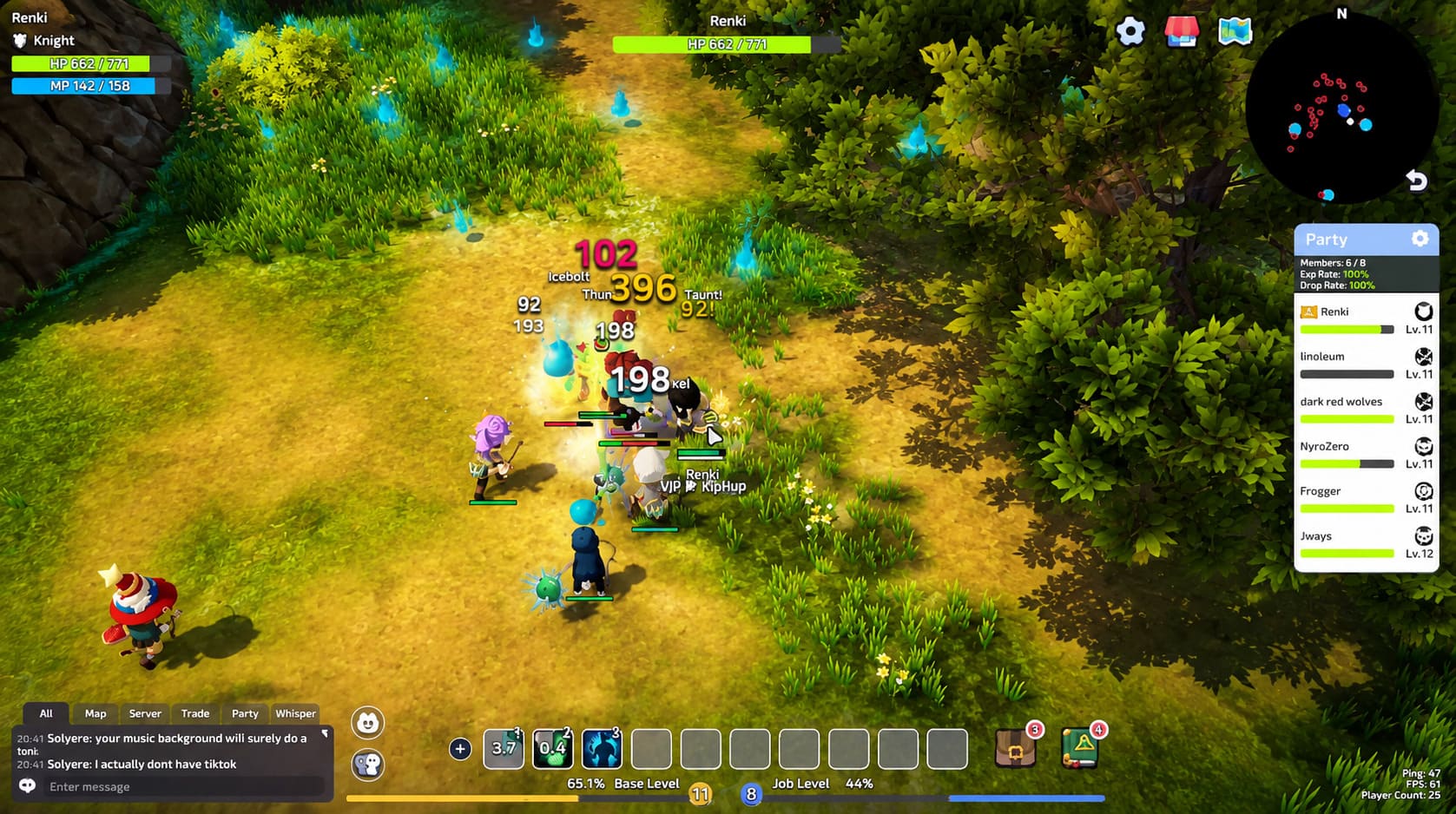
Resolution is one of the biggest performance factors in any 3D game. Running SpiritVale at 1920×1080 can be too demanding for older graphics cards, especially during large battles or crowded areas.
Dropping the resolution to 1600×900 is usually a good starting point because the game still looks acceptable while reducing GPU workload. For very weak systems, 1280×720 can provide a significant FPS boost and create a much smoother experience.
Disable Expensive Visual Effects
SpiritVale’s atmosphere comes from lighting effects, shadows, and post-processing features. Unfortunately, these same features are often responsible for major FPS drops on low-end hardware.
For better performance, disable or reduce these options:
- Shadows
- Bloom Effects
- Vignette
- Color Correction
- Screen Distortion Effects
- Heavy Anti-Aliasing Options
Based on testing many Early Access games, shadows are often one of the biggest performance problems before optimization updates arrive. Turning them down can sometimes provide a surprisingly large improvement without completely destroying the visual experience.
Force SpiritVale to Use Your Dedicated Graphics Card
One of the most common problems for laptop users and budget gaming PCs is incorrect GPU selection. Windows sometimes launches games using integrated graphics instead of the dedicated NVIDIA or AMD graphics card.
When this happens, performance can become extremely poor because the integrated GPU is not designed for demanding MMORPG environments. SpiritVale may become almost unplayable even if your system technically meets the requirements.
How to Enable High Performance GPU Mode
- Press the Windows key and search for Graphics Settings.
- Open the Windows graphics configuration menu.
- Select Browse under custom application options.
- Find the SpiritVale executable file.
- Add SpiritVale.exe to the list.
- Select the game and open Options.
- Choose High Performance to force dedicated GPU usage.
- Save the changes.
This simple Windows adjustment can completely improve performance on systems with both integrated and dedicated graphics processors.
Optimize Windows Settings for SpiritVale
Your operating system can have a major impact on gaming performance. Even a properly optimized game can suffer if Windows is wasting CPU power and memory on unnecessary features.
Enable Windows Game Mode
Windows Game Mode helps prioritize gaming applications by reducing background activity and giving the active game more system resources.
- Open Windows Settings.
- Select Gaming.
- Choose Game Mode.
- Turn the option on.
This feature is especially useful on older computers where background processes can easily affect frame rates.
Switch Power Plan to High Performance
Many computers automatically reduce CPU speed to save energy. During demanding MMORPG battles, this can create sudden FPS drops because your processor is not running at full capability.
- Press Windows + R.
- Type control and press Enter.
- Open Power Options.
- Change the active plan from Balanced to High Performance.
This prevents unnecessary CPU downclocking during important gameplay moments.
Advanced SpiritVale FPS Improvements
Disable Windows Visual Effects
Windows interface animations and visual effects consume small amounts of system resources. On powerful computers this does not matter, but on low-end PCs every bit of available memory can help.
- Search for Adjust the appearance and performance of Windows.
- Open Performance Options.
- Select Adjust for best performance.
This removes unnecessary animations and reduces background resource usage, allowing more system power to remain available for SpiritVale.
Increase SpiritVale Process Priority
You can manually tell Windows that SpiritVale should receive higher CPU priority compared with other applications.
- Launch SpiritVale.
- Press Ctrl + Shift + Esc to open Task Manager.
- Find SpiritVale in the Processes tab.
- Open the Details section.
- Right-click the executable file.
- Set Priority to High.
This adjustment can help reduce small performance interruptions caused by background programs competing for CPU resources.
Close Background Applications Before Playing
A lot of players underestimate how much performance background applications can steal. A browser with multiple tabs, Discord overlays, music applications, and launchers can consume valuable RAM and CPU power.
Before starting SpiritVale, close unnecessary programs such as:
- Browser tabs
- Discord overlay
- Spotify
- Extra game launchers
- Recording software
- Hardware monitoring applications
On a low-end PC, these small improvements can make the difference between unstable gameplay and a smooth experience.
Update Graphics Drivers for Better Stability
Graphics drivers are extremely important for new games. NVIDIA and AMD regularly release updates that improve compatibility, fix bugs, and optimize performance for modern releases.
Make sure your system uses the latest official drivers from NVIDIA GeForce software or AMD Software Adrenalin Edition. A clean driver installation is often better than updating over old files because outdated profiles can sometimes create performance conflicts.
Final Thoughts: Best Way to Run SpiritVale on a Low End PC
SpiritVale is a demanding MMORPG, especially while it remains in Early Access. Players with older computers should not expect maximum graphics settings, but a stable and enjoyable experience is definitely possible with the right configuration.
The biggest improvements usually come from lowering resolution, reducing expensive visual effects, forcing dedicated GPU usage, optimizing Windows settings, and removing unnecessary background programs.
After playing countless PC games, I always prefer stable gameplay over impressive screenshots. A consistent 60 FPS experience with slightly reduced graphics feels much better than a beautiful game that constantly freezes during combat.
If SpiritVale is running poorly on your system, apply these optimizations one by one. Even older hardware can provide a surprisingly good MMORPG experience when the settings are balanced correctly.