How to Fix Happy’s Humble Burger Cult Crash on Launch, Black Screen, and Freezing Issues
There is something oddly fitting about a horror game refusing to let you into the building before your first shift even starts.
Happy’s Humble Burger Cult delivers exactly the kind of bizarre co-op experience fans expected. You flip burgers, survive supernatural horrors, uncover Paragon Corporation’s secrets, and somehow try not to become the next victim of Asset Joy. The gameplay is chaotic in the best possible way, but the PC launch hasn’t been perfect.
After spending time reading Steam discussions, Reddit troubleshooting threads, and testing several fixes myself, I noticed that most startup problems usually come down to the same handful of causes. Whether the game crashes before reaching the menu, freezes on the logo, opens to nothing but a black screen, or throws an Unreal Engine fatal error, the solutions are surprisingly straightforward once you know where to look.
This guide focuses on the fixes that have consistently worked for players instead of throwing twenty random suggestions at you.
Common Startup Problems
Players have been reporting several launch-related issues, including:
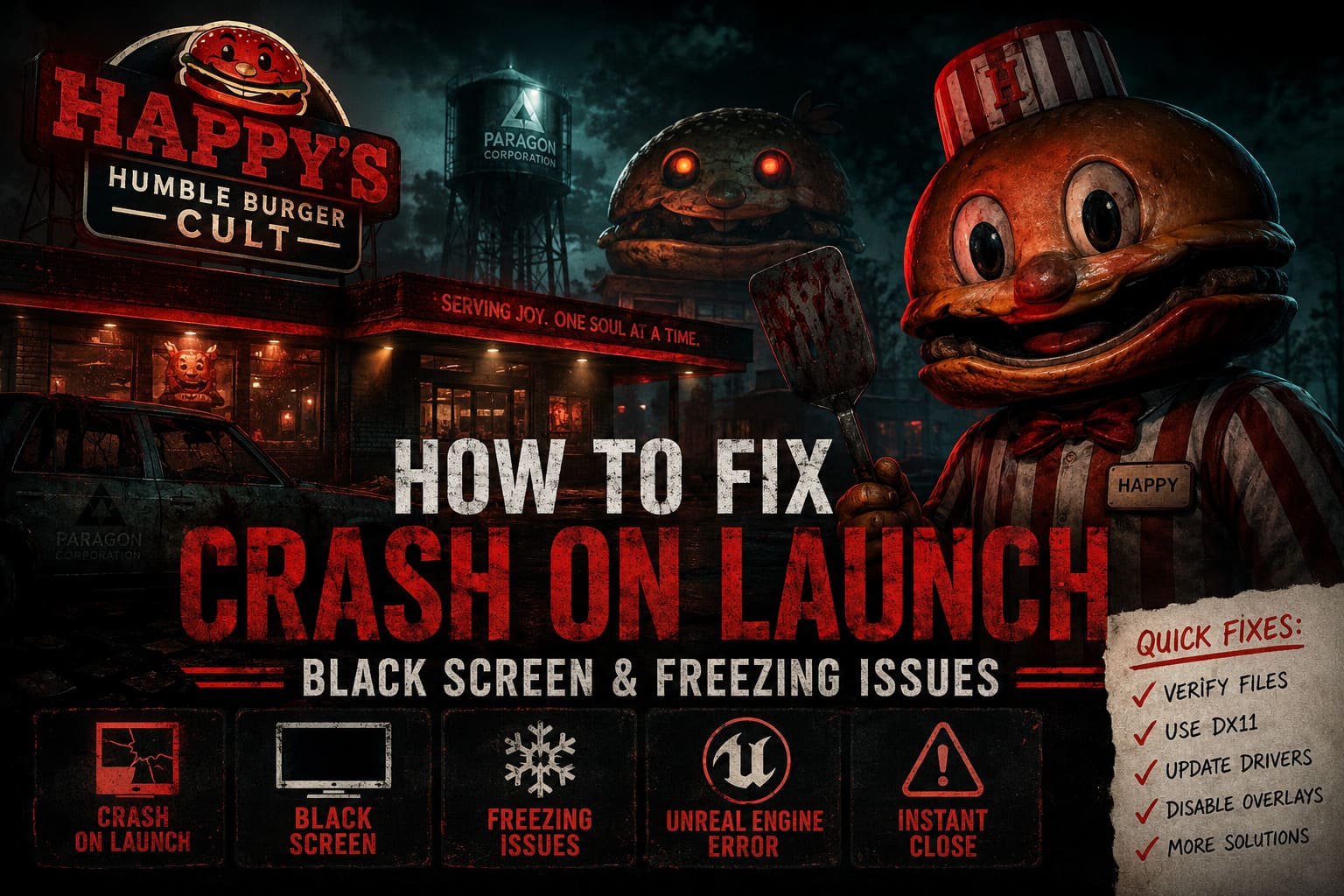
- Crash immediately after pressing Play
- Black screen that never loads
- Freeze on the developer or publisher logo
- Unreal Engine fatal error
- Game closes without showing any error
- Infinite loading during startup
The good news is that most of these problems are software-related rather than hardware failures.
1. Verify the Game Files First
This sounds obvious, but it solves more launch issues than almost anything else.
Steam downloads occasionally end up with corrupted files, especially after release-day patches or interrupted downloads. If even one important asset is damaged, Unreal Engine may simply refuse to launch.
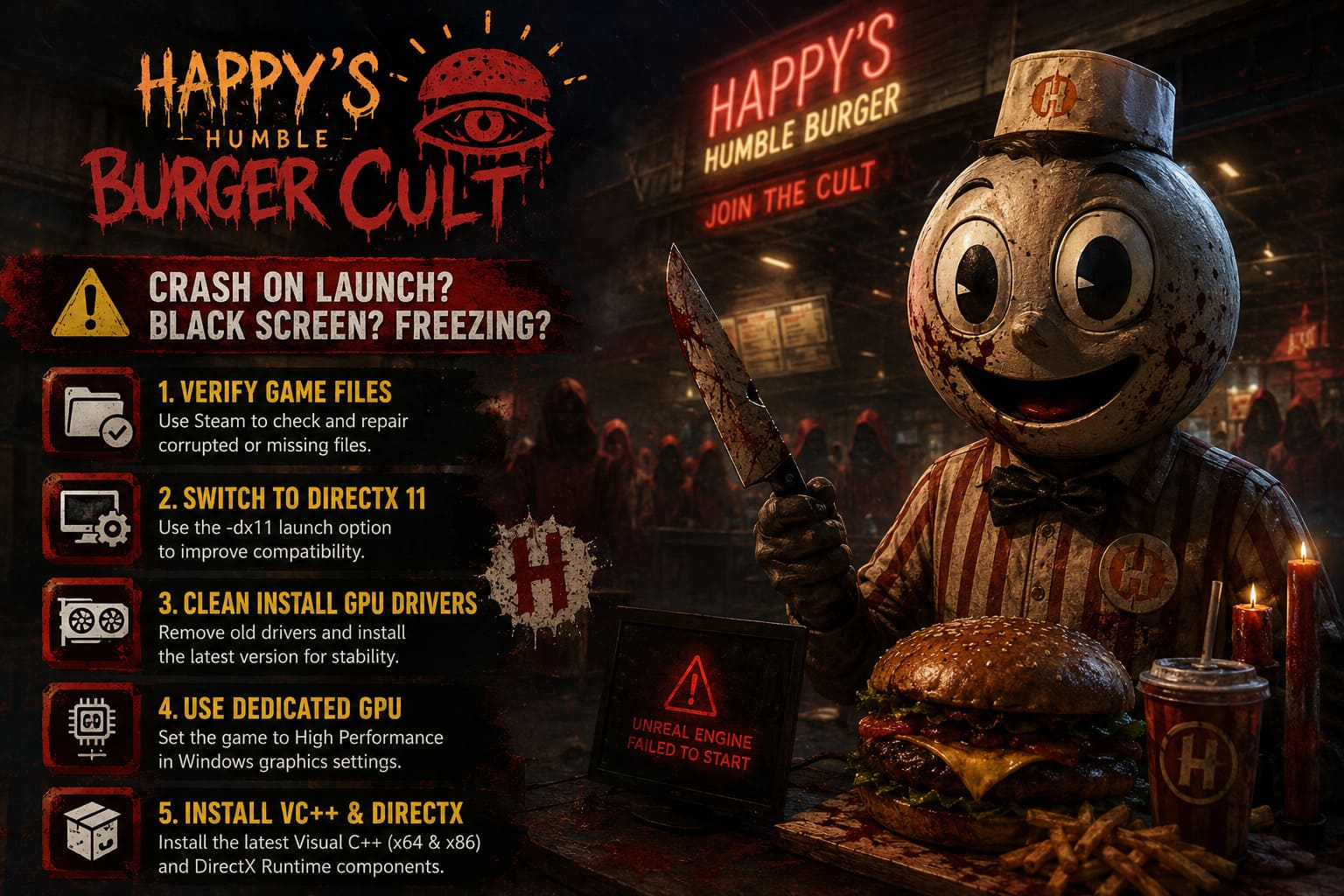
Open Steam and follow these steps:
- Open your Library.
- Right-click Happy’s Humble Burger Cult.
- Select Properties.
- Open the Installed Files tab.
- Click Verify integrity of game files.
Steam compares your installation with its servers and automatically replaces anything that’s missing.
I always start here because it only takes a few minutes and can save an hour of unnecessary troubleshooting.
2. Switch from DirectX 12 to DirectX 11
One thing I’ve noticed with many Unreal Engine releases over the last few years is that DirectX 12 can be fantastic once everything works—but launch week is often another story.
Several players reported that forcing DirectX 11 immediately stopped startup crashes.
To test it:
- Right-click the game inside Steam.
- Open Properties.
- Under Launch Options, enter:
-dx11
Close the window and launch the game again.
If DirectX 12 is causing compatibility problems with your graphics driver, this simple launch parameter often gets you straight into the main menu.
3. Perform a Clean Graphics Driver Installation
Updating drivers through Windows Update is rarely enough for modern PC games.
If you’ve upgraded GPUs recently or installed multiple driver versions over time, leftovers from previous installations can create stability problems.
The best approach is:
- Download the newest driver directly from NVIDIA, AMD, or Intel.
- Use Display Driver Uninstaller (DDU) if you want a completely fresh installation.
- Install the latest driver using the clean installation option.
- Restart Windows.
Fresh drivers have fixed black screens for countless Unreal Engine games, and Happy’s Humble Burger Cult doesn’t seem to be an exception.
4. Make Sure Windows Uses Your Dedicated GPU
Laptop players run into this constantly.
Windows sometimes launches games using integrated graphics instead of the dedicated GPU, especially on systems with Intel Iris or AMD integrated graphics paired with NVIDIA RTX hardware.
To change it:
- Open Windows Settings.
- Navigate to System → Display → Graphics.
- Add the game’s executable.
- Select High Performance.
The difference can literally be the difference between an instant crash and smooth gameplay.
5. Install the Latest Visual C++ and DirectX Components
Many people forget that games don’t include every Windows runtime they depend on.
If Visual C++ packages are damaged or missing, Unreal Engine games frequently crash before reaching the main menu.
Install:
- Latest Microsoft Visual C++ Redistributables.
- Both x64 and x86 versions.
- Latest DirectX Runtime.
After installation, reboot the PC before testing the game again.
It isn’t the most exciting fix, but it’s one of the most reliable.
6. Temporarily Disable Overlays
I’ve lost count of how many games were fixed simply by disabling overlays.
Programs that inject themselves into DirectX applications occasionally conflict with Unreal Engine during startup.
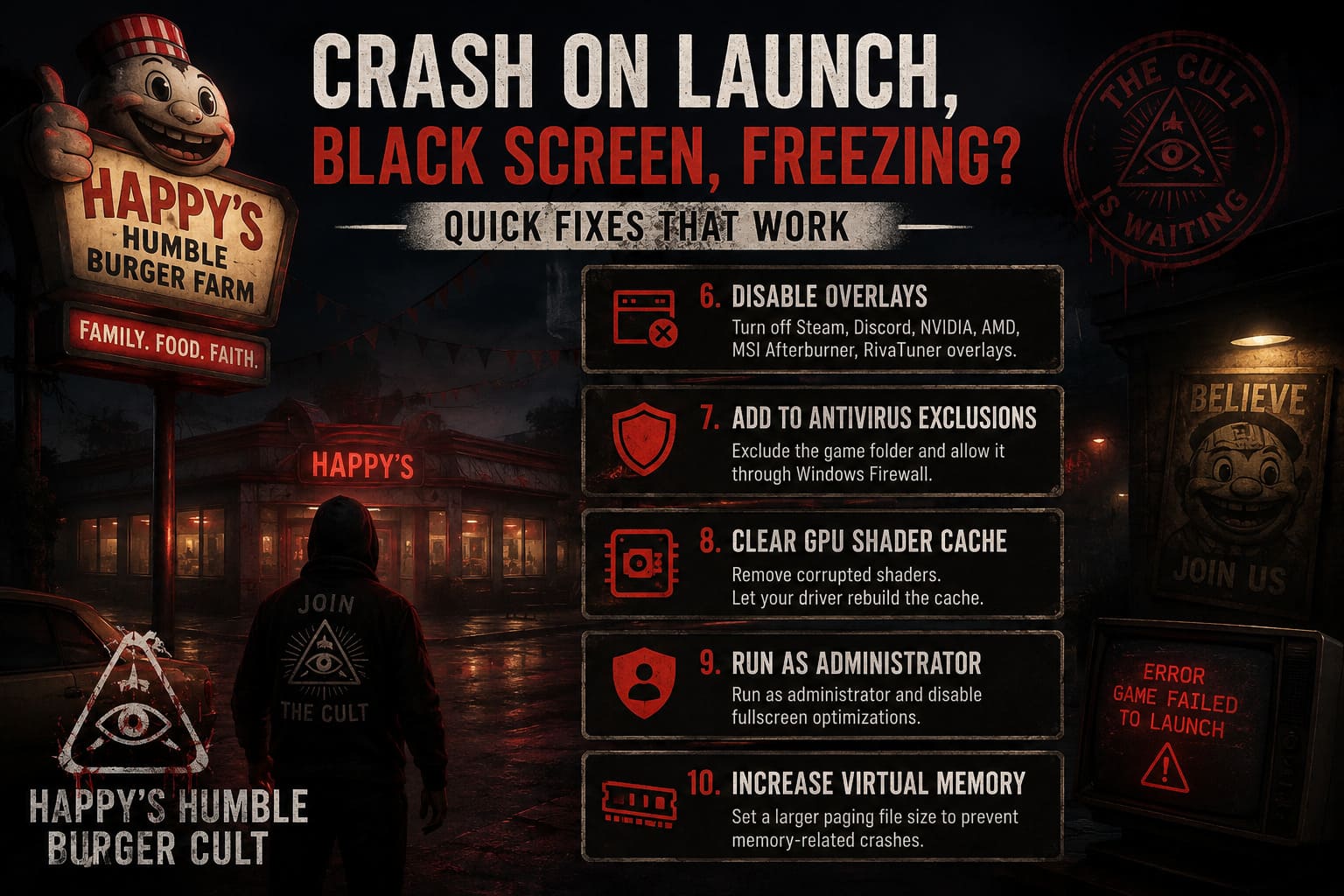
Consider disabling:
- Steam Overlay
- Discord Overlay
- NVIDIA Overlay
- AMD Overlay
- MSI Afterburner Overlay
- RivaTuner Statistics Server
If the game suddenly launches correctly afterward, you can always turn overlays back on one by one until you identify the culprit.
7. Add the Game to Your Antivirus Exclusions
Security software occasionally becomes overprotective.
Because Happy’s Humble Burger Cult performs online authentication and multiplayer networking, some antivirus programs mistakenly block important files.
Windows Defender is generally reliable, but false positives do happen.
Add the game’s installation folder to your antivirus exclusions and make sure Windows Firewall isn’t preventing the executable from accessing the internet.
8. Clear Your GPU Shader Cache
Shader cache corruption isn’t especially common, but when it happens, the symptoms are frustrating.
You may experience:
- Black screens.
- Loading freezes.
- Crashes before reaching gameplay.
- Shader compilation failures.
Clearing the cache forces Windows and your graphics driver to rebuild everything from scratch.
For NVIDIA users, clearing the shader cache through the Control Panel has solved startup issues for several recent Unreal Engine games.
9. Run the Game with Administrator Permissions
Normally I don’t recommend checking every compatibility option available.
However, running the executable as administrator can eliminate permission-related problems involving save folders, configuration files, and Windows security restrictions.
While you’re there, it’s also worth enabling:
- Run this program as administrator
- Disable fullscreen optimizations
Neither option magically fixes every crash, but together they have improved stability for many players.
10. Increase Your Virtual Memory
This mostly affects systems with 8GB or 16GB of RAM.
During startup, Unreal Engine loads a surprising amount of data into memory. If Windows runs out of available memory too early, the game may simply terminate without displaying an error.
Increasing the paging file gives Windows additional breathing room.
A manually configured virtual memory size often works better than letting Windows choose automatically, especially if you have enough SSD space available.
Quick Troubleshooting Checklist
| Problem | Most Likely Solution |
|---|---|
| Crash on launch | Verify Steam files |
| Black screen | Switch to DirectX 11 |
| Unreal Engine error | Clean GPU driver installation |
| Instant close | Install Visual C++ packages |
| Freeze on logo | Disable overlays |
| Laptop crash | Force dedicated GPU |
| Random startup crash | Clear shader cache |
| No error message | Increase virtual memory |
Steam Deck Users
The game generally behaves better under newer Proton versions.
If you’re playing on Steam Deck, try:
- Proton Experimental.
- Latest Stable Proton release.
- Updated SteamOS.
- Avoid forcing older compatibility layers unless necessary.
Several community reports suggest newer Proton builds resolve startup problems that appeared with older versions.
Happy’s Humble Burger Cult 100% Achievement Guide: Full Completion Walkthrough
My Thoughts After Testing
Personally, the biggest surprise wasn’t that the game had launch issues—most multiplayer Unreal Engine games seem to have a few rough edges during release week.
What surprised me was how consistent the fixes turned out to be.
On one PC, simply switching to DirectX 11 solved everything immediately. On another machine, the culprit ended up being Discord’s overlay combined with an outdated graphics driver.
That’s why I recommend working through the fixes in order instead of randomly changing Windows settings.
The first four solutions alone seem to solve the overwhelming majority of startup crashes.
Final Verdict
Despite the rocky launch for some players, Happy’s Humble Burger Cult is absolutely worth sticking with if you’re into cooperative horror games. Once the technical issues are out of the way, the mix of frantic cooking, creepy atmosphere, strange humor, and unexpected horror moments creates a genuinely memorable multiplayer experience.
If your game refuses to launch, don’t immediately assume your hardware is the problem. In most cases, the issue comes down to corrupted files, DirectX compatibility, outdated GPU drivers, overlays, or missing Windows components.
Work through each fix methodically instead of trying everything at once. Chances are you’ll be serving burgers—and trying to survive the night—much sooner than you expected.