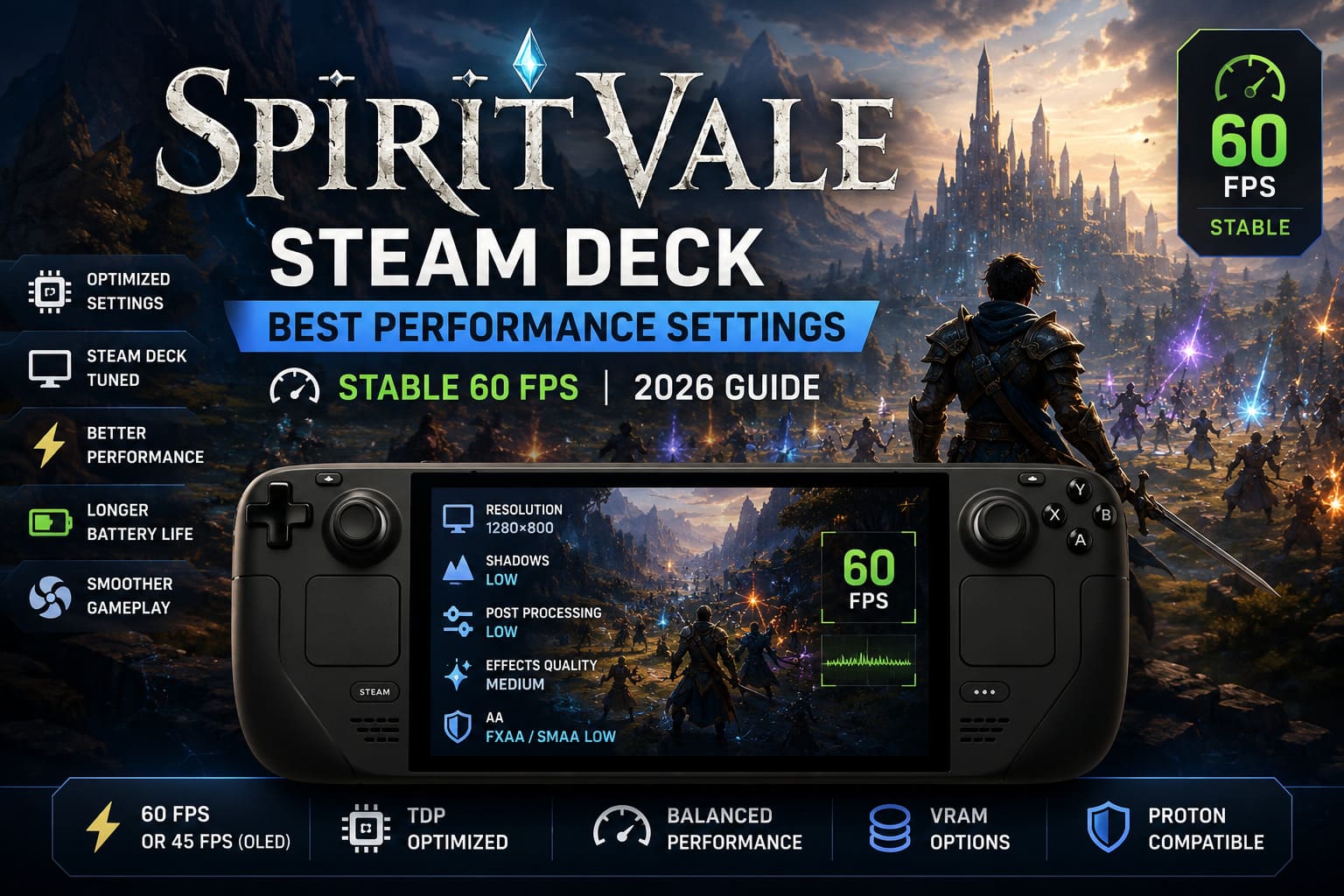
SpiritVale Steam Deck Best Performance Settings: How to Get Stable 60 FPS (2026 Guide)
SpiritVale is exactly the kind of MMORPG I thought the genre had forgotten how to make. Instead of auto-pathing, endless quest markers, and cash shop shortcuts, it throws you into a world where every stat point, every equipment upgrade, and every dodge actually matters. If you grew up playing classic online RPGs, you’ll probably feel at home within the first hour.
The downside? Combat only feels great when the game runs smoothly.
I’ve spent plenty of time testing action RPGs and MMOs on Steam Deck, and SpiritVale surprised me. Visually it doesn’t look like a demanding AAA release, but once you’re surrounded by dozens of players, spell effects start covering the screen, and bosses begin filling the arena with mechanics, the hardware has to work much harder than you might expect.
The good news is that getting a stable experience isn’t difficult. A few smart adjustments make a much bigger difference than simply lowering every graphical option to Low.
This guide covers the settings I personally believe offer the best balance between visuals, battery life, and performance on both the Steam Deck LCD and Steam Deck OLED.
Why SpiritVale Is More Demanding Than It Looks
At first glance, SpiritVale seems lightweight. It uses an isometric camera and stylized graphics rather than ultra-realistic visuals.
However, the game relies heavily on modern rendering effects including dynamic lighting, bloom, multiple particle systems, post-processing filters, large numbers of animated characters, and real-time combat calculations.
The real challenge appears during:
- World bosses
- Crowded towns
- Farming parties
- High-level grinding maps
- Large PvE events
In these situations both the CPU and GPU become busy at the same time. The CPU tracks dozens of players and enemies while the GPU renders hundreds of spell effects every few seconds.
That’s exactly where proper optimization helps.
Steam Deck Performance Settings I Recommend
These are the SteamOS settings that gave me the most consistent experience without making the game look noticeably worse.
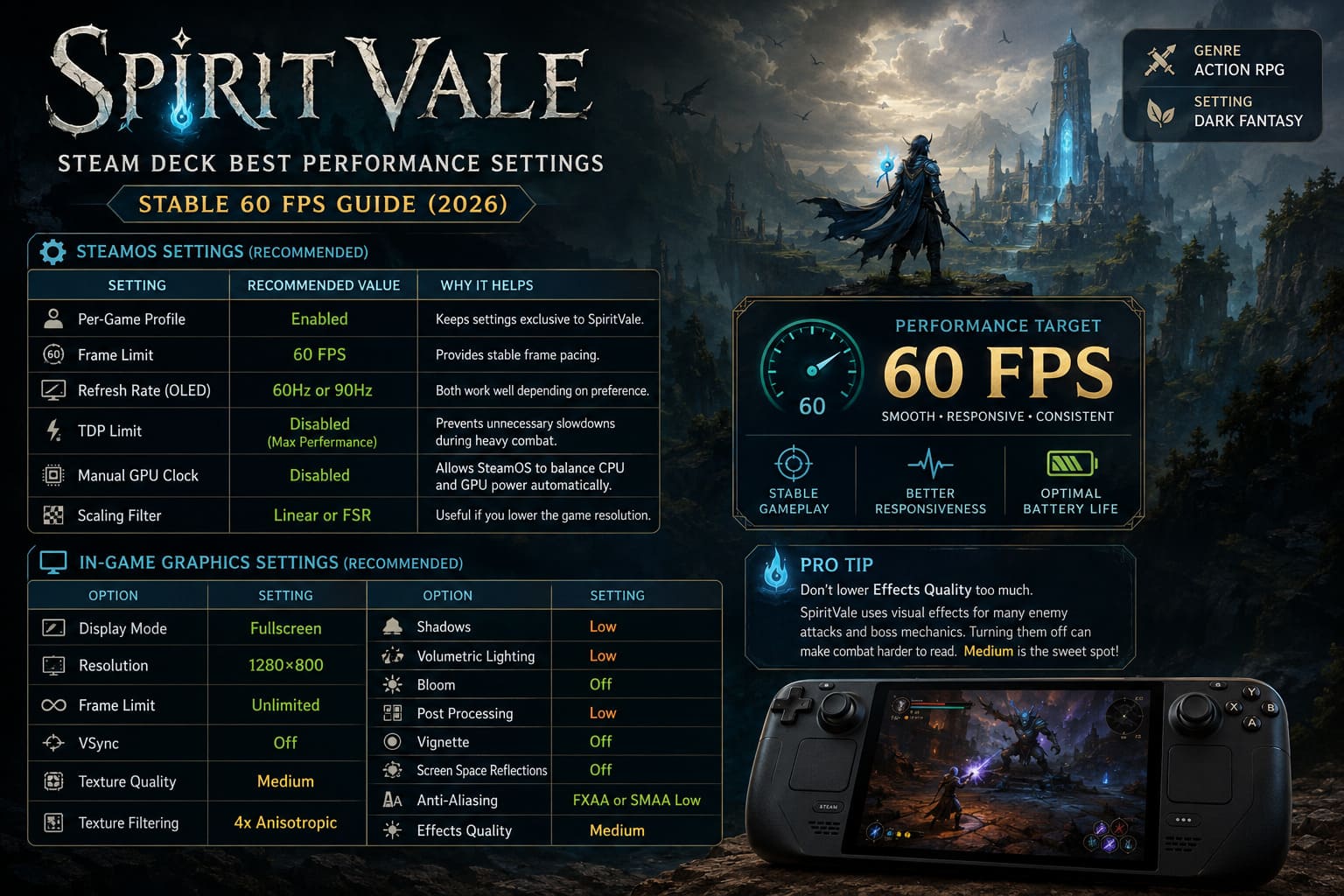
| SteamOS Setting | Recommended Value | Why It Helps |
|---|---|---|
| Per-Game Profile | Enabled | Keeps settings exclusive to SpiritVale. |
| Frame Limit | 60 FPS | Provides stable frame pacing. |
| Refresh Rate (OLED) | 60Hz or 90Hz | Both work well depending on your preference. |
| TDP Limit | Disabled for maximum performance | Prevents unnecessary slowdowns during heavy combat. |
| Manual GPU Clock | Disabled | Allows SteamOS to balance CPU and GPU power automatically. |
| Scaling Filter | Linear or FSR | Useful if you lower the game resolution. |
Personally, I don’t force manual GPU clocks anymore unless a game specifically benefits from it. SteamOS has become much better at dynamically distributing power, and SpiritVale seems happier letting the system decide.
Best In-Game Graphics Settings
Here’s the setup that, in my experience, delivers the smoothest gameplay while keeping the world attractive.
| Graphics Option | Recommended Setting |
|---|---|
| Display Mode | Fullscreen |
| Resolution | 1280×800 |
| Frame Limit | Unlimited |
| VSync | Off |
| Texture Quality | Medium |
| Texture Filtering | 4x Anisotropic |
| Shadows | Low |
| Volumetric Lighting | Low |
| Bloom | Off |
| Post Processing | Low |
| Vignette | Off |
| Screen Space Reflections | Off |
| Anti-Aliasing | FXAA or SMAA Low |
| Effects Quality | Medium |
One thing I wouldn’t lower too much is Effects Quality.
It may sound strange since particles usually cost performance, but SpiritVale uses visual effects for many enemy attacks and boss mechanics. Turning them completely off can actually make combat harder because certain abilities become less obvious.
Medium feels like the sweet spot.
The Biggest FPS Killers
Not every graphics setting affects performance equally.
From my own testing, these options had the biggest impact.
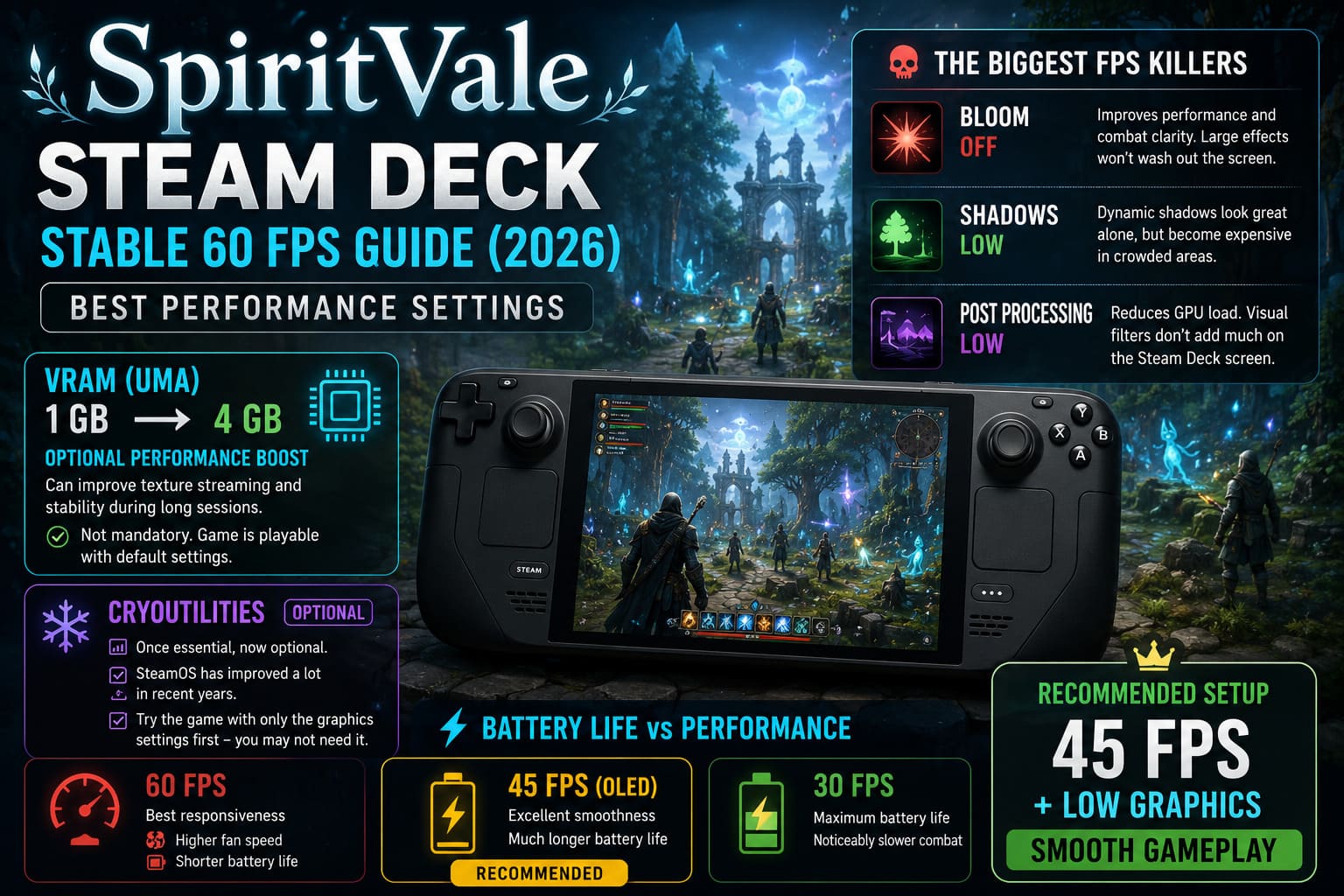
Bloom
This was the first setting I disabled.
Besides improving performance, combat immediately became easier to read. Large spell effects stop washing out the screen, especially during multiplayer encounters.
Shadows
Dynamic shadows look nice when exploring alone.
Once dozens of players arrive, though, shadow calculations become surprisingly expensive.
Setting Shadows to Low gives back a noticeable amount of GPU headroom while preserving enough depth to keep environments looking good.
Post Processing
SpiritVale applies several visual filters that honestly don’t add much on a seven-inch display.
Turning most of them down keeps the image cleaner and helps reduce GPU load during busy scenes.
Should You Change the VRAM Allocation?
This topic always sparks debate in the Steam Deck community.
Increasing the UMA Frame Buffer from 1 GB to 4 GB can help games that stream a lot of textures or allocate large amounts of video memory.
SpiritVale appears to benefit during long sessions because texture loading becomes slightly more consistent.
That said, I wouldn’t call this mandatory.
If you’re comfortable entering the BIOS, it’s a worthwhile tweak. If not, the game remains perfectly playable using the default settings.
What About CryoUtilities?
CryoUtilities used to be almost essential for squeezing every drop of performance from Steam Deck.
Today it’s more of an optional optimization.
SteamOS has improved significantly over the last couple of years, meaning the difference isn’t nearly as dramatic as it once was.
If you’re already using CryoUtilities and like the results, there’s no reason to remove it.
If you’re a new Steam Deck owner, I’d actually recommend trying the game with only the graphics adjustments first.
You may discover that’s all you really need.
Battery Life vs Performance
There’s always a trade-off.
Running at a locked 60 FPS feels fantastic, but it also keeps the APU working much harder.
Here’s a quick comparison.
| Mode | Expected Experience |
|---|---|
| 60 FPS | Best responsiveness, higher fan speed, shorter battery life. |
| 45 FPS (OLED) | Excellent smoothness with much longer battery life. |
| 30 FPS | Maximum battery life but noticeably slower combat. |
For players who spend hours farming materials or grinding mobs away from a charger, I’d actually recommend the 45 FPS setup.
Why 45 FPS Works So Well on Steam Deck OLED
One of my favorite Steam Deck OLED features is the 90Hz display.
Because 45 divides perfectly into 90, frame pacing becomes extremely consistent.
Instead of uneven frame delivery, every frame is displayed for exactly the same amount of time.
The result feels much smoother than most people expect.
Pair that with a 9–10W TDP, and battery life improves dramatically while the controls remain responsive.
For long grinding sessions, it’s honestly my preferred configuration.
Proton Version Recommendations
SpiritVale has been running reliably with recent Proton releases.
If you encounter launch issues or online connectivity problems, it’s worth trying:
- Proton Experimental
- The latest GE-Proton build installed through ProtonUp-Qt
New Proton releases frequently include compatibility improvements for recently launched games, so keeping your compatibility layer updated is never a bad idea.
Extra Tips for Better Performance
Besides graphics settings, a few simple habits can help keep performance consistent.
- Restart the game after several hours if you’ve been switching between many maps.
- Avoid downloading updates in the background while playing.
- Keep SteamOS updated.
- Close unnecessary plugins or overlays if you’re using Decky Loader.
- Let SteamOS manage GPU clocks instead of forcing manual values unless you’ve thoroughly tested them.
These aren’t huge optimizations individually, but together they help maintain more consistent frame times.
SpiritVale Leveling Guide 2026: Fast Power Grinding Zones & XP Meta
My Final Thoughts
SpiritVale feels like it was designed for players who miss old-school MMORPGs where progression actually takes effort. The combat is satisfying, character builds matter, and the multiplayer experience shines once you reach tougher areas with friends.
On Steam Deck, the game performs much better than some early reports suggested—as long as you spend a few minutes adjusting the settings.
For me, the ideal setup is simple:
- 60 FPS when I’m playing at home or near a charger.
- 45 FPS at 90Hz on the Steam Deck OLED when traveling.
- Medium textures, Low shadows, and Bloom disabled for the best balance of image quality and smooth gameplay.
Those changes preserve the look of the game while eliminating most of the frame drops that appear during crowded events and large boss encounters.
SpiritVale doesn’t need every graphical feature enabled to be immersive. In fact, with a cleaner image, lower input latency, and steadier frame pacing, I actually enjoy it more. Sometimes the best-looking game isn’t the one with every visual effect turned on—it’s the one that stays smooth when the action gets chaotic, and that’s exactly where these settings deliver.