How to Fix Blurry Text and Graphics in Echoes of Aincrad: Ultimate PC Optimization Guide
If there’s one thing that immediately kills my excitement in a new RPG, it’s blurry visuals. I can forgive the occasional frame drop or a random bug during launch week, but when the game looks like someone smeared petroleum jelly across the screen, it becomes difficult to enjoy anything. Sword Art Online: Echoes of Aincrad is a fantastic-looking game underneath its technical issues, but many PC players have noticed fuzzy textures, soft image quality, and UI text that can be surprisingly hard to read.
After spending time experimenting with different settings and comparing notes with other PC players, I found that the problem isn’t caused by a single bug. Instead, several visual features work together in a way that creates an overly soft image. The good news is that you don’t have to wait for an official update. With a few adjustments, you can dramatically improve image clarity and make menus, subtitles, and environments look far sharper.
Echoes of Aincrad Config File Location: PC Optimization & Fixes Guide
Why Does Echoes of Aincrad Look Blurry?
Modern games rely on a variety of image reconstruction techniques to improve performance. In theory, these technologies allow developers to render fewer pixels while maintaining visual quality. In practice, they don’t always work well.
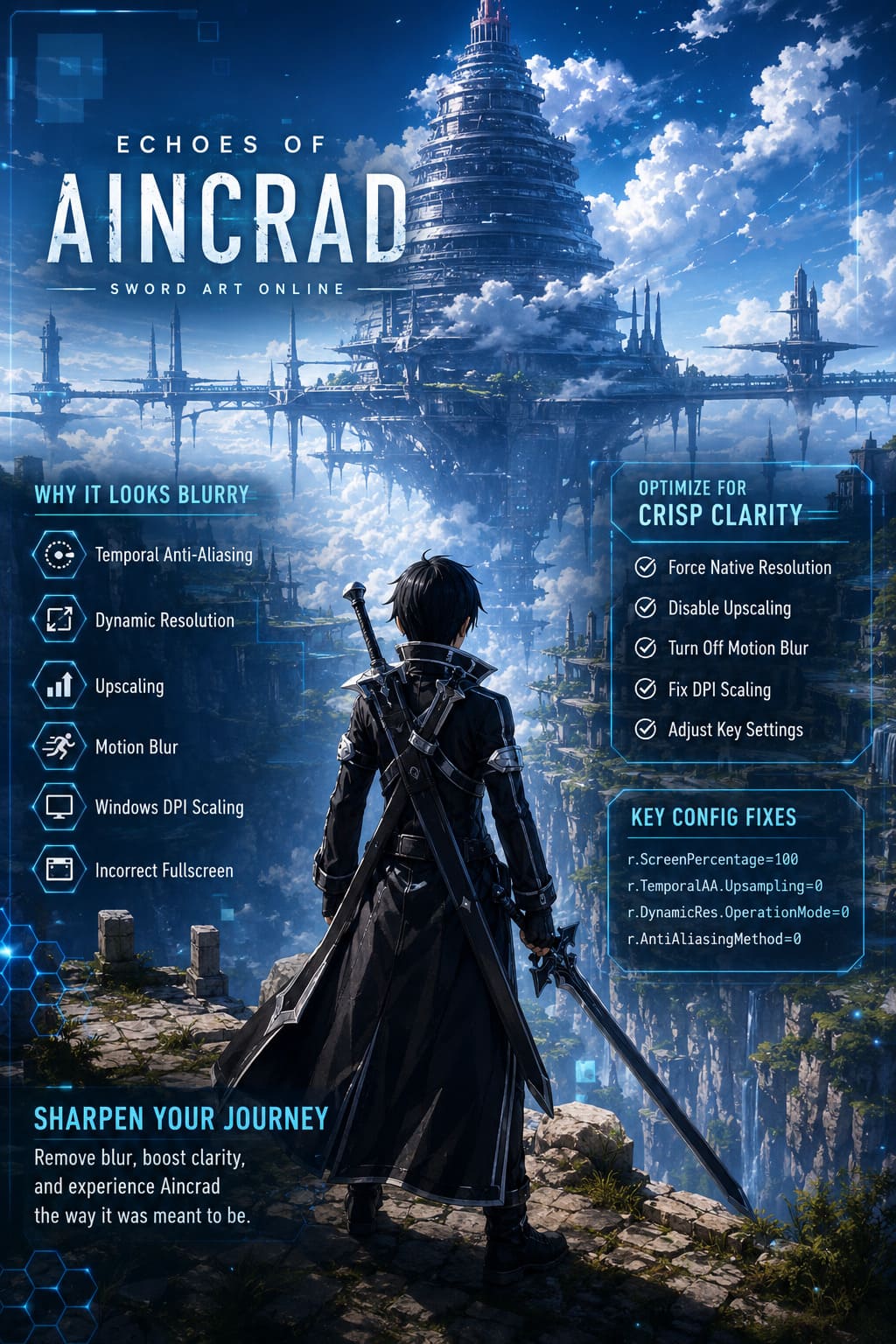
In Echoes of Aincrad, the biggest offenders are usually:
- Temporal Anti-Aliasing (TAA)
- Dynamic resolution scaling
- Image upscaling
- Motion blur
- Windows DPI scaling
- Incorrect fullscreen configuration
Individually these options aren’t terrible, but when several are active simultaneously, the game can lose much of its sharpness. The effect becomes especially noticeable while moving the camera, reading quest descriptions, or browsing inventory menus.
Force Native Resolution Through the Configuration File
This was easily the biggest improvement during my testing. Even when the game claimed it was running at my monitor’s native resolution, the image still looked softer than expected. After editing the configuration file, the difference became obvious almost immediately. Character models looked cleaner, distant buildings gained more detail, and menu text finally appeared crisp instead of slightly smeared.
Locate the game’s configuration folder inside %localappdata%, then navigate to the Saved → Config → WindowsNoEditor directory.
Open the Engine.ini file (or UserSetting.ini, depending on your installation) and add the following settings:
| Setting | Recommended Value |
|---|---|
| r.ScreenPercentage | 100 |
| r.TemporalAA.Upsampling | 0 |
| r.DynamicRes.OperationMode | 0 |
| r.AntiAliasingMethod | 0 |
These commands disable forced internal scaling while ensuring the game renders at your monitor’s native resolution.
After saving the file, set it to Read-only in Windows Properties. Otherwise, the game may overwrite your changes after launching.
For me, this single tweak removed most of the ghosting effect that appeared during exploration and combat.
Fix Blurry Menus with Windows High DPI Scaling
This is one of those Windows features that most people never think about until it causes problems. If you use a 1440p or 4K monitor with desktop scaling set above 100%, Windows sometimes interferes with how games render interface elements. The gameplay itself may look acceptable while menus, subtitles, and inventory text appear stretched or blurry.
Here’s how to correct it:
- Open your Steam Library.
- Right-click Echoes of Aincrad.
- Choose Manage → Browse Local Files.
- Find the game’s executable.
- Open Properties.
- Select the Compatibility tab.
- Click Change High DPI Settings.
- Enable Override high DPI scaling behavior.
- Select Application from the dropdown menu.
- Save the changes.
After restarting the game, the UI should appear much cleaner. This adjustment doesn’t increase performance, but it significantly improves readability, especially if you spend a lot of time managing equipment or reading dialogue.
Adjust the In-Game Graphics Settings
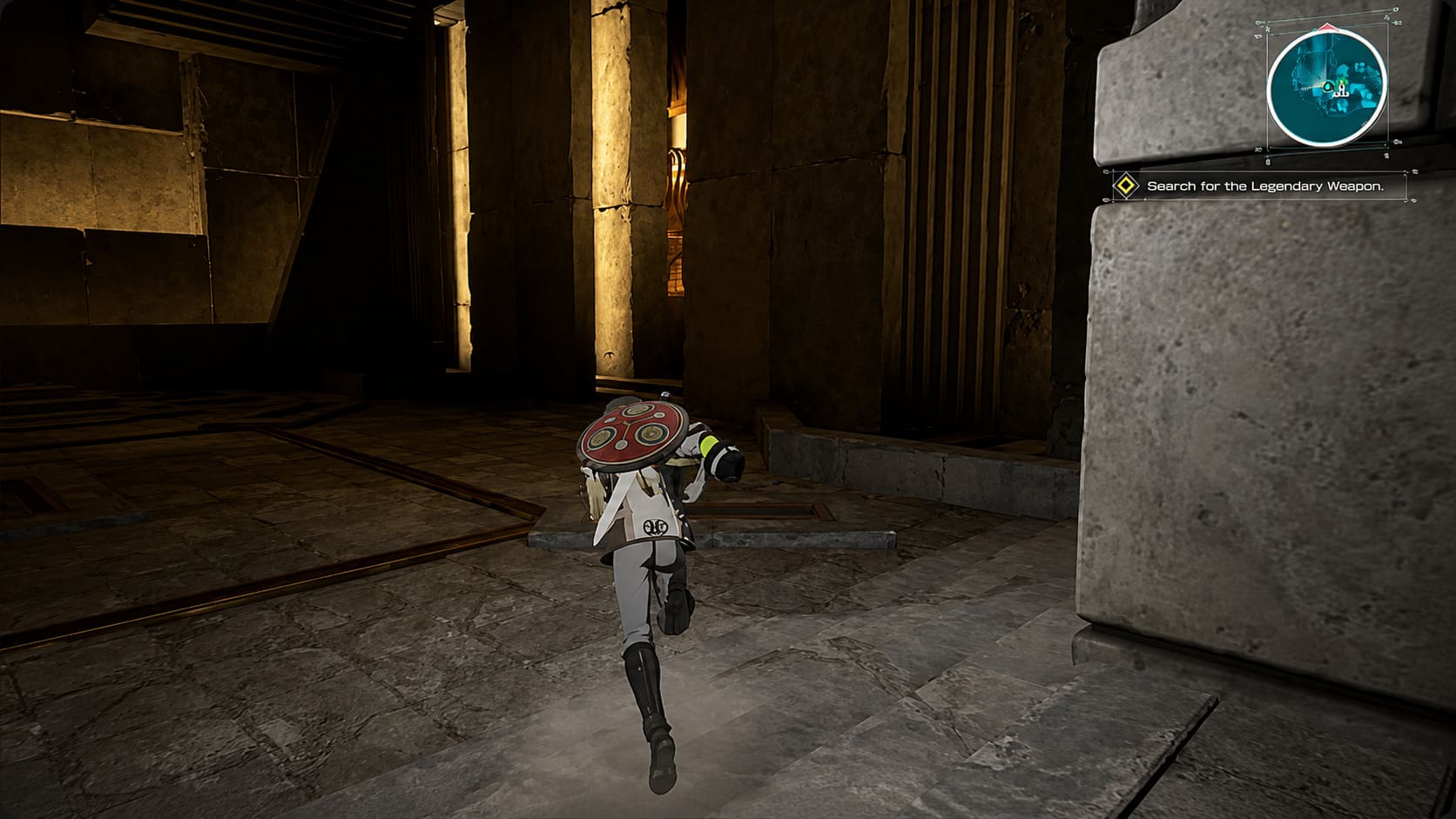
The default graphics preset isn’t necessarily the best option for visual clarity. Many cinematic effects make screenshots look impressive while making actual gameplay feel noticeably softer. I usually disable several of these effects in nearly every game I install because they reduce image quality without adding much value.
I recommend checking these settings first:
| Graphics Option | Recommended Setting |
|---|---|
| Resolution | Native Monitor Resolution |
| Display Mode | Fullscreen |
| Motion Blur | Off |
| Depth of Field | Off |
| Dynamic Resolution | Off |
| Resolution Scaling | Native or Disabled |
If you’re using an NVIDIA GPU, DLAA generally provides much cleaner edges than aggressive DLSS presets.
If you’re using an AMD graphics card, avoid FSR Performance and Balanced unless you’re desperately trying to gain extra FPS. Those modes can noticeably reduce text clarity and environmental detail. Native AA usually delivers a much sharper presentation.
Another trick worth trying is switching between Fullscreen and Borderless Fullscreen. It sounds overly simple, but I’ve seen several Unreal Engine games suddenly become sharper after toggling the display mode and restarting.
Motion Blur Isn’t Helping
I’m aware that some players enjoy motion blur because it creates a more cinematic experience. Personally, I turn it off almost immediately in every game I install.
In Echoes of Aincrad, motion blur doesn’t just affect environmental objects. It also makes interface elements appear softer whenever the camera rotates quickly. During boss fights or crowded cities, this effect becomes surprisingly distracting.
Disabling it results in:
- Sharper movement
- Cleaner UI elements
- Better visibility during combat
- Reduced visual smearing
It’s one of the easiest improvements you can make.
Don’t Ignore Depth of Field
Depth of Field is another feature that often looks impressive in promotional screenshots but becomes annoying during actual gameplay. The effect intentionally blurs objects outside your immediate focus. While that can work during cutscenes, it often affects distant NPCs, environmental details, and tutorial prompts during exploration.
Turning it off creates a much cleaner overall image and makes distant objects significantly easier to identify.
Handheld PC Users Have Extra Settings to Check
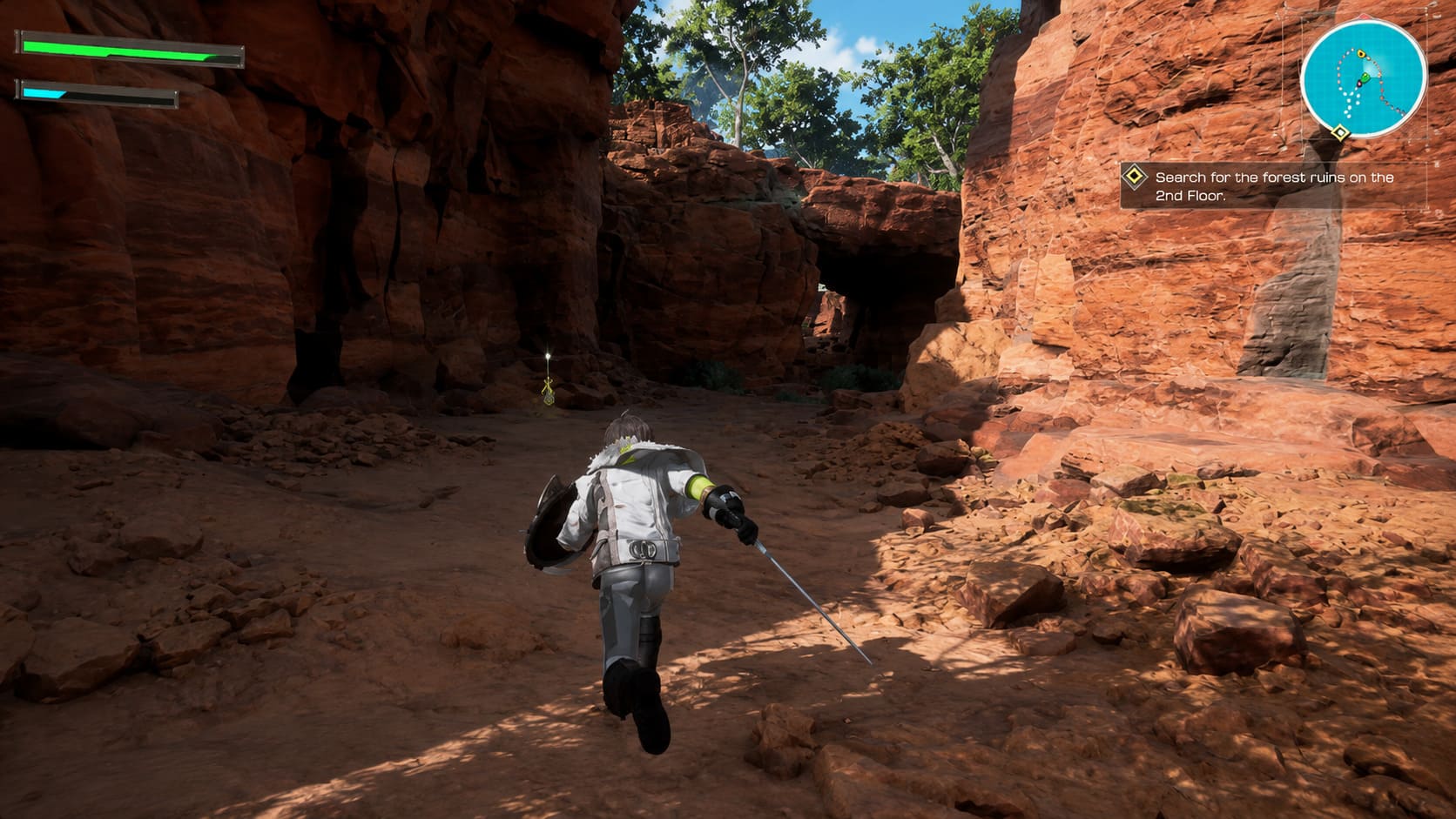
If you’re playing on a handheld PC, the solution can be slightly different. Devices like the Steam Deck, ASUS ROG Ally, and Lenovo Legion Go automatically make aggressive performance adjustments whenever system resources become limited. Those optimizations sometimes sacrifice image quality more than expected.
Here are two settings worth checking:
- Disable Half-Rate Shading on Steam Deck.
- Increase allocated VRAM to 6GB or 8GB if your handheld allows it.
Half-Rate Shading is particularly problematic because it dramatically reduces text quality. Menus that already look slightly soft can become almost unreadable.
Increasing available VRAM also helps prevent the game from loading lower-quality textures during larger battles.
Keep Your Graphics Drivers Updated
It sounds obvious, but driver updates really do matter during major game launches. Both NVIDIA and AMD frequently release Game Ready or optimized drivers specifically for newly released titles. These updates often include shader fixes, rendering improvements, and compatibility patches that aren’t mentioned in the game’s own patch notes.
If you’ve already tried every graphics tweak and the game still looks unusually blurry, installing the latest GPU driver should be one of the first troubleshooting steps.
Final Thoughts
After trying dozens of combinations, I don’t think Echoes of Aincrad has fundamentally bad graphics. In fact, when the blur is removed, the environments, character models, and lighting look surprisingly impressive. The problem is simply that several default rendering techniques combine to produce an image that’s much softer than it needs to be.
For most players, the biggest improvements will come from forcing native resolution through the configuration file, correcting Windows DPI scaling, disabling motion blur and depth of field, and avoiding overly aggressive upscaling modes. None of these changes require advanced technical knowledge, yet together they can completely transform how the game looks.
Once everything is configured correctly, menus become readable, distant scenery gains detail, and combat feels noticeably cleaner. If you’re planning to spend dozens of hours climbing Aincrad, taking a few minutes to optimize these settings is absolutely worth the effort.