How to Disable Upscaler in Echoes of Aincrad: Fix Blurry Graphics and UI
If there’s one thing I’ve learned after spending years playing PC games, it’s that graphics settings don’t always tell the whole story. Sometimes a game looks incredible right after launch, while other times you immediately notice that something feels slightly wrong. Sword Art Online: Echoes of Aincrad is one of those games where the world itself looks amazing, but the default image quality can hide a lot of the visual detail that developers worked hard to create.
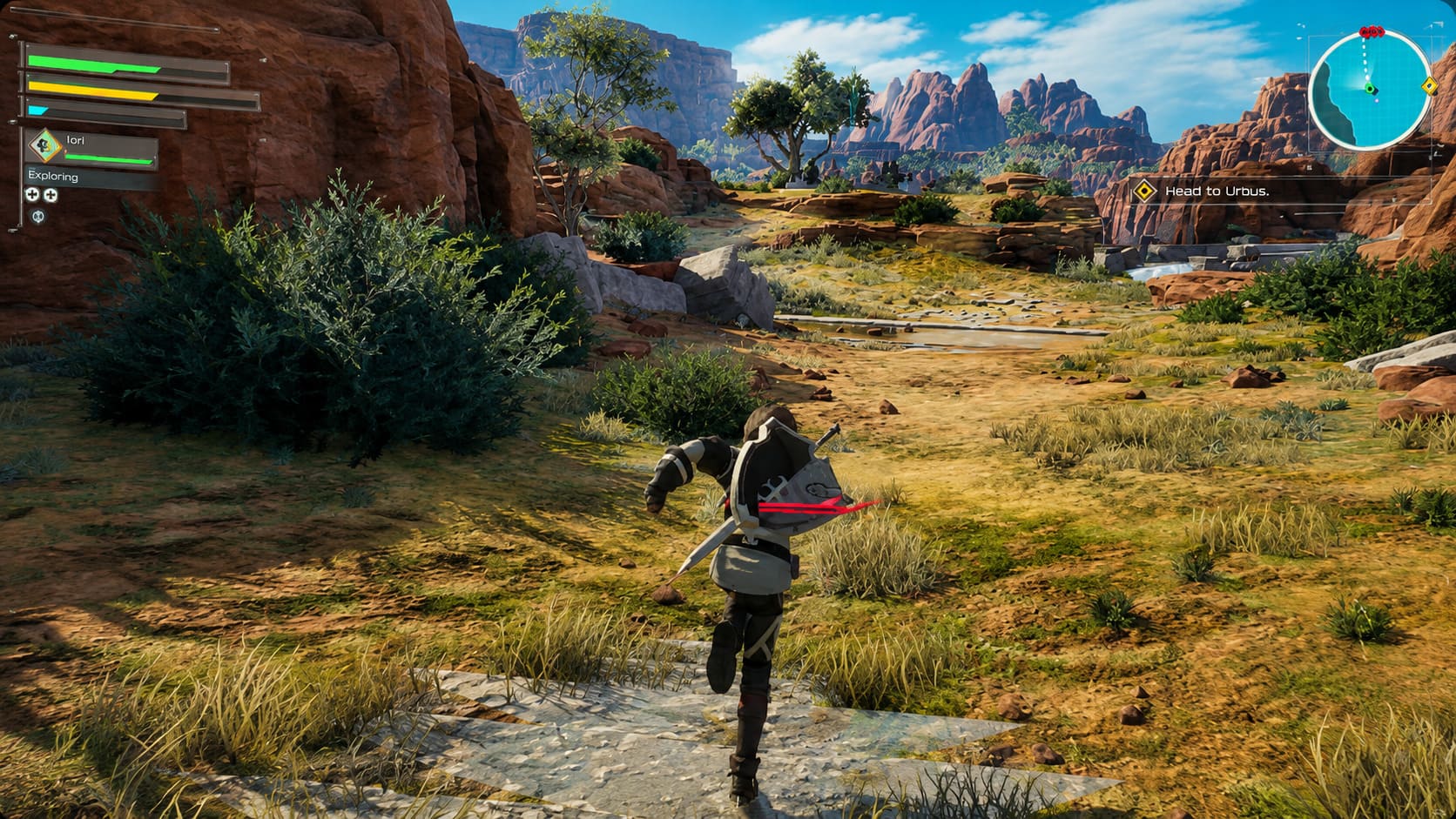
Aincrad feels massive, atmospheric, and full of life. The environments are detailed, the lighting creates a strong sense of scale, and the familiar Sword Art Online setting finally gets the kind of presentation many fans wanted. However, many PC players quickly noticed that the game appears softer than expected, with blurry textures, unclear character faces, and a strange ‘washed out’ look during movement.
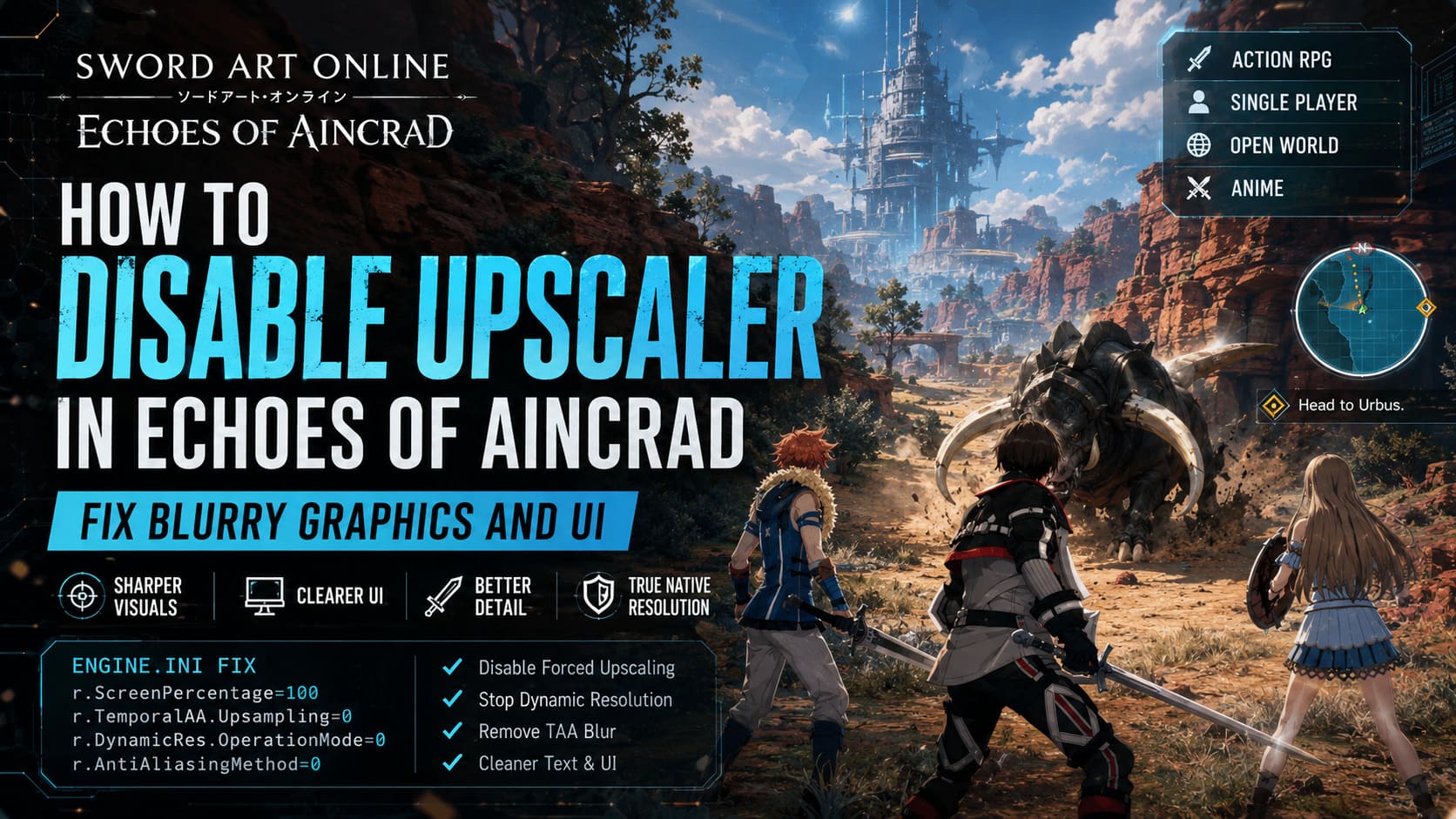
After testing different graphics options and comparing the results, the biggest improvement was not changing shadows, textures, or effects. The real problem was the aggressive internal upscaling system. By disabling the forced upscaler, Echoes of Aincrad can look dramatically sharper and much closer to true native resolution quality.
SpiritVale Gear Customization Guide: Card System & Refining Tutorial
Why Echoes of Aincrad Looks Blurry
Modern Unreal Engine games often use rendering techniques designed to improve performance. Instead of creating every frame at your monitor’s full resolution, the engine may render the game internally at a lower resolution and then reconstruct the final image using temporal upscaling.
This method has become common because it allows more players to maintain stable frame rates, especially during demanding scenes. Large boss battles, crowded areas, and open-world environments can put serious pressure on graphics cards, so developers often use these technologies to reduce GPU workload.
The problem is that aggressive upscaling can noticeably reduce image quality. Players with powerful computers often notice the difference immediately because their hardware is capable of rendering the game properly at native resolution.
Common symptoms of the blurry graphics issue include:
- Soft-looking environments where distant objects lose detail.
- Blurry NPC faces that lack sharp textures.
- Ghosting effects during camera movement or combat.
- Fuzzy UI elements and less readable text.
- A general ‘vaseline filter’ appearance over the entire game.
Personally, I don’t have a problem with technologies like DLSS, FSR, or TSR when they actually solve a performance problem. They can be excellent tools. However, forcing lower internal resolution on high-end systems often feels unnecessary because players with strong GPUs are sacrificing visual clarity for performance they don’t need.
Why In-Game Settings Do Not Fully Fix the Problem
Many players try changing options like TAA, FSR3, DLSS, or other graphics settings expecting the blur to disappear. Unfortunately, these options often only change the reconstruction method instead of completely disabling the hidden scaling process.
Echoes of Aincrad continues using Unreal Engine rendering adjustments in the background, meaning the game may still render below your actual display resolution. This is why simply switching anti-aliasing settings does not always create a perfectly sharp image.
The solution is editing the Unreal Engine configuration file manually. Since Echoes of Aincrad uses Unreal Engine technology, players can override certain rendering commands through the local Engine.ini file.
How to Disable Forced Upscaling Through Engine.ini
Step 1 – Close Echoes of Aincrad Completely
Before changing any files, make sure the game is fully closed. Check that it is not still running in the background through the Windows Task Manager.
Step 2 – Open the Configuration Folder
Press Windows + R on your keyboard to open the Run menu. Copy and paste the following path:
%localappdata%\EchoesofAincrad\Saved\Config\WindowsClient\
Press Enter, and Windows will open the folder containing the game’s configuration files.
Step 3 – Edit Engine.ini
Find the file called Engine.ini. Right-click the file and open it with Notepad or any other text editor.
Scroll all the way to the bottom of the file. If you have never modified this file before, it may only contain a few default settings. Create a new line and paste the following commands:
[SystemSettings]
r.ScreenPercentage=100
r.TemporalAA.Upsampling=0
r.DynamicRes.OperationMode=0
r.AntiAliasingMethod=0
Save the file after adding the settings.
What These Engine.ini Commands Do
| Setting | Function |
|---|---|
| r.ScreenPercentage=100 | Forces the game to render at full native resolution instead of lowering internal resolution. |
| r.TemporalAA.Upsampling=0 | Disables Unreal Engine’s temporal upscaling system. |
| r.DynamicRes.OperationMode=0 | Stops automatic dynamic resolution changes during gameplay. |
| r.AntiAliasingMethod=0 | Removes heavy temporal anti-aliasing blur and reduces ghosting effects. |
The visual difference should be noticeable immediately. Text becomes cleaner, environmental details become easier to see, and character models look much sharper. The game finally feels like it is displaying the artwork at the quality level your monitor and GPU can actually handle.
Should You Disable Upscaling Completely?
The answer depends on your hardware. Native rendering looks better, but it also increases GPU workload. Players with powerful desktop systems will usually benefit the most from disabling the upscaler.
| Hardware | Recommended Setting |
|---|---|
| High-End GPU | Use native resolution without upscaling. |
| Upper Mid-Range GPU | Native rendering works well, especially at 1080p and 1440p. |
| Budget GPU | Keep some form of upscaling for better FPS stability. |
| Steam Deck / ROG Ally | Keep TSR or similar solutions enabled. |
If you are playing on a modern high-performance GPU, the quality improvement is usually worth the small performance reduction. On weaker hardware, however, stable frame rates are often more important than perfect sharpness.
How to Stop the Game From Resetting Your Changes
Some Unreal Engine games automatically replace configuration files after updates or launches. To prevent Echoes of Aincrad from removing your custom settings, you can make the file read-only.
- Right-click Engine.ini.
- Select Properties.
- Enable the Read-only option.
- Click Apply.
If you want to make new changes later, simply disable the read-only option, edit the file again, and save your adjustments.
Alternative Fix: Improve TSR Without Losing Performance
Not every player wants to completely remove temporal upscaling. If your GPU struggles with native resolution, there is another solution that keeps TSR active but improves sharpness and reduces the blurry effect.
Add this configuration instead:
[SystemSettings]
r.AntiAliasingMethod=2
r.TemporalAACurrentFrameWeight=0.20
r.TemporalAASamples=4
r.TemporalAASharpness=0.75
r.Tonemapper.Sharpen=1.0
This setup keeps anti-aliasing enabled while improving the final image quality. It reduces ghosting, increases sharpness, and usually has a much smaller performance impact compared to completely disabling upscaling.
For many mid-range PC users, this is probably the best balance between image quality and smooth gameplay.
How to Verify the Graphics Fix
After launching Echoes of Aincrad, visit a detailed area such as a town, hub zone, or open landscape. Compare the image before and after the changes.
You should notice clearer UI text, sharper buildings, improved character details, and less blur while moving the camera. Combat scenes should also feel cleaner because enemy models and effects are easier to distinguish.
A simple trick is taking screenshots before and after editing Engine.ini. Open both images side by side and zoom in. The difference becomes much easier to see when comparing identical scenes.
Is Disabling the Upscaler Worth It?
For players with capable gaming PCs, absolutely. After playing many Unreal Engine titles over the years, I have seen how aggressive image reconstruction can hide the work developers put into their worlds.
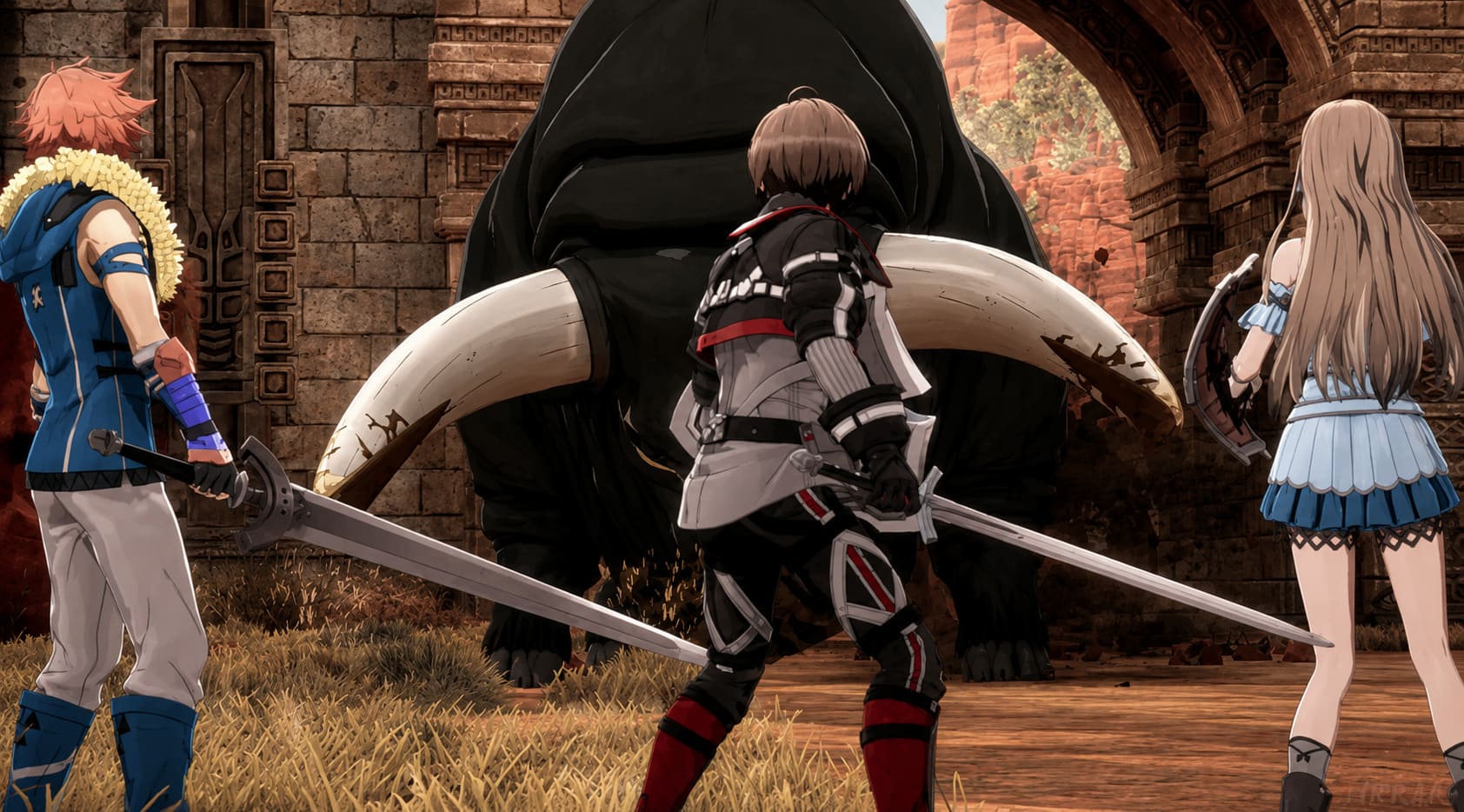
Echoes of Aincrad already has a strong visual foundation. The environments, lighting, and atmosphere are some of the game’s biggest strengths, but the default rendering settings prevent many players from seeing the full quality.
Disabling the forced upscaler gives the game a cleaner, sharper presentation that feels much more natural. If your hardware can handle it, native resolution is the way to experience Aincrad. If performance matters more, the TSR sharpening configuration provides a great middle ground.
A few minutes spent editing the Engine.ini file can completely change how the game looks, making Echoes of Aincrad feel closer to the high-quality experience many PC players expected from the beginning.