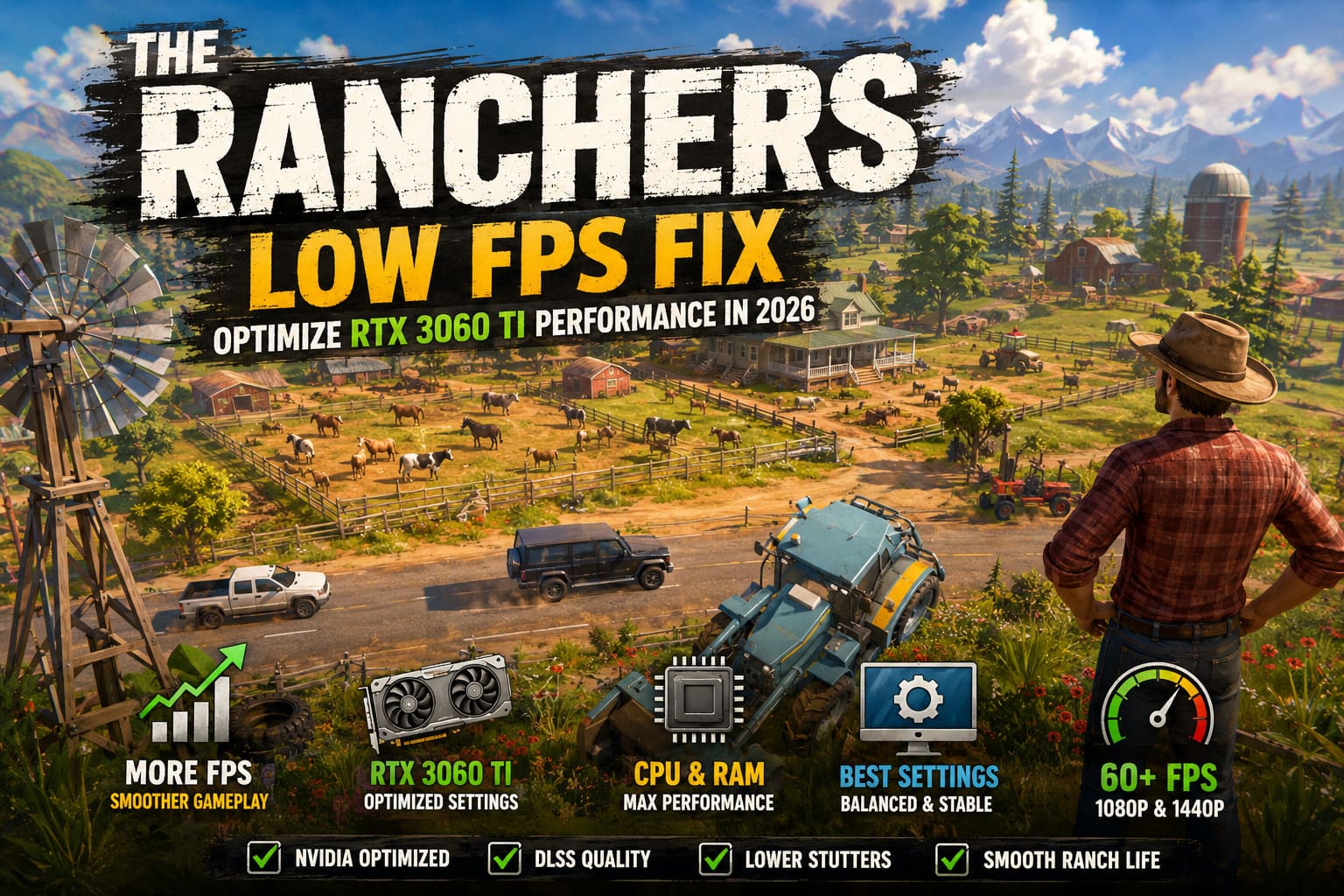
The Ranchers Low FPS Fix: Optimize RTX 3060 Ti Performance in 2026
If there’s one thing I’ve learned after spending years bouncing between survival games, city builders, farming sims, and massive open-world sandboxes, it’s this: graphics settings don’t tell the whole story. Some games run flawlessly on hardware that should struggle, while others somehow bring a perfectly capable GPU to its knees. After spending quite a few hours in The Ranchers, I’d put it firmly into the second category.
The game looks fantastic. Dense vegetation, huge ranches, dynamic weather, dozens of animals wandering around, and an enormous world that constantly simulates activity even when you’re busy building fences or planting crops. It’s the kind of simulation that quietly eats both your CPU and GPU without making it obvious why your frame rate suddenly tanks.
If you’re using an RTX 3060 Ti, don’t assume your graphics card is too weak. In my experience, this GPU is still one of the best value cards for 1080p and even respectable 1440p gaming in 2026. The problem is that The Ranchers demands smart optimization rather than brute-force hardware. After tweaking dozens of settings and comparing results with other players, I found several changes that noticeably improved performance without making the game look worse.
The Ranchers: How to Unlock the Pickup Truck Early (Complete Vehicle Guide)
Why The Ranchers Can Feel Surprisingly Heavy
On paper, this shouldn’t be a difficult game for a modern GPU. In practice, there’s a lot happening behind the scenes.
Unlike many farming games that only simulate nearby objects, The Ranchers constantly manages AI routines, weather calculations, crop growth, livestock behavior, and hundreds of interactive world objects. That workload often shifts pressure toward the processor instead of the graphics card.
One thing I noticed almost immediately was GPU utilization dropping well below 90% during certain moments. That’s usually a sign the graphics card isn’t the bottleneck—the CPU simply can’t prepare frames fast enough.
Another issue is shader compilation. If you’ve played recent Unreal Engine titles, you’ve probably experienced those annoying little freezes when entering a new area. The Ranchers behaves similarly, especially during the first few hours as shaders are generated and cached.
Finally, VRAM usage climbs surprisingly fast at higher settings. The RTX 3060 Ti’s 8GB buffer is still enough for most situations, but pairing Ultra textures with 1440p resolution leaves very little breathing room.
NVIDIA Control Panel Tweaks Worth Changing
I’m normally skeptical about ‘magic’ driver settings because many online guides promise impossible FPS gains. That said, a few NVIDIA Control Panel options genuinely helped smooth out gameplay.
Here’s what I’d recommend:
- Power Management Mode: Prefer Maximum Performance
- Shader Cache Size: 10GB or Unlimited
- Vertical Sync: Off
- Maximum Frame Rate: Match your monitor refresh rate
The biggest improvement came from increasing the shader cache. Stutters while exploring new parts of the map became noticeably less frequent after playing for a while.
Limiting frame rate also deserves more attention than people usually give it. Allowing the GPU to render hundreds of unnecessary frames often creates inconsistent frame pacing instead of smoother gameplay.
Windows Settings That Actually Matter
Windows has become much better for gaming over the years, but a few settings are still worth checking.
I always enable:
- Hardware-Accelerated GPU Scheduling (HAGS)
- High Performance or Ultimate Performance power plan
- Latest Windows updates
I also disable overlays whenever I’m troubleshooting performance.
Discord, Steam, GeForce Experience, and various RGB utilities may only consume a tiny amount of system resources individually, but together they can introduce annoying hitching in CPU-heavy simulation games.
It’s one of those small optimizations that doesn’t necessarily raise average FPS, yet the game often feels much smoother afterward.
Best Graphics Settings for RTX 3060 Ti
After experimenting with nearly every graphics option, I kept coming back to a balanced preset instead of chasing Ultra settings.
Here’s the configuration that gave me the best experience.
| Setting | Recommendation |
|---|---|
| Display Mode | Fullscreen |
| Resolution | 1920×1080 or 2560×1440 |
| DLSS | Quality |
| Anti-Aliasing | TAA or DLSS |
| Texture Quality | High |
| Shadow Quality | Medium |
| Foliage | High |
| View Distance | High |
| Global Illumination | Low |
| Ray Tracing | Off |
| Motion Blur | Off |
| Chromatic Aberration | Off |
Shadow Quality turned out to be the biggest surprise.
Visually, Medium shadows barely looked different from High during normal gameplay, yet they consistently delivered better frame rates around larger ranches packed with buildings and animals.
Likewise, I don’t think ray tracing is worth enabling on the RTX 3060 Ti here. The visual upgrade simply isn’t dramatic enough to justify the performance hit.
DLSS Is Basically Free Performance
Some people still avoid DLSS because early implementations looked blurry years ago.
Modern DLSS is a completely different story.
Running DLSS Quality gave me one of the largest FPS improvements while keeping image quality extremely close to native resolution. During normal gameplay, I honestly struggled to notice meaningful differences unless I stopped to zoom in on distant objects.
If you’re targeting 1440p, I’d consider DLSS almost essential.
The extra performance headroom also helps stabilize frame times during busy weather events and heavily populated areas.
Don’t Ignore Your RAM Configuration
This is probably the most overlooked optimization.
I’ve seen plenty of players spend hours tweaking graphics settings only to discover their RAM wasn’t running at its advertised speed.
Open your BIOS and confirm that:
- XMP (Intel) or EXPO/DOCP (AMD) is enabled
- Memory operates at its rated frequency
- Dual-channel mode is active
Simulation-heavy games thrive on memory bandwidth.
Running fast DDR4 or DDR5 memory can noticeably improve minimum frame rates, especially those frustrating 1% lows where gameplay suddenly feels sluggish despite acceptable average FPS.
If you’re still using single-channel memory, upgrading to a proper dual-channel configuration often produces a larger improvement than people expect.
Fresh GPU Drivers Can Solve More Than You Think
If performance suddenly became worse after an update, don’t immediately blame the game.
Old driver remnants occasionally cause conflicts, especially after swapping graphics cards or installing multiple driver versions over time.
Using Display Driver Uninstaller (DDU) to completely remove existing NVIDIA drivers before installing the newest release gives the system a clean starting point.
I don’t recommend doing this after every driver update, but if you’re chasing unexplained stuttering, it’s one of the first troubleshooting steps I’d consider.
A Few Extra Tips That Helped Me
Beyond the obvious settings, I noticed several habits that improved overall stability.
- Restart the game after changing major graphics options.
- Avoid running browsers with dozens of tabs while playing.
- Install the game on an SSD whenever possible.
- Close unnecessary monitoring utilities if you’re not actively benchmarking.
- Let shaders finish compiling instead of constantly restarting after updates.
None of these changes magically add 30 FPS, but together they create a noticeably smoother experience.
Final Thoughts
After testing dozens of combinations, I came away with one conclusion: The Ranchers isn’t poorly optimized—it simply rewards balanced settings instead of maxing everything out.
The RTX 3060 Ti remains a capable graphics card in 2026, and with a sensible graphics preset, properly configured memory, updated drivers, and DLSS enabled, it’s entirely realistic to enjoy stable gameplay above 60 FPS at 1080p and even solid performance at 1440p.
As someone who’s spent far too many hours tweaking games instead of actually playing them, I’d rather sacrifice a shadow setting I’ll never notice than deal with constant frame spikes every few seconds. Once everything is dialed in, The Ranchers becomes exactly what it should be: a relaxing sandbox where you’re thinking about expanding your ranch—not watching your FPS counter.