Paralives on Steam Deck: Performance & Settings Guide (Early Access Review)
When I first launched Paralives on my Steam Deck, I honestly expected a mess. Early Access life simulation games usually need time before they feel truly stable, especially on handheld hardware.
But after several streaming sessions and long playtests, I can say this: it’s rough around the edges, but surprisingly playable if you know how to tune it.
As a streamer who focuses on cozy sandbox and simulation games, I’ve seen plenty of launches like this. And Paralives feels like one of those titles where the ambition is already way ahead of the optimization. It’s clear the developers are building something big, even if the current Steam Deck experience still needs work.
The game runs through Proton on SteamOS since there is no native Linux version yet. That means compatibility depends heavily on Valve’s translation layer. Fortunately, it boots without issues, which already puts it ahead of many Early Access simulators.
Steam Deck Compatibility Overview
From a technical standpoint, Paralives runs in “Playable” territory rather than “Verified.” It launches cleanly, menus are responsive, and basic gameplay works without crashes. However, performance consistency is not fully there yet, especially during heavy building or simulation events.
Paralives Performance Guide: Fix Lag, Stuttering and FPS Drops (Streamer Experience)
Live Mode is generally stable, while Build Mode is where things start to strain. Large lots, heavy object placement, and complex structures tend to cause noticeable FPS drops and micro-stuttering. It’s not unplayable, but it definitely isn’t optimized for handheld hardware yet.
The biggest limitation right now is that the game was clearly designed with mouse and keyboard in mind. That becomes very obvious when using Steam Deck controls without customization.
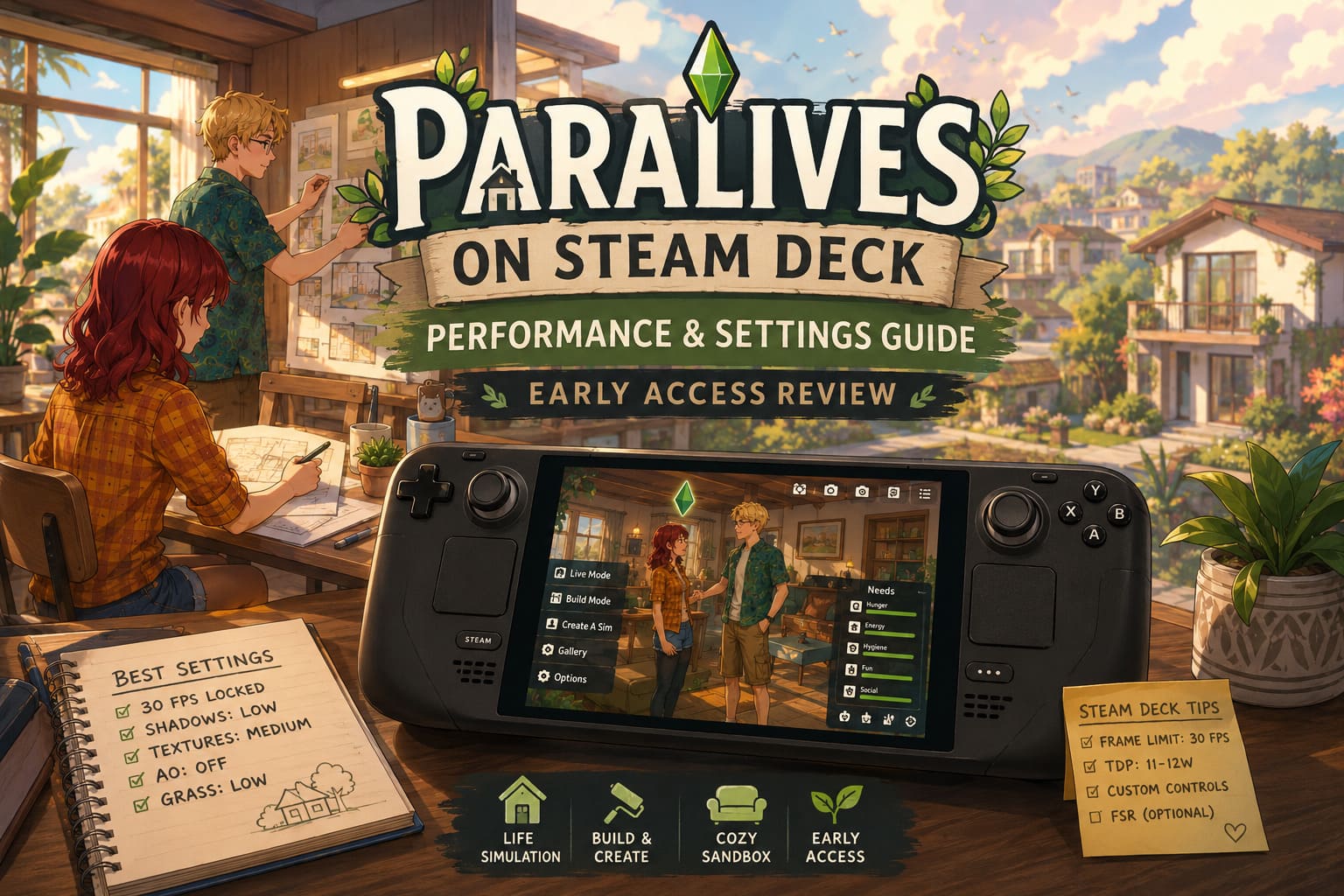
Best Steam Deck Settings for Smooth 30 FPS
After testing multiple configurations, the most stable experience currently targets a locked 30 FPS. Trying to push beyond that creates inconsistent frame pacing, which feels worse than simply locking it down.
In-Game Graphics Settings
For the best balance between visuals and performance, I recommend the following setup:
Display Mode: Fullscreen. Resolution: 1280×800 for native Steam Deck aspect ratio support. Texture Quality: Medium for stability. Shadows: Low or Off to reduce heavy GPU load. Anti-Aliasing: Low FXAA. Ambient Occlusion: Off. Grass and foliage: Low for smoother zoomed-out gameplay. V-Sync: Off for better system-level frame control.
Paralives Money Cheats Guide: Unlimited ParaCoins Tips for Early Access
The biggest performance gains come from reducing shadows and environmental effects. Those two settings alone can drastically improve stability during gameplay.
Steam Deck System Settings
Frame Limit: 30 FPS. Refresh Rate: 60Hz on LCD or 90Hz on OLED with 30 FPS lock. TDP Limit: around 11–12W for balanced battery life and performance. Upscaling: optional FSR when docked for higher-resolution displays.

From my experience, 30 FPS feels consistent enough for both gameplay and streaming. Anything higher is unstable in the current build.
Real Gameplay Experience
Playing Paralives on Steam Deck feels best when you’re focused on smaller creative tasks. Building a house, decorating rooms, or adjusting characters works surprisingly well once controls are set up properly.
However, when you start scaling up—expanding neighborhoods, placing large amounts of objects, or running complex simulations—the hardware begins to show its limits. FPS drops aren’t constant, but they are noticeable during heavy interactions.
As a streamer, I actually found this mix interesting. Viewers don’t always care about perfect performance; they care about creativity and chaos. And Paralives definitely delivers both.
Controller Layout That Actually Works
The biggest challenge is control input. Paralives is clearly designed for precise mouse interaction, so Steam Deck customization is essential.
Recommended Layout Setup
Right Trackpad: Mouse cursor for precision control. Right Trigger: Left Click for selecting and placing objects. Left Trigger: Right Click for camera movement and cancel actions. Left Stick: WASD-style movement for camera navigation. Right Stick: Camera rotation and zoom control. Left Trackpad: Radial menu for shortcuts like pause, build tools, and speed controls.
One of the most important tweaks is enabling hold-to-repeat zoom functionality. Without it, camera control feels repetitive and uncomfortable during long sessions.

Performance Breakdown in Practice
After extended testing, performance varies depending on activity type:
Small builds and interior design: 28–30 FPS stable. Medium neighborhoods: 25–30 FPS with minor dips. Heavy object placement: 18–25 FPS fluctuations. Busy simulation scenes: mostly 24–30 FPS. Large experimental builds: occasional stutters and slowdowns.
The game is clearly CPU-bound during simulation-heavy moments, which is typical for Early Access life simulation titles.
Early Access Issues on Steam Deck
There are a few quirks worth mentioning. Cloud saves do not always sync perfectly between PC and Steam Deck. Some keyboard shortcuts are difficult to replicate using controller inputs. Modifier keys like Alt or Shift often require back button mapping to function properly. Minor stutters can occur when loading assets in Build Mode.
None of these issues break the game, but they do highlight its Early Access status.
Final Thoughts from a Streaming Perspective
From my perspective as someone who streams simulation games regularly, Paralives on Steam Deck sits in an interesting place. It is not a polished handheld experience yet, but it is absolutely playable and enjoyable if you are willing to tweak settings.
The potential is obvious. Even in its current state, the creativity tools and build freedom already make it engaging. You can see where the game is heading, and it is clearly aiming to become a major player in the life simulation genre.
If you enjoy experimenting with settings, customizing controls, and playing Early Access games as they evolve, this is already worth your time. If you want a fully optimized plug-and-play experience, it is better to wait for future updates.
Conclusion
Paralives on Steam Deck is best described as a promising but unfinished portable simulation experience. Locking the game to 30 FPS, lowering shadows, and using a custom controller layout transforms it from frustrating to surprisingly enjoyable.
I’ll definitely keep revisiting it with each major update, because this is one of those games that could become exceptional once performance catches up to ambition.