No Man’s Sky Cosmos Update: Best Steam Deck Settings for Maximum Performance and Battery Life
No Man’s Sky has never exactly been a lightweight game on Steam Deck, but the Cosmos Update 7.0 takes things to another level. After spending time tweaking settings, watching frame-time behavior, and trying different performance profiles, I came away with one pretty simple conclusion: you don’t need to make the game look ugly to get a great handheld experience.
You just need to stop chasing 60 FPS everywhere.
The Cosmos Update adds a ridiculous amount of activity to the game. There are bigger space structures, more complicated asteroid fields, player-built orbital locations, new wreckage mechanics, heavier debris simulation, and much more going on around you. It looks fantastic, but all of that comes at a cost.
On Steam Deck, the biggest problem isn’t necessarily average FPS. It’s consistency.
A game running between 38 and 45 FPS can feel surprisingly good. A game jumping from 60 to 34 to 48 FPS every few seconds feels terrible.
So, after looking at the way No Man’s Sky behaves with the Cosmos Update, this is the setup I’d personally recommend for Steam Deck players in 2026.
My Recommended Steam Deck Settings for No Man’s Sky Cosmos
If you don’t want to spend an hour changing every individual option, start here. This is the profile I would use for everyday exploration, space combat, station management, and planetary travel.
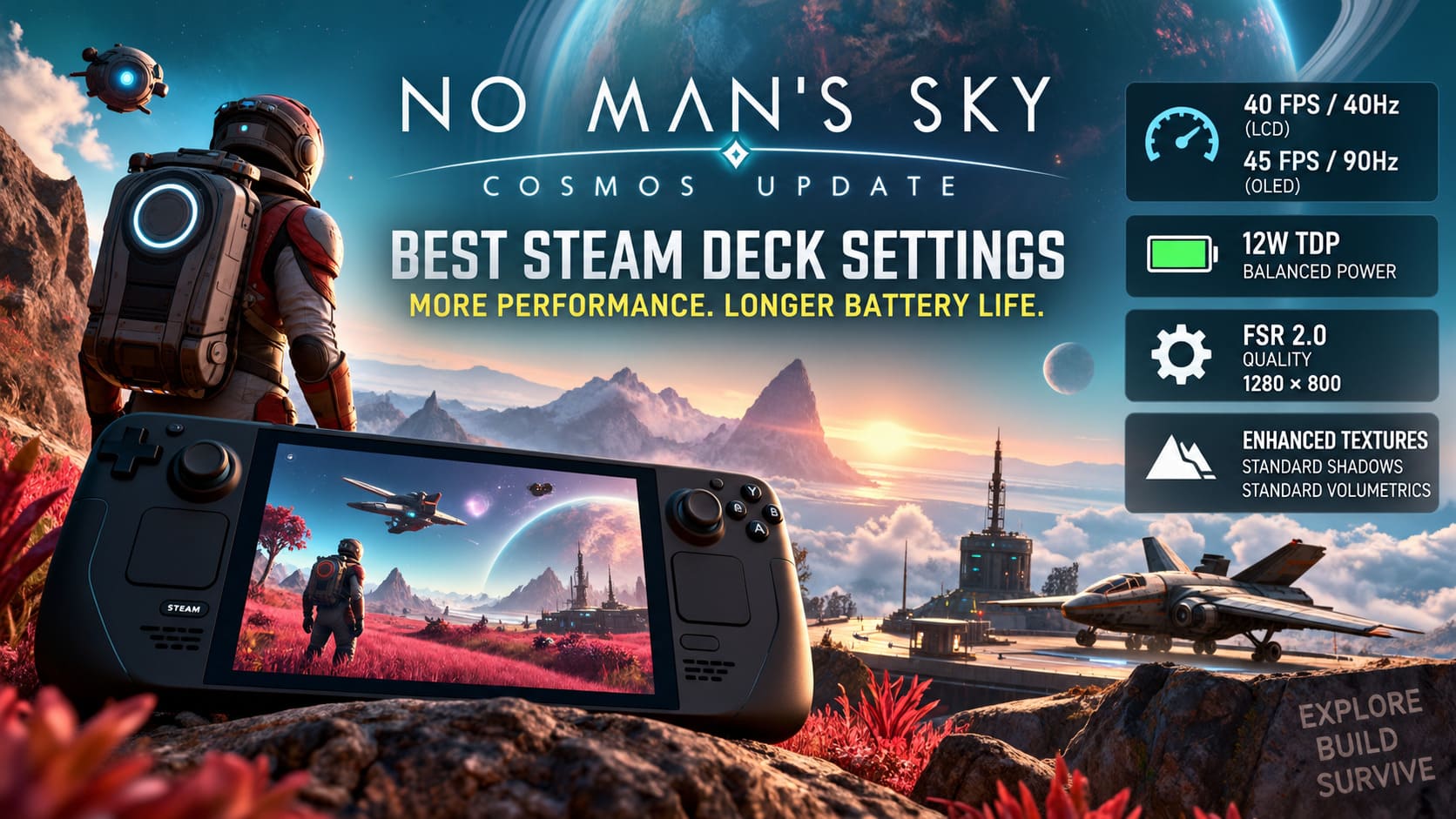
| Setting | Steam Deck LCD | Steam Deck OLED |
|---|---|---|
| Refresh Rate | 40Hz | 90Hz |
| FPS Limit | 40 FPS | 45 FPS |
| TDP | 12W | 12W |
| Resolution | 1280×800 | 1280×800 |
| Upscaling | FSR 2.0 Quality | FSR 2.0 Quality |
| Textures | Enhanced | Enhanced |
| Shadows | Standard | Standard |
| Volumetrics | Standard | Standard |
| Terrain | Standard | Standard |
| Base Complexity | Enhanced | Enhanced |
| Motion Blur | 0% | 0% |
This is the sweet spot.
I’ve never been particularly impressed by the idea of forcing every Steam Deck game to run at 60 FPS when the hardware clearly has to make compromises to get there. No Man’s Sky is one of those games where I’d rather have a stable 40 or 45 FPS with good image quality than a technically higher number that constantly collapses whenever the game gets busy.
Why the Cosmos Update Is Harder on Steam Deck
The Steam Deck’s AMD APU is still incredibly capable for a handheld, but No Man’s Sky has always had an unusual workload.
You’re not simply rendering a static environment.
The game is constantly generating and tracking procedural worlds, creatures, objects, terrain, ships, bases, resources and other systems. Now add the new Cosmos content on top of that.
Flying around a quiet planet isn’t necessarily the worst scenario. The real problems start when several demanding systems overlap.
For example, you might be:
- Flying through a dense asteroid field.
- Approaching a large player-built station.
- Using the gravity gun around a massive wreck.
- Transitioning from space into a planetary atmosphere.
- Entering an area packed with bases and ships.
Those situations can produce much larger frame-time spikes than simply walking around an empty planet.
That’s why CPU and frame pacing matter just as much as GPU settings.
The SteamOS Settings I Would Change First
Before touching the game’s graphics menu, I recommend setting up the Steam Deck itself.
Open the Quick Access Menu using the three-dot button and start there.
Steam Deck LCD: 40 FPS / 40Hz
For the LCD model, 40Hz with a 40 FPS cap remains one of my favorite ways to play demanding games.
It gives No Man’s Sky enough breathing room without making movement feel sluggish. More importantly, it prevents the system from constantly fighting for every last frame.
Steam Deck OLED: 45 FPS / 90Hz
The OLED Deck has a particularly nice option here.
Set the display to 90Hz and cap the game at 45 FPS. Because 45 divides perfectly into 90, the result feels remarkably smooth.
For No Man’s Sky, I think this is much more sensible than trying to hold 60 FPS everywhere.
TDP: 12W Is My Starting Point
The Steam Deck allows you to push the APU to its full power budget, but more power doesn’t automatically mean a better experience.
I’d start with 12W.
You can experiment with 13W if you’re hitting occasional drops, but I don’t think 15W should be your default unless you’re specifically chasing higher FPS.
Why?
Because No Man’s Sky can produce sustained workloads. You’re not just playing for five minutes in a benchmark scene. You might spend two hours flying around, building a station, exploring planets and jumping between systems.
A lower TDP can help keep temperatures and battery consumption under control.
For me, 12W is the better compromise.
Don’t Force the GPU Clock
This is one setting I’d simply leave alone.
Keep Manual GPU Clock Control disabled and let SteamOS manage the hardware automatically.
No Man’s Sky can shift between CPU-heavy and GPU-heavy situations extremely quickly. A quiet section of deep space isn’t going to stress the system in the same way as a large orbital station or a busy planetary environment.
The automatic behavior generally makes more sense here than trying to lock the GPU into an artificial clock.
The 4GB UMA Setting: Worth Trying, But Don’t Expect Miracles
Some Steam Deck players use the BIOS to increase the UMA frame buffer from 1GB to 4GB.
It’s an interesting tweak for games with demanding memory behavior, and No Man’s Sky is certainly capable of putting pressure on the system.
However, I wouldn’t treat this as a magic performance switch.
If you’re comfortable entering the BIOS and already understand what you’re changing, 4GB UMA can be worth testing. But if your game is already running well, I wouldn’t restart your entire Steam Deck configuration just because somebody on Reddit reported a few smoother transitions.
The biggest improvements will still come from sensible FPS targets and graphics settings.
Best No Man’s Sky Cosmos Graphics Settings
This is where things get interesting.
You don’t need to turn everything down to Low.
In fact, I think that makes the game unnecessarily ugly on an 800p screen.
Resolution and Upscaling
Keep the native resolution at:
1280×800
For upscaling, I’d use:
AMD FSR 2.0 — Quality
Quality mode is my first choice because No Man’s Sky has plenty of small objects, text, stars and distant geometry. Going too aggressive with upscaling makes everything look noticeably softer.
If your FPS regularly falls below your target, move to Balanced.
I would avoid Performance mode unless you’re desperate for additional frames.
Textures: Enhanced
This is one setting I wouldn’t immediately sacrifice.
No Man’s Sky has a huge amount of environmental detail, and Enhanced textures help make the world feel considerably less compromised.
Ultra is unnecessary on Steam Deck, but Enhanced is a very reasonable middle ground.
Shadows: Standard
Shadows are one of those settings where the visual difference between medium and high isn’t always worth the performance hit.
The Cosmos Update adds more structures and objects into the environment, which means there’s more for the game to shade.
I’d use Standard for general play.
OLED players trying desperately to maintain 45 FPS can experiment with Low.
Volumetrics: Standard
The upgraded cosmic atmosphere is one of the coolest parts of the update, so I don’t recommend completely destroying it.
Keep volumetric effects at Standard.
High or Ultra can become expensive in exactly the kind of scenes where the Steam Deck is already under pressure.
Base Complexity: Enhanced
This is another setting where I’d rather sacrifice something else.
The Cosmos Update puts a lot more emphasis on stations, structures and orbital construction. If you’re going to spend hours designing your own space, there’s not much point in making those structures disappear or load slowly just to gain a few frames.
Enhanced is the setting I’d keep here.
My Complete Graphics Preset
For anyone who wants a simple starting point, this is what I’d use:
- Resolution: 1280×800
- FSR 2.0: Quality
- Texture Quality: Enhanced
- Animation: Standard
- Shadows: Standard
- Post Processing: Standard
- Volumetrics: Standard
- Terrain: Standard
- Planet Generation: Standard
- Base Complexity: Enhanced
- GTAO: Standard
- Motion Blur: 0%
Turn motion blur off immediately.
Seriously.
On a handheld display, I find it makes fast movement look worse rather than better. Space combat, asteroid mining and rapid camera movement all benefit from a cleaner image.
Three Steam Deck Profiles I’d Actually Use
Not everyone plays No Man’s Sky the same way, so I wouldn’t recommend one configuration for every situation.
1. The Everyday Explorer
This is my preferred setup.
40 FPS on LCD or 45 FPS on OLED, 12W TDP and FSR Quality give you a really nice balance between image quality, smoothness and battery life.
This is the profile I’d choose for a normal session where I’m jumping between planets, exploring stations and occasionally getting into combat.
You may still see short drops during particularly heavy transitions. That’s just something I would accept rather than destroying the graphics to chase a perfect lock.
2. The Battery Saver
If you’re sitting on a train, plane or somewhere without a charger, things change.
Drop the target to 30 FPS / 60Hz and reduce the TDP to around 9W.
Use FSR Balanced and lower shadows.
It won’t feel as luxurious as 40 or 45 FPS, but No Man’s Sky remains perfectly playable, especially if you’re spending the session managing your station, scanning planets or casually exploring.
The biggest advantage is obvious: your Steam Deck lasts much longer.
3. The 60 FPS Experiment
Yes, you can chase 60 FPS.
But I wouldn’t recommend making it your everyday target.
For this profile, you’d want:
- 60 FPS / 60Hz
- Up to 15W TDP
- FSR Balanced
- Low shadows
- Low volumetrics
- Standard textures or reduced texture settings
- Standard animation and terrain
It can work surprisingly well in lighter scenes.
But once you start throwing huge stations, asteroid fields, fleets and busy systems at the Deck, the frame rate can fall hard.
This is a fun challenge, not the configuration I’d personally choose.
A Few Extra Fixes for Stuttering
Even with good settings, No Man’s Sky can occasionally behave strangely after a major update.
The Cosmos Update is no exception.
Disable the Steam Overlay
If you’re experiencing unexplained micro-stutters, try disabling the Steam Overlay specifically for No Man’s Sky.
It’s not guaranteed to fix everything, but when you’re trying to squeeze consistent frame pacing out of a handheld, eliminating unnecessary background overhead is worth testing.
Try Playing With Multiplayer Disabled
Busy multiplayer systems can become surprisingly demanding.
If you’re experiencing major drops around huge groups of bases, ships or players, try temporarily disabling multiplayer.
You lose some of the social side of the game, obviously, but it can make heavily populated areas feel considerably cleaner.
Rebuild the Shader Cache After Major Patches
This is one of those boring fixes that I tend to forget until a game suddenly starts stuttering after an update.
If No Man’s Sky was smooth before a patch and suddenly becomes inconsistent afterward, give the shader cache some attention.
Steam Deck games can behave strangely while new shaders are being compiled or downloaded, particularly after major engine or rendering changes.
No Man’s Sky 2026 Roadmap: Next Major Updates and Cosmos 7.0 Overhaul Explained
What Performance Should You Expect?
I’d be careful with anyone promising a completely locked 60 FPS experience in every possible No Man’s Sky scenario on Steam Deck.
That’s simply not how this game behaves.
A more realistic expectation is:
| Scenario | Expected Experience |
|---|---|
| Deep Space | Very Smooth |
| Normal Planet Exploration | Stable 40/45 FPS |
| Space Stations | Mostly Stable |
| Dense Player Bases | Occasional Drops |
| Heavy Asteroid Fields | Possible Frame-Time Spikes |
| Large Fleet Activity | Significant Drops Possible |
| Planet-to-Space Transitions | Short Stutters Possible |
The important thing is that these demanding moments shouldn’t define the entire experience.
If you’re spending most of your play session around your target FPS, I consider that a successful Steam Deck configuration.
No Man’s Sky Cosmos Update Guide: How to Buy a Space Station and All New Features
Final Verdict: Don’t Turn No Man’s Sky Into a Potato Game
The Cosmos Update makes No Man’s Sky more ambitious than ever, and that inevitably creates some problems for Steam Deck.
But I don’t think the answer is to immediately turn every setting down to Low.
The best Steam Deck experience comes from choosing the right FPS target first and then building the graphics settings around it.
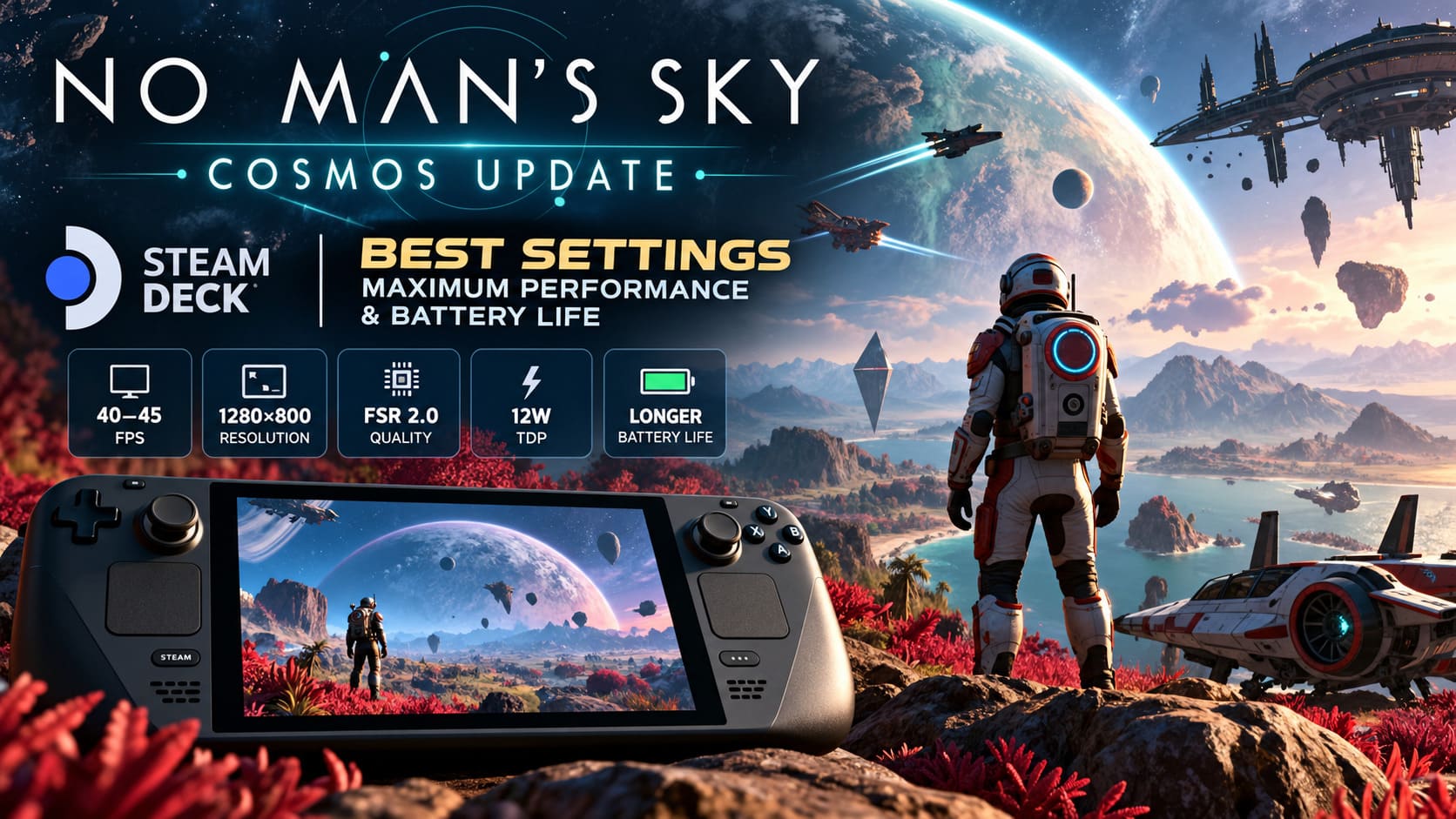
For most players, I’d recommend 40 FPS on LCD or 45 FPS on OLED, around 12W TDP, FSR 2.0 Quality, Enhanced textures, Standard shadows and Standard volumetrics.
That’s the setup that makes the most sense to me.
You still get the atmosphere that makes No Man’s Sky special. Stars look great, stations retain their detail, planets don’t turn into blurry landscapes, and the game feels responsive without constantly pushing the Steam Deck to its thermal and battery limits.
And honestly, that’s what I want from a handheld version of No Man’s Sky.
I don’t need to see a 60 FPS counter at all times.
I want to sit on the couch, put on my headphones, jump into a random system, find some ridiculous alien planet I didn’t expect to see, and lose an hour exploring it.
If the Cosmos Update can do that at a stable 40 or 45 FPS while giving me several hours of battery life, I’m happy.
That is a much better trade than chasing benchmark numbers that disappear the moment the galaxy gets busy.