How to Setup Bongo Cat Overlay on Top of Games: Ultimate Streaming Guide
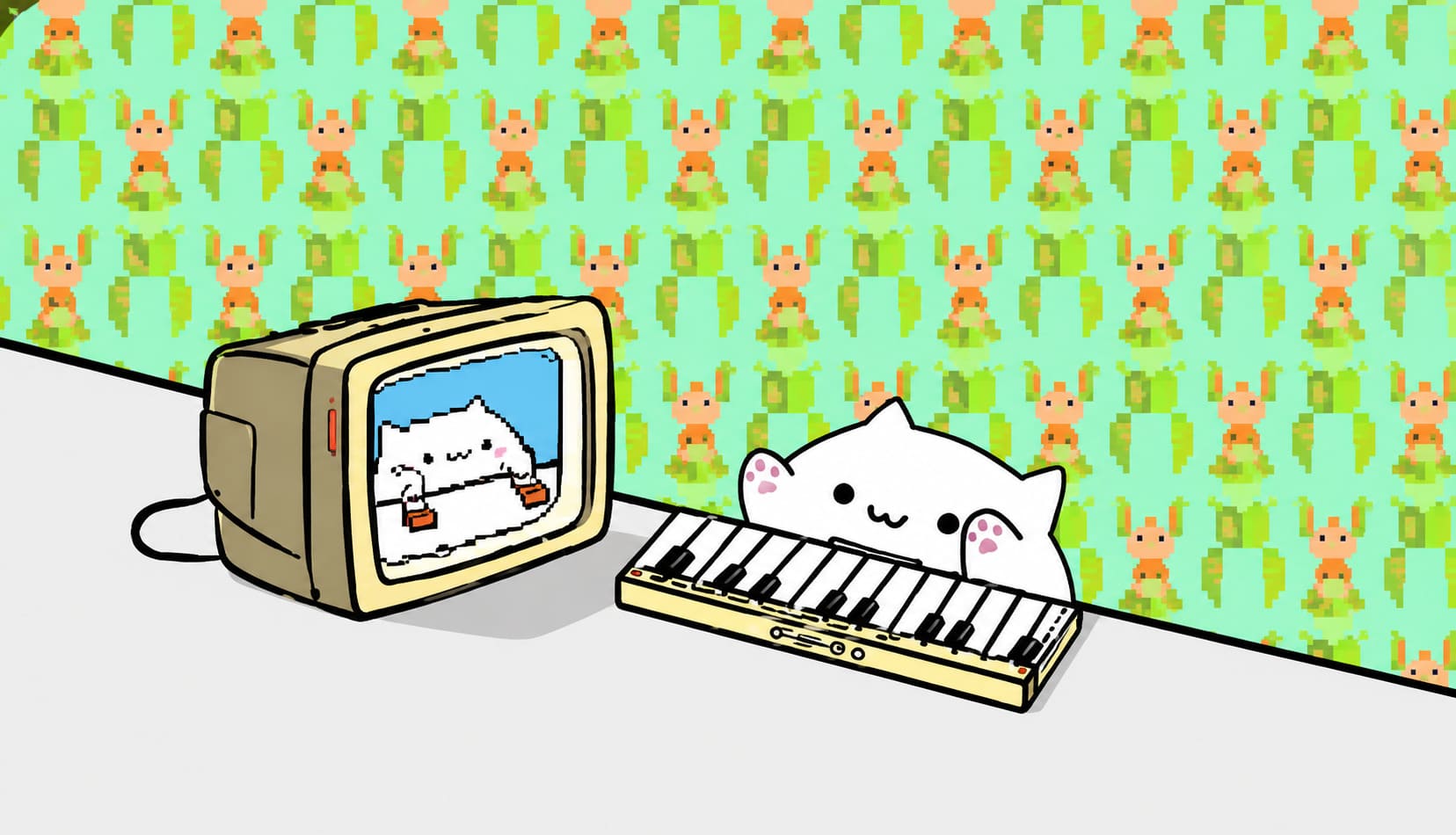
If you’ve spent time in gaming communities across Twitch, YouTube, or TikTok, you’ve probably seen it already: a small animated cat violently “playing” keyboard and mouse inputs in sync with gameplay. That’s the Bongo Cat overlay, a meme that evolved into a surprisingly useful streaming tool for displaying real-time input activity and adding personality to broadcasts inside OBS Studio setups.

From a gamer’s perspective, this isn’t just decoration. When configured properly, it becomes a lightweight visual layer that shows actions-per-minute, improves stream energy, and helps fill empty screen space without distracting from gameplay. The problem is that most users struggle with proper configuration, transparency issues, and incorrect layering inside OBS Studio.
How to Prevent Bongo Cat Steam API Failure: Full Troubleshooting Guide
Why Streamers Still Use Bongo Cat in Modern Streams
Even in 2026, when streams are full of advanced overlays, alerts, and AI-driven widgets, Bongo Cat still survives because it adds something purely human to the stream experience.
It works especially well in:
- Competitive FPS games where movement intensity matters
- Rhythm games like osu! where input timing is everything
- Chill or indie streams where personality matters more than UI minimalism
The key advantage is simple: it visualizes input without requiring a facecam or complex telemetry tools.
Two Main Ways to Use Bongo Cat Overlay
There are two primary implementation methods, each with different technical trade-offs depending on your setup and performance needs inside OBS Studio.
| Method | Type | Performance | Difficulty | Best Use Case |
|---|---|---|---|---|
| Standalone App (Bongo Cat Cam V2) | External Program | Medium | Easy | Beginners and flexible setups |
| OBS Plugin (Bongobs Cat) | Native OBS Source | High | Medium | Professional clean streams |
Both options work, but the plugin version is generally more stable and avoids most transparency and window capture issues.
Method 1: Standalone Bongo Cat App Setup
Step 1: Installation and Launch
The standalone version is typically downloaded from a trusted GitHub repository or community build. After extracting the archive, you will find configuration files such as config.json, asset folders for skins, and the main executable file. Launching the executable spawns the animated cat window on your desktop.
Step 2: Input Configuration
At this stage, you map keyboard and mouse inputs to the animation system. The most important rule here is simplicity. Overloading bindings can introduce lag or delayed animation response. Keep only the essential keys used in gameplay and test responsiveness before streaming.
Step 3: OBS Capture Setup
Inside OBS Studio, you add a Game Capture source and select the Bongo Cat window manually. The correct mode is “capture specific window” rather than full-screen capture. This ensures OBS isolates the application properly instead of grabbing unrelated desktop elements.
Step 4: Transparency and Layering
This step determines whether your overlay works or breaks visually. You must enable transparency support in OBS capture settings. Then ensure the Bongo Cat source is placed above your Game Capture layer in the OBS source stack. OBS renders from bottom to top, so incorrect ordering will hide the overlay completely.
Method 2: OBS Plugin Integration
Step 1: Plugin Installation
The plugin version requires copying files directly into the OBS Studio installation directory. OBS must be completely closed before installation. Once installed, restart OBS and the new source type becomes available automatically.
Step 2: Adding the Native Source
Instead of capturing a window, you now add a native “Bongo Cat Source” directly inside OBS. This removes the need for manual window selection and eliminates most rendering issues related to transparency or background artifacts.
Step 3: Configuration Options
The plugin typically provides a settings panel where you can adjust animation modes, mouse tracking sensitivity, and visual effects such as blinking or idle animations. This version is significantly smoother because it renders directly inside OBS rather than relying on external Windows hooks.
Common Problems and Fixes
Black or Gray Background Issues
This is one of the most common problems with standalone setups. If transparency fails, switch from Game Capture to Window Capture and apply a Color Key filter inside OBS. Adjust similarity settings until the background disappears completely.
Frozen Animation in Fullscreen Games
Many modern games running in exclusive fullscreen mode block input hooks, causing the cat animation to freeze. The most reliable fix is switching the game display mode to Borderless Windowed, which allows background applications to continue receiving input data.
Multi-Monitor Positioning Issues
On multi-monitor setups, the overlay may spawn on the wrong screen or become locked in position. In most versions, restarting the app while focused on the desired monitor or using built-in hotkeys can reset positioning and restore proper alignment.
Performance Optimization Tips
To maintain smooth performance during streaming sessions, it is important to balance visuals and system load. Keep FPS synchronized between OBS and the overlay, avoid unnecessary animation effects, and prevent stacking too many real-time overlays simultaneously.
Borderless windowed mode remains the most stable configuration for modern games, especially those running on DirectX 12 or Vulkan APIs.
Why Proper Setup Matters
A poorly configured Bongo Cat overlay can become distracting or even break immersion. However, when properly layered inside OBS Studio, it becomes a subtle but powerful engagement tool. It shows player intensity, enhances stream personality, and provides visual feedback that viewers subconsciously respond to.
The difference between a broken setup and a clean one usually comes down to three things: correct transparency handling, proper source layering, and stable game display mode.
Conclusion
Setting up a Bongo Cat overlay is not technically difficult, but doing it correctly requires attention to detail. The standalone version offers flexibility, while the OBS plugin provides stability and cleaner integration. In both cases, the real success factor is correct OBS configuration rather than the tool itself.
Once properly configured, the overlay becomes a lightweight but effective enhancement to any stream setup. It adds motion, personality, and real-time input visualization without interfering with gameplay visibility. For many streamers, it quietly becomes one of those small details that makes the entire broadcast feel more alive.