How to Fix Iron Nest Demo Crash on Launch, Freezing, and Startup Issues (Steam Next Fest Troubleshooting Guide)
The launch of Iron Nest: Heavy Turret Simulator during Steam Next Fest attracted significant attention thanks to its unique dieselpunk artillery simulation style. Developed by a small indie team, the game quickly stood out among tactical gaming fans for its deep mechanics and immersive turret-control gameplay. However, alongside the excitement, many players encountered serious technical issues where the demo would crash immediately on launch or fail to start entirely.
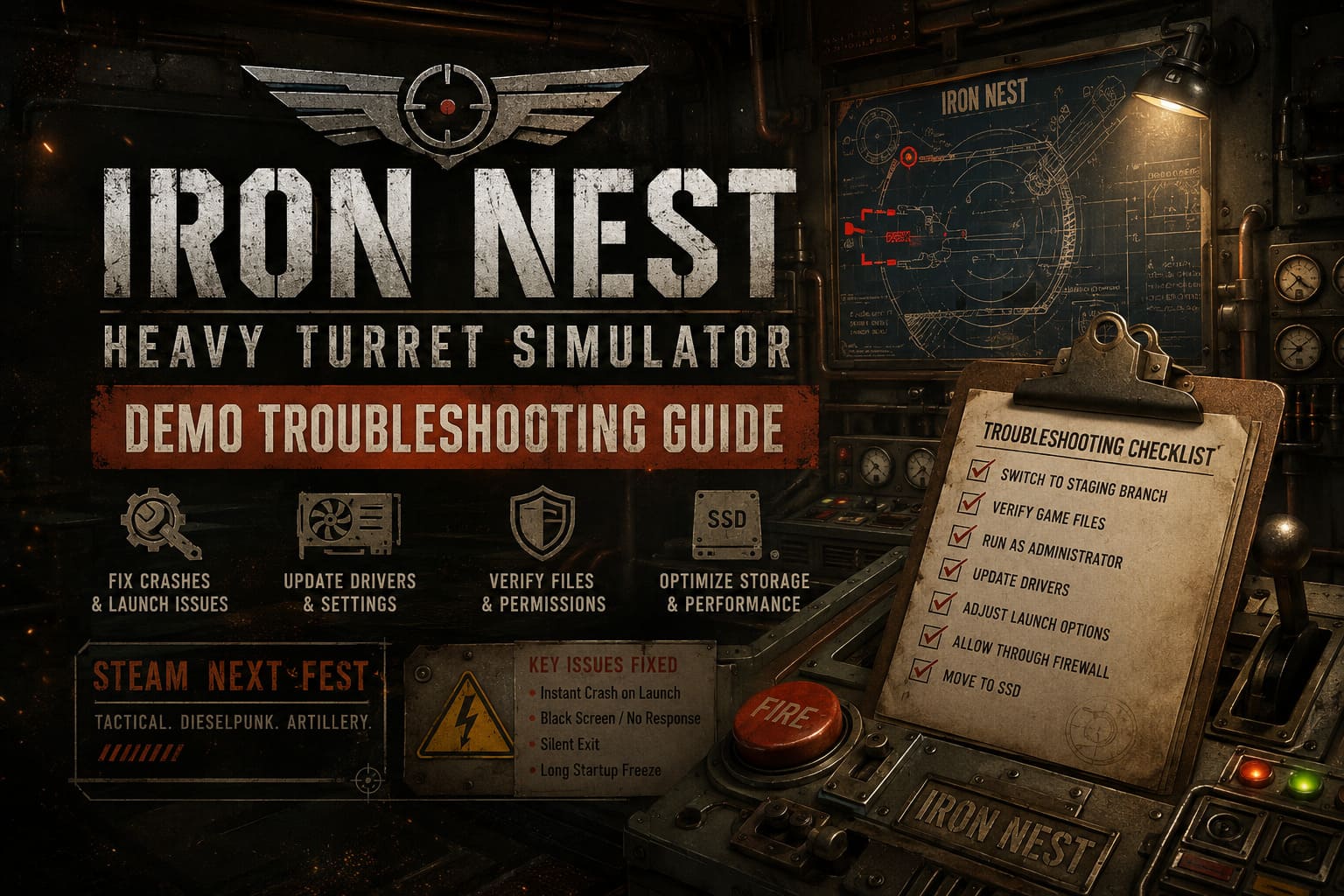
Across Steam forums, Reddit discussions, and community feedback platforms, a common pattern emerged: the game either closes instantly after pressing “Play,” remains stuck on a black screen, or briefly shows “Running” before returning to the Steam button. Fortunately, most of these issues are not permanent and can be resolved with several proven troubleshooting steps.
Is the Nightwater Demo on Steam Worth Playing? Full Guide, Gameplay Impressions, and What to Expect
The Most Reliable Solution: Switching to the Staging Branch
The primary fix comes directly from the developers, including lead developer Nick, who acknowledged a launch-time bug affecting certain system configurations. This issue causes the game to terminate silently during initialization without generating an error message.
To resolve this problem, the developers provided a more stable version of the game through a separate Steam branch. Switching to this build is currently the most effective solution for most players.
How to enable the staging branch
Follow these steps to switch to the stable hotfix version:
1. Open Steam and go to your Library.
2. Right-click Iron Nest: Heavy Turret Simulator Demo and select Properties.
3. Navigate to the Betas or Game Versions tab.
4. Select the Staging branch from the dropdown menu.
5. Allow Steam to download the updated build.
Once installed, relaunch the game. This version includes fixes for silent crash loops and resolves most startup failures.
Verify and Repair Game Files
If switching branches does not resolve the issue, the installation files may be corrupted. This is a common problem that can occur during interrupted downloads or incomplete installations.
Using Steam file verification
To repair damaged files, use Steam’s built-in verification tool:
1. Open Steam Library.
2. Right-click the game and select Properties.
3. Go to Installed Files.
4. Click Verify integrity of demo files.
Steam will automatically compare your local files with official versions and replace any corrupted or missing data.
Run as Administrator and Adjust Compatibility Settings
Some startup issues are caused by insufficient system permissions. Modern simulation games often require access to system resources for configuration, memory allocation, and rendering initialization.
To fix this, locate the game executable via Steam by selecting Manage → Browse local files. Then open the file properties and adjust compatibility settings.
Recommended adjustments
Enable the following options:
- – Run this program as administrator
- – Disable fullscreen optimizations
These settings help prevent Windows from interfering with DirectX initialization and local file access.
Update Graphics Drivers and Adjust Launch Options
Outdated GPU drivers are another frequent cause of startup crashes. Both NVIDIA and AMD regularly release updates that include performance improvements and compatibility fixes for new games.
To ensure stability, update your drivers using official tools such as NVIDIA GeForce Experience or AMD Software. After updating, restart your system to apply changes properly.
Optional launch parameter fix
If the game still crashes or shows a black screen, especially on AMD systems, try adding the following Steam launch option:
-disable_d3d9ex
This command can bypass certain rendering conflicts that affect older or unstable driver configurations.
Antivirus and Firewall Interference
Security software can sometimes mistakenly block new or unsigned game executables. Because Iron Nest interacts with Steam APIs and system processes, antivirus programs may incorrectly identify it as suspicious activity.
How to allow the game through security software
To resolve this issue:
1. Open Windows Security or your antivirus software.
2. Navigate to Firewall & Network Protection.
3. Select Allow an app through firewall.
4. Add the game executable manually.
5. Enable both Private and Public network access.
You may also add the entire game folder to antivirus exclusions for smoother operation.

Storage Issues and Performance Bottlenecks
Another common issue reported by the community involves storage speed. When the game is installed on slow HDDs or external drives, asset loading during startup can fail or appear frozen, which may resemble a crash.
Because Iron Nest relies on loading large simulation assets, storage performance plays an important role in stability.
Recommended storage setup
For best performance, install the game on an SSD or NVMe drive. Steam allows easy migration of game files between drives without reinstalling.
1. Go to Properties → Installed Files.
2. Select Move install folder.
3. Choose a faster drive location.
This significantly reduces load times and prevents startup stalls that can mimic crashes.
Quick Troubleshooting Summary
Below is a simplified overview of the most common issues and their solutions:
Instant crash on launch: Switch to staging branch
Black screen: Update GPU drivers and adjust launch options
No response after Play: Verify game files
Silent exit: Run as administrator
Long startup freeze: Move game to SSD
Final Thoughts
Most technical issues in the Iron Nest demo are related to early-stage optimization problems rather than fundamental incompatibility. The developers are actively improving stability, and the staging branch already resolves the most critical crash behavior.
With updated drivers, verified files, correct permissions, and proper storage configuration, the game becomes significantly more stable. Once running correctly, Iron Nest: Heavy Turret Simulator offers a deeply engaging tactical experience that rewards experimentation and strategic thinking.
Despite the initial launch challenges, the underlying gameplay systems show strong potential, making it a promising title for fans of complex simulation and artillery-based strategy games.