Halo Combat Evolved Audio Desync in Cutscenes: How to Fix in 2026
If you’ve replayed Halo Combat Evolved recently through Halo: The Master Chief Collection, you’ve probably noticed that the game still feels incredible even after all these years. The atmosphere, soundtrack, and cinematic storytelling remain some of the best in gaming history.
But there is one issue that can completely destroy the experience.
You’re watching a major cutscene, Captain Keyes starts talking, Cortana begins explaining the mission, and suddenly the voices no longer match the characters. Sometimes dialogue plays too early, sometimes it’s delayed by several seconds, and in the worst cases the music keeps going while the entire scene freezes for a moment.
I’ve seen this happen on several different PCs, and after reading through countless community discussions and experimenting with my own settings, I realized there isn’t one magical fix. Instead, it’s usually a combination of modern hardware and an engine that was never designed for today’s PCs.
This guide brings together the solutions that actually made a difference for me.
Why Halo Combat Evolved Audio Goes Out of Sync
One thing many players assume is that the game files are corrupted.
Most of the time, they aren’t.
Halo Combat Evolved was originally built around hardware standards from more than two decades ago. Modern gaming PCs run dramatically faster, support higher refresh rates, newer audio pipelines, SSD streaming, and advanced display technologies that simply didn’t exist back then.
When all of those systems interact with an older game engine, strange timing issues can appear.
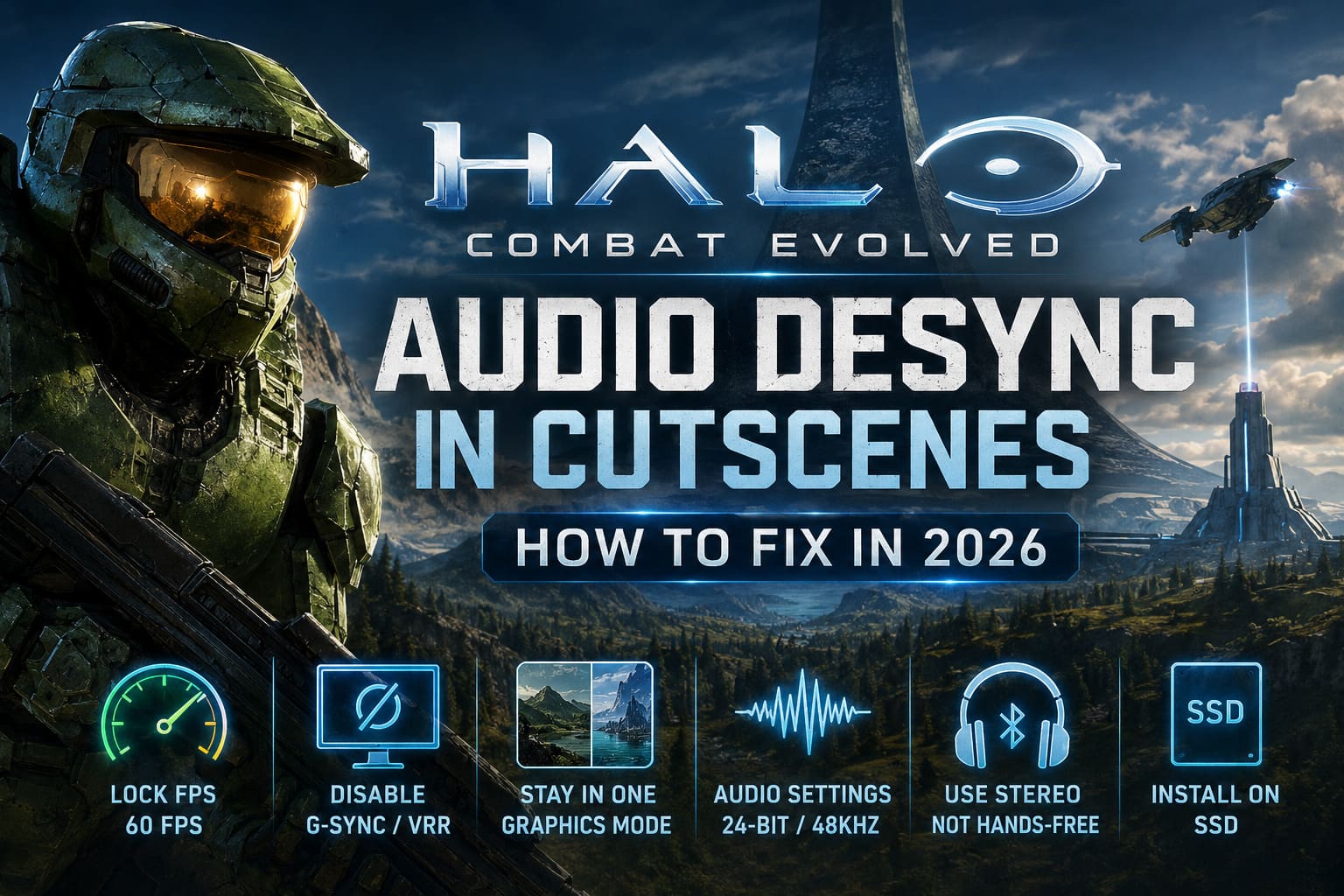
The most common reasons include:
- Unlimited FPS
- VRR, G-Sync, or FreeSync conflicts
- Switching Anniversary graphics during cinematics
- Windows audio processing
- Bluetooth headset latency
- Slow storage devices
Individually these problems may seem harmless, but together they can cause cutscenes to completely lose synchronization.
The First Thing I Always Change
If I install MCC on a new computer, the very first setting I change is the frame rate limit.
Running Halo without an FPS cap sounds great on paper, but I actually experienced more issues with unlimited frame rates than with a locked refresh.
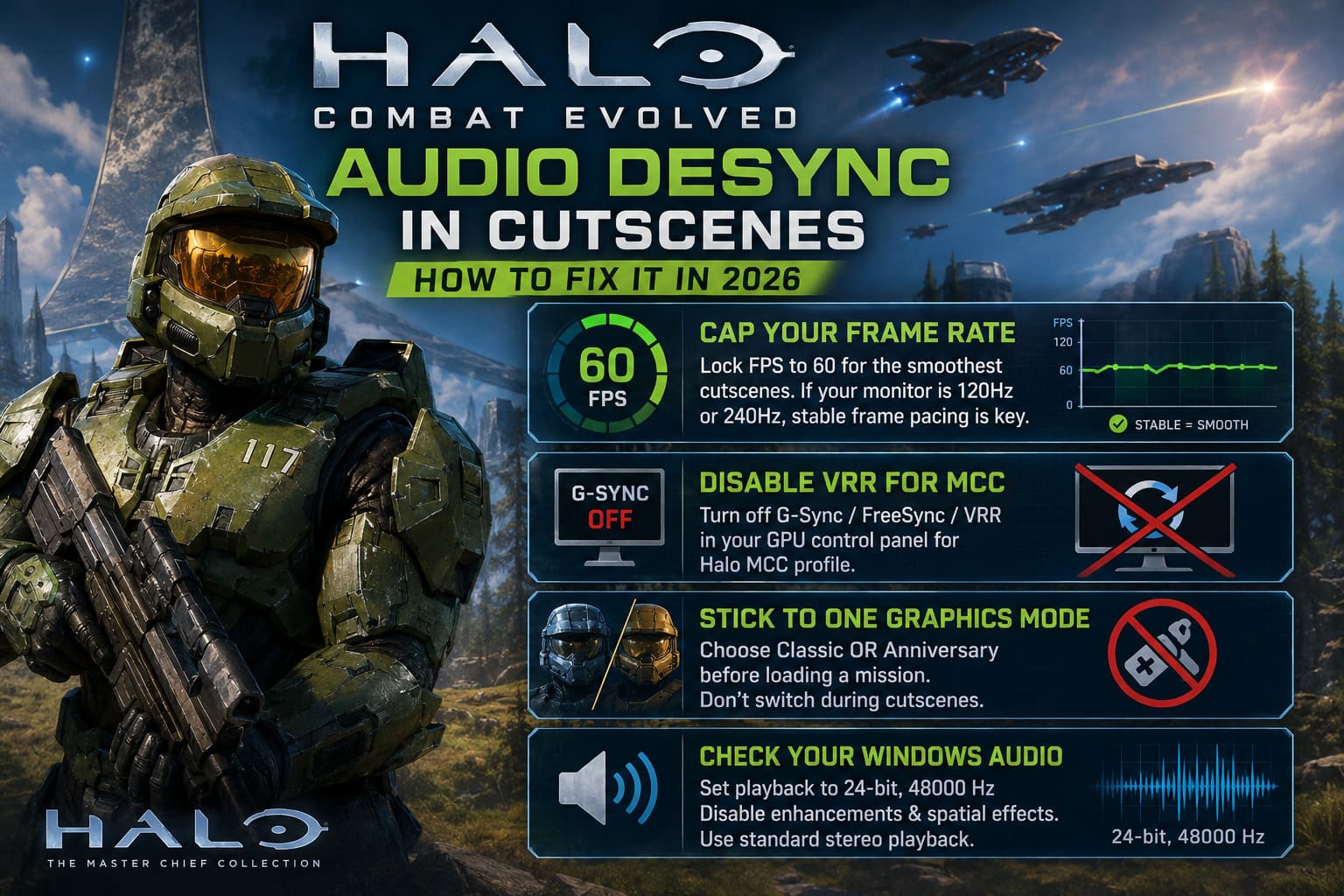
For me, 60 FPS has consistently produced the smoothest cinematics.
If your monitor runs at 120Hz or 240Hz, that’s usually fine as well—as long as the frame pacing stays stable.
Avoid constantly fluctuating frame rates whenever possible.
Disable Variable Refresh Technologies
This one surprised me.
Normally I leave G-Sync enabled for almost every game I play.
Halo CE is one of the rare exceptions.
Several of my cutscene problems disappeared after disabling Variable Refresh Rate specifically for MCC.
You don’t have to disable it system-wide.
Instead:
- Open your NVIDIA Control Panel or AMD Software.
- Create or edit the Halo MCC profile.
- Disable VRR/G-Sync/FreeSync for that profile only.
- Restart the game.
It’s a tiny change that can make a surprisingly noticeable difference.
Pick One Graphics Mode and Stay With It
The Anniversary edition lets you instantly swap between classic and remastered graphics.
It’s one of Halo’s coolest features.
Unfortunately, it can also confuse the engine during scripted cinematics.
I’ve personally reproduced the issue several times by switching graphics halfway through a scene.
The safest approach is simple:
- Choose Classic before loading.
- Or choose Anniversary before loading.
- Don’t switch until gameplay resumes.
If you accidentally press the graphics toggle during a cinematic and everything becomes unsynchronized, restarting from the last checkpoint is usually faster than trying to finish the scene.
Windows Audio Can Be the Hidden Problem
This is probably the fix I expected the least.
Windows likes enabling various enhancements, spatial effects, and unusually high sample rates.
Older games often don’t benefit from any of that.
I had much better results after changing my playback device to:
24-bit, 48000 Hz
and disabling unnecessary enhancements.
It’s also worth checking whether Windows accidentally switched your headset into a communications profile instead of normal stereo playback.
That alone can introduce noticeable delay.
Bluetooth Headsets Need Extra Attention
Wireless headphones are convenient, but they’re also one of the easiest ways to introduce audio latency.
If you’re using Bluetooth, verify that Windows selected the normal stereo profile rather than:
- Hands-Free AG Audio
- Headset Mode
- Communications Device
Those profiles prioritize microphone support instead of playback quality.
Halo’s cutscenes don’t react well when audio is routed through them.
If possible, I recommend testing with a wired headset just once.
If the synchronization suddenly improves, you’ve probably found the culprit.
SSD vs HDD Still Matters
Some players believe Halo is old enough that storage speed shouldn’t matter anymore.
I used to think the same.
Then I moved MCC from an aging hard drive to an NVMe SSD.
Loading became faster, checkpoint transitions felt smoother, and several random cutscene hiccups disappeared entirely.
The game isn’t especially demanding, but Anniversary assets still have to be streamed during gameplay.
An SSD gives the engine much less opportunity to fall behind.
Double-Check the In-Game Audio Sliders
This sounds strange, but it’s worth trying.
I’ve seen situations where extremely uneven audio sliders caused odd behavior during scripted events.
Keeping the following settings relatively balanced worked better for me:
| Setting | Recommendation |
|---|---|
| Master Volume | 100% |
| Effects Volume | 100% |
| Music Volume | 100% |
| Dialogue Volume | Match Master |
If the game is too loud, lower the overall Windows volume instead.
Co-op Players Have a Few Extra Things to Watch
Campaign co-op introduces additional synchronization challenges because two systems have to remain perfectly aligned.
If your group experiences cutscene problems, check the following:
- Everyone uses the same voice language.
- Everyone has identical game content installed.
- The host has the fastest SSD.
- The host has the most stable internet connection.
- Nobody is downloading files in the background.
Host quality matters far more than many players realize.
Quick Troubleshooting Table
| Problem | Most Likely Cause | Recommended Fix |
|---|---|---|
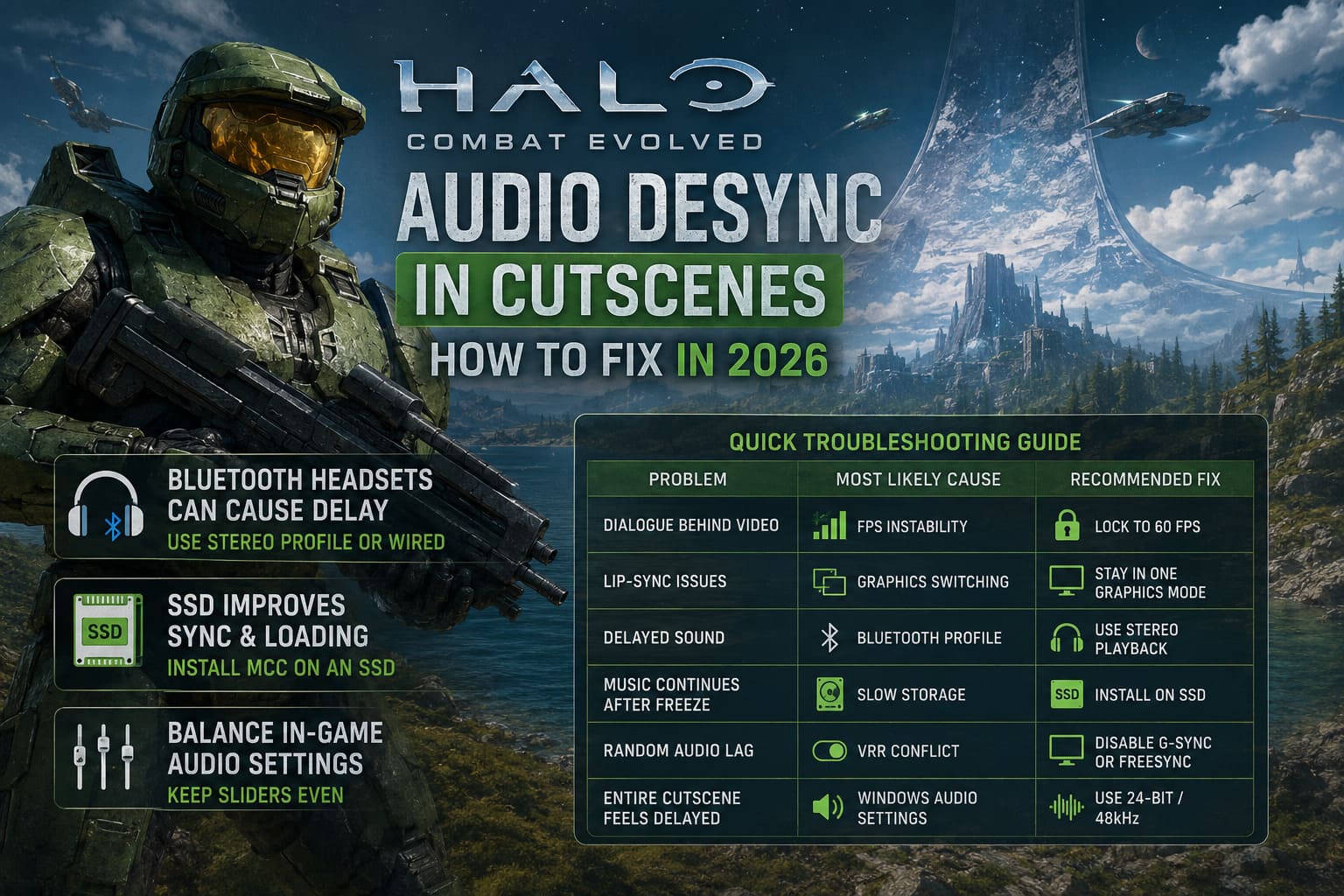
| Dialogue behind video | FPS instability | Lock to 60 FPS |
| Lip-sync issues | Graphics switching | Stay in one graphics mode |
| Delayed sound | Bluetooth profile | Use Stereo playback |
| Music continues after freeze | Slow storage | Install on SSD |
| Random audio lag | VRR conflict | Disable G-Sync or FreeSync |
| Entire cutscene feels delayed | Windows audio settings | Use 24-bit / 48kHz |
Halo Combat Evolved Co-Op Lag Fix: How to Stop P2P Delay in 2026
My Personal Checklist Before Starting a Campaign
Whenever I reinstall Halo MCC, I spend two minutes checking these settings before beginning a new playthrough.
I always make sure that:
- FPS is capped.
- VRR is disabled for Halo.
- The game is installed on an SSD.
- Audio is set to 24-bit / 48kHz.
- Bluetooth is using Stereo mode.
- I don’t switch graphics during cinematics.
Since following this routine, I honestly can’t remember the last time I experienced a broken cutscene.
Halo Campaign Evolved Cross Progression: How PS5 and PC Shared Saves Work (2026 Guide)
Final Thoughts
Halo Combat Evolved may be more than twenty years old, but its campaign still deserves to be experienced the way Bungie originally intended.
Most audio desynchronization problems aren’t caused by faulty hardware or damaged game files. They’re usually the result of modern PCs running far beyond the assumptions the original engine was designed around.
The good news is that fixing the issue rarely requires reinstalling Windows or diving into complicated system tweaks. In my experience, stabilizing the frame rate, cleaning up Windows audio settings, avoiding graphics switches during cinematics, and running the game from an SSD solve the vast majority of synchronization problems.
If you’ve been putting off another Legendary playthrough because every cinematic feels broken, it’s definitely worth spending a few minutes adjusting these settings. Once everything is configured properly, Halo’s unforgettable soundtrack, iconic dialogue, and cinematic moments feel exactly as they should.