How to Fix Anymaker Black Screen on Startup in Windows 11 (2026 Guide)
Anymaker is exactly the kind of PC game that can make you forget what time it is. You start by messing around with a vehicle, wiring systems together, testing some ridiculous mechanical idea, and suddenly you’ve spent three hours trying to figure out why one tiny component refuses to behave. The sandbox is the whole point. The last thing you want is for Windows 11 to stop you before you even reach the main menu.
Unfortunately, that’s exactly what some players are running into. Anymaker can launch into a completely black screen on Windows 11, sometimes followed by a crash to the desktop. In other cases, the game appears to be running normally in the background: you can hear music, interface sounds, or other audio, but the display is just black.
That’s particularly annoying because it makes the usual in-game graphics fixes completely useless. You can’t lower resolution, disable fullscreen, change rendering options, or adjust anything else when the game refuses to show the menu in the first place.
The good news is that a black screen doesn’t automatically mean your GPU is dying or that you need to reinstall Windows. There are several things worth checking first, from Steam launch arguments and Windows graphics settings to corrupted files, shader data, security software, and hybrid-GPU conflicts.
What Usually Causes the Anymaker Black Screen?
There isn’t one universal cause behind every Anymaker startup failure. That’s the frustrating part. Two PCs can display the exact same black screen while suffering from completely different problems underneath.
| Possible Cause | What You May Notice | What to Try |
|---|---|---|
| Fullscreen initialization problem | Black screen immediately after launch | Force windowed mode |
| Windows 11 fullscreen handling | Game launches but doesn’t display correctly | Disable fullscreen optimizations |
| Missing or quarantined files | Black screen, missing visuals, or crash | Check Windows Security and game files |
| Corrupted shader data | Freeze during startup or rendering initialization | Clear shader caches and verify files |
| Hybrid GPU conflict | Laptop or APU system launches incorrectly | Force the dedicated GPU |
| Runtime exception | Black screen followed by desktop crash | Check compatibility and system configuration |
| Display handshake issue | Problem appears with multiple monitors | Perform a full power cycle |
Some Windows setups can also throw access-violation-style runtime errors during initialization. Hybrid graphics configurations are particularly worth investigating if you’re using integrated Radeon graphics alongside a dedicated GPU.
1. Force Anymaker Into Windowed Mode Through Steam
This is the first thing I’d try because it takes almost no time and doesn’t require digging through Windows settings. If Anymaker is choking while trying to initialize fullscreen mode, forcing the game into a window can get you past the problem before the graphics configuration is loaded.
- Open Steam and go to your Library.
- Right-click Anymaker and choose Properties.
- Stay on the General tab.
- Find the Launch Options field.
- Enter
-windowedor, if needed,-window. - Close the Properties window and launch the game.
If you finally get an image instead of a black rectangle, don’t immediately start changing ten different settings. Go into Anymaker’s display options and test your normal resolution first. From there, Borderless Fullscreen is worth trying instead of exclusive fullscreen.
It’s a simple workaround, but I’ve seen enough PC games get weird about fullscreen initialization to never underestimate it.
2. Disable Windows 11 Fullscreen Optimizations
Windows 11 has its own ideas about how fullscreen applications should behave. Usually that’s invisible to the player. When the game and Windows disagree about presentation modes, though, the result can be a very expensive-looking black screen that tells you absolutely nothing.
Steam gives you a quick way to reach Anymaker’s installation folder:
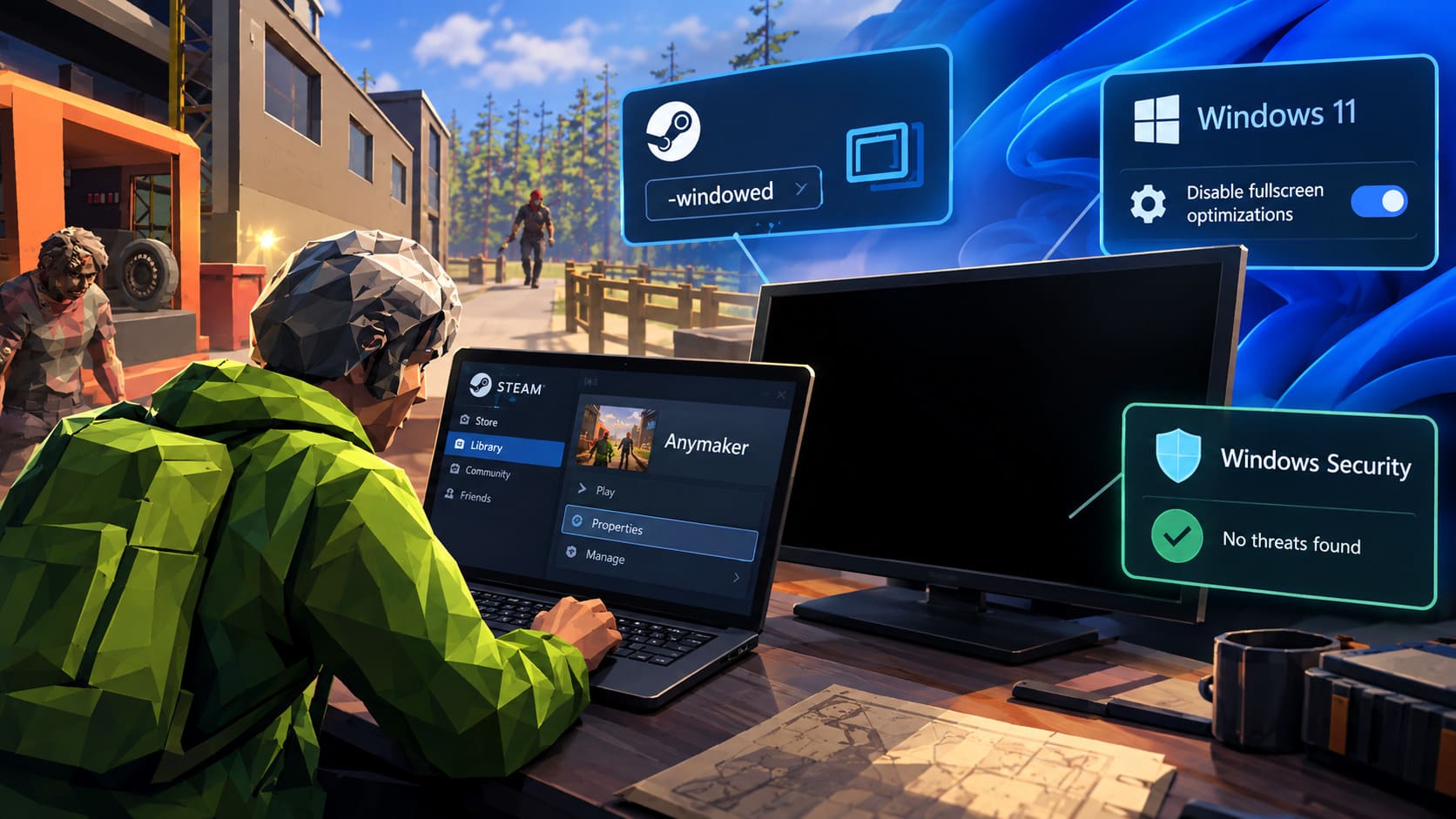
- Open your Steam Library.
- Right-click Anymaker.
- Select Manage > Browse local files.
- Find the game’s primary executable.
- Right-click it and choose Properties.
- Open the Compatibility tab.
- Enable Disable fullscreen optimizations.
- Click Apply, then OK.
You can also test Run this program as an administrator. It isn’t something I’d leave enabled blindly on every game, but it’s useful as a diagnostic step when permissions are suspected.
If you’re still getting nowhere, Windows compatibility mode is another experiment. Try Windows 8 compatibility mode and test the game again. Don’t assume this is the magic solution; compatibility modes can introduce their own problems. Treat it as a troubleshooting switch, not a permanent requirement.
3. Check Windows Security Before Blaming the Game
This one is easy to overlook. Security software doesn’t always stop a game with a giant warning saying, “I broke your installation.” Sometimes a component gets quarantined quietly, and the application simply starts behaving like something is missing.
Open Windows Security and go to:
Virus & threat protection > Protection history
Look for recent entries that appeared around the same time Anymaker started failing. Pay particular attention to anything associated with the game’s executable files or auxiliary engine components.
If you find a legitimate Anymaker file that was quarantined, follow Windows Security’s options for restoring or allowing that file only after confirming that it belongs to the game installation.
You can also inspect:
Virus & threat protection > Manage settings > Exclusions
If you’re certain the installation is legitimate, you can consider adding the Anymaker installation folder as an exclusion for testing. A typical Steam location looks like:
C:\Program Files (x86)\Steam\steamapps\common\Anymaker
Don’t start randomly disabling antivirus protection. That’s a terrible troubleshooting habit. Check what Windows actually blocked first, and only make targeted changes.
4. Verify Anymaker’s Files and Clear Shader Data
Early Access games can be especially sensitive to broken or partially updated files. One interrupted update or corrupted asset can be enough to turn a normal launch into a black-screen simulator.
Steam’s file verification should be one of your standard troubleshooting tools:
- Open Steam.
- Right-click Anymaker in your Library.
- Choose Properties.
- Open Installed Files.
- Click Verify integrity of game files.
- Wait for Steam to complete the scan and replace damaged files.
After that, consider clearing the shader cache associated with your GPU. NVIDIA and AMD systems maintain shader data that can become stale or corrupted after driver changes, game updates, or configuration changes.
The goal here is simple: make Windows and the graphics driver rebuild the relevant rendering data rather than continuing to load potentially broken cached information.
5. Force Anymaker to Use Your Dedicated GPU
This is one of the first things I’d check on a gaming laptop or any system running an integrated GPU alongside a dedicated graphics card.
Windows 11 can decide which GPU an application should use. Sometimes that decision isn’t what you want, particularly when a technically demanding sandbox is involved.
- Press Windows + I to open Settings.
- Go to System > Display > Graphics.
- Find Anymaker in the application list.
- If it isn’t listed, use Browse and select the game’s executable manually.
- Select Anymaker and click Options.
- Choose High performance.
- Save the setting.
- Launch Anymaker again.
This is especially relevant for laptops with integrated graphics and a dedicated NVIDIA or AMD GPU. If the game was accidentally starting on the low-power graphics processor, forcing the high-performance device can eliminate an entire category of startup problems.
6. Look for Runtime or Access-Violation Crashes
If Anymaker gives you a black screen for a few seconds and then dumps you back onto the desktop, pay attention to crash information rather than treating the black screen as the entire problem.
Access-violation errors such as c0000005 can indicate that the application encountered an invalid memory access. That doesn’t automatically identify one specific fix, but it can point you toward graphics initialization, runtime components, drivers, or compatibility problems.
This is where the earlier fixes become useful. Windowed mode, GPU selection, file verification, security checks, and compatibility settings aren’t random tricks. Each one removes a different potential failure point from the launch process.
If the game crashes consistently after the same amount of time, compare that behavior after each change. Don’t modify five settings simultaneously and then wonder which one fixed it. Change one thing, test, and move on. That’s slower for five minutes and much faster when you’re dealing with a stubborn PC problem.
7. Try a Full Power Cycle for Display Problems
This is the last-resort option on the list, but it’s worth mentioning for systems with multiple monitors, unusual display chains, docks, or HDMI/DisplayPort handshake problems.
A full shutdown and power cycle can reset hardware states that a normal restart doesn’t always clear in the same way.
- Shut down the PC completely.
- Disconnect the main power cable.
- Disconnect external monitors and unnecessary display hardware.
- Disconnect secondary USB hubs and similar peripherals if practical.
- Hold the physical power button for roughly 30–45 seconds.
- Reconnect the main power and primary monitor.
- Boot Windows normally.
- Launch Anymaker again.
You don’t need to do this every time a game crashes. For a persistent black-screen issue involving multiple displays or unusual hardware configurations, though, it can be a useful final diagnostic step.
How to Fix Anymaker Online Co-Op Connection Issues: Complete Guide
Quick Anymaker Black Screen Troubleshooting Order
| Order | Fix | Difficulty |
|---|---|---|
| 1 | Force windowed mode | Very Easy |
| 2 | Verify Steam files | Very Easy |
| 3 | Check Windows Security | Easy |
| 4 | Disable fullscreen optimizations | Easy |
| 5 | Force High Performance GPU | Easy |
| 6 | Clear shader cache | Moderate |
| 7 | Perform a full power cycle | Moderate |
Anymaker Engine Building Guide: How to Design, Wire, and Tune Your Modular Motor
Final Thoughts
A black screen is one of the worst PC gaming errors because it gives you almost no useful information. There’s no settings menu, no obvious graphics error, and sometimes not even a crash message. You’re just staring at a blank display while the game happily plays audio somewhere behind it.
With Anymaker, the smartest approach is to work from the least invasive fixes toward the more technical ones. Start with windowed mode, verify the installation, check security software, disable fullscreen optimizations, and make sure Windows is using the correct GPU. Only after those steps should you start messing with shader caches, compatibility settings, or hardware-level troubleshooting.
The important thing is not to shotgun every possible fix at once. PC troubleshooting becomes much easier when you isolate the variable that actually changes the behavior. If Anymaker suddenly launches after forcing the dedicated GPU, you’ve learned something. If windowed mode fixes it, you’ve learned something else.
And once you’re finally back in the game, you can get back to the important stuff: building something completely over-engineered, breaking it spectacularly, and spending the next hour figuring out why one tiny mechanical component brought the whole machine down. That’s the Anymaker experience we actually signed up for.