Granblue Fantasy Relink Config INI File Location: Ultimate Steam Guide
After spending countless hours with PC versions of action RPGs, I have learned one important thing: the standard in-game settings menu rarely shows everything that a player can actually control. Granblue Fantasy: Relink already provides a solid selection of graphical and gameplay options, but PC players who want the best possible experience often start searching for hidden configuration files, advanced engine settings, and manual performance tweaks.
Like many Unreal Engine-based games, Granblue Fantasy: Relink stores additional settings outside the main menu. These configuration files can help solve common PC problems such as blurry visuals, inconsistent frame pacing, unnecessary graphical effects, or performance drops on certain hardware combinations. After testing dozens of PC games where small INI adjustments changed the overall experience, I found that Relink also benefits from giving players more control over the hidden settings.
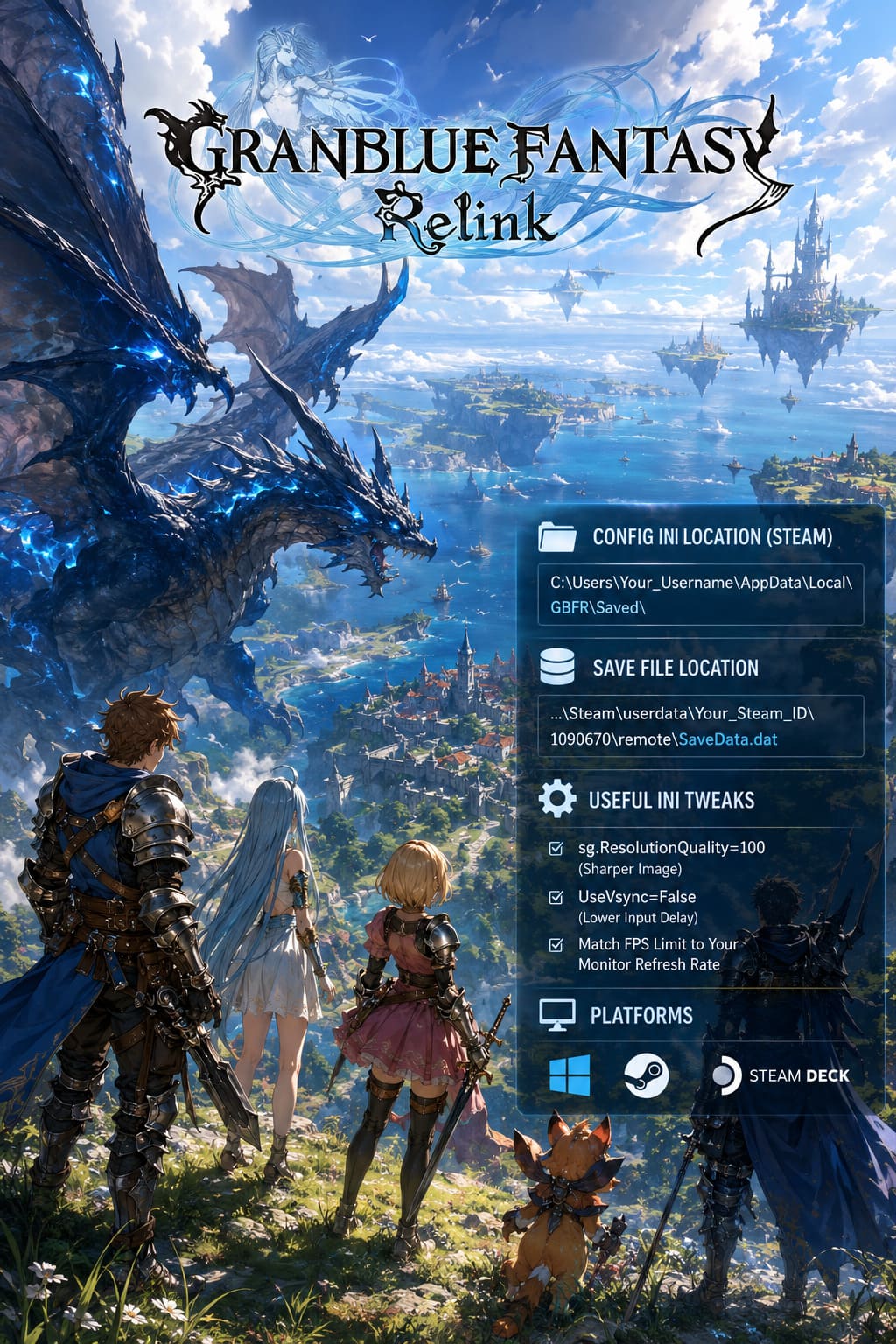
This guide explains the exact Granblue Fantasy: Relink config INI file location on Steam, how to access hidden Windows folders, where save files are stored, and which configuration changes are worth trying if you want better image quality and smoother performance.
Granblue Fantasy Relink Zeta Aerial Loop Guide: Master the Infinite Combo Timing
Where Is the Granblue Fantasy Relink Config File Located on Steam?
The first thing that surprises many players is that Granblue Fantasy: Relink does not store all important files in one location. The game separates configuration data and save information between the Windows AppData system and Steam’s own UserData directory.
The main configuration folder is usually located here:
C:\Users\[Your_Windows_Username]\AppData\Local\GBFR\Saved\
Inside this folder, you will find the configuration structure created by the game engine. These files contain local settings connected to graphics, rendering options, and hardware-related preferences.
The fastest way to access the folder is through the Windows Run command:
- Press Windows Key + R on your keyboard.
- Enter %localappdata%\GBFR\Saved\.
- Press Enter to open the directory instantly.
This method is much faster than manually searching through Windows folders. Since AppData is hidden by default, using the Run command saves time and avoids unnecessary navigation through system directories.
Granblue Fantasy Relink Save File Location on Steam
The configuration folder is not the same location where your actual game progression is stored. If you want to back up your characters, transfer progress, install a completed save file, or protect your hundreds of hours of gameplay, you need to access the Steam UserData directory.
Granblue Fantasy: Relink uses Steam AppID 1090670. The save file location is:
C:\Program Files (x86)\Steam\userdata\[Your_Steam_ID]\1090670\remote\
Inside this folder, you should find the main save file:
SaveData.dat
Before replacing or modifying anything, always create a backup copy. From my experience with RPGs, losing a completed character because of a damaged save file is one of the most frustrating problems a player can face. A simple copy of the entire remote folder is enough to protect your progress.
How to Show Hidden AppData Folders in Windows
One of the most common problems players encounter is searching for the Granblue Fantasy: Relink config folder and finding nothing. In most cases, the reason is simple: Windows hides the AppData folder automatically.
Microsoft hides this directory because it contains important application settings. Accidentally deleting files inside AppData can cause problems for different programs, but accessing the folder to edit specific game settings is completely normal for experienced PC users.
Follow these steps to reveal hidden folders:
- Open File Explorer.
- Select This PC or your Windows user folder.
- Open the View menu.
- Enable the Hidden Items option.
On Windows 10, simply activate the Hidden Items checkbox. On Windows 11, open the View menu, select Show, and enable Hidden Items. After this, the AppData folder will become visible inside your user directory.
Granblue Fantasy Relink Config Location on Steam Deck and Linux
Steam Deck players can also modify Granblue Fantasy: Relink configuration files. Because SteamOS runs Windows games through Proton compatibility layers, the files are stored inside a virtual Windows environment.
The Steam Deck configuration path is:
/home/deck/.local/share/Steam/steamapps/compatdata/1090670/pfx/drive_c/users/steamuser/AppData/Local/GBFR/Saved/
Before searching for this directory, make sure hidden files are visible in your Linux file manager. In most applications, pressing Ctrl + H will reveal hidden folders.
Adjusting configuration files on Steam Deck can be especially useful because handheld hardware has tighter performance limits. Lowering unnecessary effects, controlling rendering options, and adjusting frame behavior can help improve battery life and create a more stable gaming experience.
In my opinion, stable performance usually feels better than chasing maximum graphical quality. A consistent frame rate during intense boss fights is often more enjoyable than unstable visuals with occasional drops.
Best Granblue Fantasy Relink INI Tweaks for Better Performance
Once you locate the configuration files, you can start adjusting hidden settings. Always create a backup before editing anything. Even a small mistake in a configuration file can create unexpected results.
Open the files with a simple text editor such as:
- Notepad
- Notepad++
- Any basic text editing software
Avoid using programs that automatically format text because configuration files require their original structure.
Fix Blurry Graphics and Improve Image Quality
One of the biggest complaints from PC players is that Granblue Fantasy: Relink can sometimes look softer than expected, especially on high-resolution monitors. The issue is often connected to internal rendering resolution scaling.
Look for this setting:
sg.ResolutionQuality=0
Change it to:
sg.ResolutionQuality=100
This forces the game to render at full resolution instead of using reduced internal scaling. The difference can be noticeable on 1440p and 4K displays, where character details, environments, and visual effects appear sharper.
Disable VSync for Lower Input Delay
VSync can remove screen tearing, but it can also introduce additional input delay. In action games where timing matters, especially during difficult battles, even small delays can affect how responsive combat feels.
If you want faster frame output, change:
UseVsync=True
to:
UseVsync=False
Players using FreeSync or G-Sync monitors often prefer this approach because adaptive sync technologies can handle screen tearing without the same level of input delay.

Adjust Frame Rate Limits
Some systems benefit from manually adjusting frame smoothing settings. Matching the game output to your monitor refresh rate can create a smoother experience.
| Monitor Refresh Rate | Recommended Value |
|---|---|
| 60Hz | 60 |
| 120Hz | 120 |
| 144Hz | 144 |
| 240Hz | 240 |
Higher refresh rate monitors can feel significantly better when the game is configured correctly. A properly matched frame limit can reduce unnecessary fluctuations and make combat animations feel smoother.
Why Are My Granblue Fantasy Relink Config Files Missing?
Sometimes players follow the correct path but still cannot find the configuration folder. This usually does not mean that the installation is damaged. The game simply may not have created the files yet.
Launch the Game First
Granblue Fantasy: Relink does not always create configuration files immediately after installation. Start the game, enter the settings menu, change one option, and save your settings. This forces the engine to generate the required files.
Check Windows Permissions
Limited permissions can prevent Steam games from creating folders inside AppData. Make sure your Windows account has permission to write files and that security software is not blocking Steam from modifying local data.
- Run Steam normally or as administrator if needed.
- Check antivirus restrictions.
- Avoid installing games inside protected system folders.
Disable Steam Cloud Temporarily
Steam Cloud can sometimes overwrite manual configuration changes. If your edits disappear after launching the game, temporarily disable cloud synchronization.
- Open your Steam Library.
- Right-click Granblue Fantasy: Relink.
- Select Properties.
- Disable Steam Cloud synchronization.
- Edit your configuration files again.
After testing your changes, you can enable Steam Cloud again.
Final Thoughts: Are Granblue Fantasy Relink INI Tweaks Worth Using?
After playing many PC games with hidden configuration options, I believe INI editing remains one of the best ways to personalize your experience. Developers create default settings that work for the average player, but PC hardware is extremely different from one system to another.
For Granblue Fantasy: Relink, finding the configuration files is useful if you want sharper visuals, smoother performance, or more control over frame behavior. These changes will not upgrade your hardware, but they can remove small limitations that prevent the game from running at its best.
The biggest improvements usually come from simple adjustments: fixing resolution scaling, controlling VSync behavior, and removing unnecessary restrictions. For players who enjoy tuning their games and getting the most from their PC setup, these configuration tweaks are definitely worth trying.