Gothic 1 Remake Stuttering Fix: How to Stop UE5 FPS Drops and Performance Lag
When I first launched Gothic 1 Remake, I honestly thought this was going to be one of those rare remakes that actually respects the atmosphere of the original game. The Valley of Mines looks incredible in Unreal Engine 5 — fog rolling through the forests, torchlight bouncing off wet stone walls, NPC camps packed with life and movement. For a few moments, it genuinely felt like the Gothic world I remembered, just modernized.
Then the stuttering started.
Not small frame dips. I’m talking about those nasty UE5 hitch spikes where the game freezes for half a second every time you enter a new area, start combat, or trigger a visual effect for the first time. And the weird part? It wasn’t just happening on low-end hardware. Reddit threads and Steam discussions are full of people running RTX 4080s, RX 7900 cards, and high-end Ryzen CPUs still getting traversal stutters and unstable frame pacing.
After spending way too many hours testing settings, tweaking configs, and reading optimization discussions from other players, I finally got the game running smoothly enough to actually enjoy exploring the colony again. If you’re tired of the constant hitching in Gothic 1 Remake, these are the fixes that genuinely helped.
Why Gothic 1 Remake Stutters So Much
The biggest problem is simple: Unreal Engine 5 still struggles with shader compilation and asset streaming.
Every time the game loads a new effect, environment asset, or lighting setup, the engine can suddenly pause to process shaders in real time. In a slow cinematic game this might be manageable, but in Gothic — especially during combat or exploration — it feels awful.
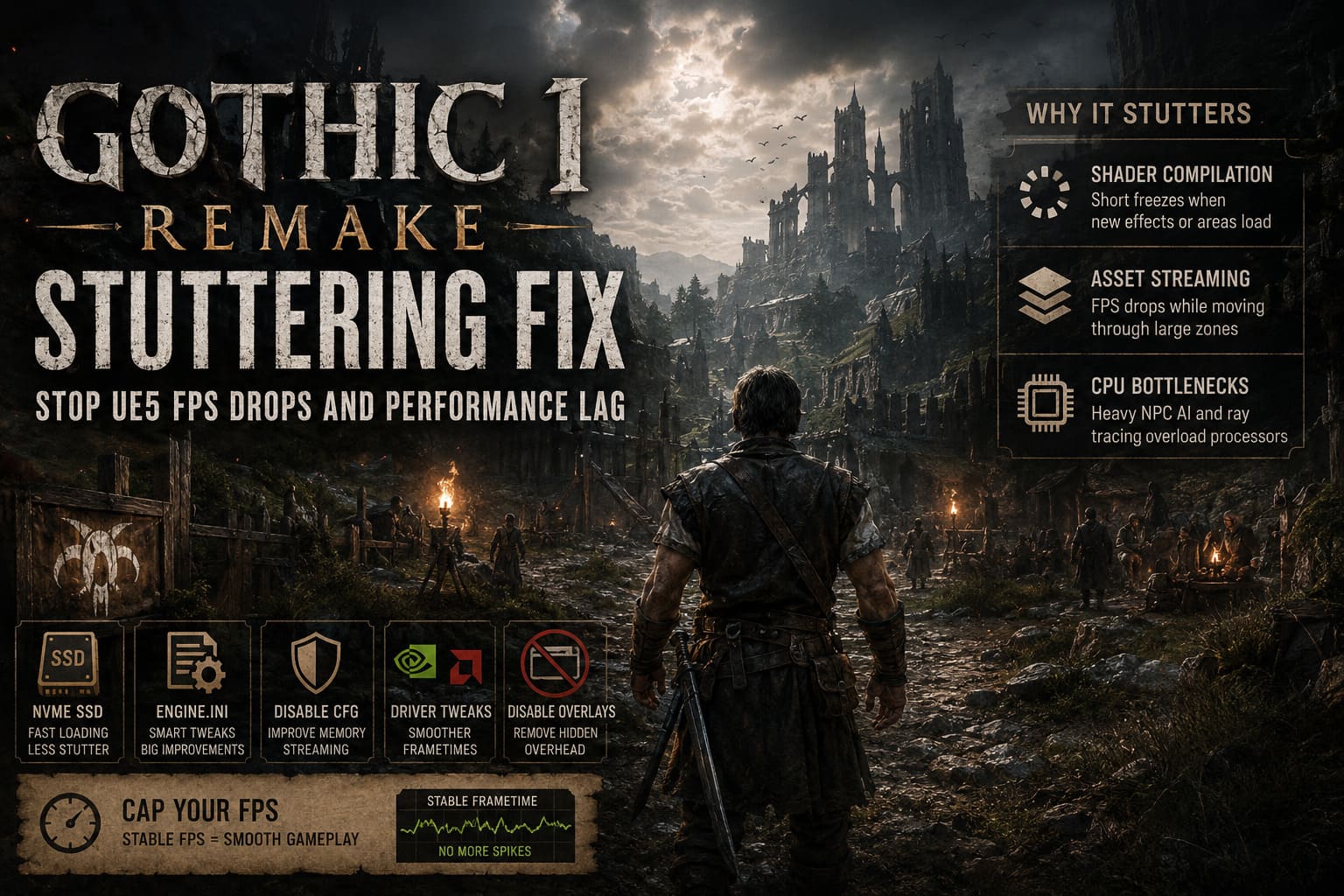
There are three main causes behind most of the stutter:
| Problem | What Happens |
|---|---|
| Shader Compilation | Short freezes when new effects or areas load |
| Asset Streaming | FPS drops while moving through large zones |
| CPU Bottlenecks | Heavy NPC AI and ray tracing overload processors |
The Old Camp was where I noticed it the most. Standing still? Fine. Walking through crowded paths or rotating the camera quickly? Instant hitching.
The good news is that most of this can actually be reduced with a few smart changes.
DLSS and FSR Are Basically Mandatory
I normally prefer native resolution whenever possible, but with Gothic 1 Remake, using DLSS or FSR made a massive difference.
If you own an RTX card, turn on DLSS Quality immediately. AMD users should use FSR Balanced or Quality depending on their resolution.
What surprised me most was how much smoother the frametimes became after enabling upscaling. It’s not just about average FPS — the entire game feels less heavy on the GPU.
Settings that worked best for me:
- 1440p: DLSS Quality
- 4K: DLSS Balanced
- 1080p: TSR at 80–85% resolution scale
Avoid Ultra Performance mode unless you absolutely need it. Gothic’s dark environments and foliage look messy with aggressive upscaling.
Install the Game on an NVMe SSD — Seriously

This one sounds obvious, but it matters more in UE5 games than people realize.
If Gothic 1 Remake is installed on an HDD, or even an older SATA SSD, traversal stuttering becomes much worse because the engine constantly streams assets while you move through the world.
Moving the game to my Gen4 NVMe drive immediately reduced loading hitches.
Quick SSD Checklist
- Internal NVMe SSD preferred
- Avoid external USB drives
- Leave at least 15–20% free space on the SSD
- Keep Windows page file enabled
UE5 absolutely loves fast storage bandwidth.
The Engine.ini Tweaks That Actually Helped
This was the biggest improvement for me personally.
Like many Unreal Engine games, Gothic 1 Remake allows backend renderer tweaks through the Engine.ini config file. Some of these settings force shader caching and improve texture streaming behavior.
Engine.ini Location
%LOCALAPPDATA%\GothicRemake\Saved\Config\WindowsNoEditor\Open Engine.ini and add the following at the bottom:
[/Script/Engine.RendererSettings]
r.CreateShadersOnLoad=1
r.ShaderPipelineCache.Enabled=1
r.XGIPSOPrecache=1
r.Streaming.PoolSize=3072
r.Streaming.LimitPoolSizeToVRAM=1

[SystemSettings]
r.SceneColorFringeQuality=0
r.Shadow.Virtual.MaxPhysicalPages=2048
After saving the file, I also set it to Read-only.
What These Tweaks Do
| Setting | Effect |
|---|---|
| Shader Cache Options | Reduces mid-game compilation stutters |
| PoolSize Increase | Improves texture streaming |
| Shadow Page Limit | Stabilizes VRAM usage |
| Chromatic Aberration Off | Slight FPS gain and cleaner image |
The first launch after these edits may take longer because shaders precompile more aggressively, but gameplay afterward feels noticeably smoother.
Disable Windows Control Flow Guard for the Game
This tweak sounds sketchy at first, but it’s become a common optimization for heavy UE5 games.
Windows security features sometimes interfere with real-time memory streaming and shader loading. Disabling CFG only for the game executable can improve frametime consistency.
Steps
- Search for Exploit Protection
- Open Program Settings
- Add the Gothic Remake executable
- Disable Control Flow Guard (CFG) for that file only
I wouldn’t normally recommend touching Windows security settings, but this genuinely reduced traversal hitching on my system.
NVIDIA and AMD Driver Tweaks Worth Using
Most people ignore GPU control panel settings these days, but Unreal Engine 5 behaves differently depending on how shader caching and power management are configured.
NVIDIA Settings
Inside NVIDIA Control Panel:
- Set Shader Cache Size to Unlimited
- Enable Prefer Maximum Performance
- Turn V-Sync OFF in the driver
- Use G-Sync or FreeSync instead
AMD Settings
Inside Adrenalin:
- Texture Filtering Quality → Performance
- Clear Shader Cache after major driver updates
- Avoid aggressive frame generation below 50 FPS
One mistake I kept seeing online was people enabling frame generation while the base FPS was already unstable. That usually makes stutter feel worse, not better.
Overlays Absolutely Destroy Performance in UE5 Games
This is probably the easiest fix on the list.
Disable every unnecessary overlay.
Seriously.
I tested the game with Steam Overlay, Discord Overlay, GeForce overlay, and MSI monitoring overlays active. Frametime spikes became noticeably worse.
Turn Off These First
- Steam Overlay
- Discord Overlay
- NVIDIA Instant Replay
- Xbox Game Bar
- Browser hardware acceleration
UE5 games already hammer both CPU and memory bandwidth. Overlay hooks just add more overhead.
Cap Your FPS Instead of Chasing Bigger Numbers
This was the moment the game finally stopped feeling inconsistent.
Gothic 1 Remake feels dramatically smoother with a stable framerate cap compared to wildly fluctuating FPS.
Instead of bouncing between 70 and 110 FPS, I locked the game to 60 FPS using RTSS. The result felt far better because the frametimes became stable.
Gothic 1 Remake Combat Guide: How to Block, Parry, and Master Riposte
Recommended FPS Caps
| Monitor Refresh Rate | Recommended Cap |
|---|---|
| 60Hz | 60 FPS |
| 120Hz | 72 or 80 FPS |
| 144Hz | 72 or 90 FPS |
| 165Hz+ | 90 FPS |
Leaving a little GPU headroom helps prevent those brutal 99% usage spikes that trigger hitching during heavy scenes.
Gothic 1 Remake Early Game Weapons Guide: Best Melee & Ranged Gear (2026)
Final Thoughts
I genuinely love what Alkimia Interactive is trying to do with Gothic 1 Remake. The atmosphere is incredible, the world design feels authentic, and the remake captures that oppressive colony vibe surprisingly well.
But right now, the technical side definitely needs more optimization work.
The good news is that most of the stuttering can be reduced significantly with the right combination of shader precaching, SSD streaming optimization, driver tweaks, and framerate management. After applying these fixes, the game finally started feeling smooth enough for long play sessions instead of a constant battle against hitching and unstable frametimes.
If you’ve been frustrated by Unreal Engine 5 performance problems lately, Gothic 1 Remake is unfortunately another example of the same engine-level issues showing up again. Still, with a few community-tested fixes, the experience becomes dramatically better — and honestly, once the stuttering is under control, it’s much easier to appreciate just how beautiful this remake actually is.