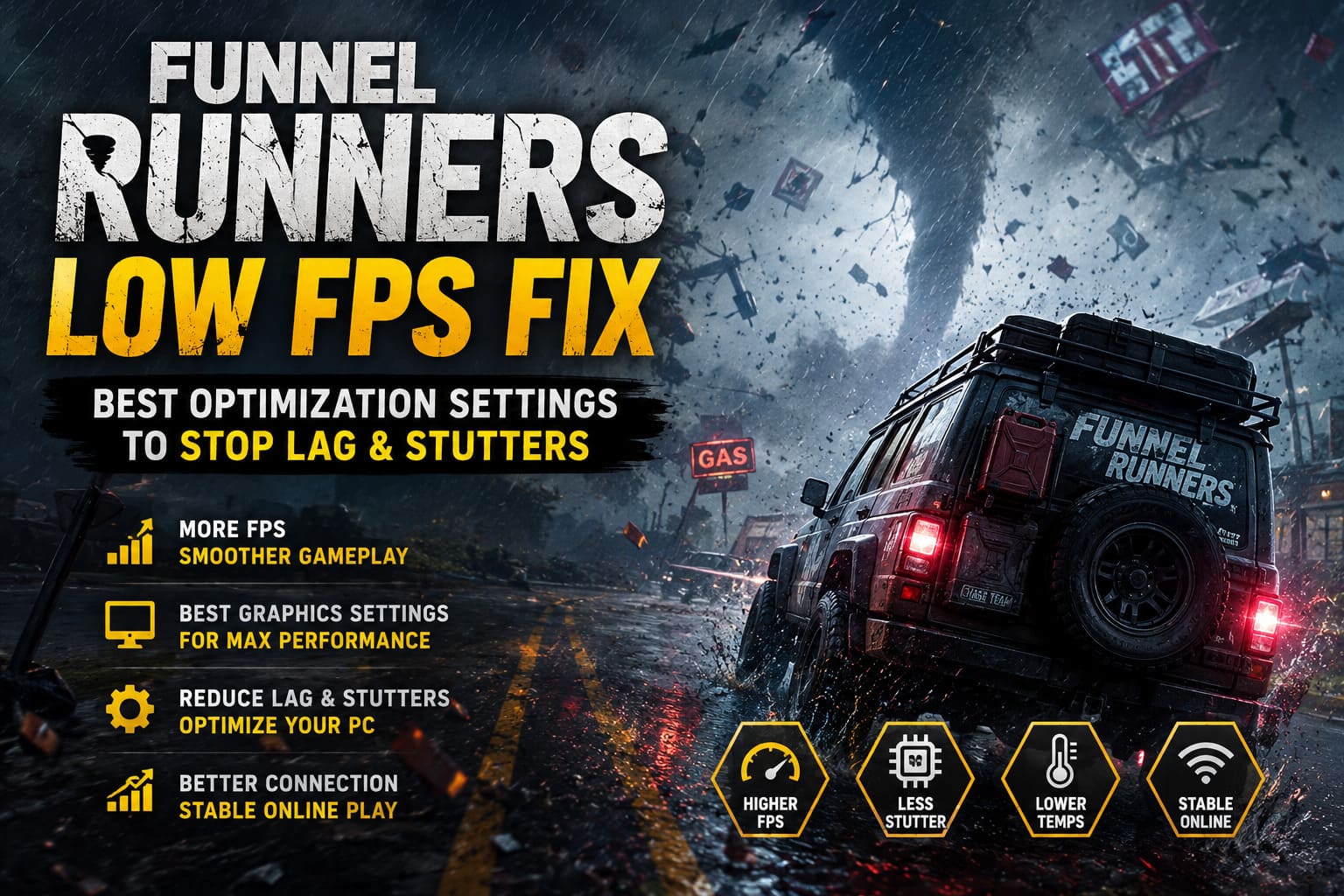
Funnel Runners Low FPS Fix: Best Optimization Settings to Stop Lag & Stutters
When I first jumped into Funnel Runners, I expected the usual Unreal Engine 5 performance quirks. What I didn’t expect was watching my frame rate collapse the moment an F5 tornado ripped through half the city. One second I was comfortably above 100 FPS, and the next I was fighting through stutters, input delay, and random freezes while trying to carry engine parts back to the escape vehicle.
After spending several evenings experimenting with different graphics settings, Windows tweaks, and driver options, I finally reached a point where the game stayed consistently smooth—even during the most chaotic storms.
This isn’t a miracle “gain 200 FPS” guide because those don’t exist. Instead, these are the changes that genuinely improved my experience and should help most PC players squeeze far more performance out of Funnel Runners without making the game look terrible.
Why Funnel Runners Is So Demanding
Unlike many survival games where the environment barely changes, Funnel Runners constantly rebuilds the world around you.
Every collapsing wall, flying piece of debris, shattered window, overturned vehicle, and swirling tornado particle effect requires additional calculations. That means your GPU isn’t the only component working overtime.
The biggest performance bottlenecks usually come from:
| Problem | What Happens |
|---|---|
| CPU overload | Large buildings collapse and physics calculations spike, causing heavy stutters. |
| GPU saturation | Volumetric weather, lighting and particles push graphics cards to their limits. |
| VRAM limitations | Texture streaming begins, creating hitching and sudden FPS drops. |
| Online latency | Rubber-banding sometimes feels like FPS lag even when your hardware is fine. |
One thing I noticed is that average FPS can be misleading. My game often reported 90 FPS while still feeling sluggish because the 1% lows were terrible whenever the tornado destroyed multiple structures at once.
Improving frame consistency mattered far more than chasing the highest benchmark number.
The Graphics Settings That Helped Me Most
Instead of lowering every setting to Low immediately, I tested them one by one.
Some options barely affected performance, while others made a surprisingly large difference.
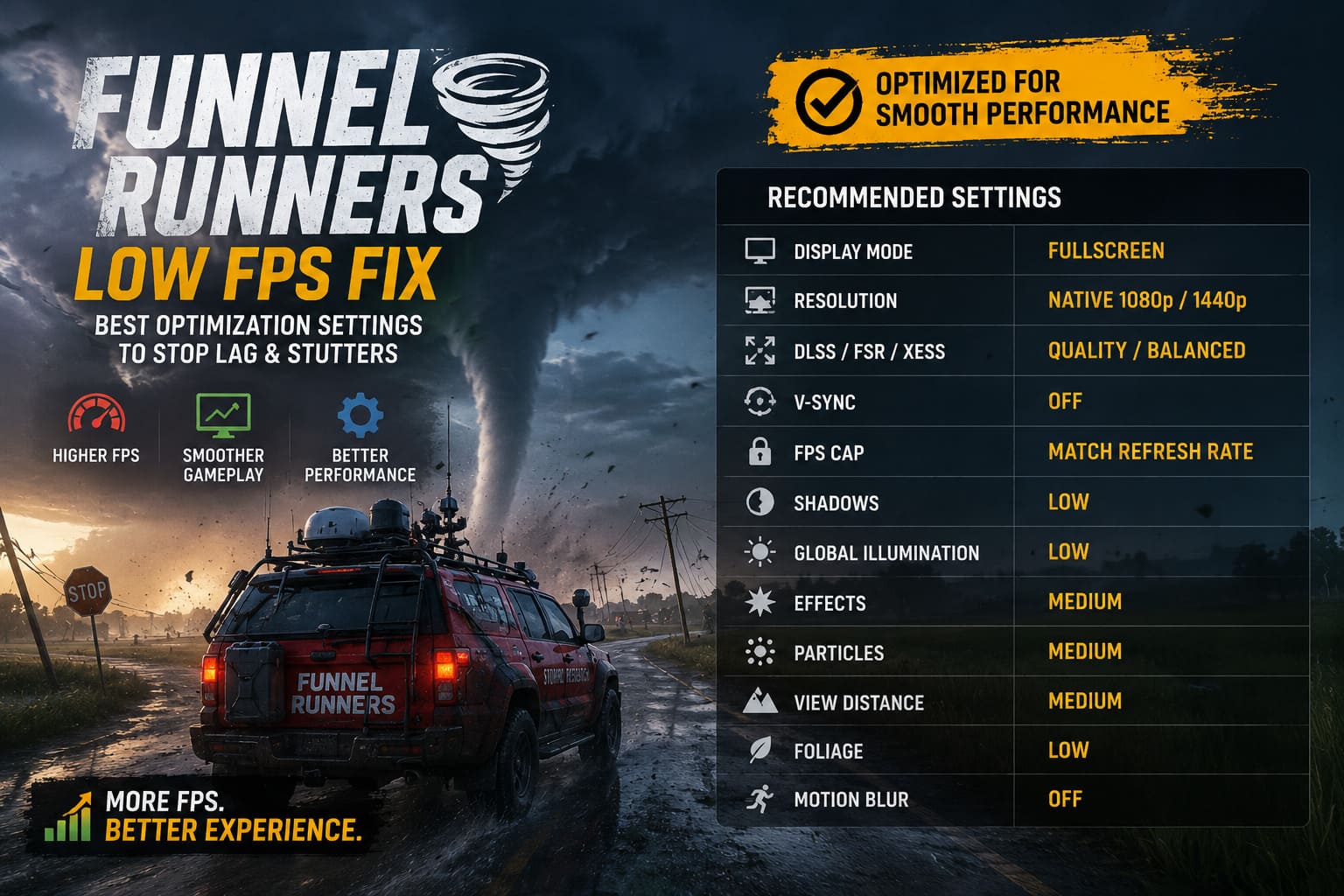
Here’s the setup I’d recommend for most mid-range gaming PCs.
| Setting | Recommendation |
|---|---|
| Display Mode | Fullscreen |
| Resolution | Native 1080p or 1440p |
| DLSS / FSR / XeSS | Quality or Balanced |
| V-Sync | Off |
| FPS Cap | Match monitor refresh rate |
| Shadows | Low |
| Global Illumination | Low |
| Effects | Medium |
| Particles | Medium |
| View Distance | Medium |
| Foliage | Low |
| Motion Blur | Off |
The biggest surprise was shadow quality.
Lowering shadows gave me a much larger FPS improvement than reducing textures. Since most of the action happens inside storms with limited visibility anyway, I barely noticed the visual difference.
Stop Chasing Unlimited FPS
This was probably the most unexpected improvement.
Initially I left the frame rate uncapped because I assumed “more FPS is always better.”
Instead, my GPU constantly sat at nearly 100% usage, temperatures climbed, and after long sessions performance actually became less stable.
Once I capped the game to match my monitor’s refresh rate, everything became noticeably smoother.
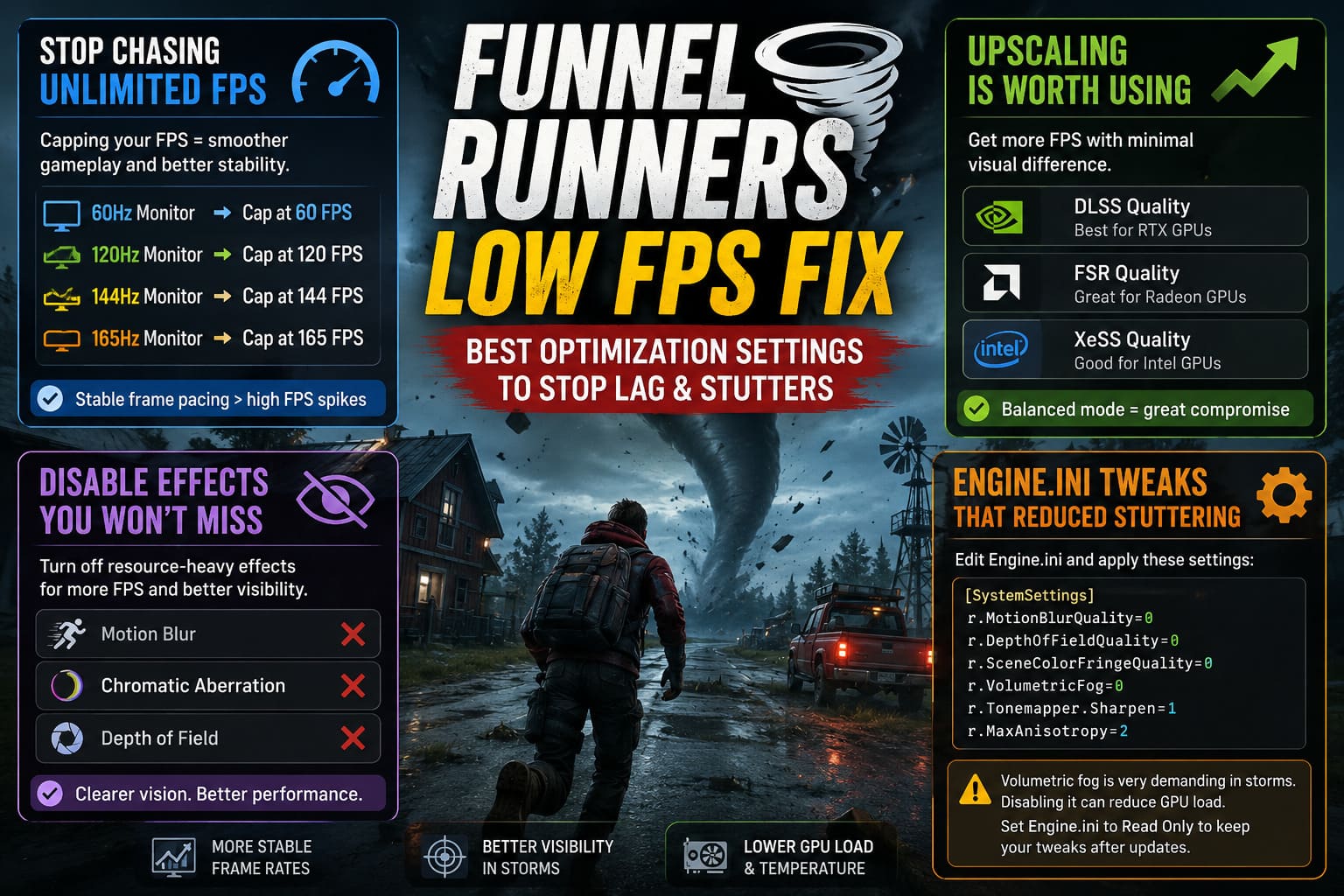
For example:
- 60 Hz monitor → Cap at 60 FPS
- 120 Hz monitor → Cap at 120 FPS
- 144 Hz monitor → Cap at 144 FPS
- 165 Hz monitor → Cap at 165 FPS
Stable frame pacing almost always feels better than wildly fluctuating frame numbers.
Upscaling Is Worth Using
Normally I prefer native resolution whenever possible.
In Funnel Runners, though, Unreal Engine 5 makes hardware upscaling surprisingly effective.
If your graphics card supports it:
- DLSS Quality is an excellent option for RTX users.
- FSR Quality works well on Radeon cards.
- XeSS is worth trying on Intel hardware.
Balanced mode is also a good compromise if you’re struggling to stay above your desired frame rate.
During gameplay I honestly had a hard time spotting visual differences while moving through storms, but I definitely noticed the smoother gameplay.
Disable Effects You Won’t Miss
There are several cinematic effects that consume resources without adding much during actual gameplay.
I disabled:
- Motion Blur
- Chromatic Aberration
- Depth of Field
Besides the FPS improvement, visibility actually became better.
It’s much easier to spot loot, tools, fuel cans, and escape routes when the image isn’t constantly being blurred by post-processing.
Engine.ini Tweaks That Reduced Stuttering
If you’re comfortable editing configuration files, there are a few Unreal Engine settings worth changing.
Navigate to your local configuration folder and edit Engine.ini.
These values helped reduce unnecessary rendering effects:
[SystemSettings]
r.MotionBlurQuality=0
r.DepthOfFieldQuality=0
r.SceneColorFringeQuality=0
r.VolumetricFog=0
r.Tonemapper.Sharpen=1
r.MaxAnisotropy=2
Volumetric fog is particularly demanding during severe weather.
Disabling it won’t transform your performance overnight, but it can reduce GPU load during the most intense tornado events.
If the game overwrites your configuration after updates, setting the file to Read Only may help preserve your changes.
Update Your Graphics Driver (Seriously)
This recommendation appears in almost every optimization guide, but in this case it’s actually worthwhile.
Funnel Runners relies heavily on Unreal Engine 5 features, and GPU vendors continue releasing game-specific optimizations.
After installing a newer NVIDIA driver, I noticed fewer random shader compilation stutters than before.
If you’re using:
NVIDIA
- Prefer Maximum Performance
- Low Latency Mode On
- Texture Filtering High Performance
AMD
- Radeon Anti-Lag enabled
- Radeon Chill disabled
- Texture Filtering Performance
None of these settings doubled my FPS, but together they made gameplay feel noticeably more responsive.
Windows Tweaks That Are Still Worth Doing
Windows quietly runs dozens of background processes while you’re gaming.
Some consume only tiny amounts of CPU time individually, but together they can impact performance.
Before launching Funnel Runners I usually:
- Enable Windows Game Mode
- Close unnecessary browser tabs
- Disable overlays
- Stop RGB software running in the background
- Exit launchers I’m not using
- Pause cloud synchronization
Steam, Discord, Xbox Game Bar, GeForce Experience, and similar overlays all add a little overhead.
Each one alone isn’t a huge problem.
Running all of them together definitely can be.
If You’re Playing Online, Don’t Ignore Your Network
One mistake I made early on was assuming every hitch was a hardware problem.
It wasn’t.
Sometimes the game felt like it was freezing, but the real culprit was packet loss.
Things that improved online stability:
- Using Ethernet instead of Wi-Fi
- Closing downloads before joining a lobby
- Avoiding distant regions
- Letting the player with the strongest connection host
Rubber-banding can look almost identical to frame drops, so it’s worth checking your connection before rebuilding your entire PC.
Reduce Background CPU Usage
Physics-heavy games love fast processors.
That means every unnecessary application running in the background steals resources from Funnel Runners.
Open Task Manager and look for software that’s quietly consuming CPU time.
Some common offenders include:
- Web browsers with dozens of tabs
- Streaming software
- RGB control utilities
- Hardware monitoring applications
- File synchronization programs
Closing only a few of these gave me more stable minimum FPS during larger destruction sequences.
How to Fix Funnel Runners Crash on Launch: Steam Startup Guide (2026)
Texture Settings Aren’t Always the Problem
Many people immediately lower texture quality.
I actually recommend lowering shadows and effects first.
Textures mainly affect VRAM usage.
Unless your graphics card is running out of memory, reducing textures often produces surprisingly small FPS gains.
Instead, prioritize:
- Shadows
- Global illumination
- Particle effects
- Volumetric lighting
Those settings usually have a much larger impact.
How to Outrun a Tornado in Funnel Runners: Survival Guide, Tips, and Strategies (2026)
Final Thoughts
Funnel Runners is one of those games that truly shines once performance issues are under control. The frantic teamwork, collapsing skyscrapers, and massive tornadoes create some unforgettable moments—but only if your PC can keep up.
The biggest improvements for me came from a combination of changes rather than one magical fix. Lowering shadow quality, enabling DLSS Quality, capping my FPS to my monitor’s refresh rate, disabling unnecessary post-processing effects, and cleaning up background applications made the game feel dramatically smoother. My average FPS increased, but more importantly, the annoying micro-stutters during major destruction events nearly disappeared.
If you’re still experiencing heavy lag after trying these optimizations, the limiting factor may simply be your hardware. Funnel Runners pushes both modern CPUs and GPUs much harder than many other co-op survival games, especially once multiple buildings begin collapsing simultaneously. In that case, reducing resolution or using Balanced upscaling is usually the next best step.
At the end of the day, consistent frame pacing beats chasing the highest FPS counter. I’d rather play at a locked, smooth 90 FPS than bounce wildly between 160 and 45 during every tornado. Once I stopped obsessing over maximum numbers and focused on stability instead, Funnel Runners became far more enjoyable—and surviving those F5 storms finally felt like a test of skill instead of a fight against my PC.