CS2 FPS Cap Config 2026: How to Lock Frame Rate Natively via Autoexec
If you’ve spent hundreds of hours grinding Premier, FACEIT, or community servers like I have, you’ve probably experienced that frustrating moment when your aim feels perfect one round, then completely off the next. Most players immediately blame the servers, subtick, or even their mouse. Sometimes they’re right—but surprisingly often, the real culprit is unstable frame pacing.
One of the biggest mistakes I still see in 2026 is players running completely uncapped FPS because someone once told them that “higher FPS is always better.” It sounds logical until your GPU starts bouncing between 650 FPS and 280 FPS every time multiple smokes, mollies, and flashes explode onto the bombsite.
That isn’t smooth. It isn’t competitive.
After spending countless hours tweaking CS2, testing different hardware combinations, comparing latency graphs, and reading discussions from experienced competitive players, I’ve become convinced that using the Source 2 engine’s native FPS limiter is still the cleanest and most reliable way to control performance.
This guide explains exactly how to configure it, where your files belong in 2026, and why a properly tuned frame cap can actually make the game feel significantly more consistent.
Why Unlimited FPS Isn’t Always Your Friend
Seeing a huge FPS number in the corner of your screen feels satisfying. I get it.
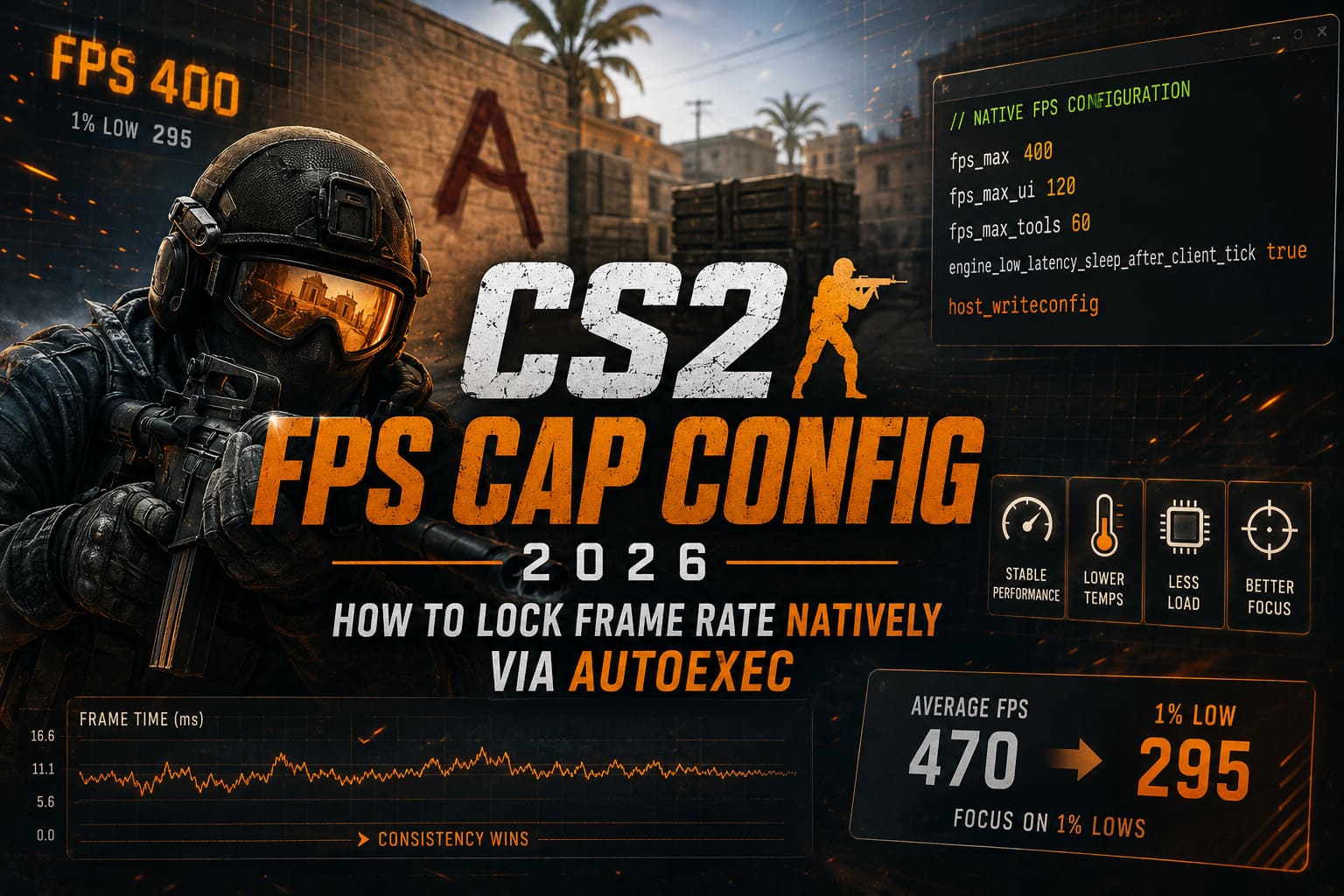
Watching your PC pump out 700+ FPS almost feels like proof that your expensive hardware is working overtime.
The problem?
Your eyes don’t care about the biggest number.
Your mouse certainly doesn’t.
Your brain notices frame consistency, not random performance spikes.
When your GPU is constantly changing workload, several things begin happening.
Frame-Time Variance
Imagine your PC rendering:
- 620 FPS
- 605 FPS
- 590 FPS
- Suddenly 310 FPS during an execute
- Back to 580 FPS
The average FPS still looks fantastic.
The experience doesn’t.
Instead of smooth frame delivery, you’re introducing tiny inconsistencies that can make flick shots feel different from round to round.
Competitive players often describe this feeling as:
“The game feels heavy.”
That’s usually frame-time instability—not a lack of FPS.
Higher Hardware Temperatures
Menus are another overlooked problem.
Without a separate UI cap, many graphics cards sit at:
- 99% GPU usage
- Maximum clocks
- Unnecessary fan noise
- Extra heat
…while you’re literally waiting in matchmaking.
That’s wasted power.
Extra System Load
Running your GPU permanently at full utilization leaves less room when intense combat begins.
The result can include:
- Inconsistent latency
- Sudden frame drops
- Clock-speed fluctuations
- Increased thermal throttling during long sessions
None of these help you hit headshots.
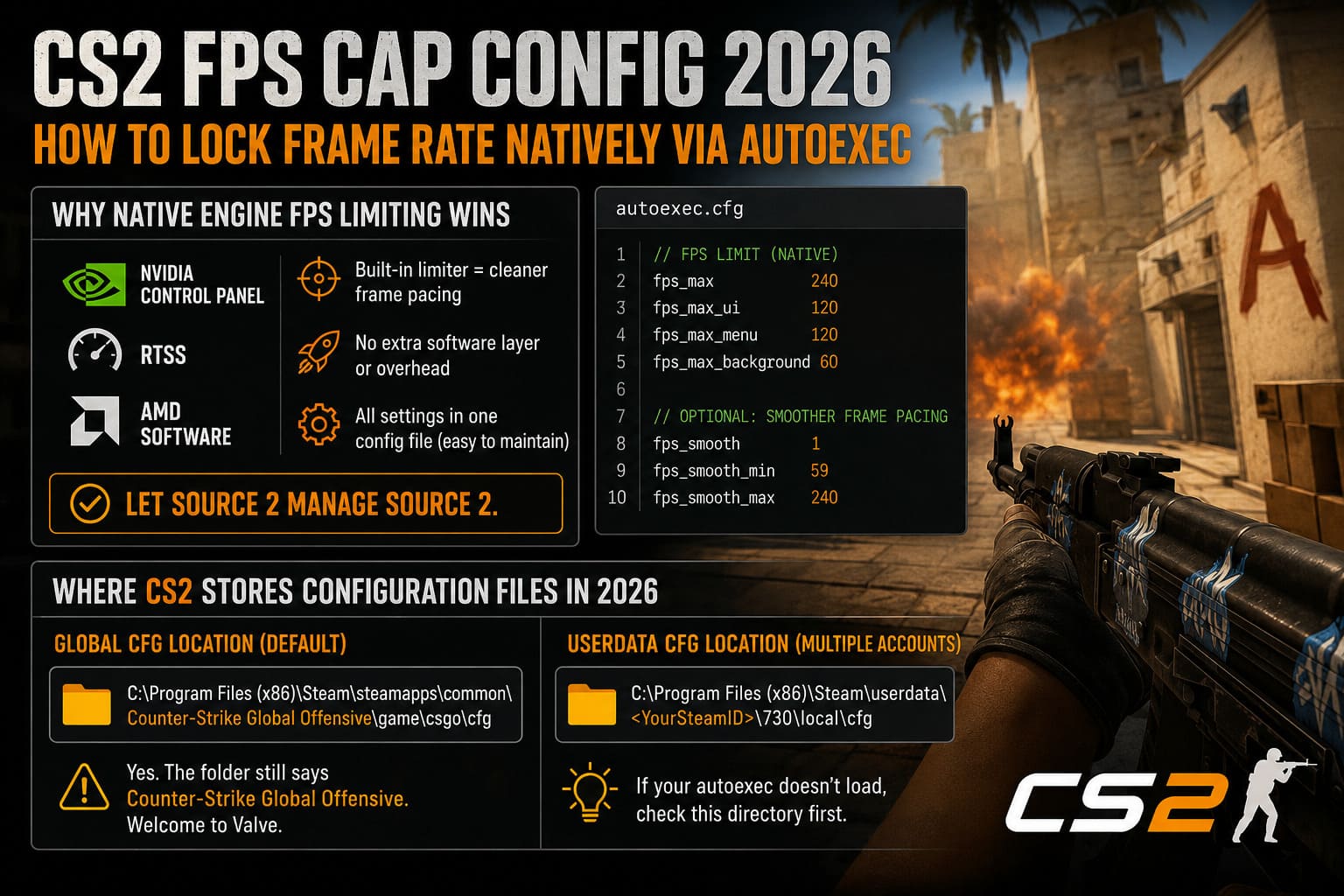
Why Native Engine FPS Limiting Wins
A lot of players still prefer:
- NVIDIA Control Panel
- RTSS
- AMD Software frame limiter
Those tools absolutely work.
But personally?
If the game already provides an internal limiter, I’d rather let Source 2 manage Source 2.
Native commands work directly inside the engine instead of adding another software layer between Windows and the game.
That usually produces cleaner frame pacing while avoiding unnecessary overhead.
It’s also incredibly easy to maintain since every setting lives inside one configuration file.
Where CS2 Stores Configuration Files in 2026
Valve hasn’t exactly made things simple.
Despite Counter-Strike 2 replacing CS:GO years ago, the installation directory still uses the old folder structure.
The global configuration folder is usually located here:
C:\Program Files (x86)\Steam\steamapps\common\Counter-Strike Global Offensive\game\csgo\cfgYes.
The folder still says Counter-Strike Global Offensive.
Welcome to Valve.
If you’re using multiple Steam accounts, CS2 may prioritize your personal userdata folder instead.
That location is:
C:\Program Files (x86)\Steam\userdata\<YourSteamID>\730\local\cfgIf your autoexec doesn’t seem to load correctly, checking this directory is usually the first thing I’d recommend.
Creating an Autoexec File
The process only takes a minute.
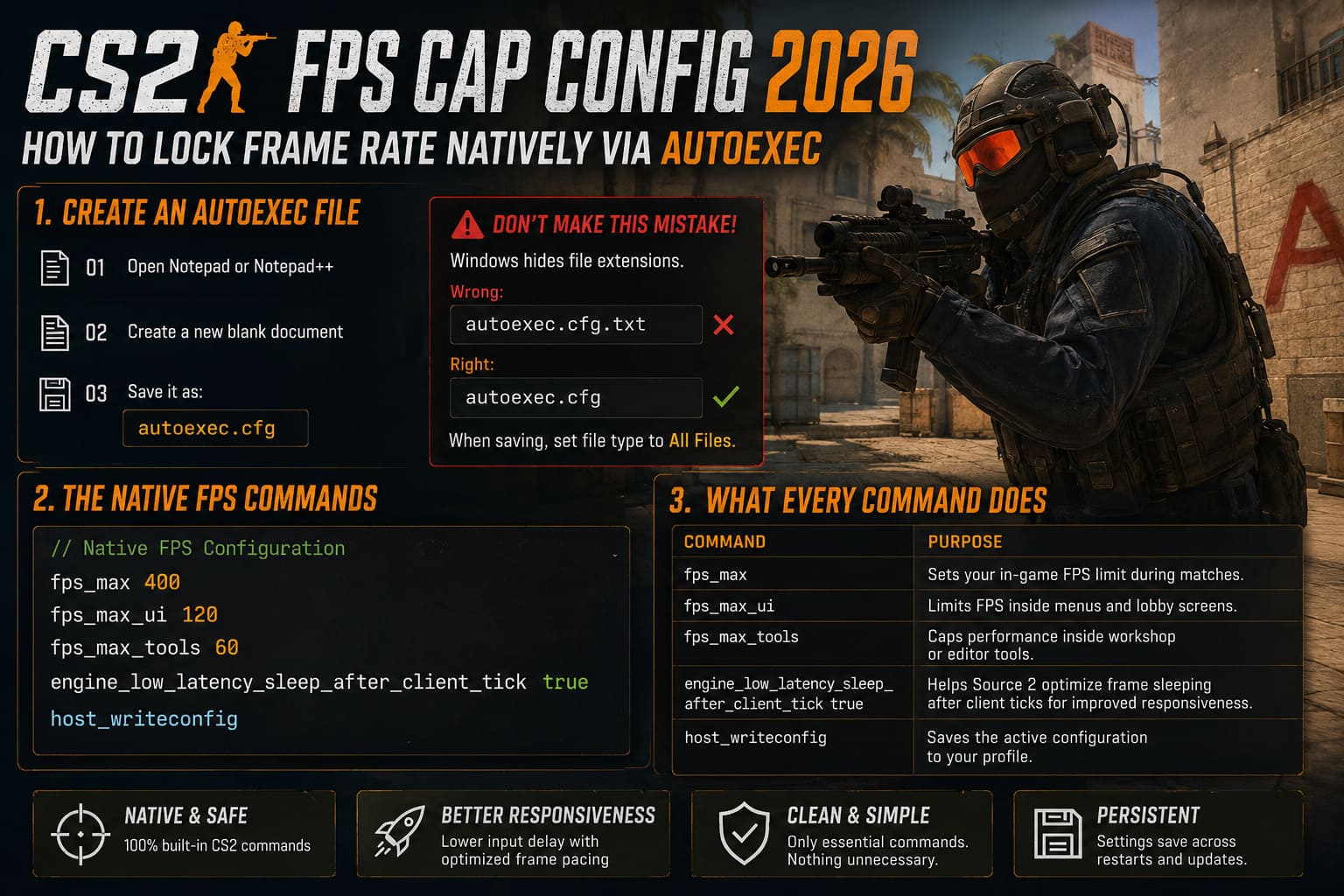
- Open Notepad or Notepad++.
- Create a new blank document.
- Save it as:
autoexec.cfgOne mistake catches players every year.
Windows loves hiding file extensions.
Instead of creating:
autoexec.cfgPeople accidentally create:
autoexec.cfg.txtCS2 completely ignores that file.
When saving, always change the file type from Text Documents to All Files.
The Native FPS Commands
Inside your autoexec, place the following commands.
// Native FPS Configuration

fps_max 400
fps_max_ui 120
fps_max_tools 60
engine_low_latency_sleep_after_client_tick true

host_writeconfig
Simple.
Clean.
No unnecessary commands copied from decade-old YouTube videos.
What Every Command Actually Does
| Command | Purpose |
|---|---|
| fps_max | Sets your in-game FPS limit during matches. |
| fps_max_ui | Limits FPS inside menus and lobby screens. |
| fps_max_tools | Caps performance inside workshop or editor tools. |
| engine_low_latency_sleep_after_client_tick true | Helps Source 2 optimize frame sleeping after client ticks for improved responsiveness. |
| host_writeconfig | Saves the active configuration to your profile. |
Every one of these commands has a job.
None of them are there just because someone on Reddit said so.
Finding the Right FPS Cap
This is where opinions start flying.
I’ve tested plenty of values over the years, and I’ve come to one conclusion:
Don’t chase the highest number. Chase the most stable number.
Here are some practical starting points.
| Monitor Refresh Rate | Recommended FPS Cap |
|---|---|
| 144 Hz | 300 FPS |
| 165 Hz | 330 FPS |
| 240 Hz | 400 FPS |
| 360 Hz | 600 FPS |
| 540 Hz | 600 FPS or higher if your hardware can sustain it |
These aren’t magical values.
They’re simply balanced limits that prevent your GPU from working unnecessarily hard while still leaving plenty of performance overhead.
The 1% Low Method
Personally, this is the method I trust the most.
Run several matches.
Watch your telemetry.
Ignore the flashy average FPS.
Instead, focus on your 1% lows.
Here’s an example.
| Statistic | Value |
|---|---|
| Average FPS | 470 |
| 1% Low | 295 |
Even though your average sits near 500 FPS, I’d probably cap the game around 300 FPS.
Why?
Because your system can comfortably sustain that performance almost all the time.
Stable frames usually feel better than constantly swinging between 500 and 280.
Making Steam Load Your Autoexec
Creating the file isn’t enough.
Steam needs to execute it.
Open Steam → Library → Counter-Strike 2 → Properties.
Inside Launch Options, enter:
+exec autoexec.cfgClose the window.
Launch CS2.
Done.
The engine should automatically load your configuration every time the game starts.
Common Problems and Quick Fixes
Sometimes everything looks correct, but the commands still refuse to stick.
These are the most common causes.
Steam Cloud
Cloud synchronization occasionally overwrites local settings.
If your FPS cap keeps resetting:
- Disable Steam Cloud temporarily.
- Recreate your autoexec.
- Launch the game again.
Wrong Folder
Many players place the file inside the old CS:GO config folder but forget that their userdata directory overrides it.
Always verify which folder your account is using.
Incorrect File Extension
The classic mistake.
Your file should end with:
.cfgNot:
.cfg.txtWindows Explorer hides extensions by default, making this surprisingly common.
Commands Entered During Matches
Some console changes don’t persist after joining servers.
If you’re testing commands manually, apply them while sitting in the main menu before connecting to a match.
Using an autoexec removes this issue entirely.
CS2 Cache Easter Eggs and Hidden Rooms: Source 2 Secret Guide (2026 Update)
My Personal Competitive Setup
After hundreds of competitive matches and far too many evenings spent benchmarking instead of actually playing, this is the configuration I keep returning to.
- fps_max: 400
- fps_max_ui: 120
- fps_max_tools: 60
- Native Source 2 limiter
- Autoexec loaded at launch
Could I squeeze another 150 FPS out of my hardware?
Sure.
Would I actually notice it during a chaotic B-site retake?
Probably not.
What I do notice is smoother tracking, more predictable spray control, and a PC that’s noticeably quieter after several hours of Premier.
That’s a trade I’ll happily take every single time.
How to Fix CS2 Micro Stuttering on Intel 14th Gen CPUs (2026 Guide)
Final Thoughts
Counter-Strike has never been about chasing the biggest numbers on an FPS counter. It’s about consistency. Every peek, every spray transfer, and every flick depends on predictable performance, and that’s exactly what a properly configured native FPS cap delivers.
The Source 2 engine already provides everything you need. Instead of relying on third-party software or outdated tweaks copied from old CS:GO guides, spend a few minutes creating a clean autoexec.cfg, set sensible limits for gameplay and menus, and let the engine handle frame pacing the way it was designed to.
Will an FPS cap instantly make you a better player? Of course not. Mechanical skill, positioning, and decision-making still win matches. But removing unnecessary frame-time spikes, reducing hardware strain, and keeping latency as consistent as possible gives you one less thing fighting against you. In a game where milliseconds often decide whether you’re the one getting the headshot or watching the killcam, that’s an advantage worth taking.