How to Fix Echoes of Aincrad Stuttering and Lag on Xbox Series X (2026 Guide)
There are few things more frustrating than finally jumping into a game you’ve been waiting for, only to spend the first few hours fighting performance issues instead of enemies. That has been my experience with Sword Art Online: Echoes of Aincrad on Xbox Series X. The combat feels satisfying, the environments look fantastic, and exploring Aincrad captures the atmosphere fans have wanted for years. But the technical side doesn’t always keep up with the game’s ambition.
After spending quite a bit of time experimenting with different Xbox settings, reading player discussions, and testing what actually makes a difference, I found that most stuttering problems aren’t permanent. In many cases, they’re caused by a combination of Xbox system features and the way the game currently handles streaming, memory, and background processes.
If you’re dealing with random frame drops, micro-stutters while exploring, or lag during boss fights, these are the methods that helped me the most.
Why Does Echoes of Aincrad Stutter on Xbox Series X?
From my experience, this isn’t a hardware problem. The Xbox Series X is more than capable of running visually demanding games. Instead, Echoes of Aincrad appears to struggle whenever several systems are active simultaneously.
Some situations where I noticed the biggest performance dips include:
- entering crowded towns full of NPCs;
- loading entirely new areas;
- long gaming sessions without restarting the game;
- heavy combat involving multiple enemies and companions;
- returning to the game through Quick Resume.
None of these completely ruin the experience, but together they create noticeable hitching that interrupts otherwise smooth gameplay.
The good news is that several simple adjustments can noticeably improve stability.
1. Don’t Rely on Quick Resume
Normally, I love Xbox’s Quick Resume feature. It’s one of the console’s best quality-of-life improvements.
Unfortunately, Echoes of Aincrad seems to behave differently.
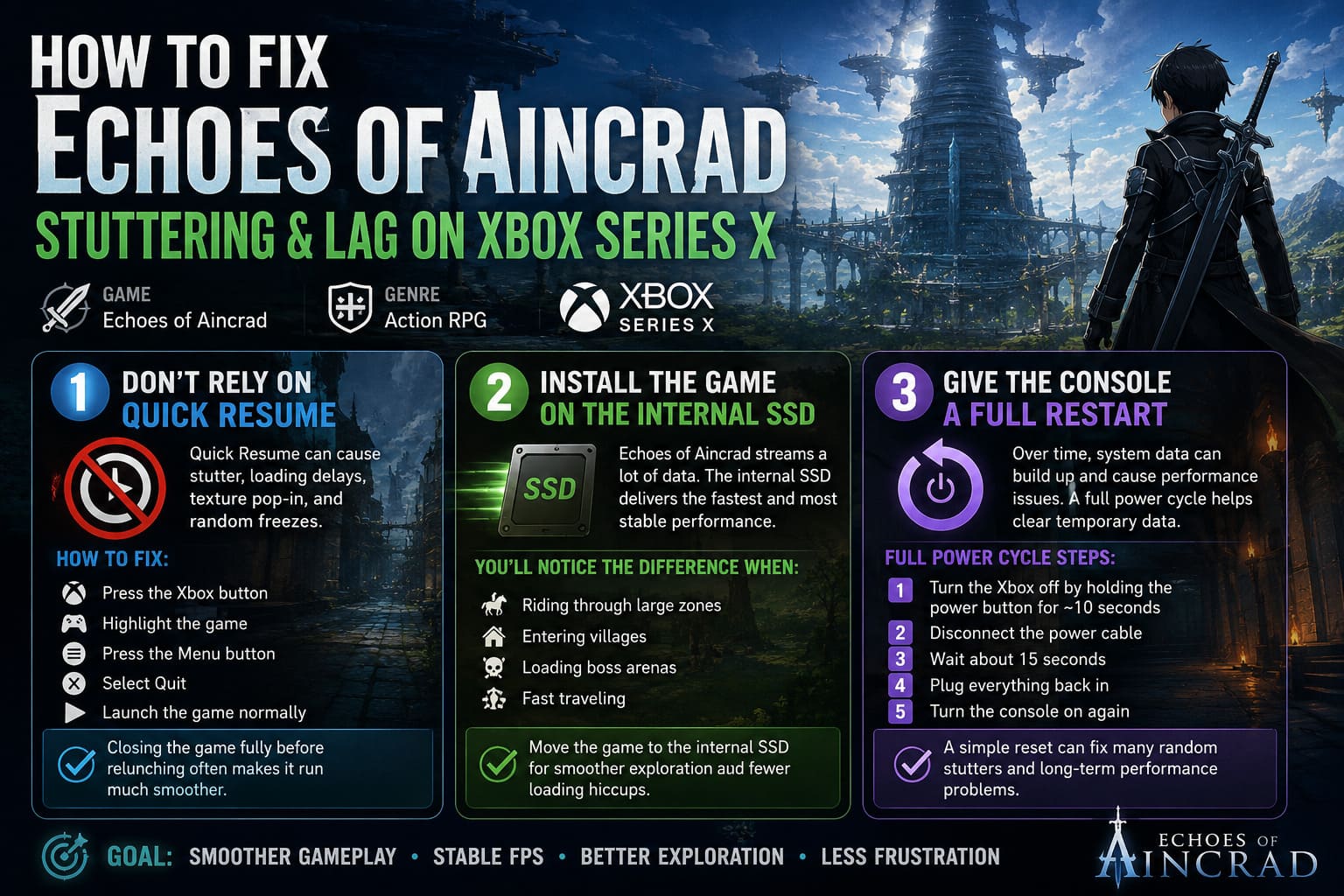
After several suspended sessions, I began noticing:
- longer loading pauses;
- inconsistent frame pacing;
- textures appearing late;
- random freezes lasting one or two seconds.
Completely closing the game before launching it again almost always improved performance.
To do this:
- Press the Xbox button.
- Highlight the game.
- Press the Menu button.
- Select Quit.
- Launch the game normally.
It only takes a few seconds, but it often makes the game feel much smoother.
2. Install the Game on the Internal SSD
This is probably the easiest performance improvement available.
Echoes of Aincrad constantly streams new environments, monsters, animations, and sound effects while you move around Aincrad. Even if an external drive works well for many games, this title clearly benefits from the fastest storage possible.
If the game is installed anywhere other than the Xbox internal SSD, move it.
The difference becomes especially noticeable when:
- riding through large zones;
- entering villages;
- loading boss arenas;
- fast traveling.
The fewer loading hiccups you experience, the more enjoyable exploration becomes.
3. Give the Console a Full Restart
A normal restart isn’t always enough.
Whenever performance slowly gets worse over several days, I perform a complete power cycle instead.
The process is simple:
- Turn the Xbox off by holding the power button for about ten seconds.
- Disconnect the power cable.
- Wait roughly 15 seconds.
- Plug everything back in.
- Turn the console on again.
It sounds almost too simple, but clearing temporary system data often removes strange performance problems that appear after long periods of use.
4. Keep Plenty of Free Storage Space
One mistake many players make is filling the internal SSD almost completely.
Modern games don’t just use storage for installation. Temporary files, shader compilation, cached assets, and background system tasks all benefit from additional free space.

Personally, I try to keep at least 15–20% of my SSD empty.
If your storage is nearly full, consider removing:
- games you no longer play;
- old video captures;
- screenshots;
- unused DLC.
This isn’t a miracle fix, but it helps maintain more consistent performance across many Xbox titles—not just Echoes of Aincrad.
5. Check Your Display Settings
One setting that often gets overlooked is the console’s video output.
Many players automatically enable every visual feature available without considering whether their TV actually supports it well.
I recommend checking:
- native resolution;
- refresh rate;
- Variable Refresh Rate (VRR);
- HDR compatibility.
If your television is limited to 60Hz, forcing unnecessary settings won’t increase performance.
On the other hand, if your display supports VRR, enabling it can make smaller frame drops much less noticeable because the display synchronizes with the game’s current frame output.
For players using older televisions, switching from 4K to 1440p can sometimes create a more consistent experience during demanding gameplay sections.
6. Test Simpler Audio Settings
This one surprised me.
Some players have reported smoother gameplay after changing advanced surround sound formats to Stereo Uncompressed.
Does it completely solve performance problems?
No.
Did it reduce occasional hitching on my system?
Yes—at least enough that I kept the setting while playing.
Changing it only takes a minute, so it’s worth testing for yourself.
7. Don’t Ignore Your Network
Sometimes what feels like FPS loss is actually online synchronization.
Rubberbanding, delayed attacks, and enemies teleporting across the screen can look almost identical to frame drops.
If you’re playing online features, check:
- packet loss;
- download speed;
- upload speed;
- latency.
Whenever possible, I recommend using a wired Ethernet connection instead of Wi-Fi.
A stable connection won’t improve rendering performance, but it does eliminate another source of inconsistent gameplay.
Small Habits That Actually Help
After dozens of hours playing Xbox games, I’ve developed a few habits that seem to reduce random performance issues in general.
These aren’t official recommendations—they’re simply routines that have worked well for me.
- Close games instead of relying on Quick Resume for several days.
- Restart the console every few gaming sessions.
- Keep the console in a well-ventilated location.
- Install demanding games on the fastest available storage.
- Check for game updates before long play sessions.
None of these require extra hardware, and together they help keep the console running consistently.
What Still Needs to Be Fixed by the Developers
As much as these adjustments help, I don’t think players should have to troubleshoot this much on premium hardware.
Some issues clearly require future patches.
I’d especially like to see improvements in:
- shader compilation;
- memory management;
- NPC streaming;
- CPU optimization;
- frame pacing consistency;
- loading transitions.
The Xbox Series X has more than enough power to deliver a stable experience. Most of the remaining problems feel software-related rather than hardware limitations.
Hopefully upcoming updates will smooth out many of these rough edges.
Echoes of Aincrad Pre-Order Bonus Guide & Steam Deck Compatibility Rating (2026)
Performance Fix Overview
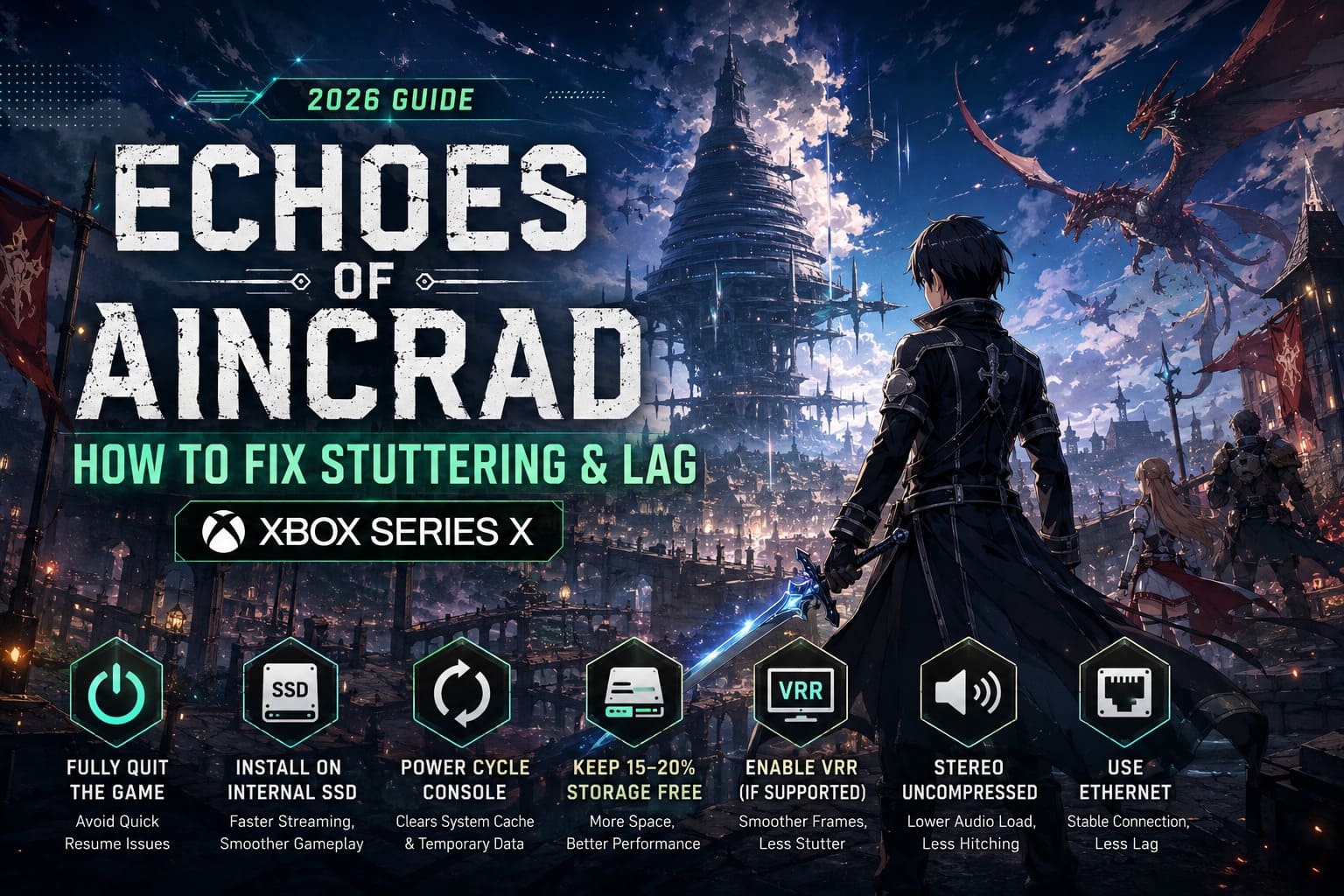
| Fix | Why It Helps | Difficulty | Recommended |
|---|---|---|---|
| Fully quit the game | Clears problematic Quick Resume sessions | Very Easy | ⭐⭐⭐⭐⭐ |
| Install on internal SSD | Improves asset streaming | Easy | ⭐⭐⭐⭐⭐ |
| Power cycle the console | Clears temporary system cache | Easy | ⭐⭐⭐⭐☆ |
| Keep 15–20% SSD free | Gives the system room for caching | Easy | ⭐⭐⭐⭐☆ |
| Enable VRR (if supported) | Reduces perceived stutter | Easy | ⭐⭐⭐⭐☆ |
| Switch to Stereo Uncompressed | Lowers audio processing overhead | Easy | ⭐⭐⭐☆☆ |
| Use Ethernet | Eliminates network-related lag | Easy | ⭐⭐⭐⭐☆ |
Is Echoes of Aincrad Coming to Nintendo Switch in 2026? Release Date and Platform Rumors Explained
Final Thoughts
Despite its technical hiccups, I’m genuinely enjoying Sword Art Online: Echoes of Aincrad. When the frame rate stays consistent, the combat feels responsive, exploration becomes immersive, and boss encounters finally showcase what the developers were aiming for.
Until larger optimization patches arrive, a few Xbox settings can make a noticeable difference. None of these adjustments magically transform the game into a flawless experience, but together they significantly reduce stuttering, eliminate many random performance drops, and create a much smoother adventure through Aincrad.
If I had to recommend only three fixes, I’d start by completely avoiding Quick Resume, installing the game on the internal SSD, and making sure VRR is enabled if your display supports it. Those changes delivered the biggest improvements during my own playtime.
Performance issues can be frustrating, but thankfully they’re often manageable. With a little tweaking, Echoes of Aincrad becomes far closer to the experience Xbox Series X players were hoping for—allowing you to focus less on frame drops and more on surviving the climb to the top of Aincrad.