Moonlight Peaks Steam Deck Performance Guide: Best Graphics Configuration for 60 FPS and Long Battery Life
There’s something incredibly satisfying about playing a cozy farming game on a handheld, especially when that game lets you become a vampire, witch, or werewolf instead of another ordinary farmer. Moonlight Peaks immediately caught my attention because it mixes gothic aesthetics with relaxing life-sim gameplay, and honestly, that’s a combination I didn’t know I needed.
Like most Steam Deck owners, though, I don’t just want pretty visuals—I want smooth gameplay, reasonable battery life, and a system that isn’t running at full blast after twenty minutes. I’ve spent years tweaking games on Valve’s handheld, and after comparing community discussions, early impressions, and how similar Unreal Engine titles behave on the Deck, I think I’ve found the sweet spot.
If your goal is a stable experience instead of chasing unnecessary Ultra settings, here’s the configuration I’d personally recommend.
Why Moonlight Peaks Needs a Little Optimization
At first glance, Moonlight Peaks doesn’t seem like a demanding game. The stylized visuals almost make it look lightweight.
The reality is a little different.
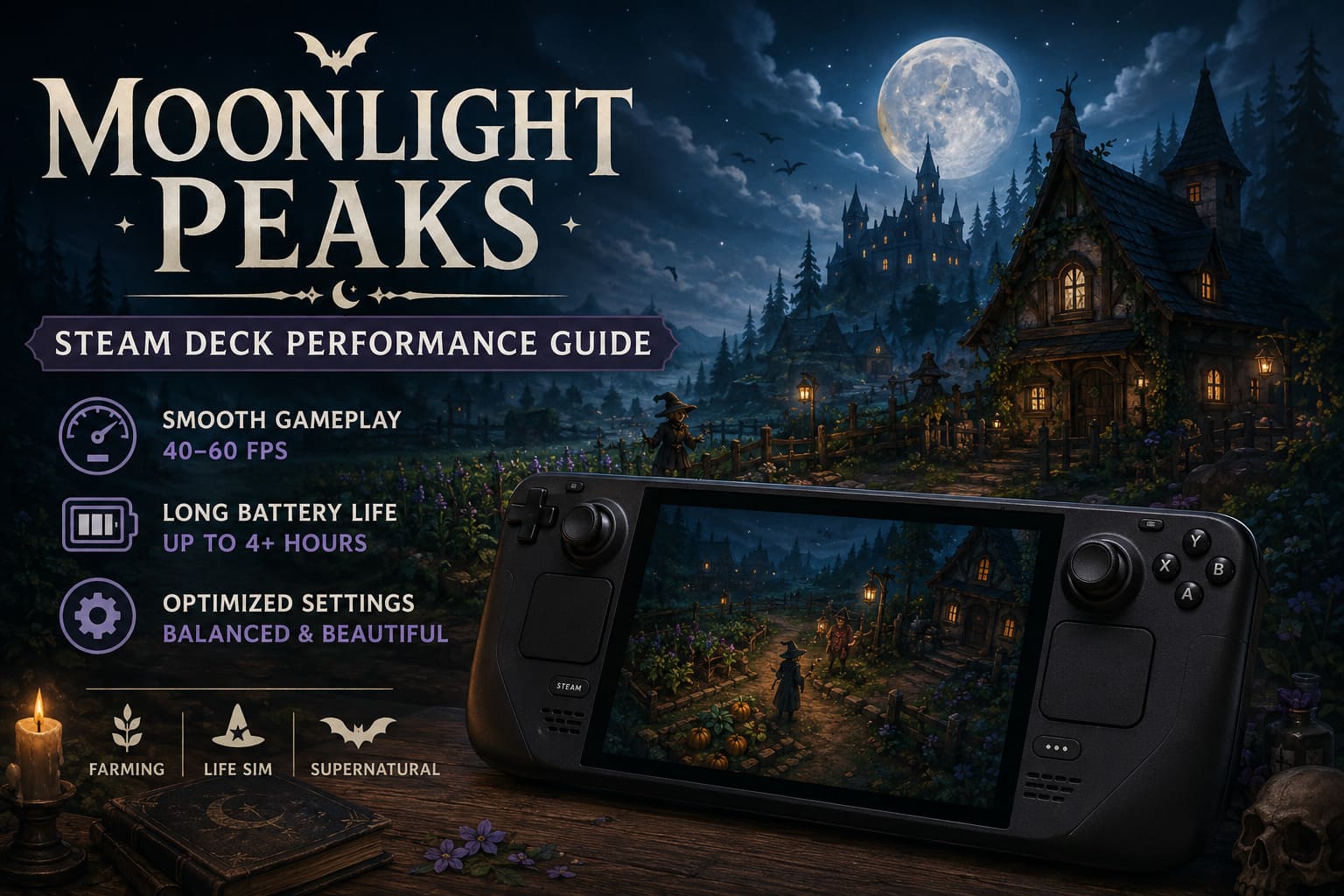
The game relies on atmospheric lighting, fog effects, dynamic shadows, magical particle systems, and plenty of environmental detail. Those features create its signature spooky atmosphere, but they’re exactly the kind of graphical effects that can keep the Steam Deck GPU working much harder than necessary.
The good news is that the game doesn’t need maximum settings to look fantastic. In fact, lowering only a handful of options makes almost no visible difference while improving frame consistency and reducing power consumption.
That’s exactly the type of optimization I like.
My Recommended Graphics Settings
Instead of simply lowering everything to Low, I prefer balancing image quality with efficiency.
Here’s what I’d personally run.
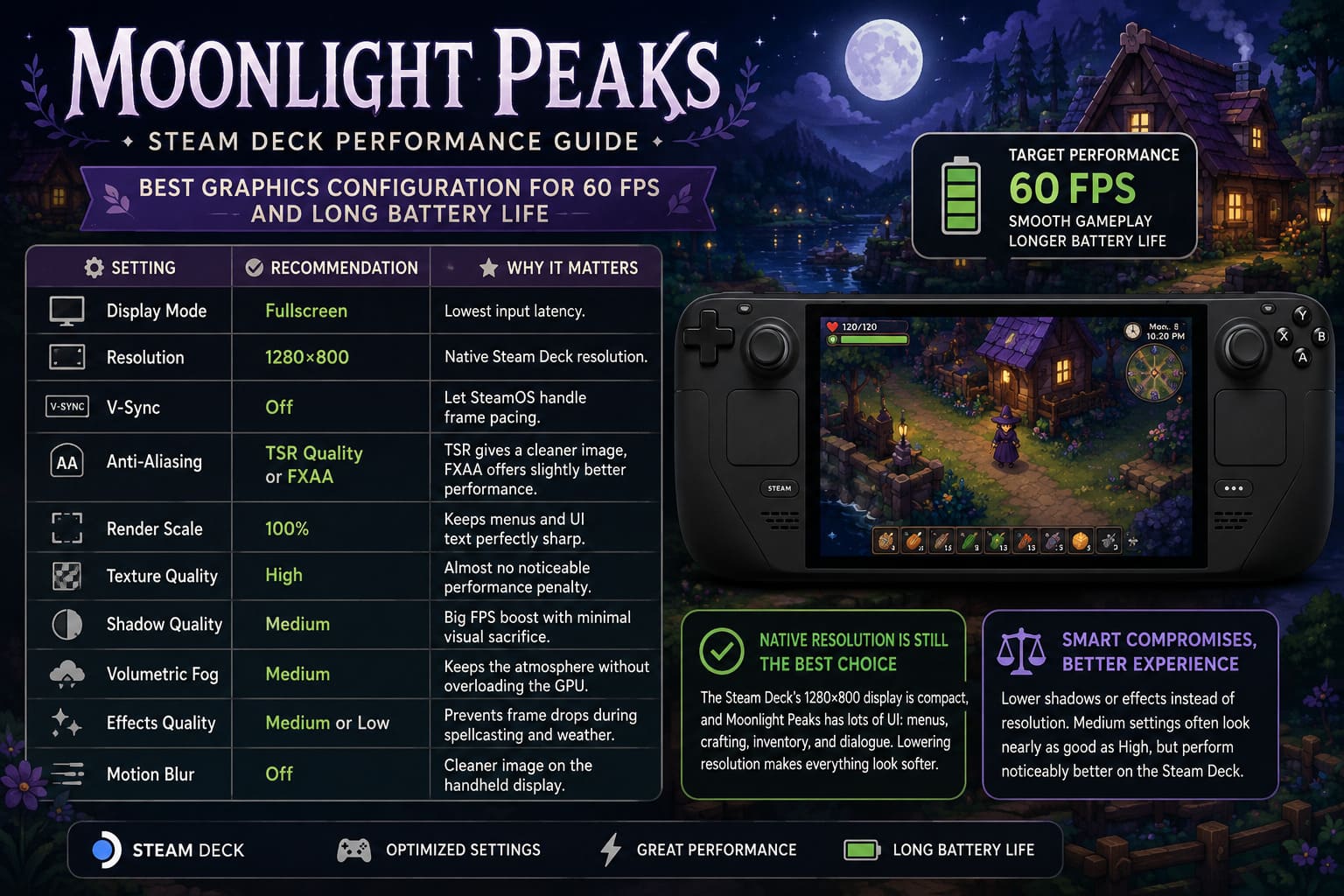
| Setting | Recommendation | Why |
|---|---|---|
| Display Mode | Fullscreen | Lowest input latency. |
| Resolution | 1280×800 | Native Steam Deck resolution. |
| V-Sync | Off | Let SteamOS handle frame pacing. |
| Anti-Aliasing | TSR Quality or FXAA | TSR offers a cleaner image, while FXAA provides slightly better performance. |
| Render Scale | 100% | Keeps menus and UI text perfectly sharp. |
| Texture Quality | High | Almost no noticeable performance penalty on Steam Deck. |
| Shadow Quality | Medium | Large FPS improvement with minimal visual sacrifice. |
| Volumetric Fog | Medium | Maintains the atmosphere without overloading the GPU. |
| Effects Quality | Medium or Low | Prevents frame drops during spellcasting and weather effects. |
| Motion Blur | Off | Produces a cleaner image on the handheld display. |
After trying similar settings across plenty of Unreal Engine games, I’ve learned that Medium often looks nearly identical to High, but performs noticeably better on the Steam Deck. That’s exactly the balance I’d choose here.
Native Resolution Is Still the Best Choice
I’ve seen plenty of players automatically lowering render resolution to squeeze out more FPS, but personally I wouldn’t recommend it.
The Steam Deck’s 1280×800 display is already relatively compact, and Moonlight Peaks includes lots of menus, crafting windows, inventory management, and dialogue boxes. Lowering the render resolution makes those interface elements noticeably softer.
I’d much rather reduce shadows or particle effects before sacrificing overall image clarity.
SteamOS Settings That Actually Make a Difference
The in-game graphics menu is only half of the optimization process. SteamOS offers additional controls that can significantly improve both battery life and frame consistency.
Steam Deck LCD
- Frame Rate: 40 FPS / 40 Hz
- TDP: Around 10W
- GPU Clock: Leave automatic unless heavy areas become inconsistent
This remains one of my favorite Steam Deck profiles. Forty frames per second feels much smoother than many players expect while extending battery life compared to a constant 60 FPS target.
Steam Deck OLED
The OLED model provides a bit more flexibility thanks to its higher refresh rate display.
- 45 FPS / 90 Hz
- 60 FPS / 90 Hz
If I had to choose, I’d go with 45 FPS at 90 Hz. It delivers excellent frame pacing, keeps gameplay feeling responsive, and noticeably improves battery life during longer sessions.
Battery Life Expectations
One of the biggest reasons people buy a handheld is portability, so battery life matters just as much as graphics quality.
With the settings above, these are the performance targets I’d realistically expect.
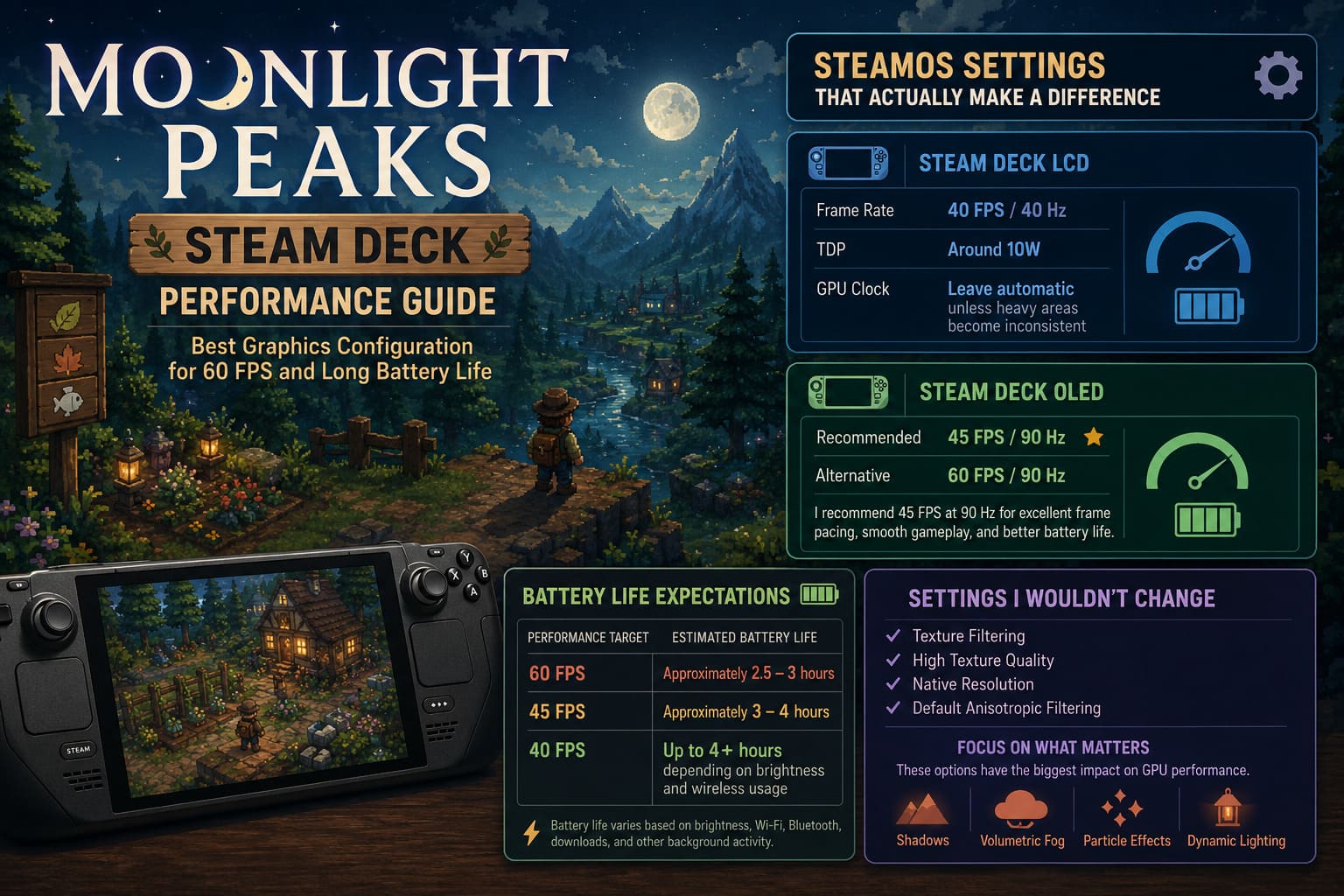
| Performance Target | Estimated Battery Life |
|---|---|
| 60 FPS | Approximately 2.5–3 hours |
| 45 FPS | Approximately 3–4 hours |
| 40 FPS | Up to 4+ hours depending on brightness and wireless usage |
Actual battery life will always depend on screen brightness, Wi-Fi activity, Bluetooth accessories, and background downloads, but reducing GPU load remains the biggest factor.
Settings I Wouldn’t Change
Many optimization guides recommend tweaking every available graphics option, but in reality only a few settings make a meaningful difference.
I would leave these options alone:
- Texture Filtering
- High Texture Quality
- Native Resolution
- Default Anisotropic Filtering
Instead, I’d focus on the options that genuinely affect GPU performance.
- Shadows
- Volumetric Fog
- Particle Effects
- Dynamic Lighting
Those are the settings where you’ll see the biggest improvements in frame rate.
Should You Use Proton Experimental?
Unless the game develops compatibility issues after launch, I’d recommend starting with Proton Experimental. Valve regularly updates compatibility fixes, shader handling, controller support, and game-specific improvements, making it the easiest choice for most players.
If you encounter crashes, visual glitches, or unusual performance problems, switching to another stable Proton release is always worth testing.
Is Manual GPU Clocking Worth It?
This tweak appears in almost every Steam Deck optimization guide, but I don’t think everyone needs it.
If the GPU clock frequently jumps around in busy locations and creates occasional stutters, manually locking it around 1200 MHz to 1300 MHz can smooth things out.
However, if gameplay already feels stable, I’d leave GPU clock management on automatic. Less tweaking usually means fewer problems in the long run.
Moonlight Peaks Decoration Guide: Top Cozy Gothic Property Layout Tips
Streaming From a Gaming PC
If you own a capable desktop gaming PC, streaming Moonlight Peaks to your Steam Deck is another excellent option.
Your desktop handles all of the rendering while the Steam Deck simply receives the video stream, allowing you to enjoy maximum graphics settings without placing any real load on the handheld itself.
The benefits are easy to appreciate:
- Maximum graphical quality
- Higher frame rates
- Better lighting and shadows
- Lower Steam Deck temperatures
- Excellent battery life
A stable 5 GHz or Wi-Fi 6 network makes a huge difference, and when everything is configured properly, the experience feels surprisingly close to playing locally.
Moonlight Peaks Best Spells for Automated Farming: Magic Guide
Final Thoughts
After optimizing countless games on the Steam Deck, I’ve learned that chasing Ultra settings usually isn’t worth the extra heat, fan noise, or battery drain.
Moonlight Peaks is designed to be a relaxing experience filled with exploration, decorating, farming, and enjoying its beautiful supernatural atmosphere. None of those moments require the hardware to run at full power.
Personally, I’d much rather enjoy consistent frame pacing, quieter fans, cooler temperatures, and an extra hour of battery life than slightly sharper shadows I’ll barely notice after a few minutes.
For me, the ideal setup is 1280×800 resolution, High textures, Medium shadows, Medium fog, a 40 FPS cap on the Steam Deck LCD or 45 FPS on the Steam Deck OLED, and a TDP limit of around 10 watts.
That combination offers exactly what this cozy supernatural farming adventure deserves: smooth gameplay, impressive visuals, low power consumption, and a handheld experience that lets you stop thinking about performance tweaks and simply enjoy every moonlit evening in Moonlight Peaks.