Ultimate Bongo Cat OBS Stream Overlay Guide: 2026 Setup and Fixes
I’ve spent years working with OBS Studio across different streaming setups, from competitive FPS grind sessions to long casual streams where most of the time is spent tweaking audio levels instead of actually playing. Over that time I’ve tested dozens of overlays including alert systems, animated widgets, VTuber rigs, and fully reactive avatar systems, but Bongo Cat still remains one of the simplest and most effective tools for adding personality to a stream.
The appeal is straightforward: it reacts to your keyboard and mouse inputs in real time, turning basic gameplay or typing into a visual performance. It doesn’t require a webcam, expensive hardware, or complex rigging systems. It just works as a lightweight engagement tool that viewers instantly understand.

Even in 2026, however, setup is not completely frictionless. OBS integration can still cause issues like transparency bugs, capture delays, or plugin conflicts. This guide breaks everything down from a practical, real-user perspective rather than just theory.
How to Fix Bongo Cat Laggy Steam API: Step-by-Step Optimization Guide
Why Bongo Cat Still Works in Modern Streaming
Streaming trends evolve constantly, but audience psychology does not change as quickly. Viewers respond strongly to real-time feedback loops where on-screen elements react instantly to streamer actions.
Bongo Cat succeeds because it provides:
- Real-time visual feedback for keyboard and mouse activity
- A lightweight personality layer without needing a webcam
- Compatibility with FPS, rhythm games, and casual streams
- Minimal performance overhead compared to full avatar systems
In practice, even small streamers notice increased engagement when adding simple reactive overlays like this, especially during quieter gameplay moments.
Plugin vs Standalone App (Practical Comparison)
| Method | Performance | Setup Difficulty | Stability | Customization |
|---|---|---|---|---|
| OBS Plugin | High | Medium | Very Stable | High |
| Standalone App | Medium | Easy | Variable | Medium |
The plugin method is generally more stable for long streaming sessions because it integrates directly into OBS. The standalone method is faster to set up but relies on window capture, which can introduce occasional issues depending on system configuration.
Method 1: OBS Plugin Installation (Recommended)
Step 1: Download the Correct Build
Download the latest Bongo Cat OBS plugin from a trusted source such as official GitHub releases or verified OBS community plugin repositories. Avoid outdated or reuploaded versions because they are the main cause of missing source issues inside OBS.
Step 2: Fully Close OBS Studio
Before installing anything, make sure OBS Studio is completely closed. Not minimized, not running in the background, and not hidden in the system tray. Leaving it open can result in broken plugin initialization or missing dependencies.
Step 3: Install Files Correctly
Extract the downloaded archive and locate folders such as obs-plugins and data. Copy these into your main OBS installation directory, typically located in Program Files on Windows systems. If prompted, confirm folder merging and file replacement.
Step 4: Activate in OBS
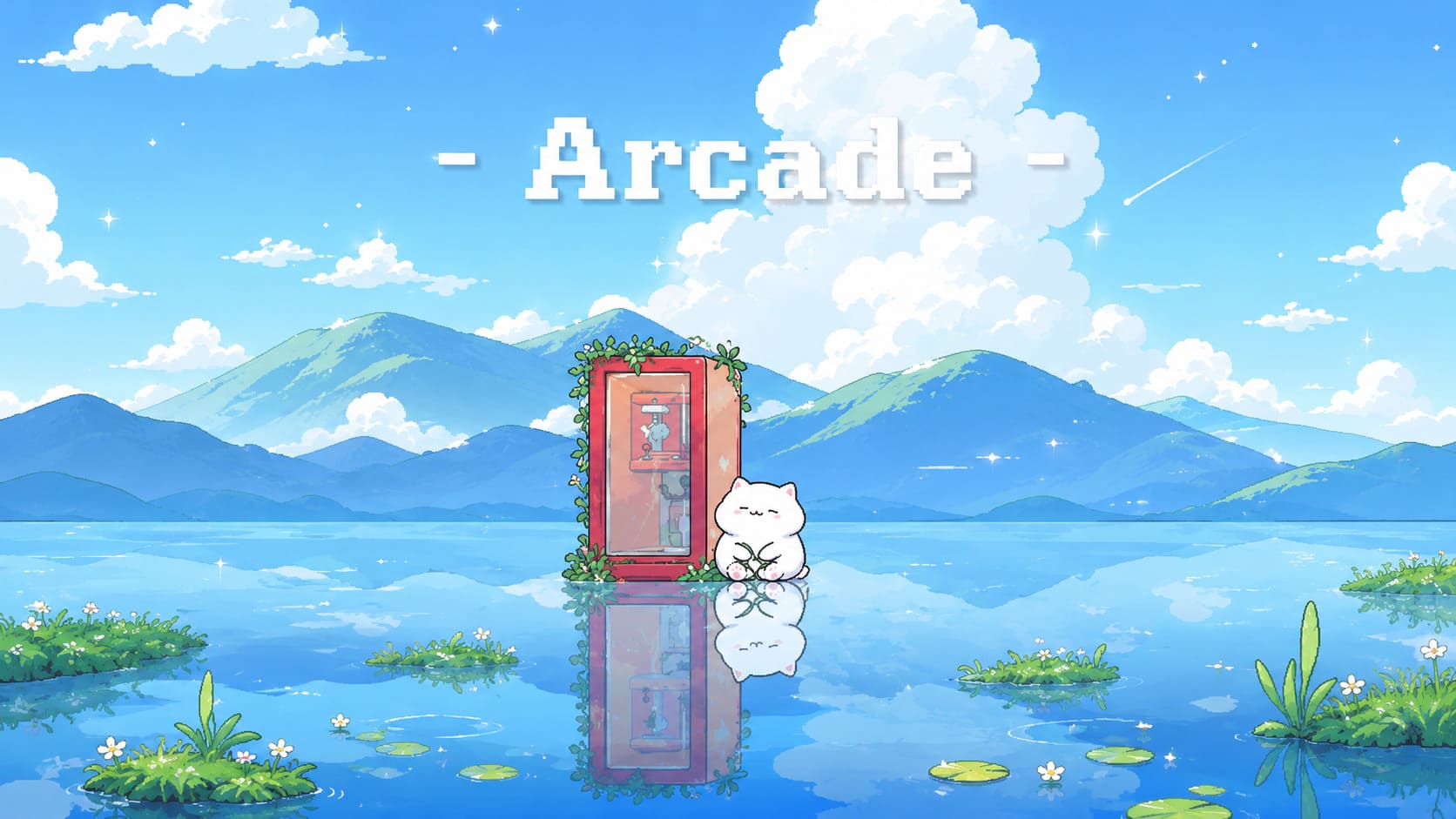
After reopening OBS Studio, navigate to your scene collection, click the Sources panel, and press the + button. If the installation was successful, you should see a new source option such as “Bongo OBS Cat.” Add it and confirm to activate the overlay.
Method 2: Standalone App + Game Capture
Step 1: Launch the Application
Start the Bongo Cat standalone application. A small interactive window should appear immediately on your desktop showing the animated cat reacting to input.
Step 2: Add Game Capture in OBS
Inside OBS Studio, add a new Game Capture source and name it appropriately, such as “Bongo Cat Overlay.”
Step 3: Select the Correct Window
Set capture mode to “Capture specific window” and choose the Bongo Cat application from the dropdown list. This ensures OBS captures only the overlay and not unrelated desktop elements.
Step 4: Enable Transparency
Scroll down in the capture settings and enable “Allow Transparency.” Without this option, the overlay will display with a solid background instead of blending into your stream layout.
Advanced Customization Options
Once the overlay is active, right-click the source inside OBS and open Properties to access additional configuration options that significantly improve responsiveness and visual alignment.
- Input Modes: Switch between keyboard-only, full input, or rhythm-based modes depending on your content style.
- Mouse Orientation Controls: Adjust horizontal and vertical flipping to match natural hand movement orientation.
- Relative Movement Scaling: Improves smoothness by syncing motion with DPI rather than screen coordinates.
Common Problems and Fixes
Black or Grey Background Appears
This issue usually occurs when transparency is disabled or when using window capture incorrectly. Enable “Allow Transparency” or apply a color key filter in OBS if necessary. In some cases, reinstalling the plugin resolves corrupted rendering settings.
Overlay Freezes During Gameplay
This is typically caused by permission or capture conflicts. Running OBS as administrator often resolves input detection issues. Additionally, switching games to borderless windowed mode can improve stability.

Input Delay or Lag
Performance issues are often related to system load rather than the overlay itself. Reducing OBS CPU usage preset or closing background applications can significantly improve responsiveness.
Why This Overlay Still Matters in 2026
Despite the rise of advanced VTuber systems and AI-driven stream avatars, Bongo Cat remains relevant because of its simplicity. It does not replace a streamer’s personality; it amplifies small actions in a visually satisfying way.
It is lightweight, easy to understand, and does not distract from gameplay. Instead, it enhances moments that would otherwise feel visually static, especially during intense or repetitive gameplay segments.
Final Thoughts
Bongo Cat continues to be one of the most efficient low-effort, high-impact overlays available for OBS Studio. Whether you choose the plugin route for stability or the standalone method for simplicity, it remains a reliable way to add personality to your stream without increasing system complexity.
In a streaming environment where attention is limited and competition is high, small visual feedback systems like this can make a noticeable difference in viewer engagement. Once properly configured, it becomes one of those background elements you forget about—but your audience does not.