Far Far West Steam Deck 60FPS Optimization Guide: Best Settings (2026)
When Far Far West launched in April 2026, I honestly didn’t expect it to become one of my most played handheld games. A chaotic mix of spell-slinging, cowboy shootouts, and co-op madness sounded fun on paper — but running an Unreal Engine 5 shooter smoothly on a handheld felt optimistic. After dozens of hours tweaking settings, testing co-op sessions, reading community discussions, and experimenting during late-night bounty runs, I finally landed on a Steam Deck configuration that consistently pushes close to 60 FPS. This isn’t a sterile benchmark guide. This is the setup I actually use — the one that made the game feel alive instead of sluggish.
Why Far Far West Is Surprisingly Heavy on Steam Deck
At first glance, the game looks stylized and colorful, almost lightweight, but under the hood it relies heavily on Unreal Engine 5 technology. Dynamic global illumination, dense particle effects, real-time lighting systems, and large-scale multiplayer encounters constantly push the Steam Deck’s GPU. Out of the box, most players will experience performance around 30–40 FPS, especially during four-player missions where explosions and spell effects fill the screen. The game remains playable at these settings, but the fast-paced combat truly shines only when performance becomes smoother and more responsive.

The Real Secret to 60 FPS (Spoiler: It’s Not Graphics Presets)
Most players immediately begin lowering random graphical settings hoping to gain performance, and I did exactly the same at first. The real breakthrough came from understanding that internal resolution matters far more than individual visual options. Proper upscaling dramatically reduces GPU workload while maintaining visual clarity on the Steam Deck’s display.
My Go-To Upscaling Setup
| Setting | Recommended Value | Why It Works |
|---|---|---|
| Upscaling | TSR | Best clarity and performance balance |
| Render Scale | 50–60% | Massive GPU performance relief |
| Anti-Aliasing | Low or Off | TSR already smooths edges effectively |
| Resolution | 1280×800 | Matches native Steam Deck display |
Lowering render scale may sound aggressive, but on a handheld screen the image reconstruction looks surprisingly sharp. This single adjustment alone delivered roughly a 20–30% performance improvement and made stable high frame rates achievable during most missions.
My Personal Graphics Settings (The “Smooth Cowboy” Preset)
After testing multiple visual configurations, I stopped chasing graphical fidelity and focused entirely on gameplay responsiveness. The following settings represent the balance that finally made the experience feel smooth without turning the visuals into a blurry mess.
Display Settings
- Fullscreen Exclusive for improved frame pacing
- V-Sync Off so SteamOS manages synchronization
- Framerate Limit Uncapped In-Game
SteamOS generally handles frame delivery better than the in-game limiter, resulting in more consistent performance.
Far Far West Game 2026 Secret Ending Requirements Guide: How to Unlock the Hidden Finale
Advanced Graphics Settings
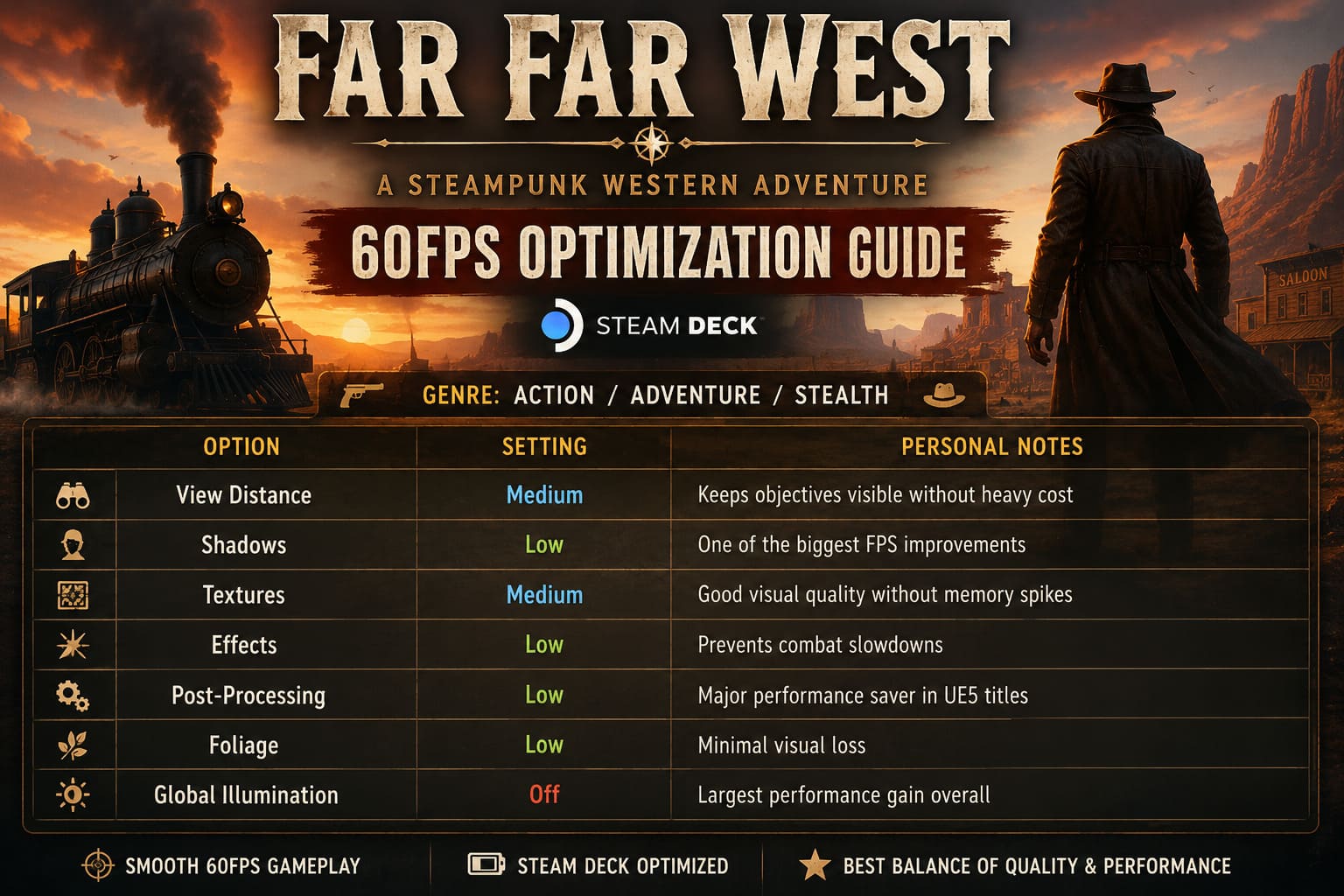
| Option | Setting | Personal Notes |
|---|---|---|
| View Distance | Medium | Keeps objectives visible without heavy cost |
| Shadows | Low | One of the biggest FPS improvements |
| Textures | Medium | Good visual quality without memory spikes |
| Effects | Low | Prevents combat slowdowns |
| Post-Processing | Low | Major performance saver in UE5 titles |
| Foliage | Low | Minimal visual loss |
| Global Illumination | Off | Largest performance gain overall |
Disabling advanced lighting reduces cinematic visuals slightly, but during intense firefights the smoother gameplay far outweighs any graphical sacrifice.
SteamOS Tweaks That Actually Matter (2026 Update)
System-level optimization plays a massive role in achieving stable performance on Steam Deck hardware. Many players overlook these adjustments even though they can eliminate inconsistent frametimes and random stutter.
Performance Menu Setup
- Refresh Rate: 60Hz
- Frame Limit: 60 FPS
- TDP Limit: Disabled
- Manual GPU Clock: 1600 MHz
Locking the GPU clock dramatically stabilizes performance because Unreal Engine 5 sometimes reallocates power inefficiently, causing sudden frame pacing issues even when FPS appears stable. Consistent frametimes ultimately matter more than raw frame rate numbers.
Far Far West (2026) Explosives Guide: All Crafting Recipes, Material Locations, and Meta Builds
The Truth About 4-Player Co-op Performance
Solo testing rarely represents real gameplay conditions. Once four players enter a mission, particle density increases, physics calculations multiply, and enemy AI becomes significantly heavier on system resources. Even optimized settings can experience temporary drops during large encounters.
Frame Generation Alternative
Some players rely on Lossless Scaling Frame Generation through Decky Loader to smooth multiplayer performance. The approach involves locking the game at 30 FPS while generating additional frames to simulate 60 FPS motion.
- Lock the game to 30 FPS
- Enable 2x frame generation
- Achieve smoother perceived motion
This method works well for exploration and casual gameplay sessions, though slight input latency may appear during high-skill combat scenarios where precision aiming matters.
Controller & UI Quality-of-Life Tweaks
Gameplay controls translate well to the Steam Deck, but menu navigation occasionally behaves like a desktop interface. Small control adjustments significantly improve the handheld experience.
- Map Menu or Tab functions to back buttons L4 and R4
- Use the right trackpad as a mouse cursor
- Increase joystick deadzone slightly for steadier aiming
These minor tweaks make the interface feel intentionally designed for handheld play rather than adapted from a PC layout.
Battery Life Reality Check
Running Far Far West at maximum performance naturally impacts battery longevity. Higher frame rates demand sustained power draw, especially when the GPU operates at full speed.
| Device | Battery Life at 60 FPS |
|---|---|
| Steam Deck OLED | Approximately 2–2.5 hours |
| Steam Deck LCD | Approximately 1.5 hours |
During travel sessions, switching to a 40 FPS limit paired with a 40Hz refresh rate noticeably extends battery life while maintaining smooth gameplay.
Why 60 FPS Changes the Entire Game
The improvement is not purely visual. At higher frame rates, Far Far West becomes easier and more responsive. Dodging feels instant, aiming becomes precise, and chaotic combat encounters become readable instead of overwhelming. Multiplayer coordination also improves because visual feedback arrives faster and actions feel directly connected to player input.
Once stable performance is achieved, the game feels fundamentally different, transforming from a visually impressive shooter into a fast, reactive action experience that fully suits handheld gaming.
My Final 60 FPS Checklist
- Render Scale: 50–60%
- Upscaling: TSR enabled
- Shadows and Post-Processing: Low
- Global Illumination: Off
- GPU Clock: 1600 MHz manual
- SteamOS FPS Cap: 60 FPS
Applying these core adjustments first delivers the largest performance gains before any fine tuning becomes necessary.
Is Chasing 60 FPS Worth It?
Absolutely, especially for players who value responsiveness over cinematic visuals. Unreal Engine 5 lighting and effects look impressive, but handheld gaming benefits far more from smooth motion and consistent controls. Sacrificing a small amount of visual polish dramatically improves gameplay feel.
The flexibility of the Steam Deck allows players to choose their preferred balance between graphics and performance. Once properly optimized, Far Far West feels perfectly suited for portable play, transforming the device into a powerful handheld monster-hunting machine capable of delivering fast-paced co-op action anywhere.