Timberborn 1.0 4K UI Scaling and 1.0 Official Map Editor Guide
When Timberborn 1.0 dropped in March 2026, I was genuinely hyped. Automation, vertical builds, a full visual glow-up — this is the version we’ve been waiting for. And yes, the game looks absolutely stunning in 4K.
But let’s be honest for a second: if you’re playing on a 3840×2160 monitor, the UI can feel like it was designed for ants.
After a few hours of squinting, tweaking, and digging through forums (and a bit of trial and error), here’s a real-world, player-tested guide to making Timberborn actually playable on Ultra HD.
The Core Problem: 4K Looks Amazing… Until You Need to Read Something
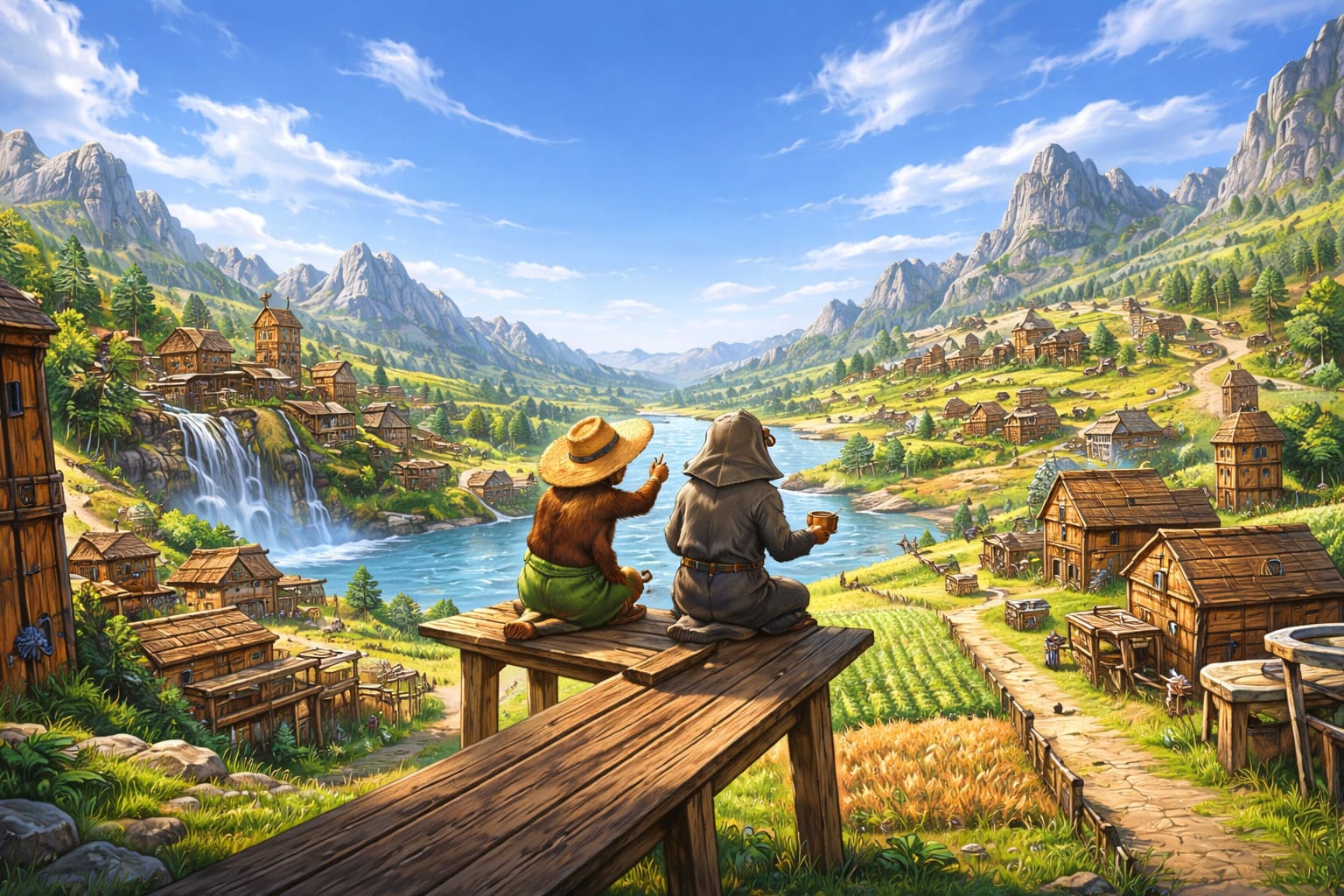
At native 4K, everything is razor sharp — but also ridiculously small. Text, icons, menus — all shrink down to the point where managing your beaver colony becomes more of a guessing game than a strategy experience.
Luckily, there are fixes — some official, some community-driven.
1. Start With the In-Game UI Scaling (Don’t Skip This)
The devs did include a UI scaling slider, and it’s your first stop.
Where to find it:
- Settings → Graphics → UI Scale
What actually works (from experience):
- 1.2x–1.3x → decent for sharpness lovers
- 1.4x–1.5x → sweet spot for most 4K users
- Above that → starts to feel cramped
Pro tip: Keep Resolution Scale at 100%. Lowering it makes everything blurry, which defeats the whole purpose of playing in 4K.
Timberborn Console Release Date 2026: Xbox, PS5, and Controller Support Guide
2. Windows DPI Scaling Fix (The “Why Didn’t I Do This Earlier” Trick)
If the in-game slider isn’t enough (or looks off), Windows can step in.
Quick setup:
- Right-click Timberborn.exe
- Open Properties → Compatibility
- Click Change high DPI settings
- Enable override and try System (Enhanced) or Application
My take: This is the easiest way to make the UI feel normal again without breaking immersion.
3. The “1080p Trick” + Lossless Scaling (Community Favorite)
This one comes straight from hardcore players and Reddit threads — and honestly, it works shockingly well.
How it works:
- Run the game in 1080p windowed mode
- Use a scaling tool (like Lossless Scaling) to upscale to 4K
Why it’s great:
- UI becomes big and readable
- No weird blur
- Better performance than native 4K
Downside? It’s a workaround — but a very good one.
Master Timberborn Automation: 2026 Water Depth Sensor & Logic Guide
4. Registry Tweaks (For the Tinkerers Only)
If you’re the kind of player who isn’t afraid of digging deeper:
HKEY_CURRENT_USER\SOFTWARE\Mechanistry\Timberborn
Look for a value like UIScale and adjust it manually.
Warning: This is not beginner-friendly. Always make a backup before changing anything.
Quick Comparison: Which Method Should You Use?
| Method | Ease of Use | Visual Quality | Performance | Best For |
|---|---|---|---|---|
| In-Game UI Scaling | ⭐⭐⭐⭐⭐ | ⭐⭐⭐⭐ | ⭐⭐⭐⭐⭐ | Most players |
| Windows DPI Override | ⭐⭐⭐⭐ | ⭐⭐⭐⭐ | ⭐⭐⭐⭐⭐ | Quick fix |
| 1080p + Lossless Scaling | ⭐⭐⭐ | ⭐⭐⭐⭐⭐ | ⭐⭐⭐⭐ | Best balance overall |
| Registry Tweaks | ⭐ | ⭐⭐⭐⭐⭐ | ⭐⭐⭐⭐⭐ | Advanced users |
Why It’s Worth Fixing: Timberborn 1.0 Is Actually Incredible
Once you solve the UI issues, the game really shines.
- Automation systems add real depth
- Vertical building finally feels meaningful
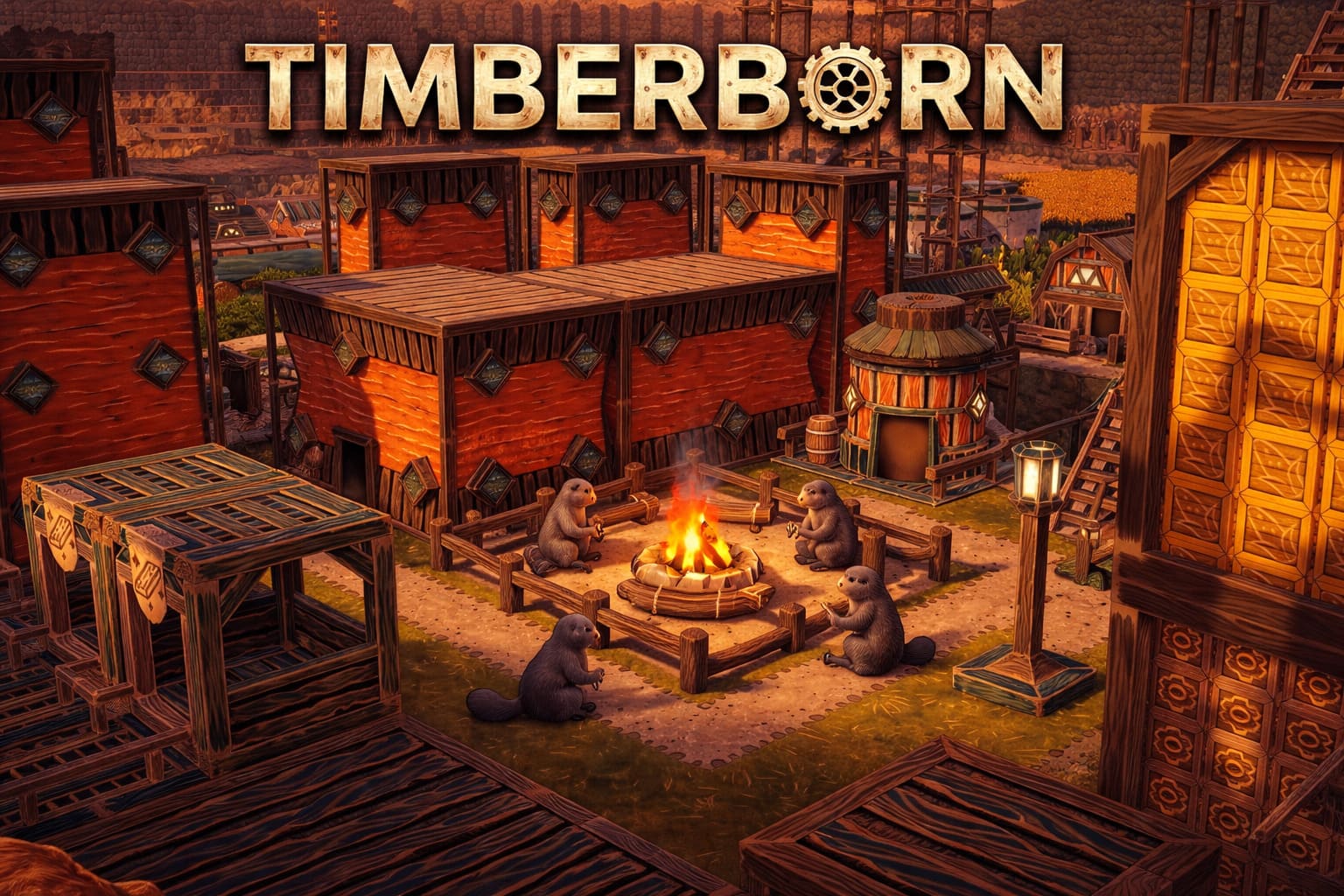
- The visual overhaul makes every dam and district look alive
This is no longer just a niche colony sim — it feels like a full-fledged city builder with personality.
Final Thoughts (From One Player to Another)
Timberborn 1.0 in 4K is one of those experiences where you know it’s amazing… but the UI almost gets in the way of enjoying it.
The good news is that with just a few tweaks, it goes from frustrating to incredibly satisfying.
If you ask me, start with 1.4x UI scale, add a Windows DPI override, and if you want perfection try the 1080p scaling trick.
After that, just sit back and enjoy building the most overengineered beaver civilization imaginable.
Timberborn 1.0 Map Editor Deep Dive: Why This Update Feels Like a Whole New Game
If you’ve spent any time with Timberborn before 1.0, you probably thought you already understood its map editor. I did too. Turns out — we were all wrong.
With the full release dropping in March 2026, the Map Editor didn’t just get an upgrade… it evolved into something that honestly feels closer to a proper level design tool than a sandbox add-on. After diving in for hours (and breaking a few maps along the way), here’s a grounded, player-first take on what actually matters.
First Impressions: Finally, an Editor That Respects Your Time
The new interface is one of those changes you don’t notice immediately — until you go back to older versions and realize how clunky things used to feel.
- Grouped tools make navigation way faster
- Undo/Redo is a lifesaver (seriously, this alone changes everything)
- Map sizes up to 256×256 give real creative freedom
It’s not flashy, but it’s practical. And that’s exactly what this editor needed.
3D Water Physics: The Real Game-Changer
Let’s be honest — this is why everyone is here.
Water in 1.0 finally behaves like… well, water. Not just a flat layer sliding across tiles.
What actually feels different:
- You can stack and layer water flows
- Build underground channels and tunnels
- Create reliable, natural-looking waterfalls
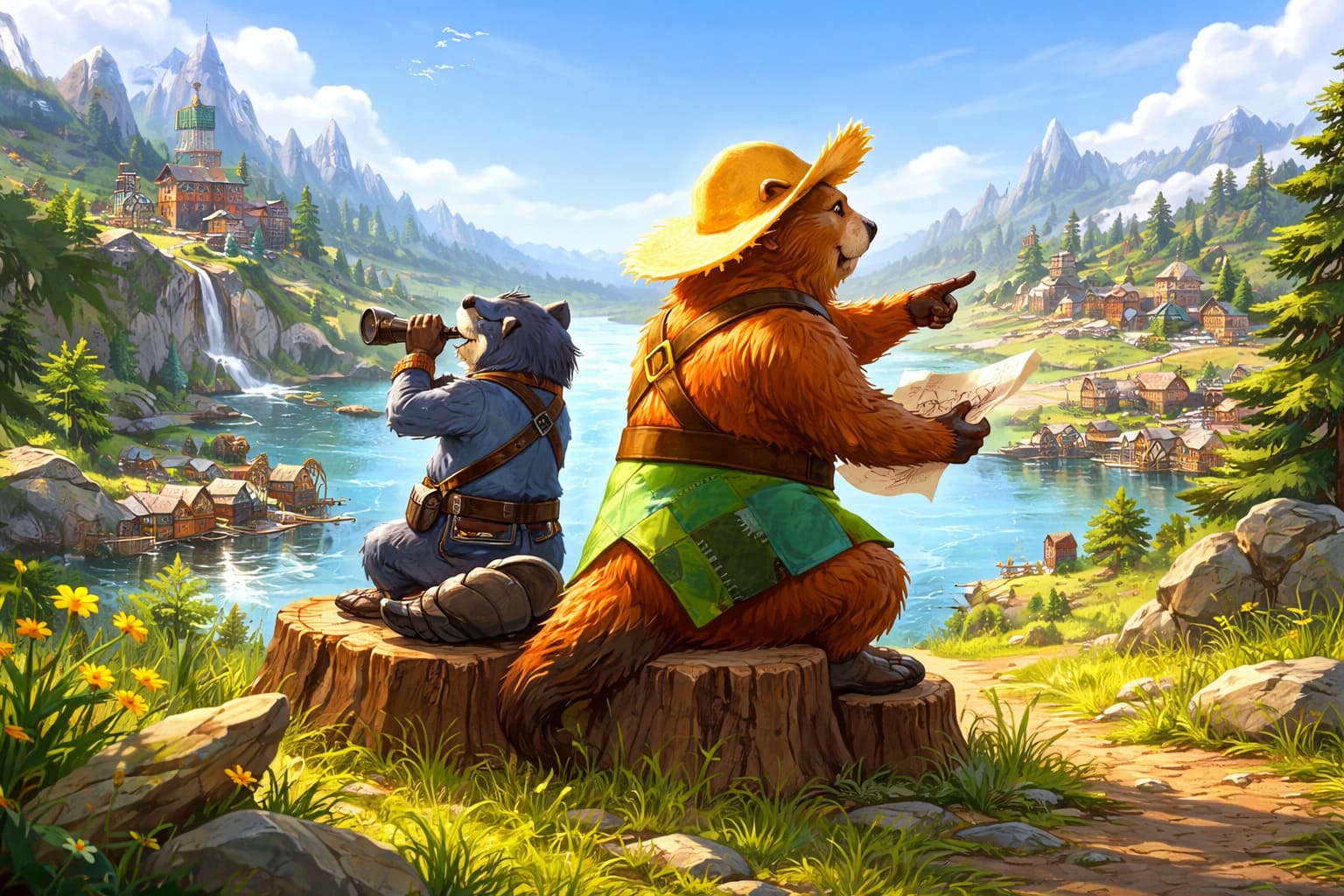
And the new additions? Even better:
| Feature | Why It Matters |
|---|---|
| Water Seeps | Perfect for slow, controlled water supply |
| Delayed Activation | Lets you script disasters (floods, badtides) |
| Erosion Tool | Makes terrain shaping feel natural instead of hacky |
Personal take: Designing a map where a peaceful valley suddenly floods after 10 days? That’s the kind of storytelling this game was missing before.
Designing With Automation in Mind (Yes, It Matters Now)
Before 1.0, maps were mostly about survival layout. Now? You’re designing for systems.
The new automation buildings completely change how players approach your map.
Smart design ideas:
- Create tight river choke points — perfect for sensor setups
- Use Badtide Drains to force players into reactive builds
- Design areas that reward automation, not just manual fixes
This is where maps start to feel like puzzles instead of just landscapes.
New Terrain Objects = More Personality, More Strategy
This is the part that surprised me the most. The world finally feels interactive.
A few standouts:
- Aquifers — hidden lifelines in dry zones
- Geothermal Fields & Unstable Cores — high risk, high reward energy
- Thorns — soft progression barriers (great for pacing your map)
These aren’t just decorations — they shape gameplay decisions.
Sharing Your Maps Is Actually Worth It Now
Uploading to the Workshop used to feel like an afterthought. Not anymore.
You can now:
- Add custom thumbnails
- Write proper descriptions and lore
- Manage versions directly in-game
If you’re aiming for visibility, presentation matters — and now the tools are there.
What Makes a Map “Good” in 2026?
After browsing community maps and testing a few trends, three patterns stand out:
1. Verticality Wins
- Multi-layer cities
- Hanging farms
- Tiered waterfalls
Flat maps feel outdated almost instantly.
2. The Badtide Meta
- Force players into complex rerouting systems
- Create pressure moments during bad cycles
3. Scarcity Drives Creativity
- Use automation earlier
- Experiment with new systems
- Think instead of expand mindlessly
Final Thoughts: This Isn’t Just an Editor Anymore
What impressed me most is how the Map Editor now feels like a game inside the game.
You’re not just placing terrain — you’re designing challenges, controlling pacing, and creating stories through systems.
And with the new 3D water and automation mechanics, the skill ceiling has gone way up — in a good way.
If you’re even slightly into creative building or level design, Timberborn 1.0 is absolutely worth revisiting. This is the version where the editor finally clicks.