How to Fix AION 2 Black Screen on Startup: Definitive 2026 PC Troubleshooting Guide
There is nothing quite like finally getting a new MMORPG installed, clearing your schedule for a proper session, grabbing a drink, and then watching your monitor turn completely black.
That is exactly what some AION 2 PC players are dealing with.
Instead of reaching character creation and getting thrown into Atreia, the game may launch into a frozen black window, crash before the NCSoft logo appears, or sit there indefinitely as if the client has simply forgotten what it was supposed to do. And when you’ve just spent time downloading a huge MMORPG, that kind of launch failure gets old very quickly.
The problem can happen whether you’re launching AION 2 through the PURPLE launcher or Steam, and there isn’t one magic fix that works for every machine. From what players have been running into, the usual suspects include background processes, overlays, monitoring software, corrupted game files, Windows components, graphics drivers, and launcher-related authentication problems.
I’ve put together the fixes I’d actually work through on a gaming PC rather than wasting an afternoon randomly reinstalling everything.
Why Is AION 2 Stuck on a Black Screen?
AION 2 is a demanding modern MMORPG, and its PC version has several layers sitting between you and the actual game client. You’ve got the launcher, authentication, anti-cheat/security checks, Unreal Engine rendering, DirectX 12, GPU drivers, Windows services, and potentially half a dozen overlay programs trying to put their own hooks into the game.
That’s a lot of moving parts.
A black screen at startup can therefore mean several different things. The client might actually be running but failing during rendering. A previous crashed session might still have an Aion2.exe process alive. An overlay could be interfering with initialization. Or Windows may be blocking a component the game needs.
Here are the main areas I’d investigate first:
| Possible Cause | Typical Symptom | What To Try |
|---|---|---|
| Stuck AION 2 process | Black screen after previous crash | End Aion2.exe and restart |
| Overlay conflict | Crash or freeze before logo | Disable Discord, Steam and NVIDIA overlays |
| Monitoring software | Black screen or Fatal Error | Close RTSS, Afterburner and similar tools |
| Corrupted files | Endless loading or missing assets | Run PURPLE file repair |
| Runtime problems | Instant crash during startup | Repair Visual C++ and DirectX |
| Windows update conflict | Launch failure after system update | Check recent Windows updates |
| GPU selection/driver issue | Black screen on laptops | Force the dedicated GPU |
The good news? You don’t need to try all of these at once.
Start at the top and work down.
Fix 1: Kill Every Stuck AION 2 and PURPLE Process
This is the first thing I’d do.
I’ve lost count of how many PC games leave a process hanging after a failed launch. The launcher closes, the game window disappears, and Windows quietly keeps something alive in the background. You then press Play again and wonder why absolutely nothing happens.
AION 2 can behave this way too.
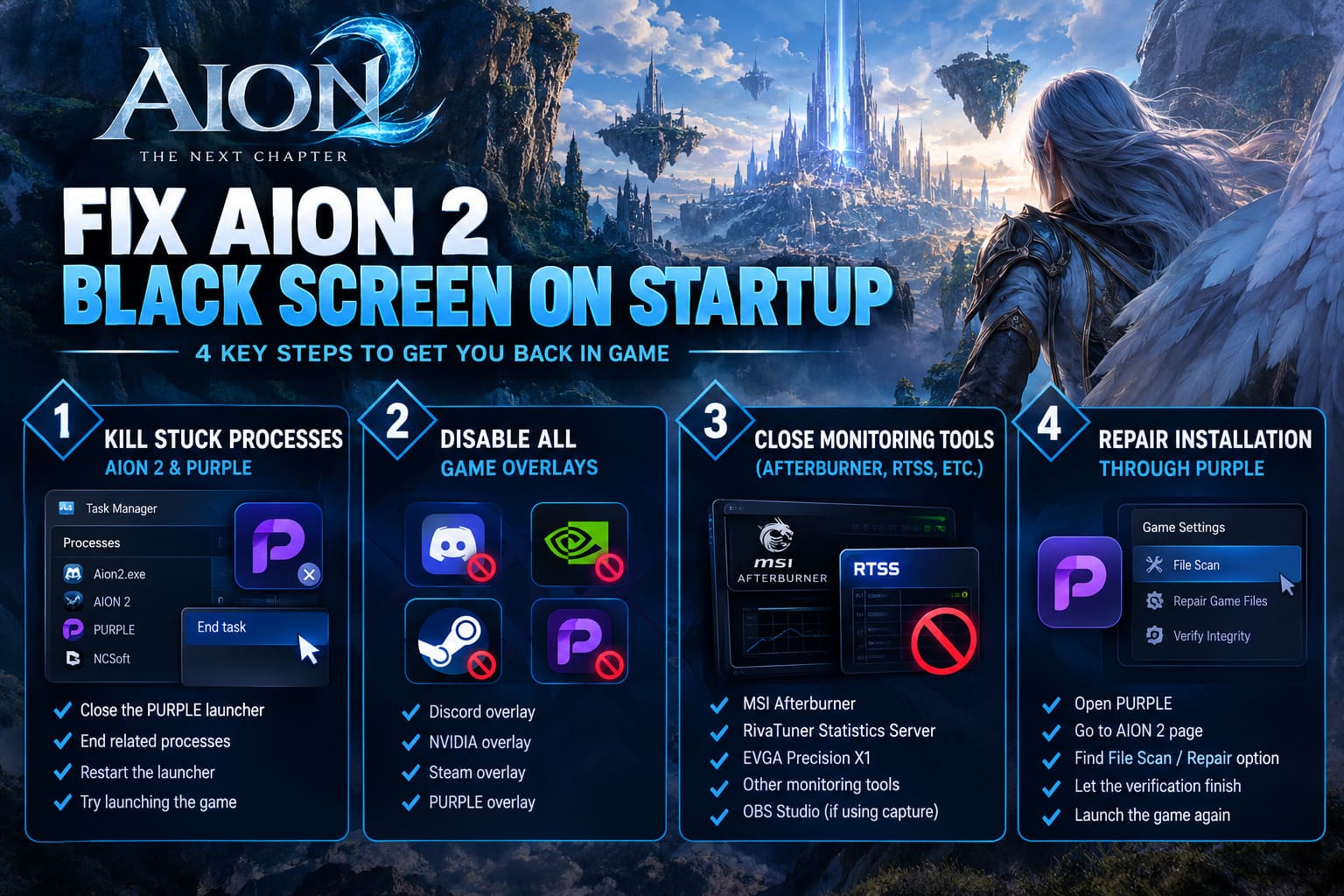
Do this:
- Completely close the PURPLE launcher.
- Check the Windows system tray and make sure PURPLE isn’t still running there.
- Press Ctrl + Shift + Esc to open Task Manager.
- Open the Processes tab.
- Look for Aion2.exe, AION 2, PURPLE, NCSoft, or related game processes.
- Select them and choose End Task.
- Start PURPLE again.
- Try launching AION 2.
For good measure, you can also restart Windows before trying again if the game previously crashed hard.
And yes, running the launcher with administrator privileges is worth testing. Right-click PURPLE, choose Run as administrator, then launch the game.
It sounds basic. It is basic. But basic fixes solve an absurd number of PC launch problems.
Fix 2: Turn Off Every Game Overlay
This is one of the biggest things I’d test before touching drivers or reinstalling anything.
Overlays are convenient, but they work by interacting with the game while it is running. That means they can occasionally collide with anti-cheat, rendering initialization, or another overlay.
If AION 2 gives you a black screen before the game has properly loaded, remove as many variables as possible.
Disable these overlays:
- Discord: User Settings → Game Overlay → disable Enable in-game overlay.
- NVIDIA: Open NVIDIA’s app or GeForce Experience settings and disable In-Game Overlay.
- Steam: Steam → Settings → In Game → disable Steam Overlay.
- PURPLE: Check the launcher settings for overlay, streaming, or related features and disable them temporarily.
Don’t just disable one and assume it didn’t matter.
If you have several overlays active, shut all of them down for the first test. Once AION 2 launches normally, you can re-enable them one at a time and figure out which one was causing the problem.
That’s much faster than guessing.
Fix 3: Close MSI Afterburner, RTSS and Other Monitoring Tools
Here’s another one that veteran PC gamers know all too well.
If you’re running MSI Afterburner + RivaTuner Statistics Server, you’ve got software injecting an on-screen performance layer into your game. It’s fantastic when you’re tuning a GPU or watching frame times.
It can also be exactly what a problematic game launch doesn’t want.
Before starting AION 2, completely close:
- RivaTuner Statistics Server
- MSI Afterburner
- EVGA Precision X1
- Other GPU tuning utilities
- Hardware monitoring applications
- OBS Studio if you’re using game capture hooks
Pay particular attention to RTSS. If you’re troubleshooting a black screen, don’t leave it running just because you’re not displaying an FPS counter.
Close it.
Then launch AION 2 again.
If the NCSoft logo suddenly appears, you’ve found your problem.
Fix 4: Repair the AION 2 Installation Through PURPLE
A black screen isn’t always a graphics problem.
Sometimes the game simply doesn’t have every file it expects to have.
Large MMORPG installations are especially vulnerable to corrupted or incomplete files after patches, updates, interrupted downloads, or launcher problems. You don’t necessarily need to delete the entire game and start another enormous download.
Use the launcher’s repair functionality first.
How to check the installation:
- Open PURPLE.
- Go to your AION 2 game page.
- Find the settings or menu button next to the game’s launch control.
- Look for File Scan, Repair Game Files, or a similarly named option.
- Start the verification process.
- Allow PURPLE to replace missing or damaged files.
- Launch AION 2 again after the scan finishes.
If the launcher discovers damaged files, let the process finish completely.
Don’t interrupt it because the progress bar looks stuck for a few minutes. Large games can spend a surprisingly long time checking files.
Fix 5: Repair Visual C++ and Check DirectX 12
Modern games depend on Windows components that most players never think about until something breaks.
AION 2 uses DirectX 12, and problems with Microsoft runtime components can result in crashes during startup before you ever see the actual game.
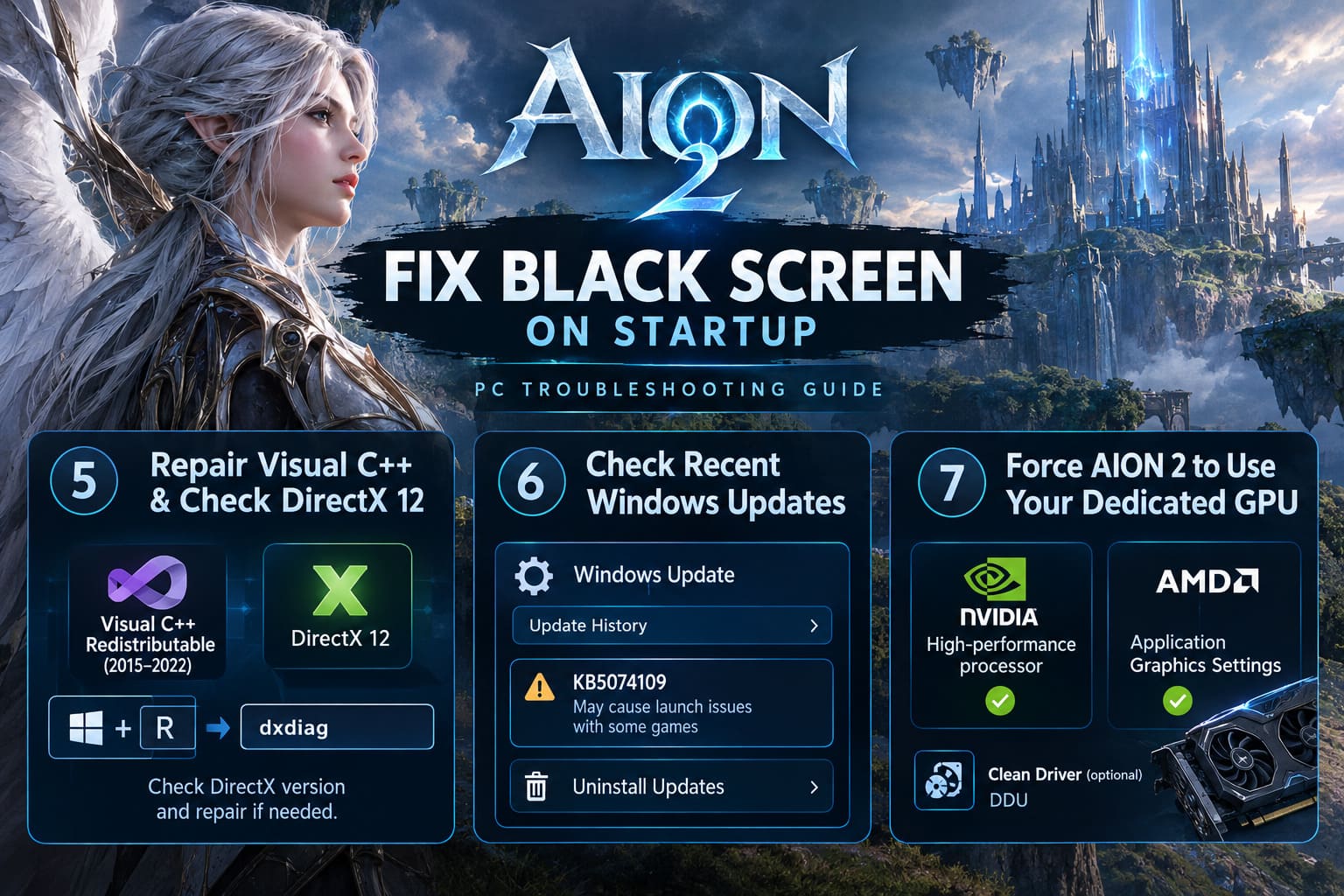
First, check your DirectX version.
Press Windows + R, type:
dxdiagand press Enter.
Look at the System tab and check the DirectX version.
If your Windows installation is missing required updates or components, bring Windows fully up to date before continuing.
You should also repair or reinstall the current Microsoft Visual C++ Redistributable packages for Visual Studio 2015–2022, including the x64 and x86 packages where appropriate.
If the installer gives you a Repair option, use it.
Then restart the PC.
One important warning: don’t go hunting through random DLL-download websites because a game error mentions a missing DLL. That’s a great way to turn one annoying problem into three much worse ones.
Get runtime components from Microsoft instead.
Fix 6: Check Recent Windows Updates
Windows updates can occasionally introduce compatibility problems with games, drivers, anti-cheat systems, and DRM components.
If AION 2 worked previously and suddenly stopped launching after a Windows update, check your update history.
Go to:
Settings → Windows Update → Update History
From there, review recently installed updates and look for anything installed around the moment the black-screen problem started.
A specific update, KB5074109, has been reported in some troubleshooting discussions as being associated with launch problems involving certain Unreal Engine-based games and DRM verification.
If that update is present and you have strong reason to believe the timing matches your problem, Windows provides an option to uninstall recent updates:
Update History → Uninstall Updates
Don’t blindly remove random security updates, though. Make sure you’re actually troubleshooting a matching issue before rolling anything back.
After uninstalling a problematic update, restart Windows and test AION 2 again.
Fix 7: Force AION 2 to Use Your Dedicated GPU
This one matters especially if you’re gaming on a laptop.
Many modern laptops have both integrated graphics and a dedicated NVIDIA or AMD GPU. Windows normally handles the switching automatically, but automatic doesn’t always mean flawless.
If AION 2 starts on the wrong graphics processor, you can end up with a black screen, terrible performance, or a client that fails during rendering initialization.
For NVIDIA systems, open NVIDIA Control Panel and go to:
Manage 3D Settings → Program Settings
Add Aion2.exe to the list and configure it to use the high-performance NVIDIA processor.
AMD users can configure the corresponding application graphics settings through AMD Software.
And don’t ignore your actual graphics driver.
If the driver has accumulated broken profiles or remnants from previous versions, a clean installation can help. Advanced users can use Display Driver Uninstaller (DDU) to remove the existing driver before installing a fresh version.
That’s a more aggressive step, so I’d save it for when the simpler fixes haven’t worked.
AION 2 Black Screen: My Troubleshooting Order
If I were sitting at my own gaming rig with AION 2 refusing to launch, I wouldn’t start with DDU or Windows updates.
I’d go from cheap and reversible to more involved:
- Kill Aion2.exe and PURPLE processes.
- Disable every overlay.
- Close RTSS, MSI Afterburner and monitoring tools.
- Run PURPLE’s file scan/repair.
- Repair Visual C++ and verify DirectX 12.
- Check recent Windows updates.
- Force AION 2 onto the dedicated GPU and clean-install drivers if necessary.
That order matters.
There’s no reason to nuke your graphics driver because Discord’s overlay was hooking into the client.
Extra Checks Before You Reinstall the Entire Game
Still staring at a black screen?
Run through these quick checks before reaching for the uninstall button.
- Run PURPLE as administrator and test again.
- Try running the game client with appropriate administrator permissions.
- Temporarily test with your antivirus or Windows Defender exclusions configured for the AION 2 installation folder.
- Disconnect unnecessary secondary monitors and unusual USB controllers for one launch attempt.
- If you’re playing from a region outside the game’s primary launch area, check whether your network connection is interfering with authentication.
- Restart the router if authentication appears to hang rather than the graphics window simply going black.
- Make sure both Windows and your GPU driver are current unless you’re specifically testing a known compatibility issue.
The goal is to reduce the number of things AION 2 has to deal with during its first few seconds of startup.
Aion 2 Fast Leveling Guide: Level 1 to 45 Speed Leveling and Max XP Methods (2026 Global Launch)
Final Thoughts
The AION 2 black screen on startup problem is frustrating because the game gives you almost nothing to work with. There’s no helpful crash dialog telling you exactly which component failed. You get a black window, a frozen client, or absolutely nothing after clicking Play.
That’s why troubleshooting needs to be systematic.
Start with the stupidly simple stuff: kill the stuck process, shut down overlays, close monitoring utilities. Then move toward file repair and Windows runtimes. Only after those steps should you start messing with drivers, GPU assignments, or Windows updates.
In my experience with PC gaming, the biggest mistake is changing five things at once. You might accidentally fix the problem, sure, but you’ll never know what actually caused it.
Change one variable.
Launch AION 2.
Check the result.
Then move to the next fix.
And when the NCSoft logo finally appears instead of a black rectangle, you’ll know you’ve beaten the real first boss: the PC launcher itself.