Best The Witcher 3 Remastered Steam Deck Optimized Settings (2026 Guide)
There is something especially satisfying about playing The Witcher 3: Wild Hunt Remastered on Steam Deck. A game this large was never designed around a handheld PC, yet once the right settings are in place, exploring Velen, riding through White Orchard, or wandering around Novigrad feels surprisingly natural.
The problem is getting there.
The default Steam Deck preset is a decent starting point, but I would not leave it untouched. The remastered version adds visual improvements that can put unnecessary pressure on the hardware, and some settings cost a lot more performance than they are worth on a handheld screen.
After spending time comparing different combinations of rendering APIs, frame caps, TDP limits, shadows, foliage, textures, and upscaling options, I found that the most important thing is not chasing the highest possible graphics preset. A stable frame rate with consistent frame pacing makes The Witcher 3 feel much better on Steam Deck.
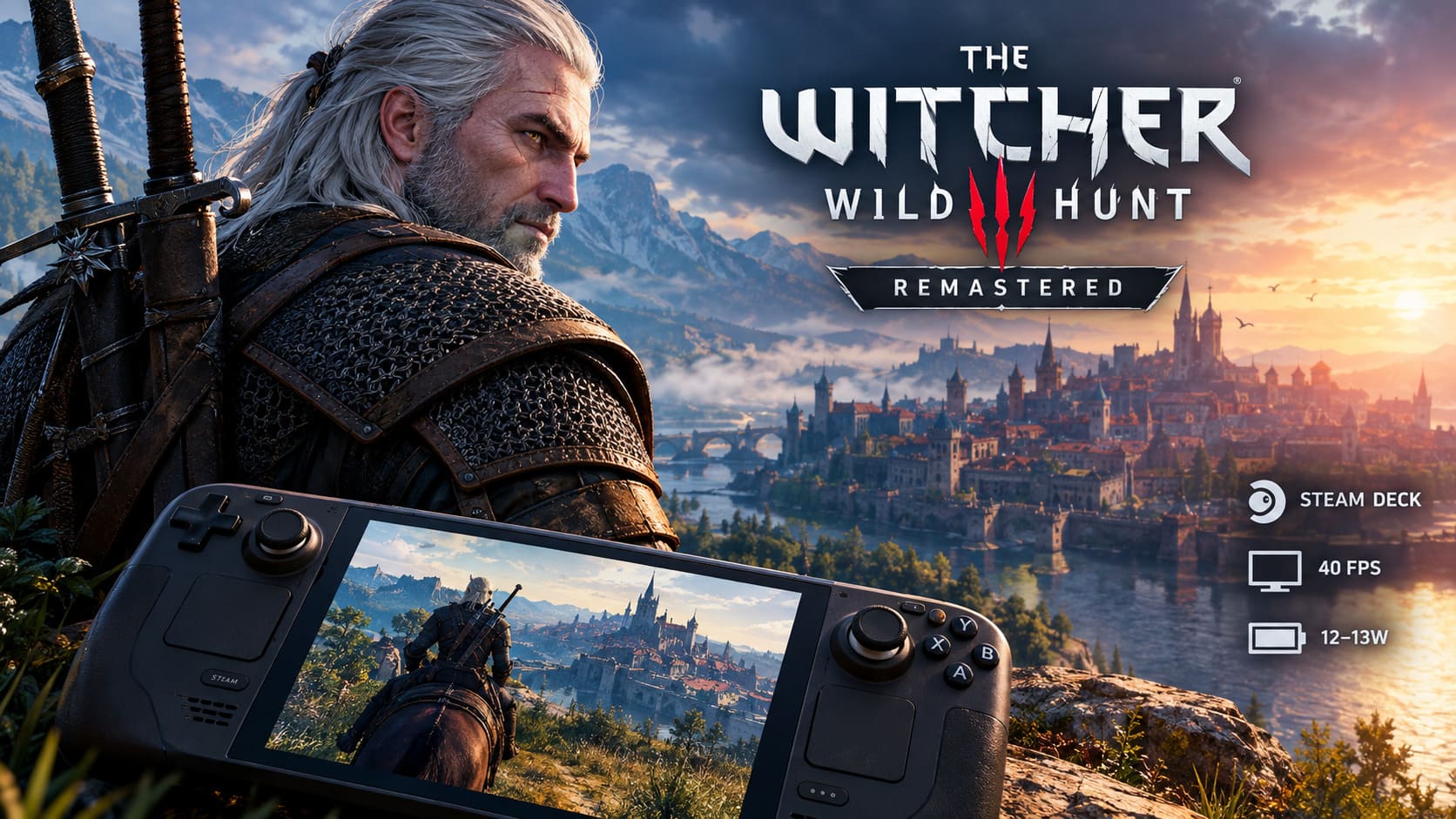
For most players, my preferred setup is a 40 FPS / 40Hz DirectX 11 configuration. It gives the game a noticeably smoother feel than 30 FPS without pushing the Deck as hard as an aggressive 60 FPS target.
If battery life is more important than visual quality, there is also a surprisingly usable 30 FPS low-power profile.
My Steam Deck Targets for The Witcher 3 Remastered
Before changing individual settings, it helps to decide what you actually want from the game.
| Profile | API | Target | TDP | Main Focus |
|---|---|---|---|---|
| Visual Supremacy | DX12 | 30 FPS | Up To 15W | Image Quality |
| Golden 40 | DX11 | 40 FPS | 12–13W | Balance |
| Travel Mode | DX11 | 30 FPS | 9–10W | Battery Life |
I would not treat these as rigid rules. The Steam Deck is flexible enough that you can move between profiles depending on where you are playing.
At home, with the charger nearby, I use the 40 FPS profile. On a long trip, I would rather have a locked 30 FPS and several extra hours of practical battery life than constantly fight for higher performance.
DirectX 11 vs DirectX 12: The Choice Matters More Than You Might Expect
One of the first decisions is the rendering API.
DirectX 11: My Pick for Everyday Steam Deck Play
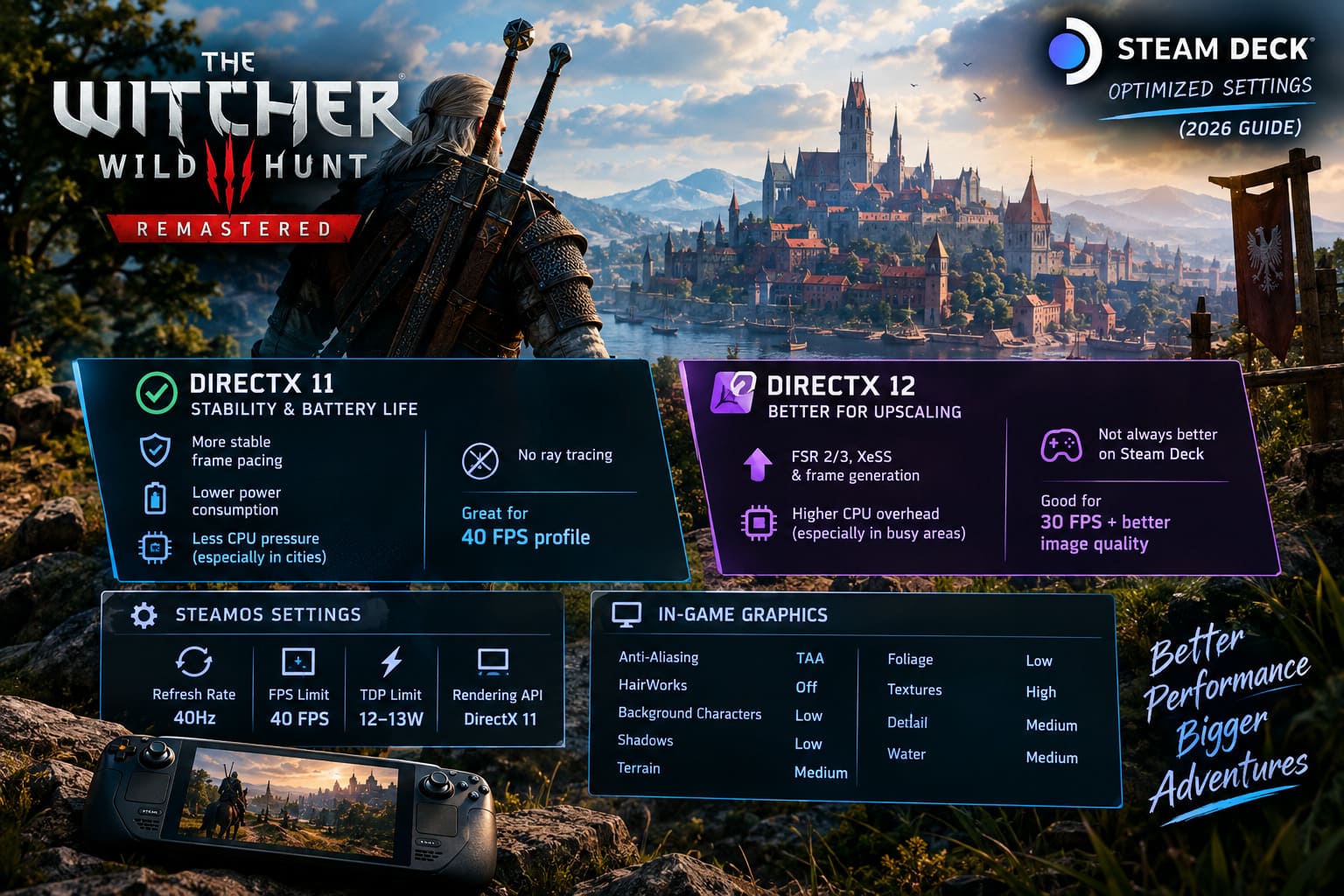
DirectX 11 is the easier recommendation if your priority is stability, consistent frame pacing, and lower power consumption.
The big advantage is that you are not trying to make the Steam Deck process every possible visual feature at once. Ray tracing is removed, while the game can still retain the important visual improvements and upgraded textures associated with the remastered release.
It also helps reduce CPU pressure in demanding areas.
This becomes particularly noticeable in places such as Novigrad, where the Deck has considerably more work to do than it does while Geralt is riding through an empty stretch of countryside.
For that reason, DX11 is the foundation of my 40 FPS and battery-focused profiles.
DirectX 12: Better When You Want Modern Upscaling
DirectX 12 becomes more interesting if you want to use technologies such as FSR 2/3, XeSS, or frame generation features.
The trade-off is additional CPU overhead, which can become more apparent in busy areas.
That does not make DX12 bad on Steam Deck. It simply means I would not automatically choose it because it is the newer API.
For a handheld, newer does not always mean better.
If I am aiming for a stable 40 FPS, DX11 makes more sense to me. If I am chasing image quality at a locked 30 FPS, DX12 with FSR 2 Quality is the profile I would use.
Best 40 FPS Steam Deck Settings for The Witcher 3 Remastered
This is the profile I would start with.
The 40Hz/40 FPS combination is one of the nicest compromises available on Steam Deck. It feels substantially more responsive than 30 FPS, while remaining realistic enough that the system does not have to run at maximum power constantly.
SteamOS Settings
- Refresh Rate: 40Hz
- FPS Limit: 40 FPS
- TDP Limit: 12–13W
- Rendering API: DirectX 11
In-Game Graphics
- Anti-Aliasing: TAA
- HairWorks: Off
- Background Characters: Low
- Shadows: Low
- Terrain: Medium
- Foliage: Low
- Textures: High
- Detail: Medium
- Water: Medium
The interesting part of this configuration is the texture setting.
I am perfectly happy leaving Texture Quality on High while cutting back on things such as shadows and foliage. On a Steam Deck-sized display, the difference between low and high texture quality can be more obvious than some of the other expensive settings.
Meanwhile, extremely high foliage or shadow settings can cost performance without giving you an equally meaningful improvement in the overall image.
That is the kind of compromise I prefer.
30 FPS Visual Profile: DX12 + FSR 2 Quality
If 40 FPS is not your priority and you would rather squeeze more visual quality out of the game, the second profile makes more sense.
This is essentially the “make The Witcher 3 look as good as possible without going completely overboard” setup.
SteamOS Configuration
- FPS Limit: 30 FPS
- Refresh Rate: 60Hz or 90Hz
- TDP: Unlocked, up to 15W
- API: DirectX 12
Recommended Graphics
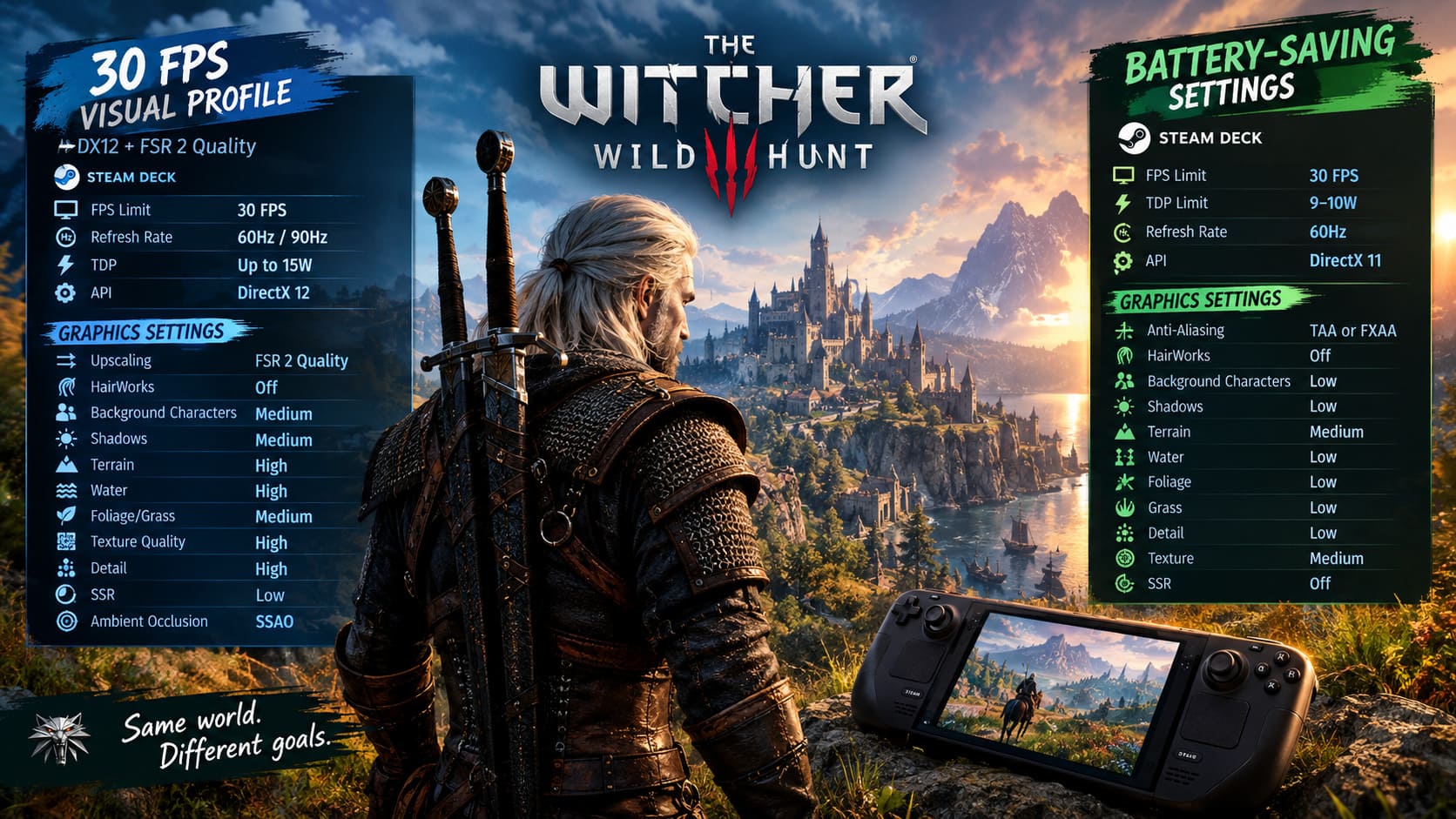
| Setting | Recommended Value |
|---|---|
| Upscaling | FSR 2 Quality |
| HairWorks | Off |
| Background Characters | Medium |
| Shadows | Medium |
| Terrain | High |
| Water | High |
| Foliage/Grass | Medium |
| Texture Quality | High |
| Detail | High |
| SSR | Low |
| Ambient Occlusion | SSAO |
This profile is less about raw responsiveness and more about preserving the atmosphere that makes The Witcher 3 special.
The world is full of small details, from dense vegetation to buildings and distant scenery. At 30 FPS, you can afford to spend some of your performance budget on those details.
FSR 2 Quality is particularly useful here because it gives DX12 some room to maintain the target without simply destroying image quality.
I still recommend keeping HairWorks disabled. On Steam Deck, I would rather spend that performance budget somewhere else.
Best Battery-Saving Settings for Steam Deck
This is the profile I would use when playing away from a charger.
The goal is simple: reduce power consumption without turning The Witcher 3 into an ugly low-resolution version of itself.
A 30 FPS target is much more realistic here than trying to maintain 40 FPS at a heavily reduced TDP.
SteamOS Settings
- FPS Limit: 30 FPS
- TDP Limit: 9–10W
- Refresh Rate: 60Hz
- API: DirectX 11
Graphics Settings
- Anti-Aliasing: TAA or FXAA
- HairWorks: Off
- Background Characters: Low
- Shadows: Low
- Terrain: Medium
- Water: Low
- Foliage: Low
- Grass: Low
- Detail: Low
- Texture: Medium
- SSR: Off
There is nothing glamorous about this profile, but that is not the point.
When you are on a train, plane, or sitting somewhere without access to a charger, battery life becomes part of the performance target.
I would rather have a consistent 30 FPS at 9–10W than repeatedly hit performance limits while trying to maintain a higher frame rate.
The Settings That Have the Biggest Performance Impact
Not every graphics option deserves the same amount of attention.
Some settings are cheap enough to leave alone, while others can quietly eat through your performance budget.
1. Turn Off HairWorks
HairWorks is one of the easiest settings to sacrifice.
Disabling it can avoid a substantial performance hit, with the source configuration estimating roughly a 20% to 35% performance penalty when enabled.
On a desktop with plenty of GPU headroom, that might be acceptable.
On Steam Deck, I do not think it is worth building the entire graphics configuration around.
Geralt’s hair looking slightly better is not going to compensate for inconsistent frame pacing.
2. Reduce Foliage Visibility
Foliage is another setting I would reduce early.
Going from High to Medium or Low can reclaim several frames per second, depending on the location.
The important thing is that you are not removing all environmental detail. You are simply reducing how aggressively the game tries to maintain distant vegetation.
For the 40 FPS profile, Low foliage is a reasonable trade.
3. Keep Textures Higher Than You Might Expect
This is one of my favorite Steam Deck optimization tricks in general: do not assume every setting needs to be Low.
With the UMA Frame Buffer configured to 4GB in the BIOS, High textures can work well in this configuration.
Textures are also one of the visual settings I notice more readily than some reductions in shadows or background detail.
So rather than running everything on Low, I prefer to keep textures high and cut settings that have a larger impact on performance.
4. Background Characters
Novigrad is where this setting becomes particularly important.
More background characters mean more work for the CPU, and the Steam Deck does not have an unlimited CPU budget.
For that reason, Low or Medium background characters makes much more sense than trying to max them out.
You will still have a populated city. The game simply does not need to simulate as many background NPCs at maximum density.
LCD vs Steam Deck OLED
The basic profiles work across both Steam Deck LCD and OLED models, but the OLED model gives you a little more flexibility when experimenting with power limits and refresh rates.
The important thing is not to assume that OLED automatically means you should push the graphics settings higher.
The display can make the game look better, but the underlying hardware still has limits.
For both models, I would start with the same philosophy:
- 40 FPS for balanced handheld play
- 30 FPS for heavier visual settings
- 30 FPS at 9–10W for travel
- Keep HairWorks disabled
- Reduce foliage and shadows before sacrificing texture quality
- Use DX11 when frame pacing and power efficiency matter most
The OLED display makes lower frame rates feel pleasant enough that a locked 30 FPS can still be a perfectly good experience.
Why I Prefer 40 FPS Over Chasing 60 FPS
This is probably the biggest takeaway from my testing.
It is tempting to look at The Witcher 3 and think, “If I lower enough settings, maybe I can get 60 FPS.”
Technically, you can keep cutting things.
But there is a point where you are spending too much of the game’s visual identity just to hit a number.
40 FPS at 40Hz is the sweet spot I would personally choose.
It gives Geralt’s movement, combat, camera controls, and general exploration a smoother feel than 30 FPS, while still leaving enough performance headroom to maintain the game’s atmosphere.
More importantly, it feels like a deliberate configuration rather than a desperate attempt to make the Steam Deck behave like a desktop gaming PC.
The Witcher 3 Remastered White Orchard Complete Map Guide: All Places of Power & Guarded Treasures
My Final Steam Deck Recommendation
If you only want one setup and do not want to constantly change settings, start here:
| Option | My Setting |
|---|---|
| API | DirectX 11 |
| FPS | 40 |
| Refresh Rate | 40Hz |
| TDP | 12–13W |
| Anti-Aliasing | TAA |
| HairWorks | Off |
| Background Characters | Low |
| Shadows | Low |
| Terrain | Medium |
| Foliage | Low |
| Textures | High |
| Detail | Medium |
| Water | Medium |
This configuration gives you a strong balance between image quality, responsiveness, and power consumption.
If you want better visuals, move to DX12, enable FSR 2 Quality, and lock the game to 30 FPS.
If you are travelling, lower the TDP to 9–10W and use the battery profile instead.
The most important thing is not finding one mythical “best” setting. The Witcher 3 is too demanding and too variable for that. The right Steam Deck configuration depends on whether you value smoothness, visuals, or battery life on that particular day.
For me, the answer is usually the same: DX11, 40Hz, 40 FPS, 12–13W, High textures, and aggressively reduced shadows and foliage.
It keeps The Witcher 3 looking like The Witcher 3 without asking the Steam Deck to perform miracles.