How to Fix The Witcher 3 Remastered Cross Save & Cloud Sync Errors (2026 Guide)
If there is one thing that can instantly kill the mood in The Witcher 3: Wild Hunt Remastered, it is booting up another device expecting to continue your latest save and discovering that the game apparently decided your progress never existed.
The cross-progression system is supposed to make switching between PC, PlayStation 5, Xbox Series X/S, Steam Deck, ASUS ROG Ally, and other supported platforms painless. In practice, cloud synchronization can occasionally become a mess. Saves disappear, the cloud icon refuses to show up, Steam gets stuck syncing forever, or the game insists that your account is connected while quietly failing to upload anything.
I have spent enough time troubleshooting PC and handheld game saves to know that the worst approach is randomly deleting folders and hoping for the best. Back up your saves first, identify where the sync chain is breaking, and then fix that specific layer.
This guide covers the major The Witcher 3 Remastered cross-save and cloud synchronization problems reported around the PC and console ecosystem in 2026, including account authentication, REDlauncher, Steam Cloud, DLC mismatches, and network-related failures.
The Witcher 3 Cross-Progression: Where Things Can Go Wrong
Cross-progression is not simply “save file goes to cloud.” There are several services involved, and a failure anywhere along the chain can leave you with an outdated save on another device.
A simplified version looks like this:
Local Save → CD PROJEKT RED Account → Cross-Progression Cloud → Platform Cloud → Destination Device
That means you can have a perfectly healthy local save while the cross-save version is outdated or missing entirely.
The most common problems fall into five categories:
| Problem | Typical Symptom | What Usually Needs Attention |
|---|---|---|
| Account Authentication | Cross-saves stop appearing | Reconnect CD PROJEKT RED account |
| REDlauncher | PC saves don’t reach cross-progression | Restore launcher connection |
| Steam Cloud | “Unable to Sync” message | Rebuild local Steam Cloud data |
| Edition/DLC Mismatch | Save refuses to load | Match installed content |
| Network Problems | My Rewards or cloud connection fails | Test router, DNS, or connection |
The important part is not to assume your save is corrupted just because another device cannot see it. Very often, the original save is completely fine.
Fix 1: Re-Authenticate Your CD PROJEKT RED Account
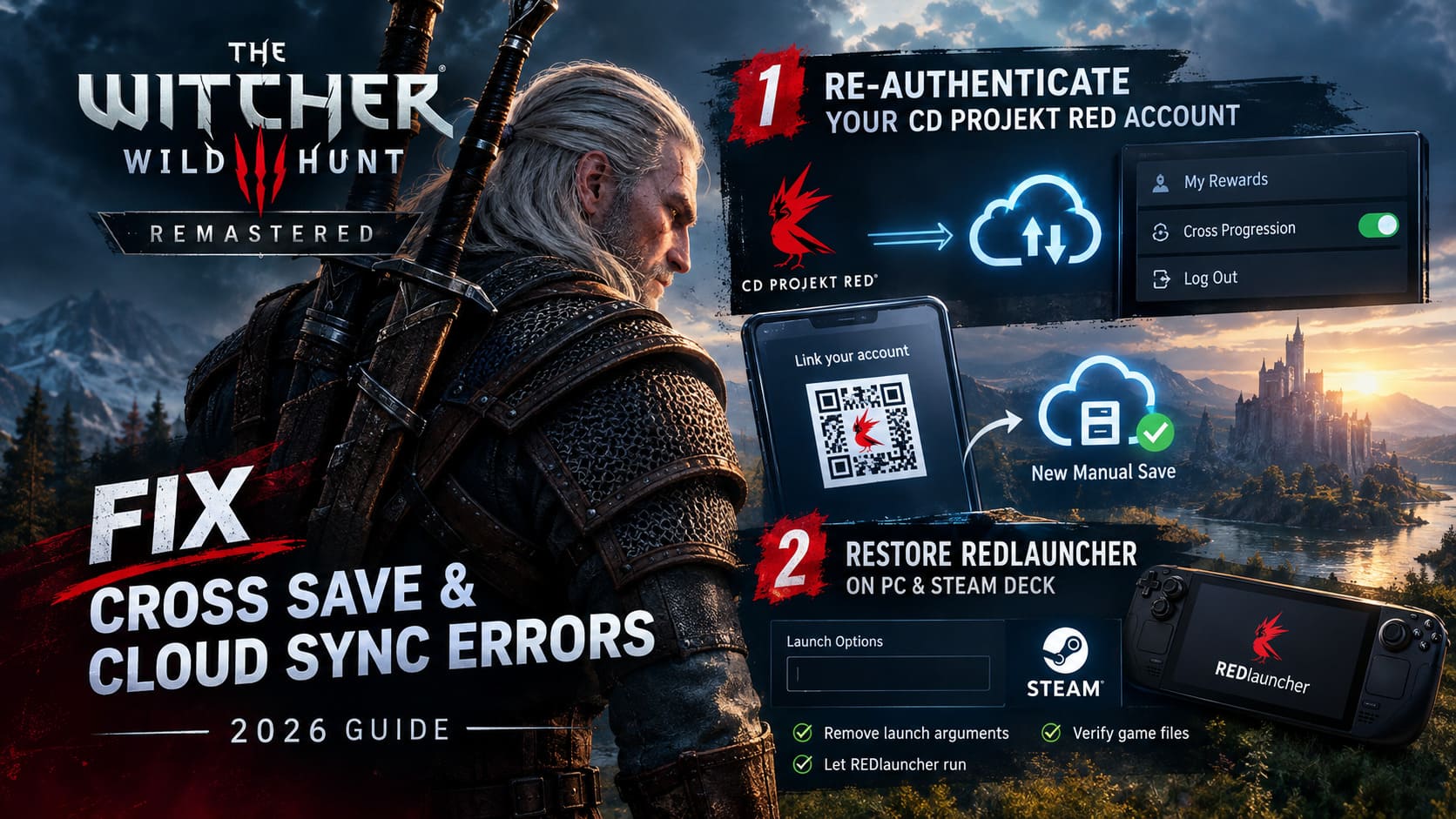
This is the first thing I would check because it is quick, safe, and can solve cross-progression problems without touching your save files.
The game can appear to recognize your profile even when the underlying account connection needs to be refreshed. If the My Rewards section is throwing a network error or your latest saves never receive the cloud indicator, reconnecting the account is worth trying before you start messing with Steam folders.
How to Reconnect Your Account
- Start The Witcher 3 Remastered on the device containing your newest saves.
- Open the My Rewards section from the main menu or pause menu.
- Look for the option to log out or disconnect your account.
- Fully close and restart the game.
- Return to My Rewards.
- Follow the QR code or URL shown by the game.
- Log into your CD PROJEKT RED/GOG account and authorize the connection.
- Open Options → Gameplay and make sure Cross Progression is enabled.
- Load your game and create a new manual save.
- Wait a little before closing the game and check whether the cloud indicator appears.
Do the same on the destination platform if necessary.
Do not skip the fresh manual save. It gives the system a new piece of data to synchronize, which makes it much easier to tell whether the account reconnection actually fixed the problem.
Fix 2: Stop Skipping REDlauncher on PC and Steam Deck
This is one of those PC tweaks that looks completely harmless until you actually need cross-progression.
A lot of PC players use launch arguments such as --launcher-skip because, honestly, waiting through another launcher before playing an RPG you’ve already bought gets old fast. On a normal day, skipping an extra startup screen can feel like a harmless quality-of-life improvement.
When troubleshooting cross-save functionality, however, put the launcher back first.
Restore REDlauncher
- Open your Steam Library.
- Right-click The Witcher 3: Wild Hunt.
- Select Properties.
- Check the General tab.
- Look at the Launch Options field.
- Remove arguments such as
--launcher-skipor other launcher-bypass commands. - Leave the field empty.
- Open Installed Files.
- Select Verify integrity of game files.
- Start The Witcher 3 normally through Steam.
- Allow REDlauncher to appear.
- Sign into your CD PROJEKT RED account.
- Start the game and create a new save.
This is particularly relevant on Steam Deck and other handheld PCs, where users frequently optimize startup behavior and remove launchers wherever possible.
For troubleshooting, don’t optimize yet. Get the complete authentication chain working first.
Fix 3: Repair Steam Cloud Conflicts Without Losing Your Saves
If Steam is displaying “Steam Was Unable to Sync Your Files”, don’t immediately choose random cloud options until you understand which version of your save is actually correct.
The safest approach is to make a backup before touching Steam’s userdata directory.
Your local Witcher 3 saves are normally found around:
C:\Users\YourUsername\Documents\The Witcher 3\
Look for the gamesaves folder and copy it somewhere safe.
I would literally put it on the desktop or another drive before proceeding. Five minutes of backup work is infinitely better than discovering that a cloud conflict just deleted the save containing your last 30 hours.
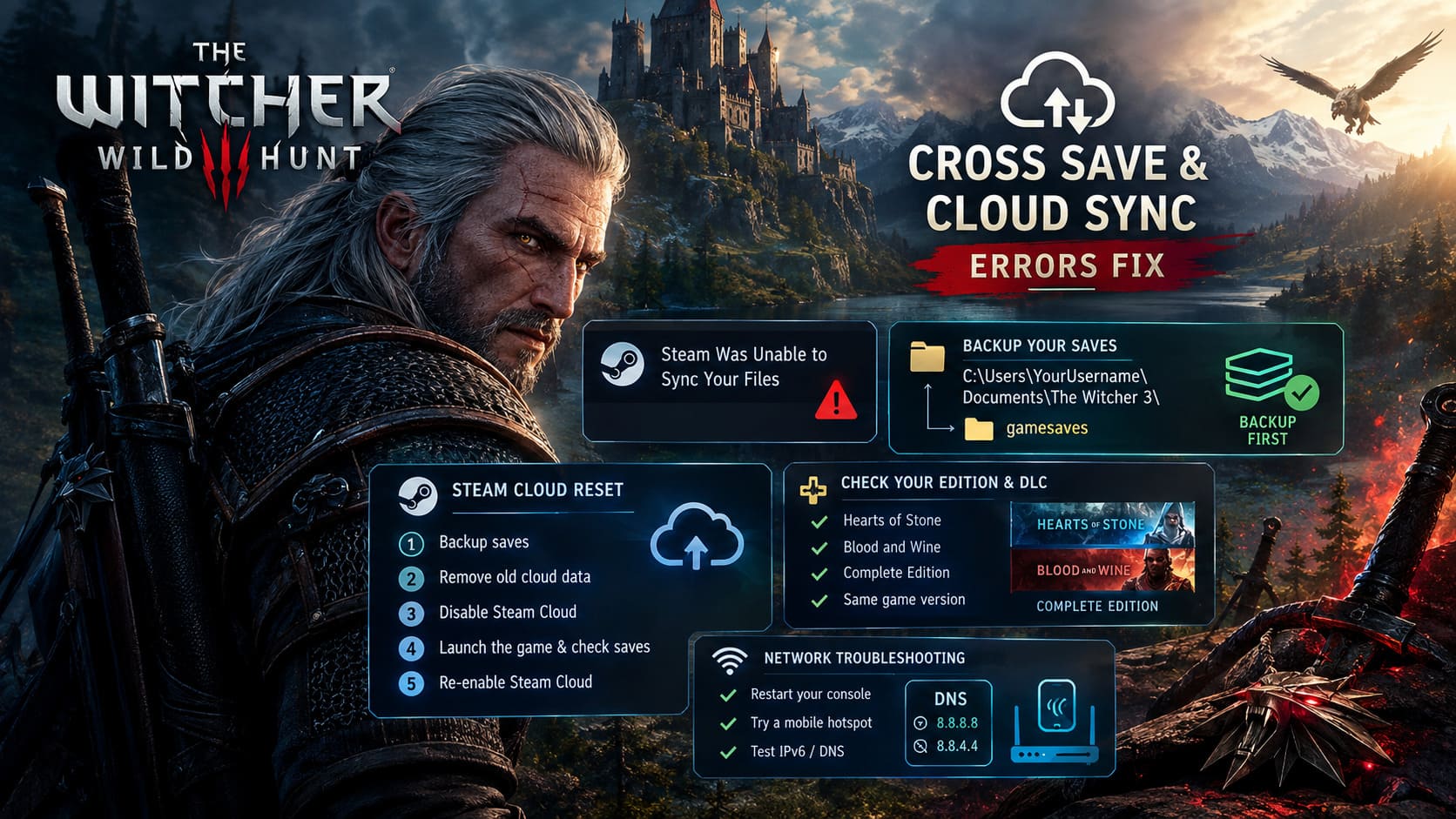
Rebuild the Steam Cloud Data
- Close The Witcher 3 completely.
- Exit Steam itself.
- Back up your gamesaves folder.
- Open your Steam userdata directory.
- Find the Witcher 3 application folder, commonly associated with Steam App ID 292030.
- Remove the problematic local Steam Cloud data after confirming your backup exists.
- Restart Steam.
- Open The Witcher 3’s Properties.
- Temporarily disable Steam Cloud synchronization.
- Launch the game.
- Confirm that your correct local save is visible.
- Load it and create a fresh manual save.
- Exit the game normally.
- Return to Steam Properties.
- Enable Steam Cloud again.
- Allow Steam time to compare and upload the newer local data.
The key here is controlling the direction of synchronization. You don’t want an old cloud copy winning a race against the save you actually wanted to keep.
Never delete local saves before creating a backup.
Fix 4: Check Your Witcher 3 Edition and DLC
Another easy trap is assuming that every installation of The Witcher 3 is identical.
It isn’t.
A save created with Hearts of Stone and Blood and Wine installed can create problems when the destination system does not have the required content available. The same applies when one platform is running the Complete Edition while another installation only has the base game.
Before blaming the cloud service, compare the installations.
Check These Items
- Make sure both platforms are running compatible game versions.
- Confirm that Hearts of Stone is installed where required.
- Confirm that Blood and Wine is installed where required.
- Check whether the Complete Edition is being used on one device while another uses the base game.
- Verify that available free DLC and add-on content is installed correctly.
- On consoles, check the game’s storage/add-on management screen.
Free content such as alternative character appearances, armor sets, and other downloadable additions can also create confusing differences between installations.
The important distinction is this: a missing save does not automatically mean the cloud copy vanished. Sometimes the game simply cannot use the content associated with that save.
Fix 5: Troubleshoot the Network Connection
If the game is online but My Rewards cannot connect, cloud synchronization fails repeatedly, or your console constantly reports that it cannot reach the internet, start testing the network rather than repeatedly reinstalling the game.
First, completely shut down the affected console instead of leaving it in Rest or Standby mode. Disconnect its power for roughly 30 seconds, reconnect it, and boot it again.
If the problem continues, your router becomes the next suspect.
Test IPv6 and DNS
Some players may encounter connectivity problems related to how their home network handles IPv6 or DNS resolution. As a troubleshooting step, you can temporarily test the connection with IPv6 disabled on your router.
Another useful test is switching to a mobile hotspot.
This is one of my favorite diagnostic tricks because it quickly separates “the game is broken” from “my home network is doing something weird.”
Connect the affected PC or console to your phone’s hotspot and test the cross-save system again.
If synchronization suddenly works, the problem may be somewhere between your home router, DNS configuration, and ISP routing.
For DNS testing, Google’s public DNS addresses are:
- Primary: 8.8.8.8
- Secondary: 8.8.4.4
Treat this as a troubleshooting step, not a guaranteed Witcher 3 fix. If your hotspot produces exactly the same failure, changing DNS probably isn’t going to magically repair the game.
The “No Cloud Icon” Problem
The missing cloud icon deserves special attention because it is one of the easiest symptoms to misunderstand.
If your latest manual save exists locally but has no cloud indicator, don’t immediately delete anything.
Instead:
- Re-authenticate your CD PROJEKT RED account.
- Confirm Cross Progression is enabled.
- Restore REDlauncher if you previously bypassed it.
- Create a fresh manual save.
- Wait before exiting.
- Check the save again.
- Test the destination platform afterward.
The goal is to create a clean new synchronization event rather than trying to force an old save to upload repeatedly.
Best The Witcher 3 Remastered Steam Deck Optimized Settings (2026 Guide)
How to Avoid Cross-Save Problems in the Future
Once everything works again, there are a few habits that make switching between devices much less stressful.
Give the cloud time to upload. Don’t save the game and immediately shut down the console, close the laptop, or put your Steam Deck to sleep. Give synchronization some time to finish.
Create a manual save before changing platforms. Autosaves are useful, but when moving between devices I prefer a deliberate manual save that I know is the newest file.
Check the cloud indicator before switching. Open the Load Game screen and confirm that the latest save has synchronized before launching the game elsewhere.
Keep backups of important saves. Especially if you’re hundreds of hours into a Geralt playthrough. Cloud storage is convenient, but it should not be your only copy of something you care about.
Don’t change five variables at once. If you disable Steam Cloud, delete userdata, change DNS, reinstall the game, and reconnect your account simultaneously, you won’t know which fix actually worked.
Final Checklist for The Witcher 3 Cross-Save Errors
Before doing anything destructive, run through this list:
- CD PROJEKT RED account: Log out and reconnect it.
- Cross Progression: Confirm it is enabled.
- REDlauncher: Remove launcher-skip arguments on PC.
- Local saves: Back up the
gamesavesfolder. - Steam Cloud: Rebuild synchronization if Steam reports a conflict.
- Game editions: Match the base game and expansions between platforms.
- Network: Test another connection if My Rewards cannot connect.
- DNS: Try alternative DNS only when network routing appears to be involved.
- Fresh save: Create a new manual save after every major account or cloud repair.
- Cloud status: Verify synchronization before moving to another device.
The frustrating part about The Witcher 3 Remastered cloud sync errors is that the game can give you very little information about which part of the chain has failed. You can be logged in, connected to the internet, and staring at a perfectly healthy local save while the cross-progression system quietly refuses to move it anywhere.
The good news is that most troubleshooting doesn’t require nuking your installation.
Start with the account connection, restore REDlauncher if you’ve bypassed it, protect your local saves, then investigate Steam Cloud, DLC compatibility, and network routing. Don’t start deleting save folders before you know which copy is the good one.
For a game where a single save can represent dozens or even hundreds of hours, that little bit of caution is absolutely worth it.